
Migrating large sites can be challenging depending on your internet connection speed and the volume of data involved, so here are some general solutions.
Since we recommend and support using the All-in-One WP Migration and Backup (AIO) plugin for migrating to Shifter, the following tips assume you’ll be migrating your site using AIO.
Issues Caused by Excessive Backups
One reason backup files may become large is the impact of other backup plugins, such as UpdraftPlus or Duplicator. Since the backup files created by these plugins are also included in the AIO backup file, your backup may be larger than necessary.
Solution
Check your site for any backup plugins other than the recommended AIO.Also, check the `wp-content` or `uploads` directories for any backup files created by plugins that have been deleted. You can reduce the file size by deleting unnecessary files before exporting.
Issues Caused by Version Control Systems (VCS) or Dependent Folders
Including folders created by themes or plugins that use package managers (such as NPM) or version control systems (such as Git or SVN) can increase the size of your backup files.
For example, using Git for theme development creates a .git folder in the project’s root directory. You can exclude these folders from your backup files.
Solution
Use the All-in-One WP Migration and BackupFolder Excluder plugin to exclude unnecessary folders from your AIO export. This plugin is available in the WordPress plugin directory and provides a GUI and functionality to exclude specific folders or file patterns from your backup.
Timeouts and Issues with Slow Internet Connections
Please note that when importing data using AIO, if you close your browser or tab, WordPress may detect that you are not actively interacting with the site and time out.
What to Do If the Upload Doesn’t Complete in Time Due to a Slow Internet Connection
Using the AIO URL Extension, you can import the backup file into a new site directly from its public link without having to download the backup file and re-upload it to WordPress.
Alternatively, after uploading the backup file to a service such as Amazon S3 or Dropbox, copy the public link to the backup file from that service, paste it into the AIO URL Extension, and import the site directly.
Tips for Using the AIO URL Extension
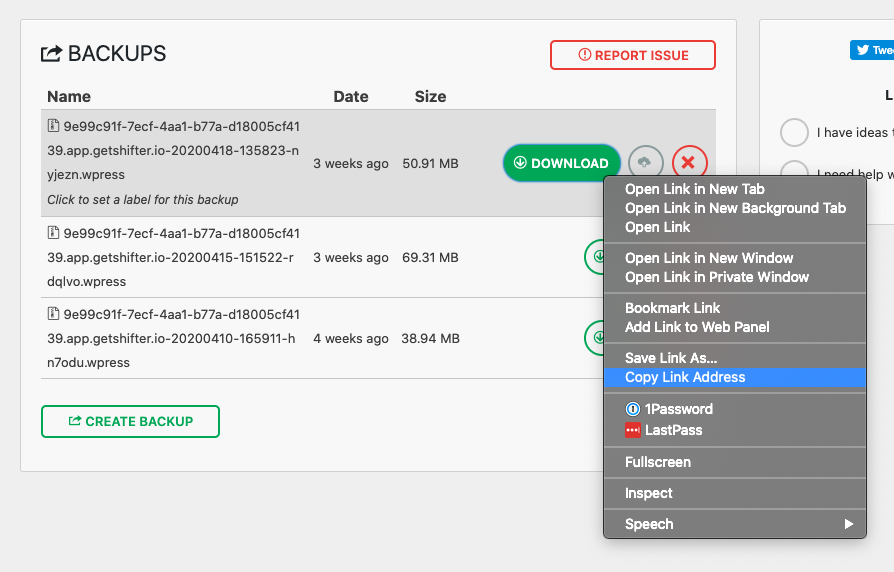
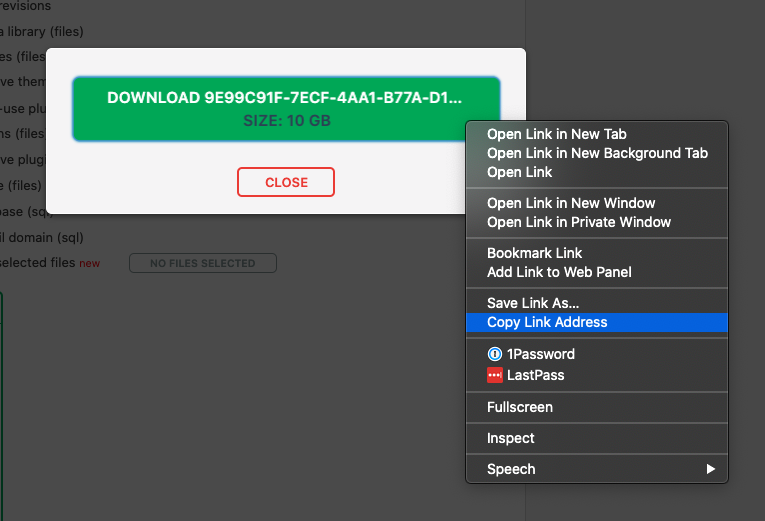
To obtain a backup link from AIO, right-click the download button on the backup page or do so immediately after the export file is created. Below are examples of each.
Example from the backup page
Example immediately after the export file is created
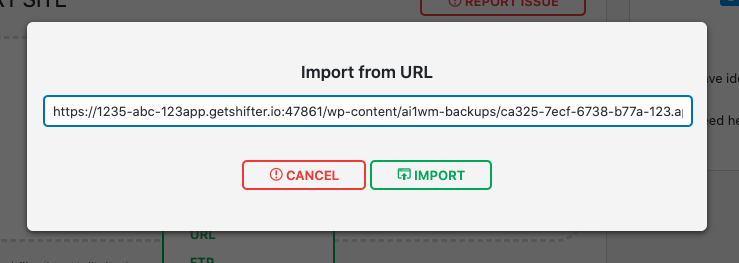
Next, install the URL extension on your new Shifter site, paste the URL into the import form, and click “IMPORT.”
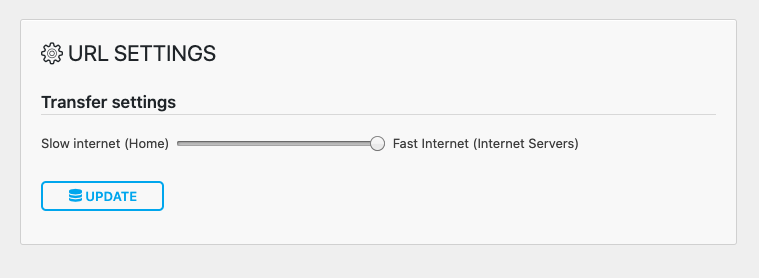
You can also adjust the plugin’s speed before starting the import.
By default, the limit is set low to minimize network bandwidth usage, but you can adjust the speed to the maximum when transferring data from server to server.
That concludes our overview of general solutions for issues related to migrating large-scale sites.