
Shifter automatically updates WordPress, significantly reducing the burden of WordPress maintenance.
WordPress is constantly being actively developed to improve security and performance and add useful features, so users need to install regular updates to incorporate these changes. Using the latest version helps maintain your website’s performance and reliability.
The Difference Between Major and Minor Updates
WordPress updates are categorized as major or minor, and the differences between them are as follows.
- Major Updates (e.g., 5.1, 5.4, 6.0, 6.1, etc.)
These releases involve major changes, such as the addition of new features or modifications to functions used in the program. - Minor Updates (e.g., 5.1.3, 6.1.21, etc.)
These releases are not intended to add new features like major updates, but rather to fix bugs and improve security.
You can view WordPress release information on the following page:
https://ja.wordpress.org/download/releases/
Shifter’s Update Policy
- WordPress updates are applied to all sites. Customers cannot specify a particular version or maintain a previous version.
- Minor Updates: If a release includes particularly urgent updates, such as security patches, we will apply the update almost simultaneously with the announcement on the Shifter dashboard.
- Major Updates: As a general rule, we will post a notice on the dashboard at least 3 days in advance. However, if a release contains critical security fixes, the notice period may be shorter.
Additionally, since a corrective minor update may be released immediately after a major update, we may wait for these updates before applying the update.
Scope of Verification During Updates Performed by Shifter
- Shifter verifies that the new version of WordPress core runs on the Shifter system without issues such as PHP errors.
- Items that customers can add or configure themselves—such as plugins, themes, and third-party products—are not covered by our verification or support. If you encounter any issues, have any concerns, or have questions after the update, please contact the respective provider.
Tasks for Customers Before and After a WordPress Update
Since theme and plugin updates are not automatic, you must perform them manually.
Tasks to Perform Before a WordPress Update
- Verify that your theme is compatible with the latest version of WordPress and update it if necessary.
- Verify that your plugins are compatible with the latest version of WordPress and update them if necessary.
Tasks to Perform After the WordPress Update
- Upgrade the database
- Update plugins and themes (if not already done)
- If PHP errors occur, correct them (please consult the plugin or theme developer)
- To check for PHP errors, see: How to Check the PHP Error Log Please refer to the documentation
Database Upgrade Procedure
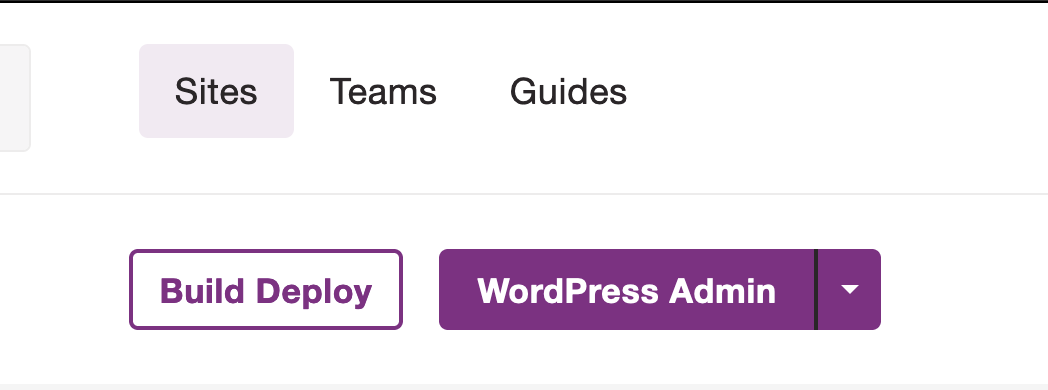
1. Click [WordPress Admin] to launch WordPress.
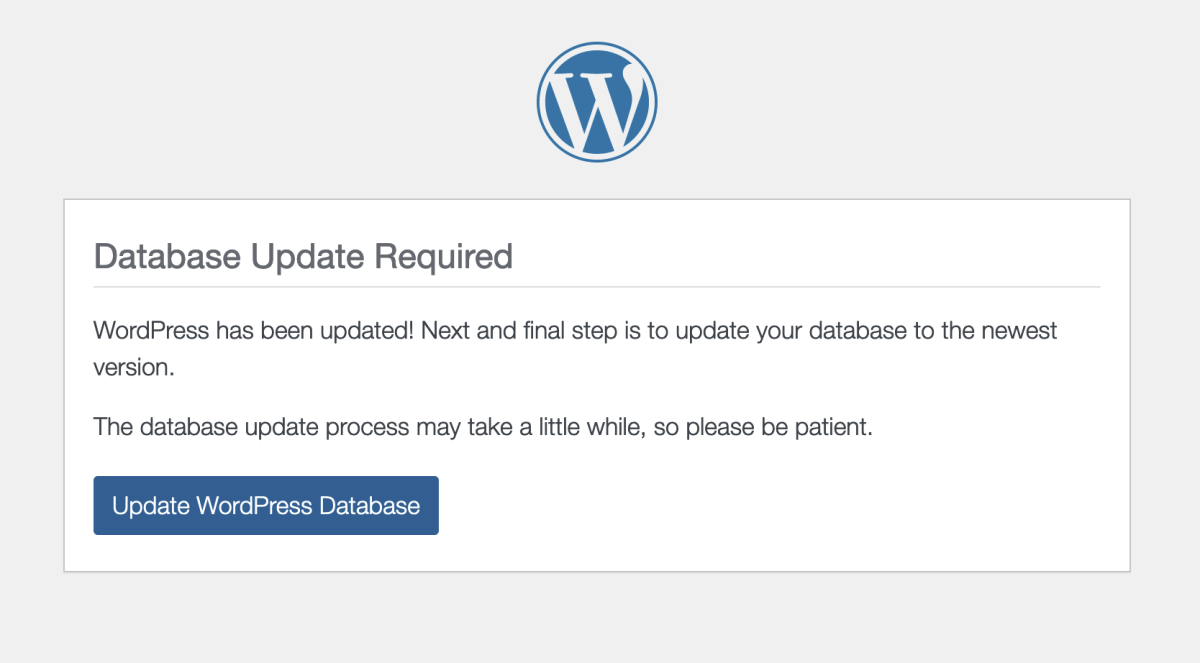
2. Click [Update WordPress Database].
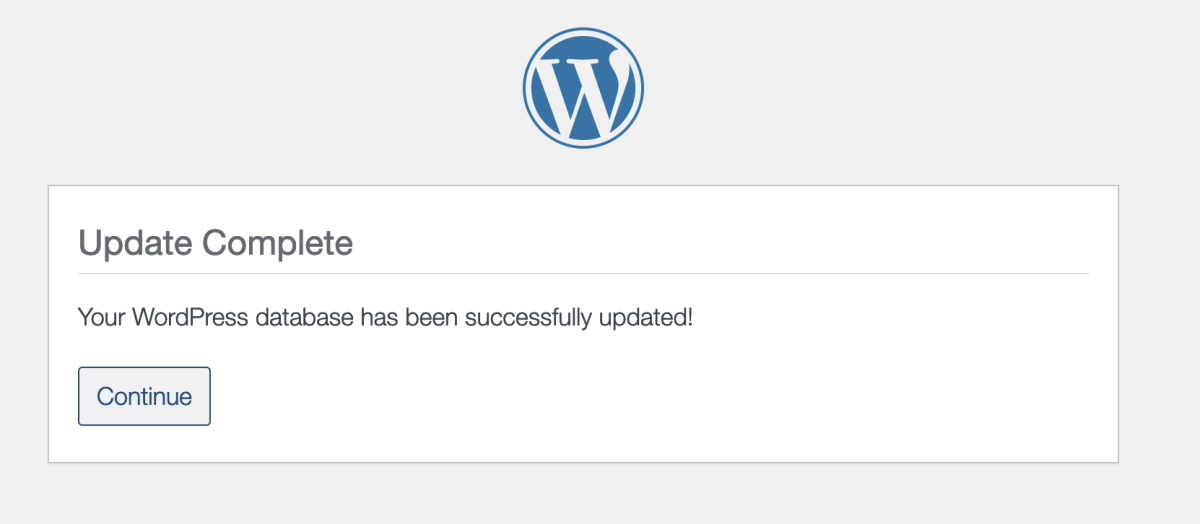
3. Click [Continue].
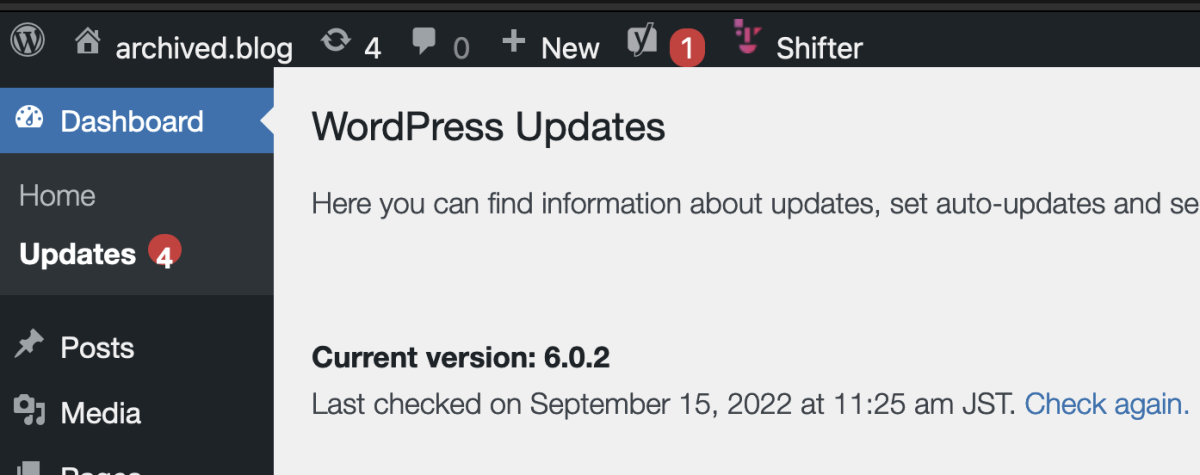
4. Verify that you are logged into the latest WordPress dashboard.
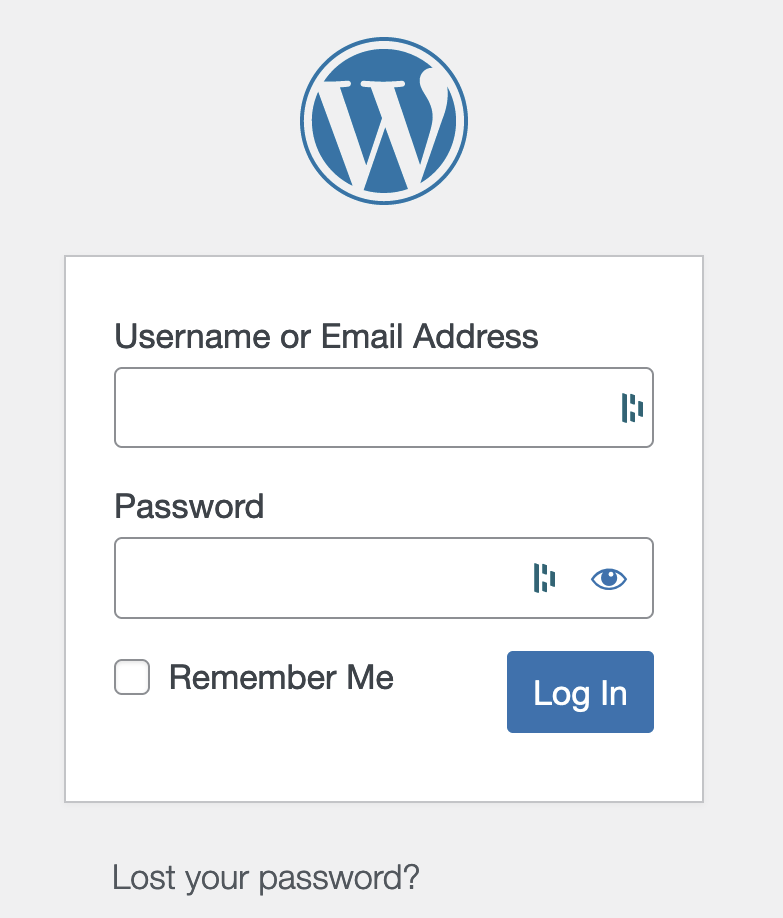
If the WordPress login screen appears
Since Shifter uses a magic link to log in, login credentials are not normally required. Without entering any information, return to the Shifter dashboard and follow the steps below.
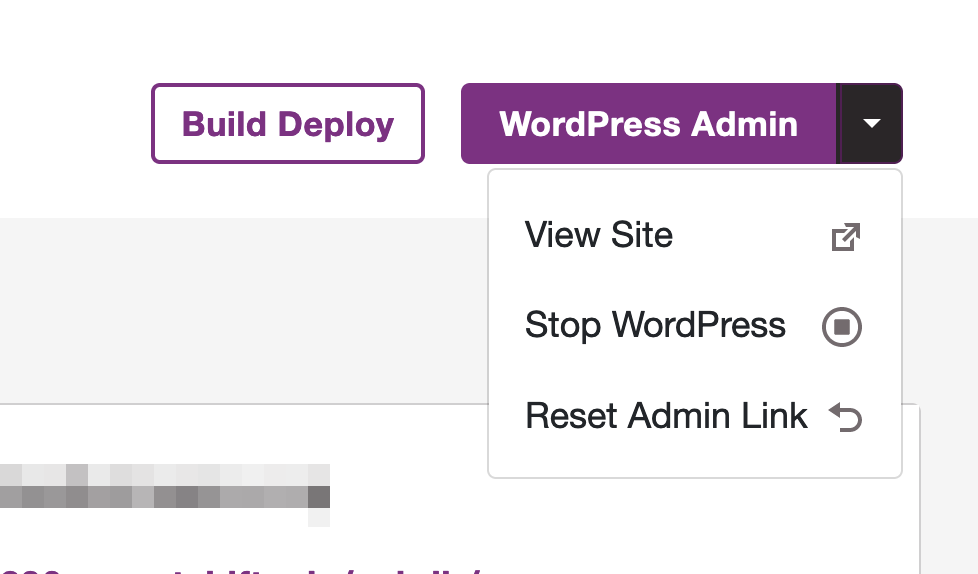
1. Click [Reset Admin Link] from the [WordPress Admin] drop-down menu to regenerate the URL.
2. Click [WordPress Admin] again.
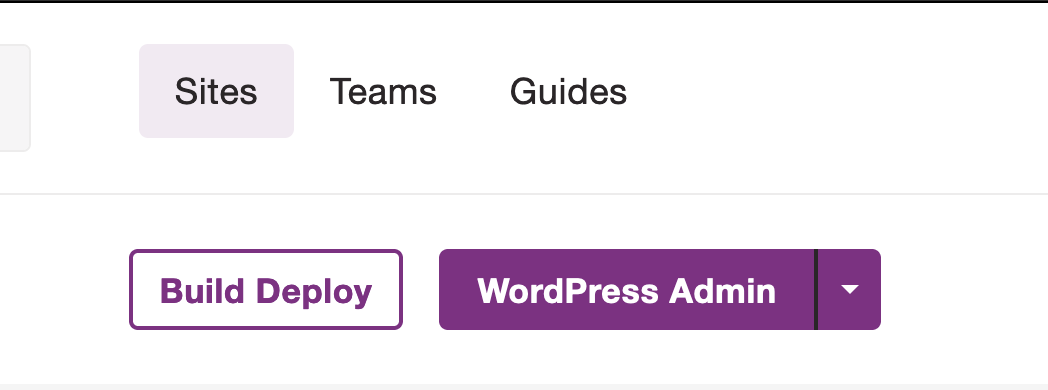
3. Verify that you are logged into the latest WordPress dashboard.
That concludes the instructions for updating WordPress.