
Requirements:
- Requirements:
- Freshdesk account Freshdesk widget code
- Freshdesk WordPress plugin
Table of contents:
- Launch WordPress and add the copied code snippet (#Launch WordPress and add the copied code snippet)
- Starting WordPress and adding the copied code snippet
- Generating and deploying an artifact
Create a Freshworks account and get the widget code
- Go to Widgets
- Create a Freshworks account and retrieve the widget code
- Go to Widgets
- Click [Create New Widget] Give it a name A preview will appear;
- click Click the [Embed Code] menu, then click the [Copy] button
Launch WordPress and add the copied code snippet
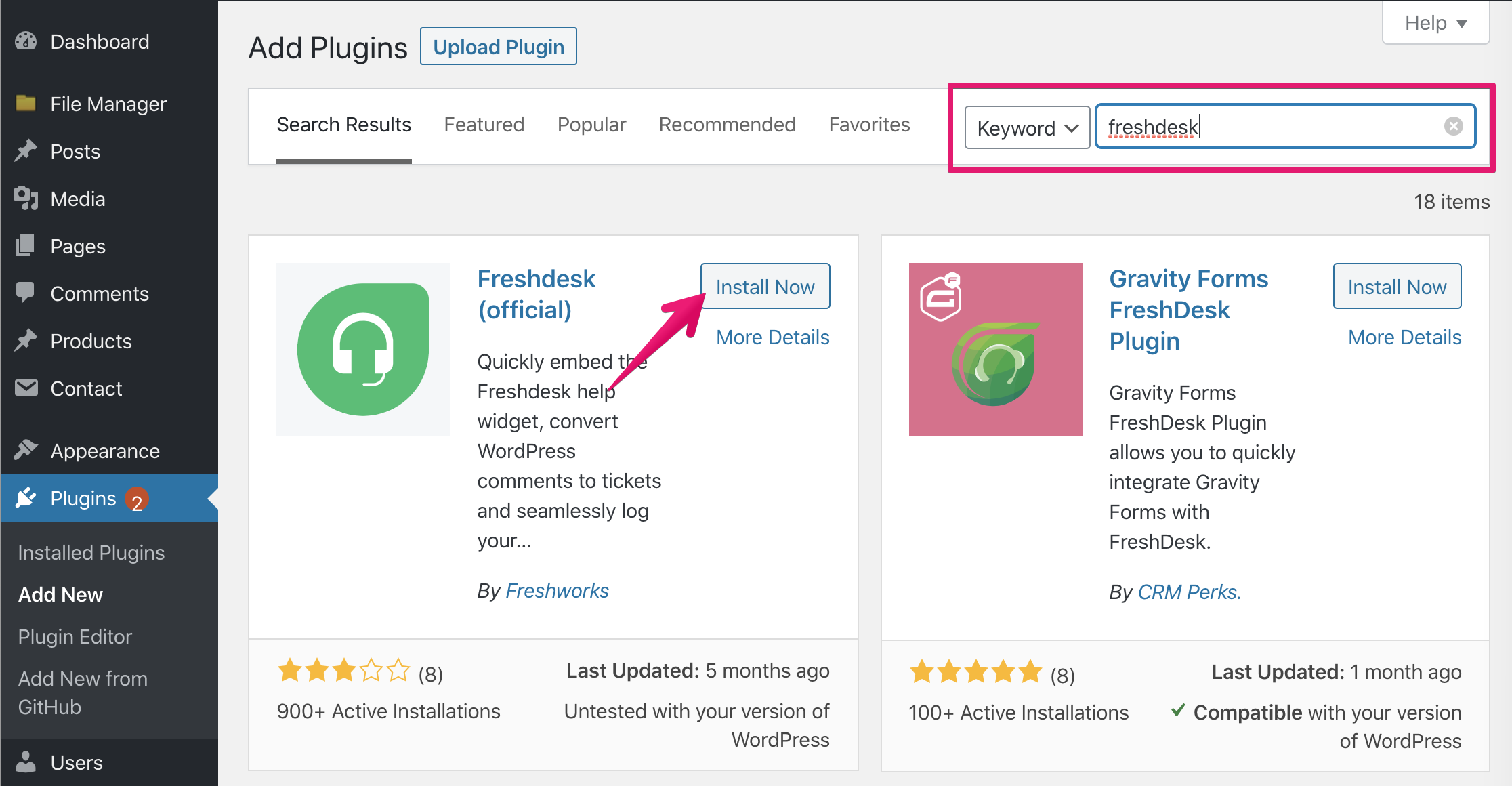
Search for and install the Freshdesk plugin
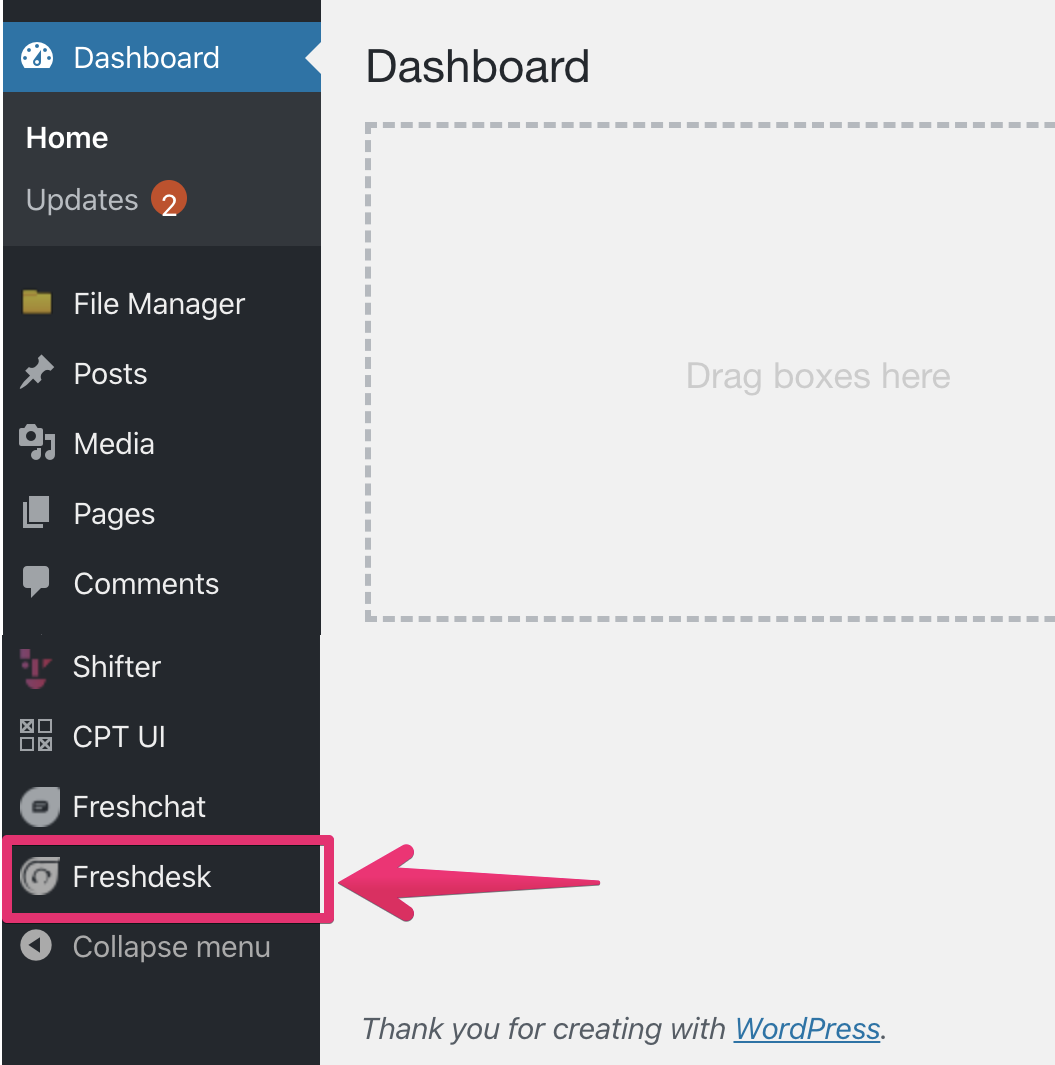
Go to the [Freshdesk] menu
Update the Freshdesk plugin settings
- Check the box for [Display the Help Widget on this WordPress site]
- Paste the copied widget code into the text area “`html
“`html