
Prerequisites
- WordPress must be running, and you must be able to log in. Please refer to the support documentation for instructions on starting WordPress and logging in.
Procedure
-
Enable the pc-robotstxt Plugin
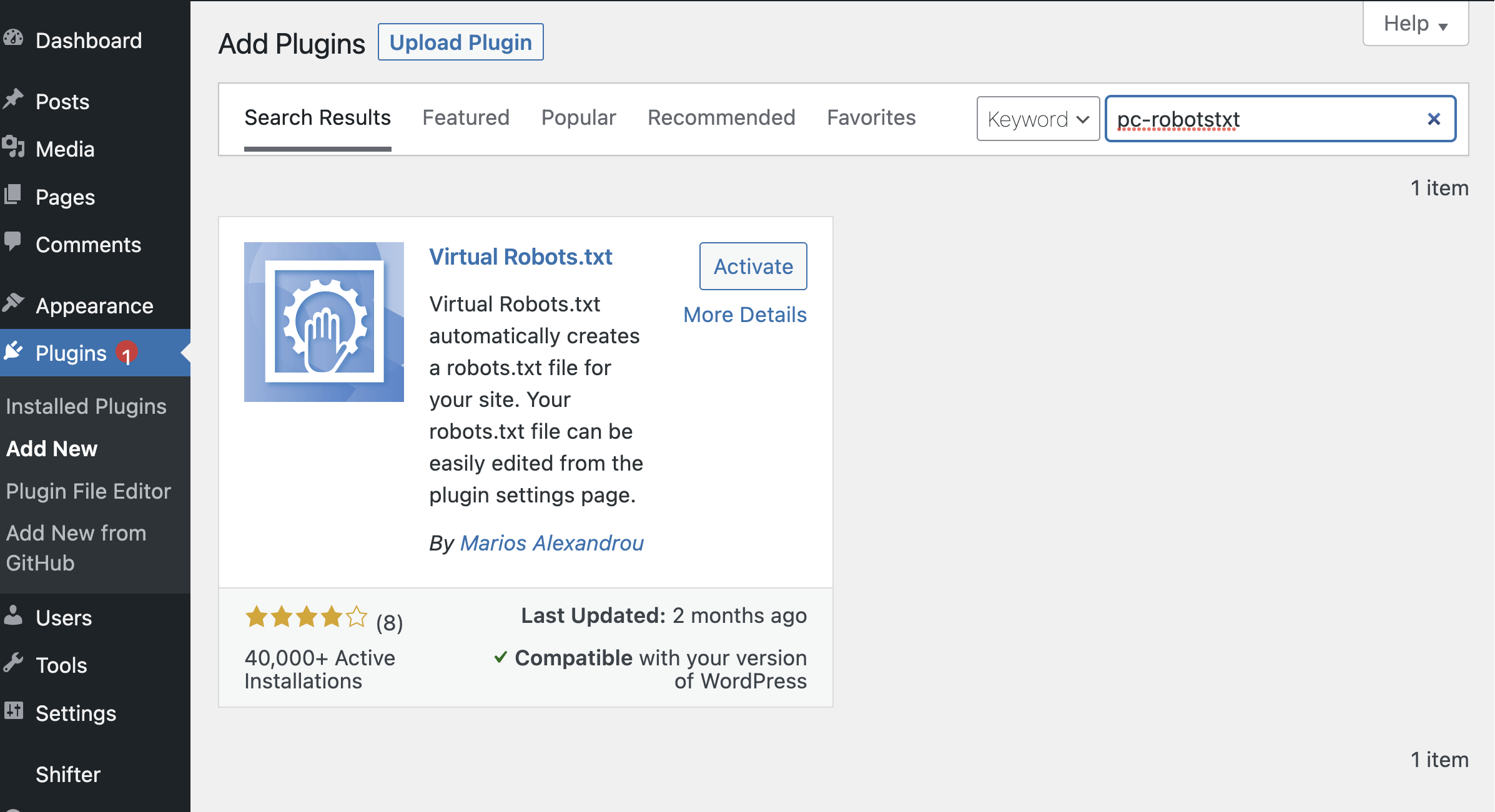
After logging in to WordPress, search for the pc-robotstxt plugin and enable it.
-
Accessing the robots.txt Edit Screen
In the WordPress admin panel,
go to [Settings] → [Virtual Robots.txt].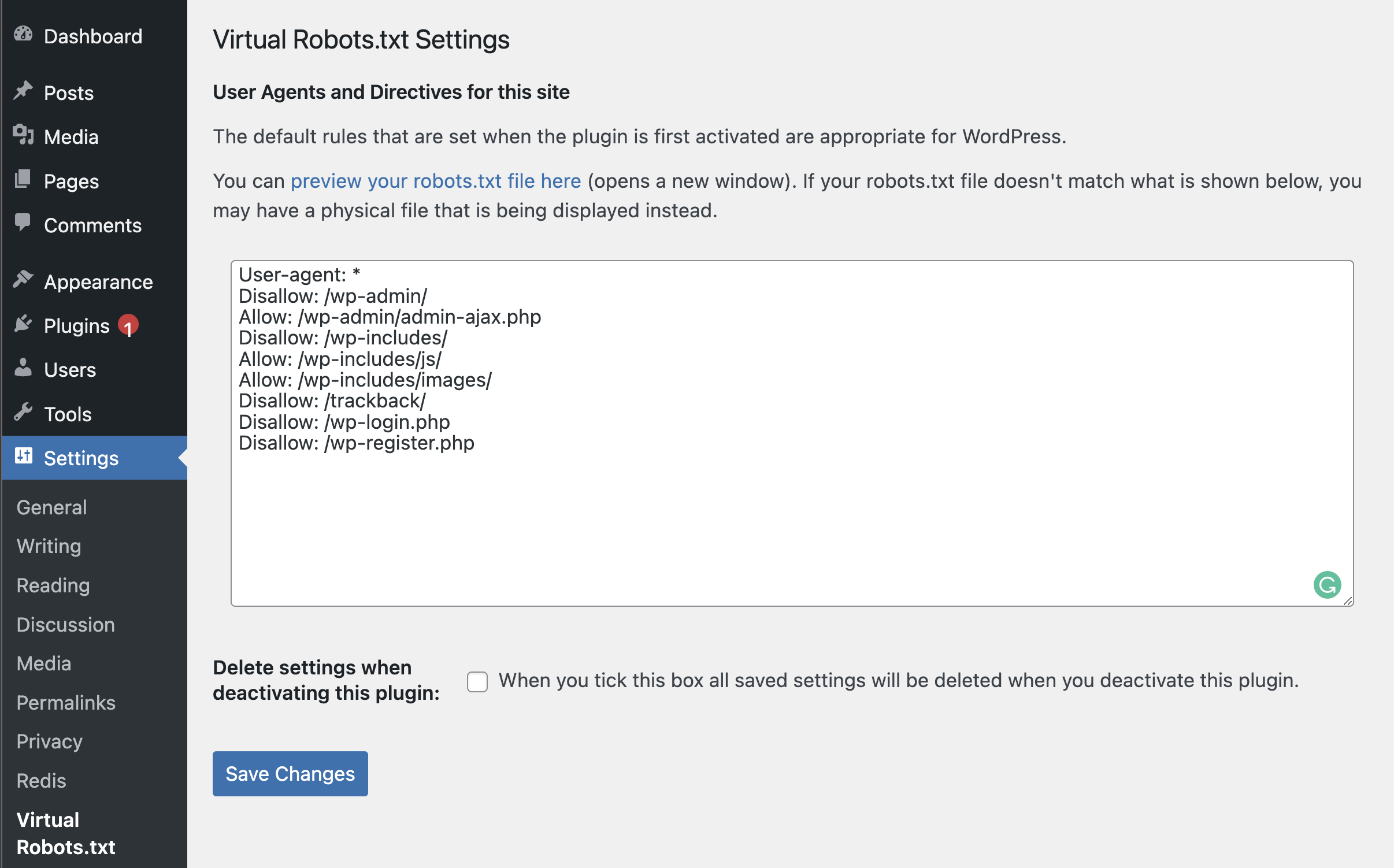
-
Editing robots.txt
On the Virtual Robots.txt settings screen, edit the contents of robots.txt. Configure it appropriately for your purposes.
-
Saving Changes
Once you’ve finished editing, click [Save Changes].
-
Previewing Changes
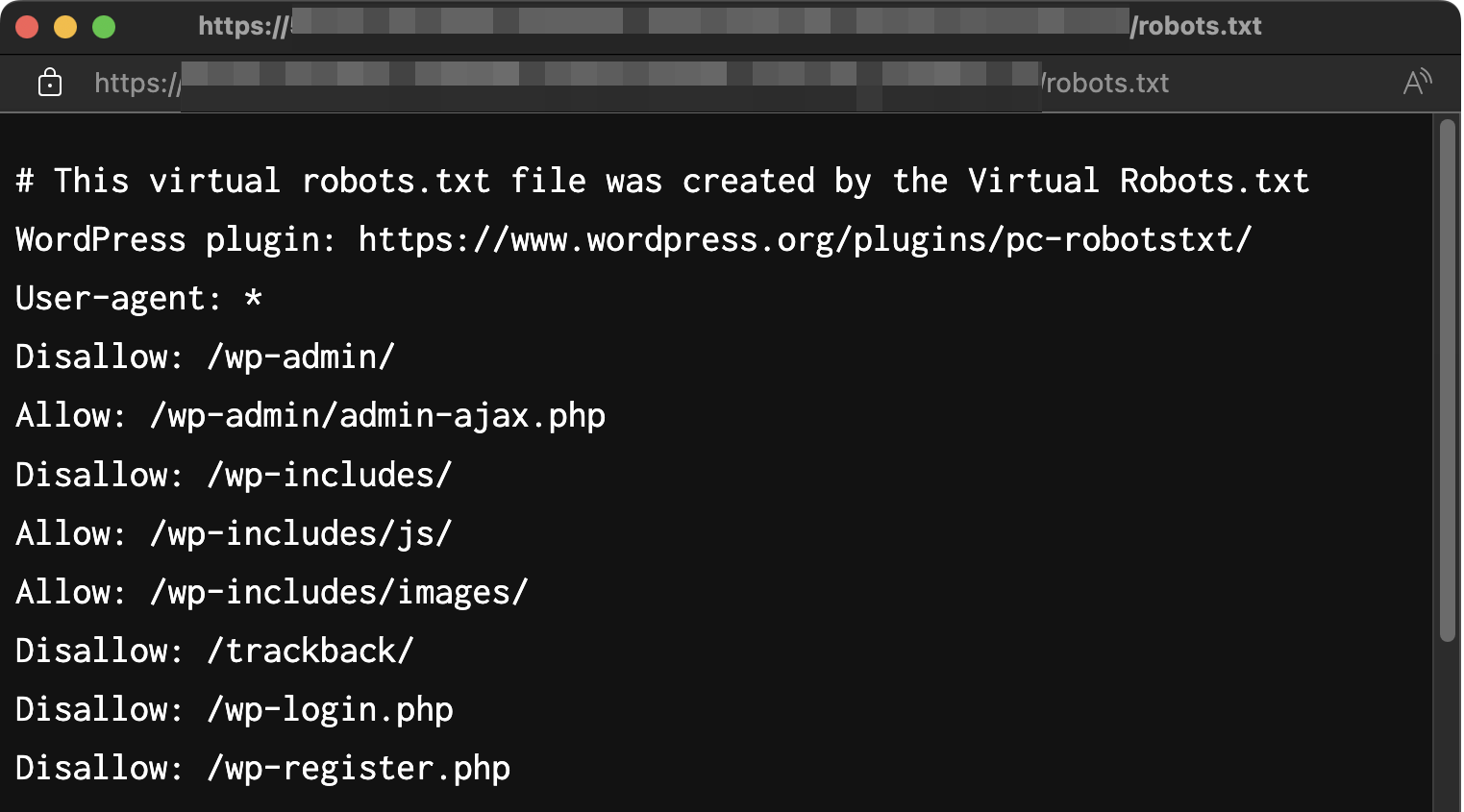
Click [preview your robots.txt file here]to preview the updated robots.txt file.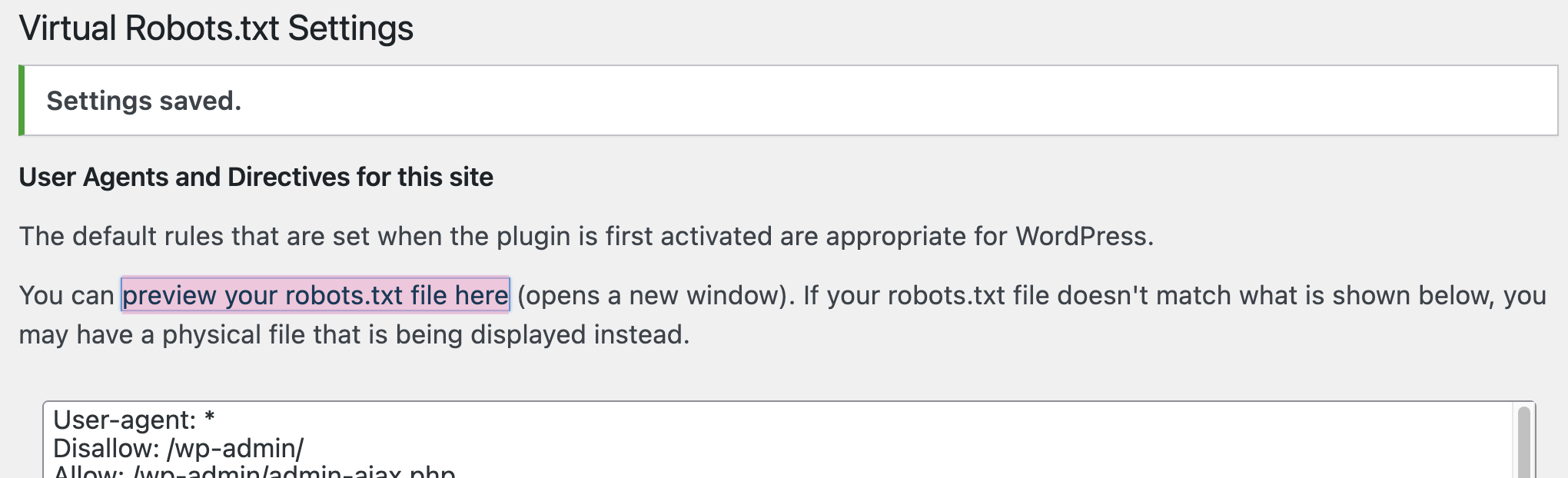
Preview of the modified file:
-
Deploy and Publish
If there are no issues in the preview, create a deploy and publish it. For instructions on how to deploy and publish, refer to the separate document “Create a New Deploy (Artifact) and Publish It.”
-
Verify the Deploy
In your browser, go to
https://your-domain.com/robots.txtto verify that the robots.txt file has been updated correctly.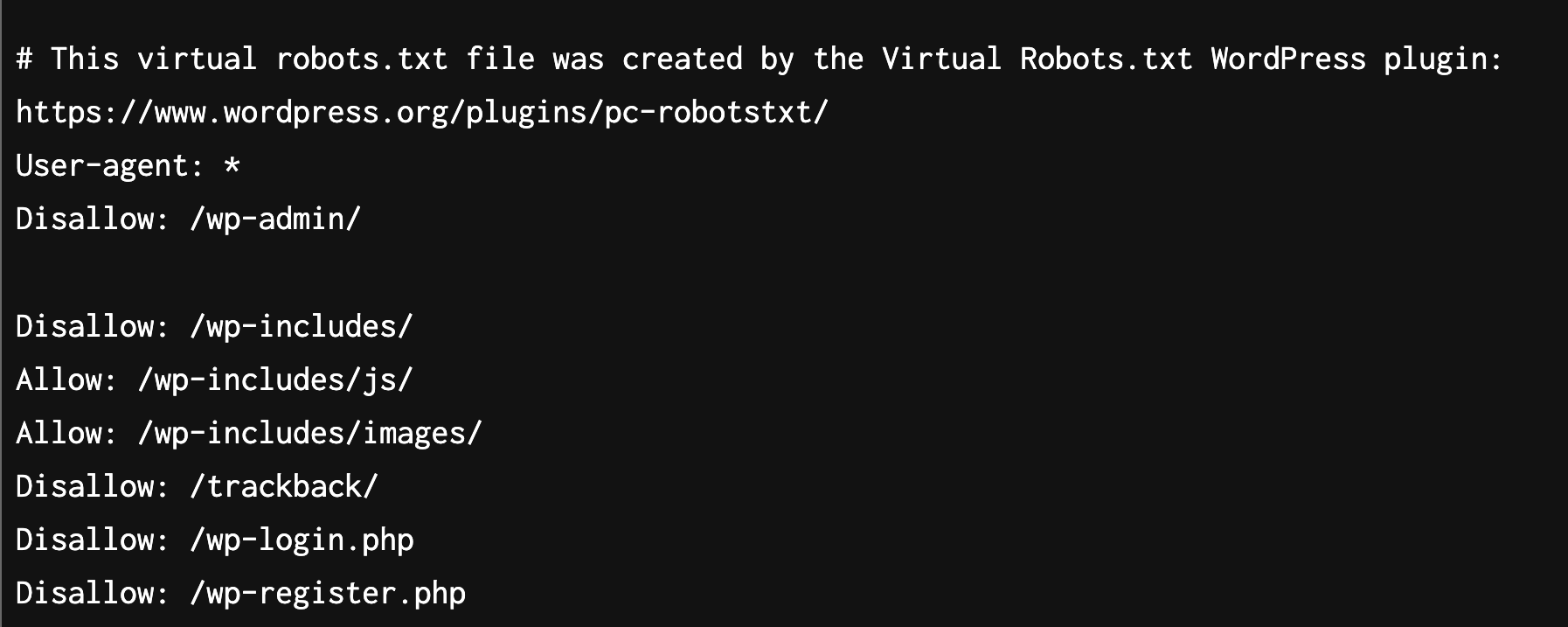
Done
That completes the manual editing of robots.txt.