
Overview:
This guide explains how to integrate Snipcart with WordPress. It covers obtaining an API key, embedding HTML code, adding your domain to the whitelist, configuring the plugin, modifying theme files, adding products, and generating and deploying artifacts.
References:
- Snipcart Official Support Documentation: WordPress Integration: How to Manage Products More Easily
- Scotch Tutorial: Complete E-commerce Integration Between Snipcart and WordPress
Phase 1: Set up your Snipcart account
Objective:
Sign up, obtain your API keys and HTML code, and prepare for the WordPress integration.
Steps:
- Sign up for Snipcart: https://snipcart.com/
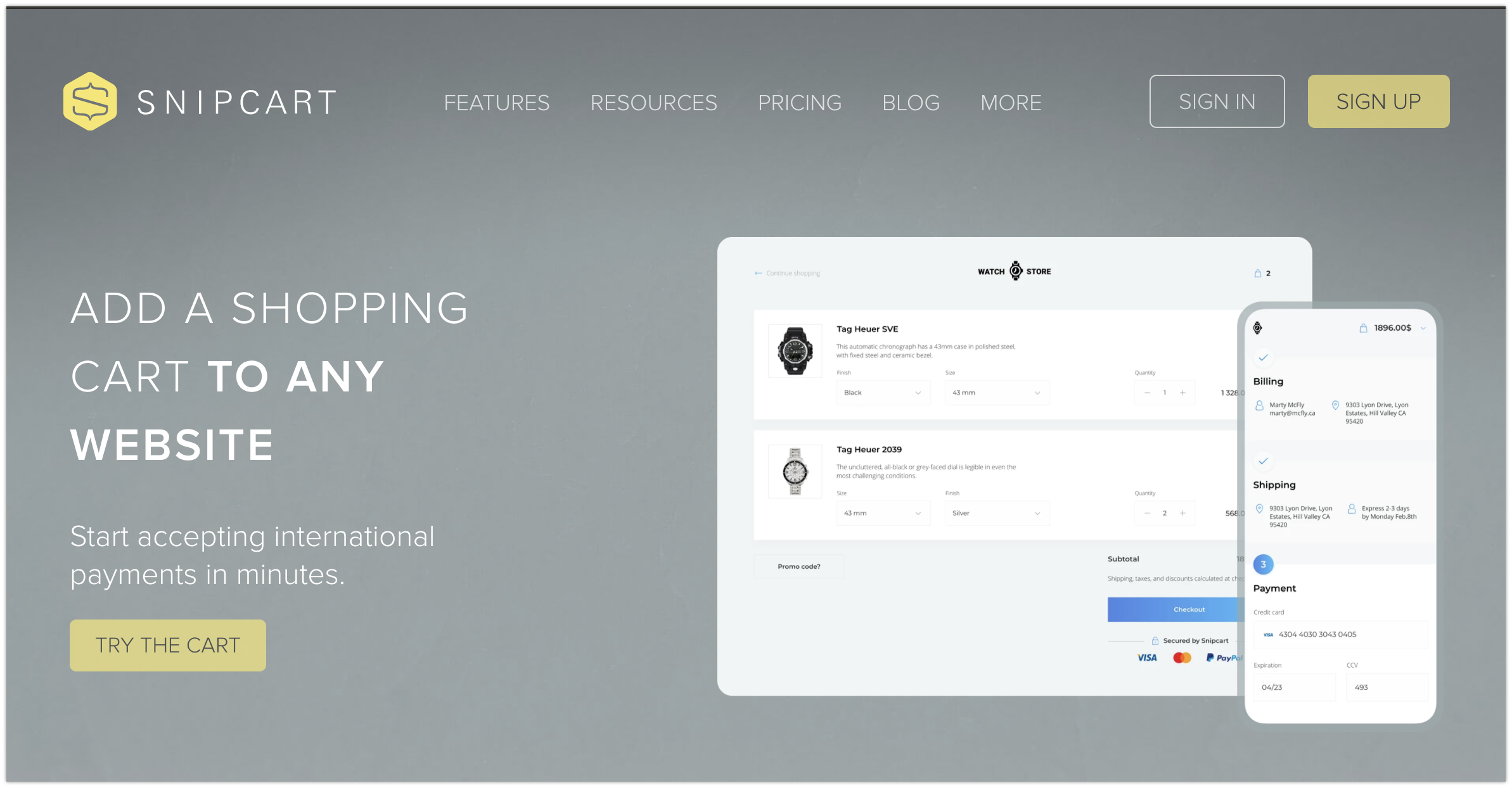
- Verify that [TEST] is enabled:
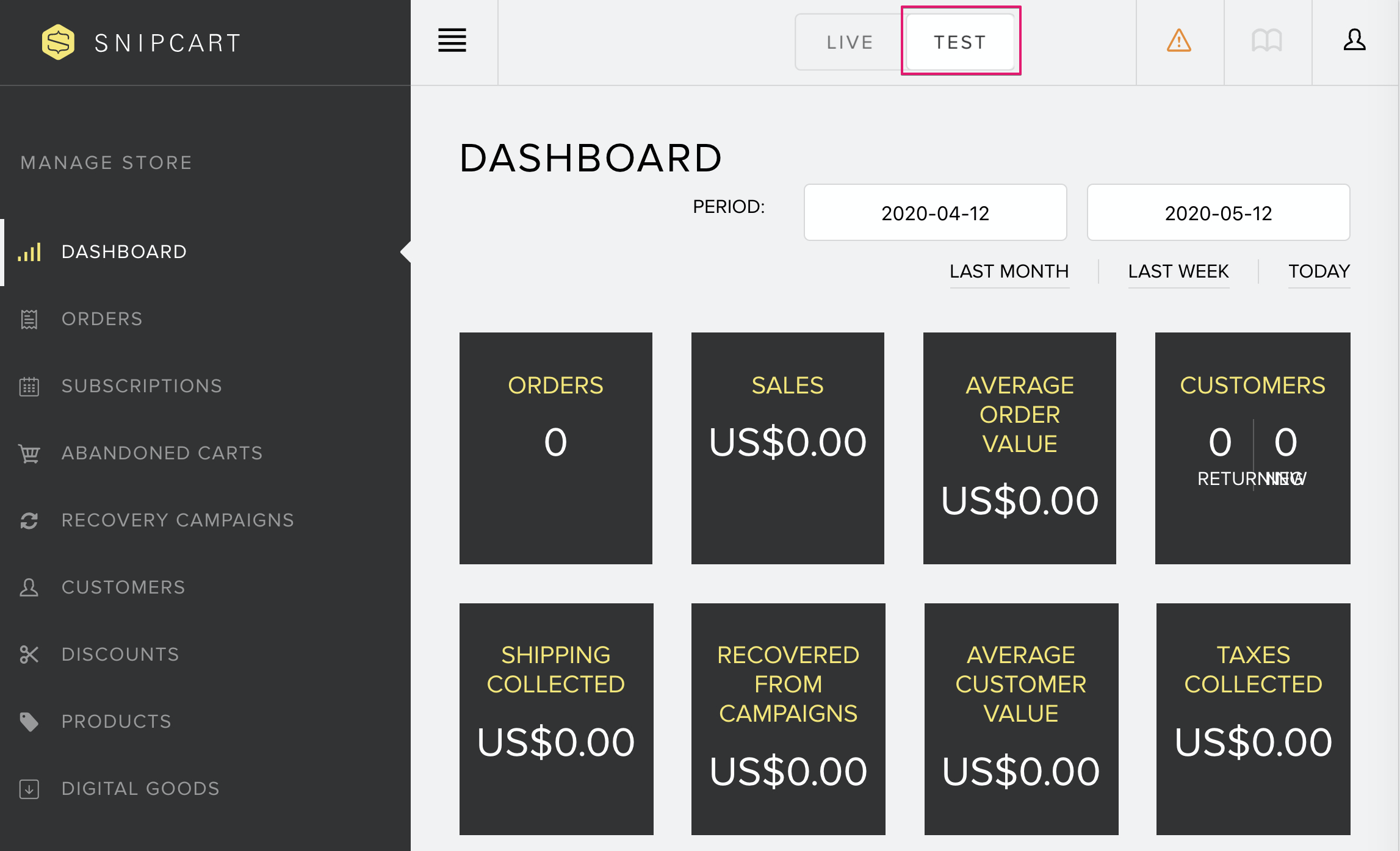
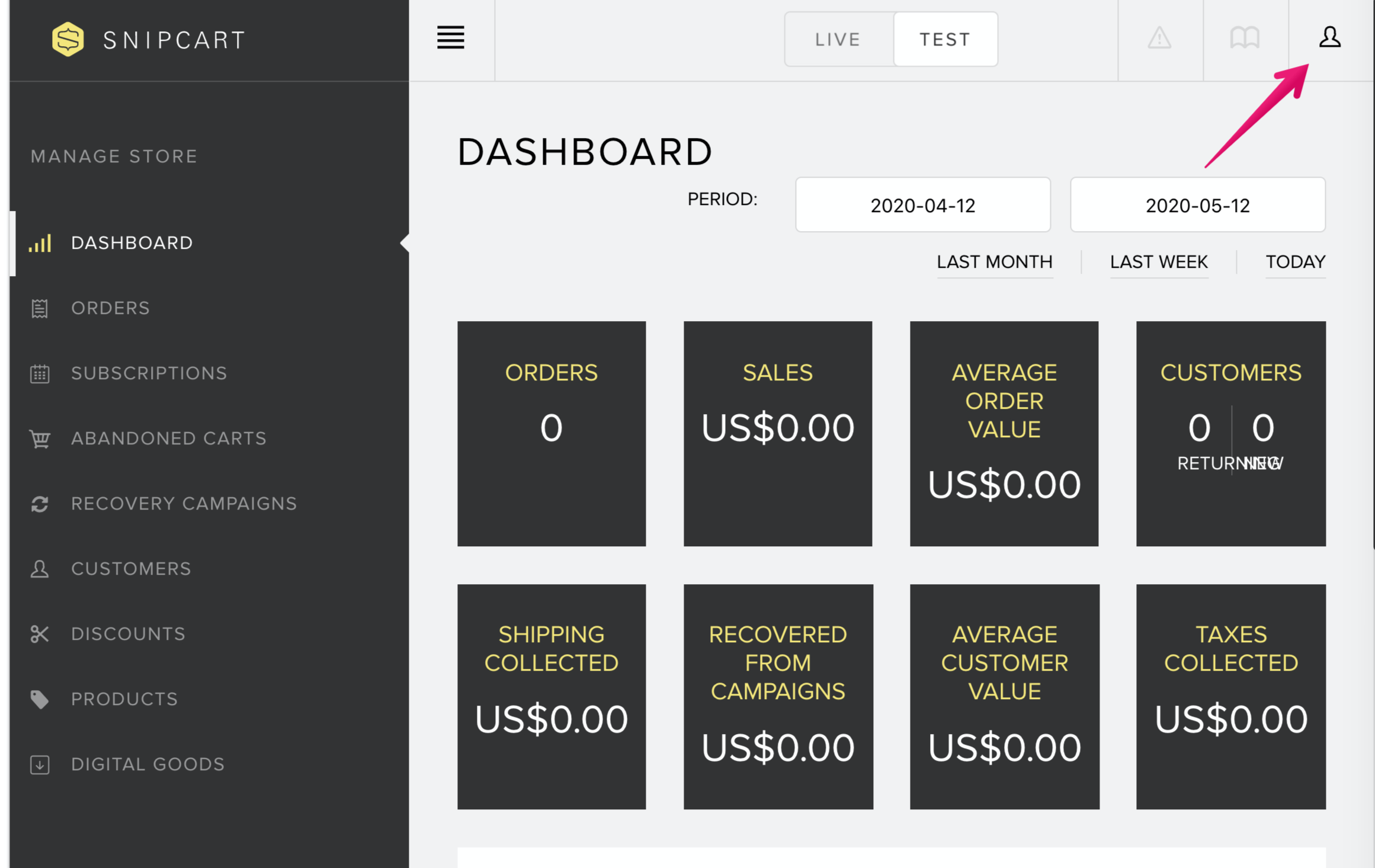
- Click the account icon in the top-right corner of the page:
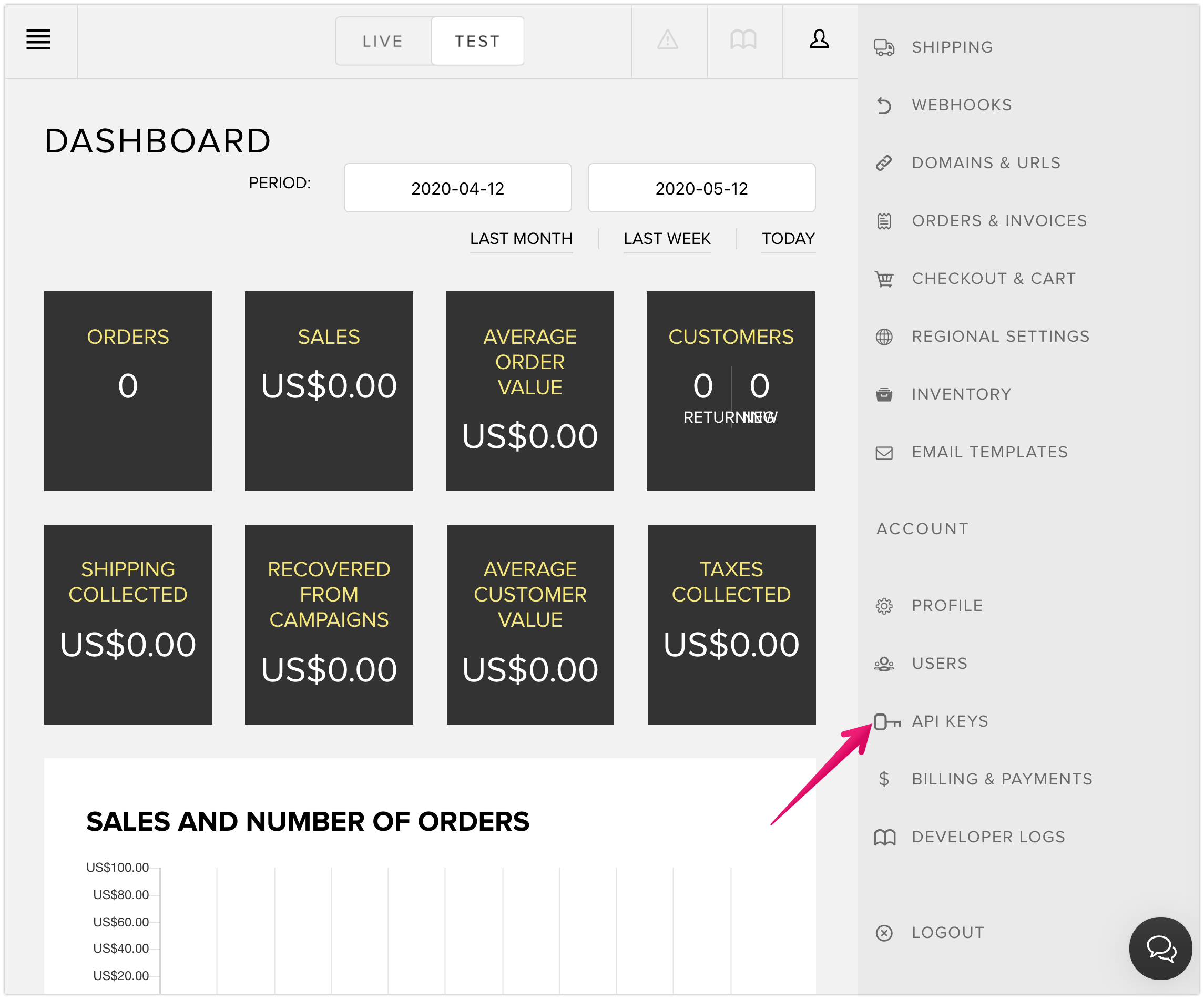
- Click [API KEYS]:
- Copy the HTML code containing the API key:
You will paste this code into your WordPress theme files.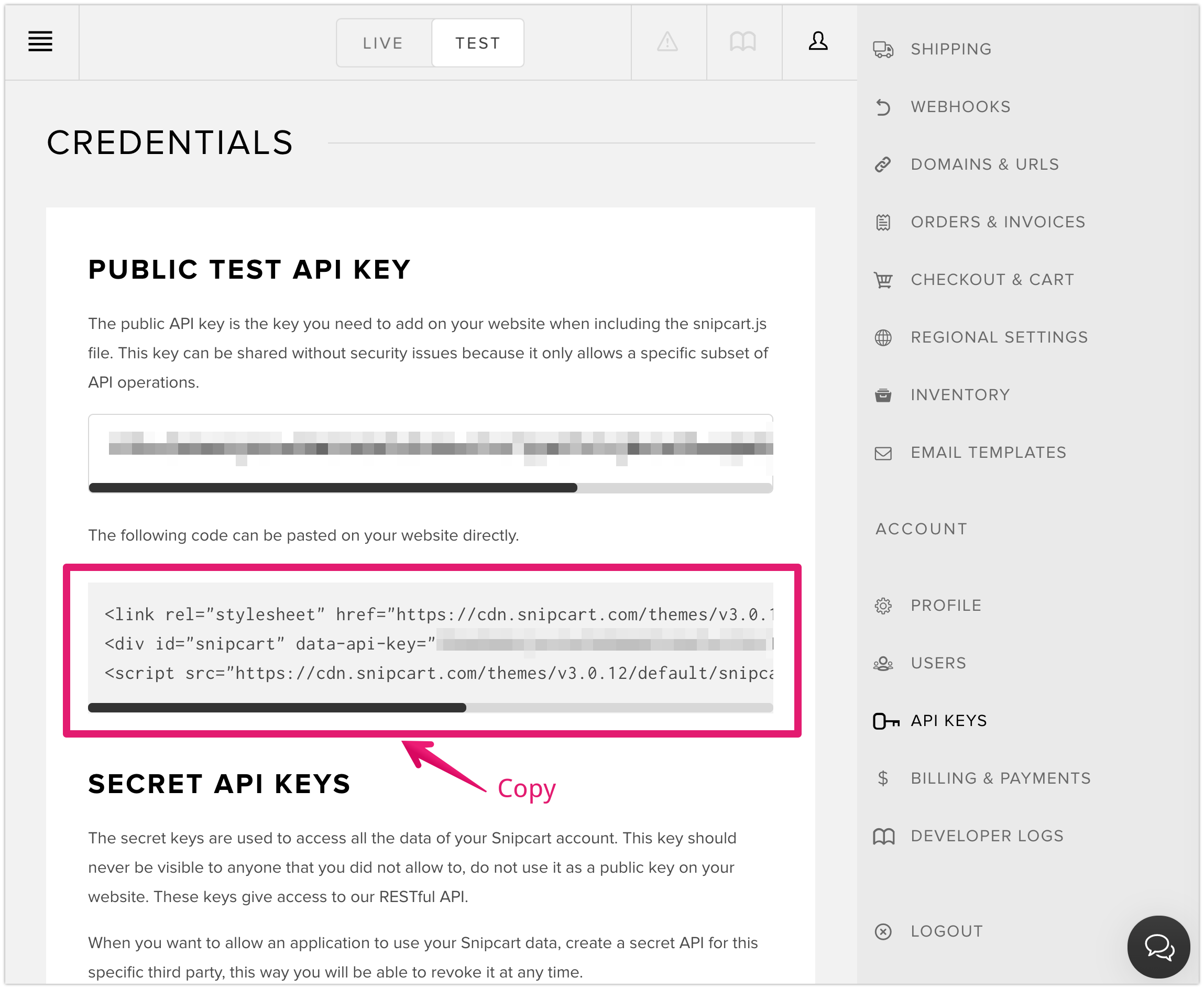
- Whitelist your domain:
Go to [DOMAINS & URLS] in the [ACCOUNT] menu.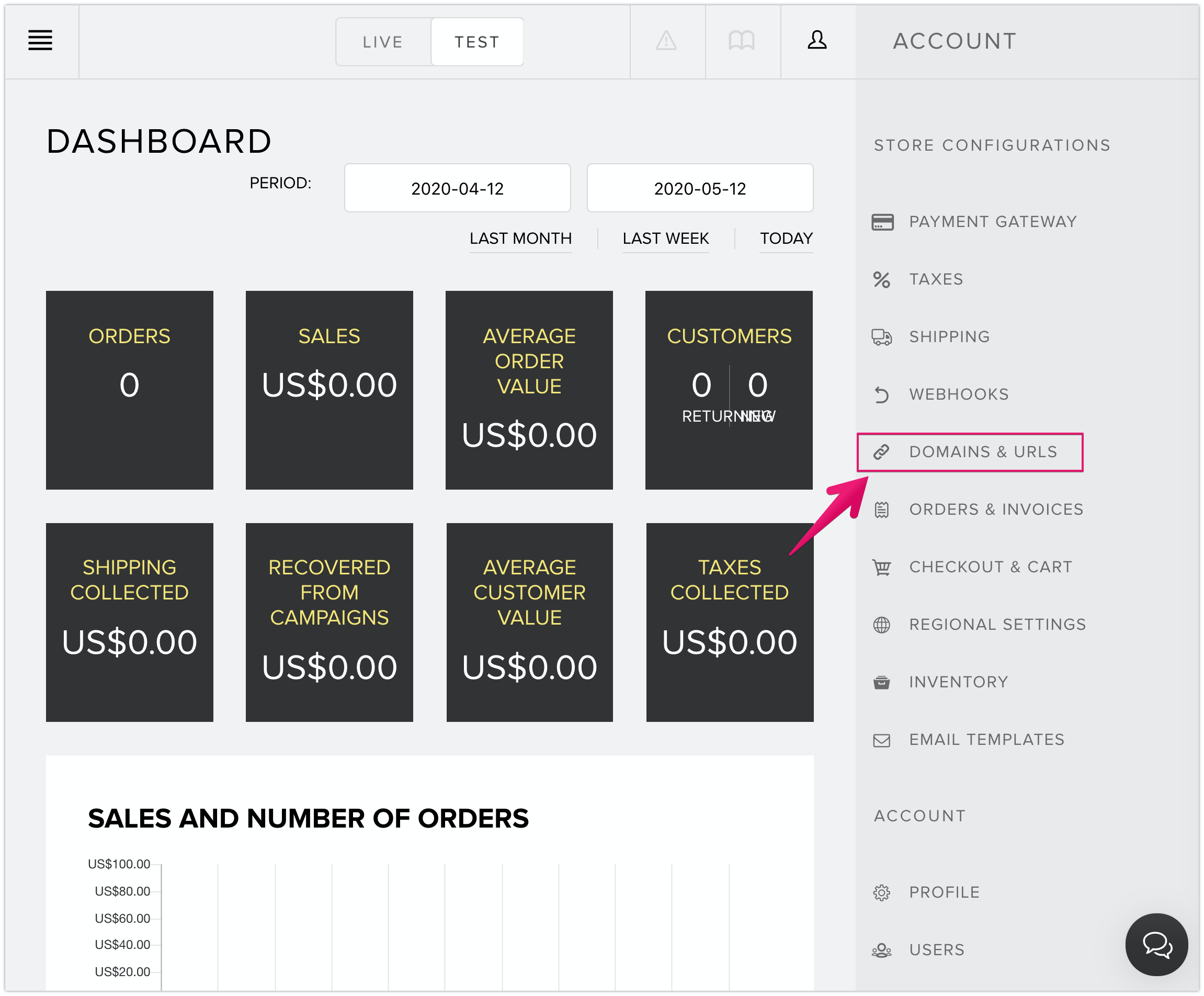
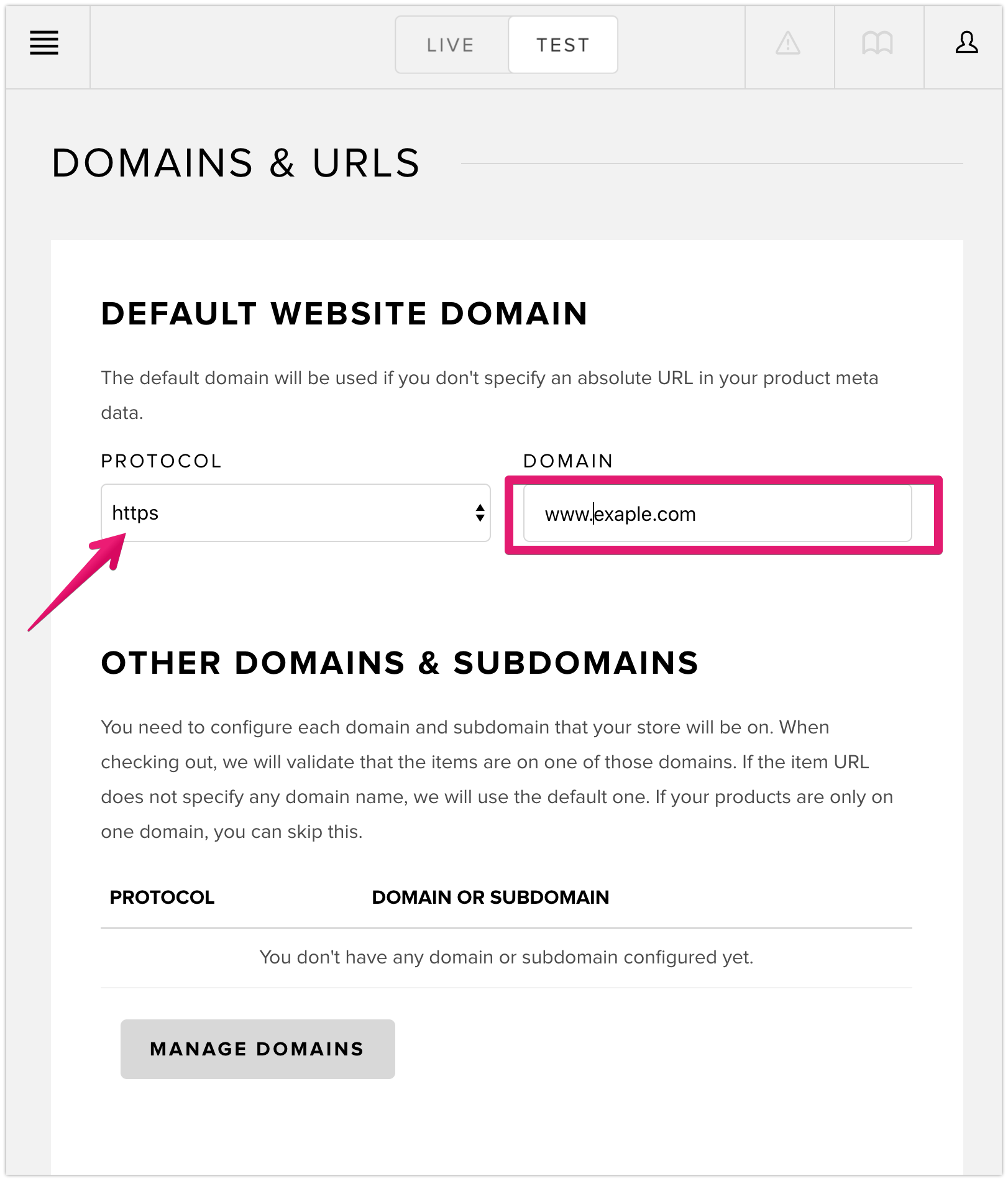
- Set the default website domain:
- Select [https] from [PROTOCOL]
- Enter your domain name (e.g., www.example.com, getshifter.io) in the DOMAIN field
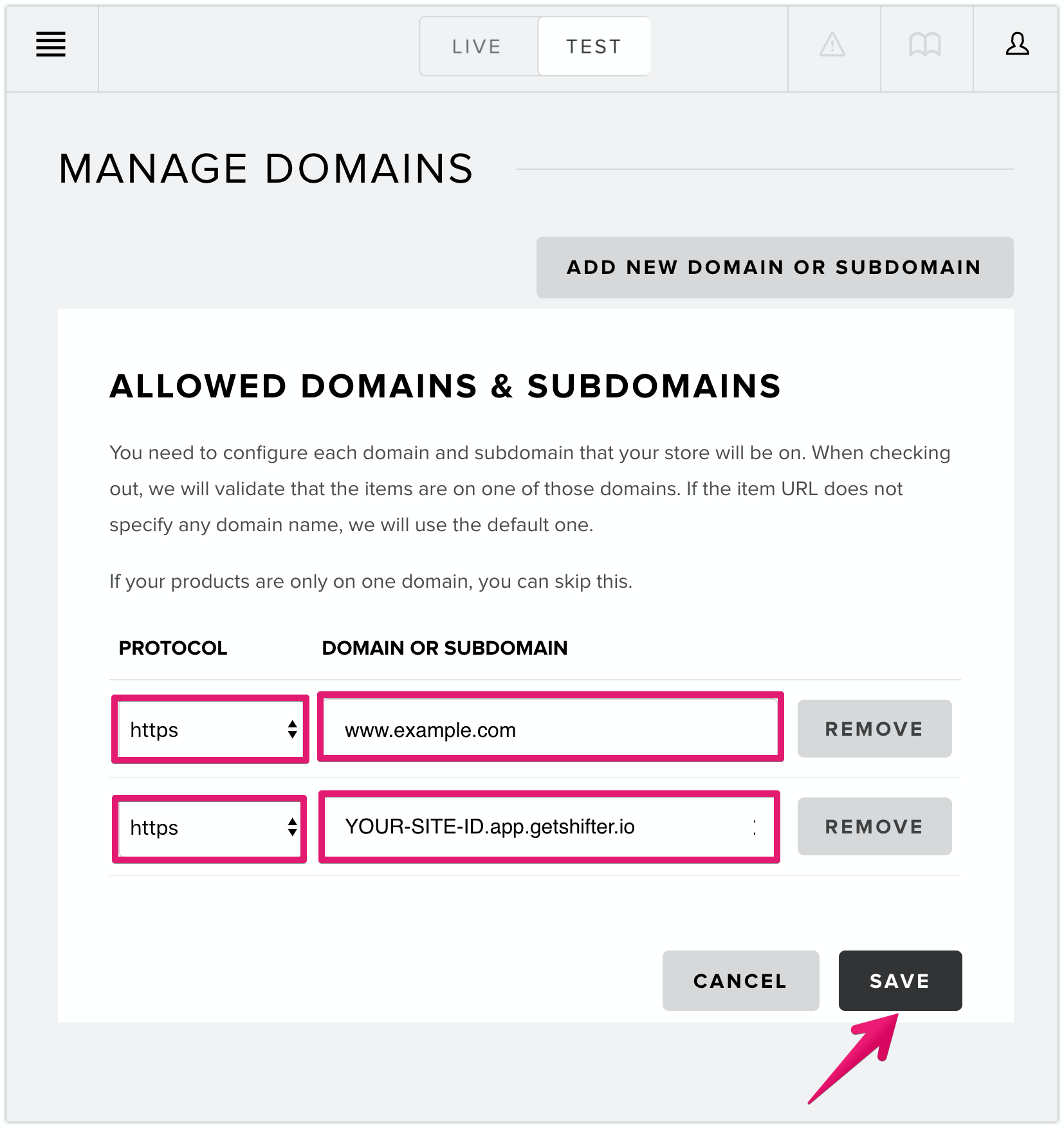
- Click [Save] to apply the changes:
Phase 2: Install and configure plugins in WordPress
Objective:
Install and configure the necessary plugins to ensure Snipcart works properly.
Procedure:
- Launch WordPress:
- Log in to the Shifter dashboard: https://go.getshifter.io/
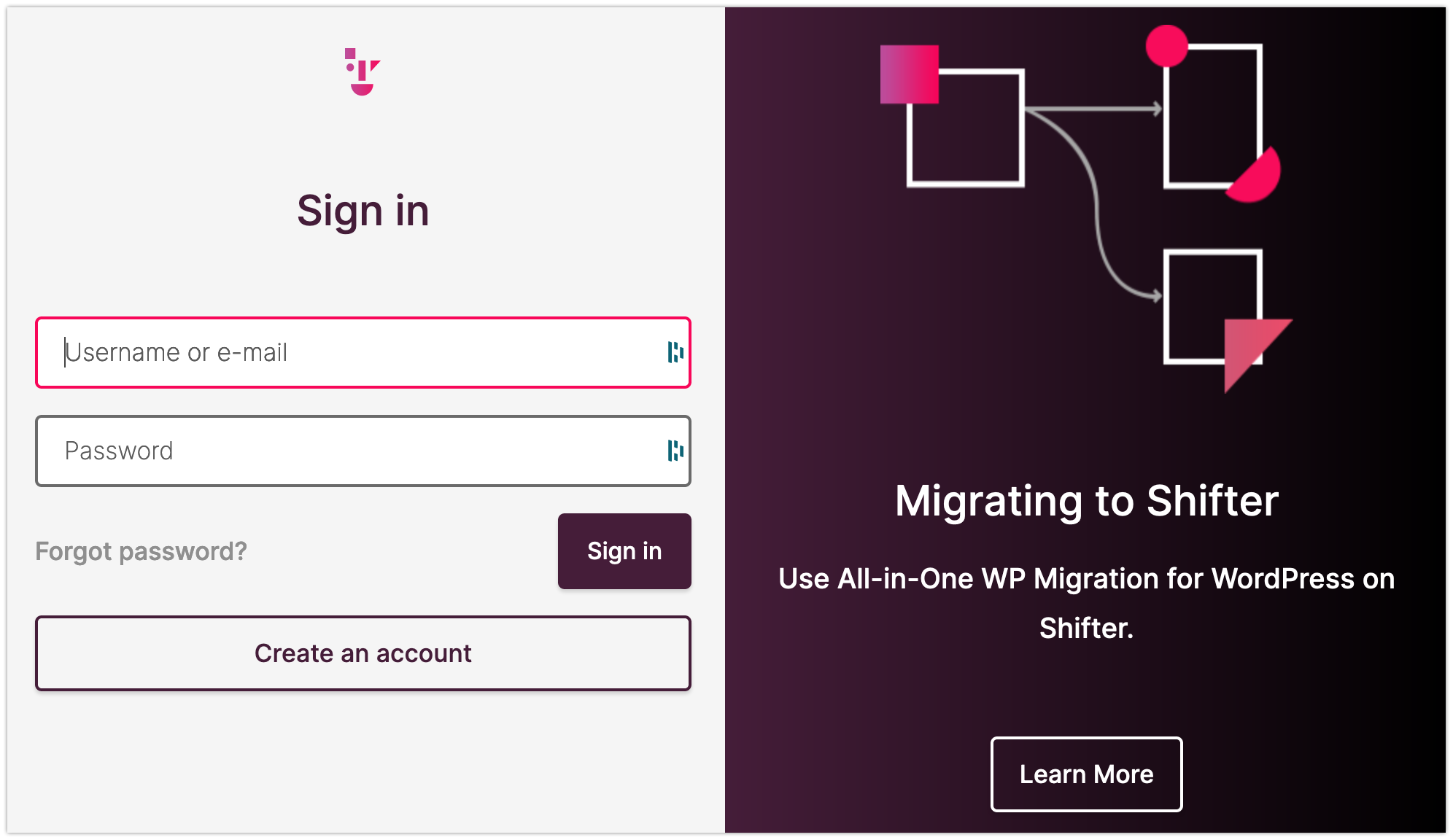
- Launch WordPress and log in
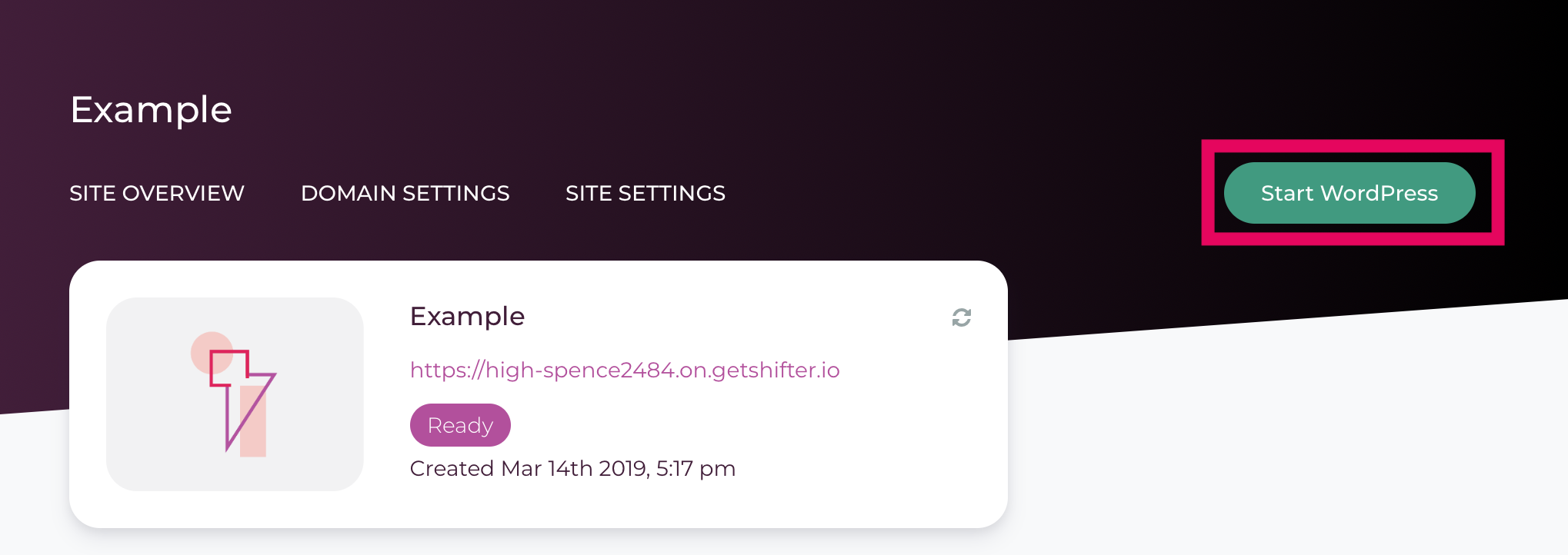
- Log in to the Shifter dashboard: https://go.getshifter.io/
- Install the required plugins:
- Advanced Custom Fields
- Custom Post UI
- Configure the Custom Post UI plugin:
- Install the Custom Post UI plugin
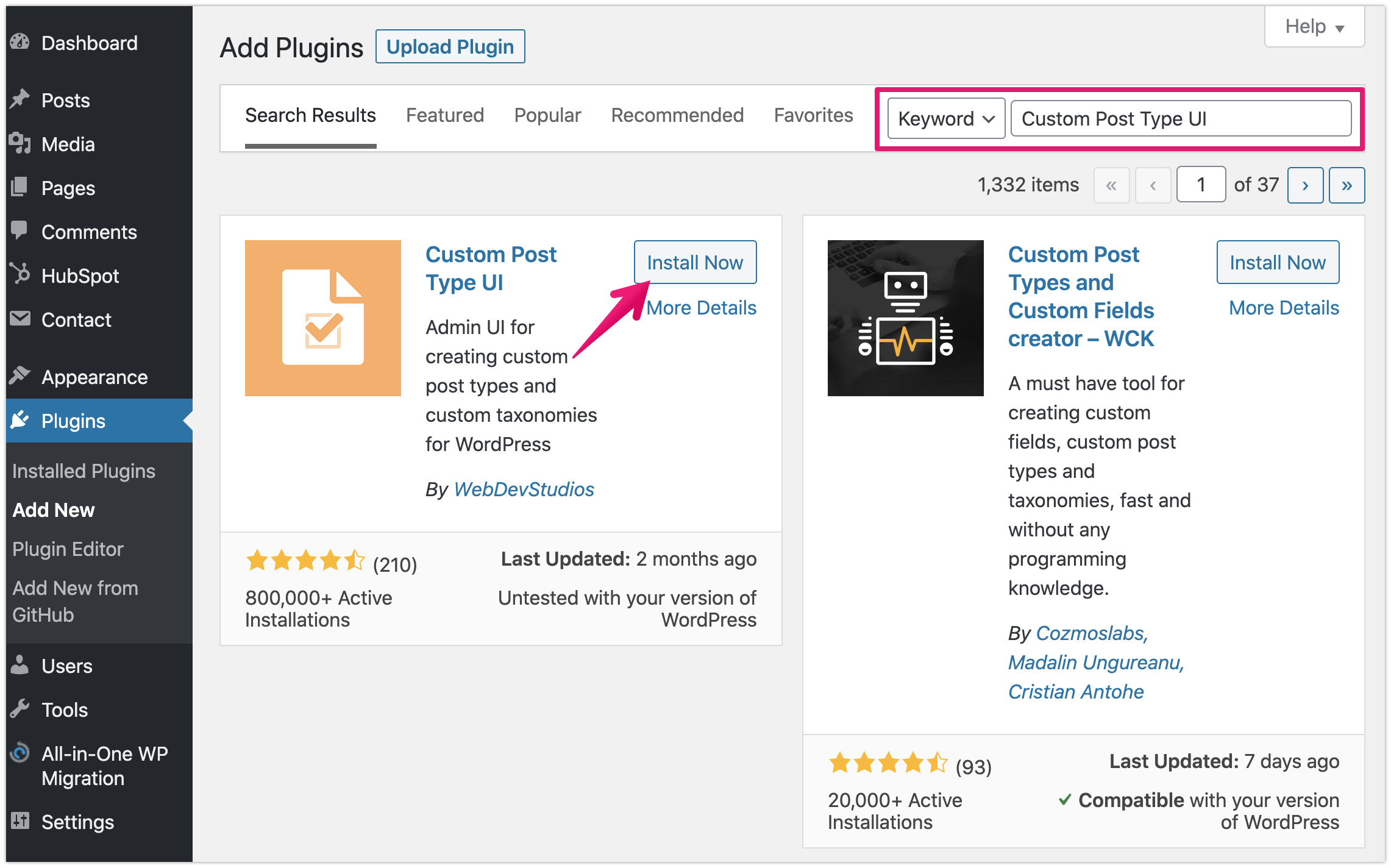
- Add a new post type.
- Example:
- Post Type Slug:
snipcart_product - Plural Label:
Product - Singular label:
Product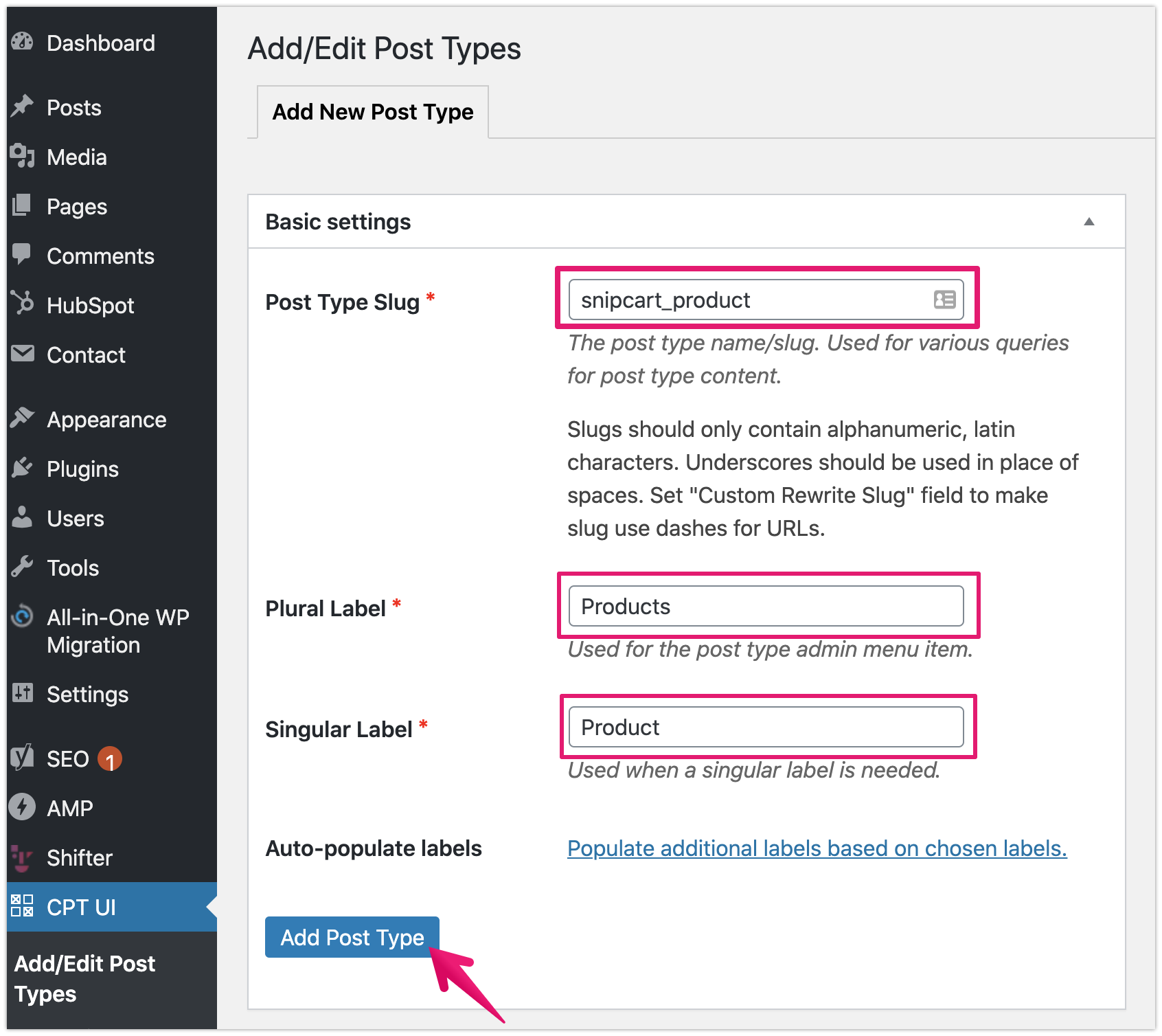
- Post Type Slug:
- Example:
- Install the Custom Post UI plugin
- Configure Advanced Custom Fields:
Install Advanced Custom Fields
Add a new field group
- Title:
Snipcard Product - Rule:
[Post Type] is [equal to] [Product]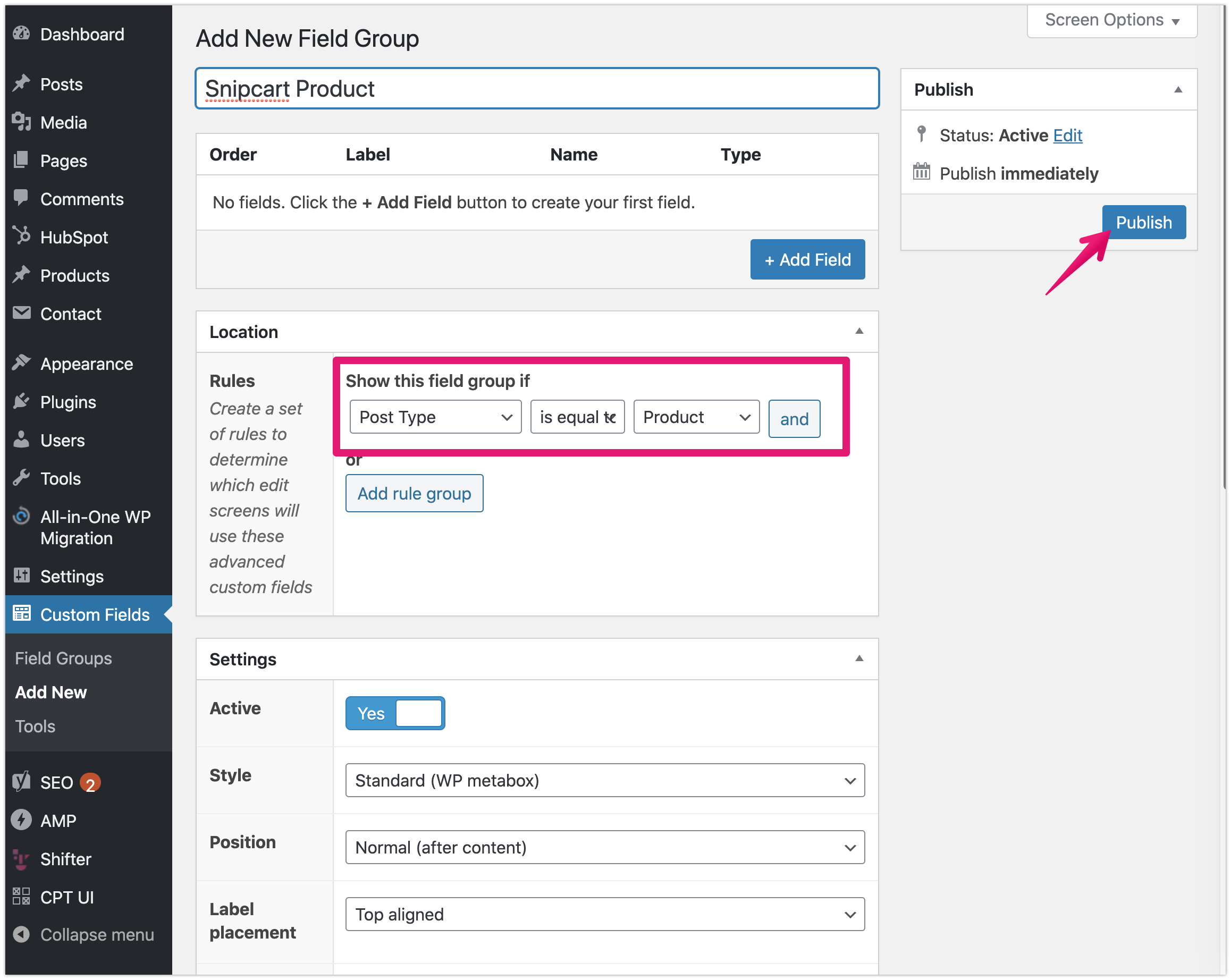
- Title:
Click the field group you created (e.g., Snipcart Product)
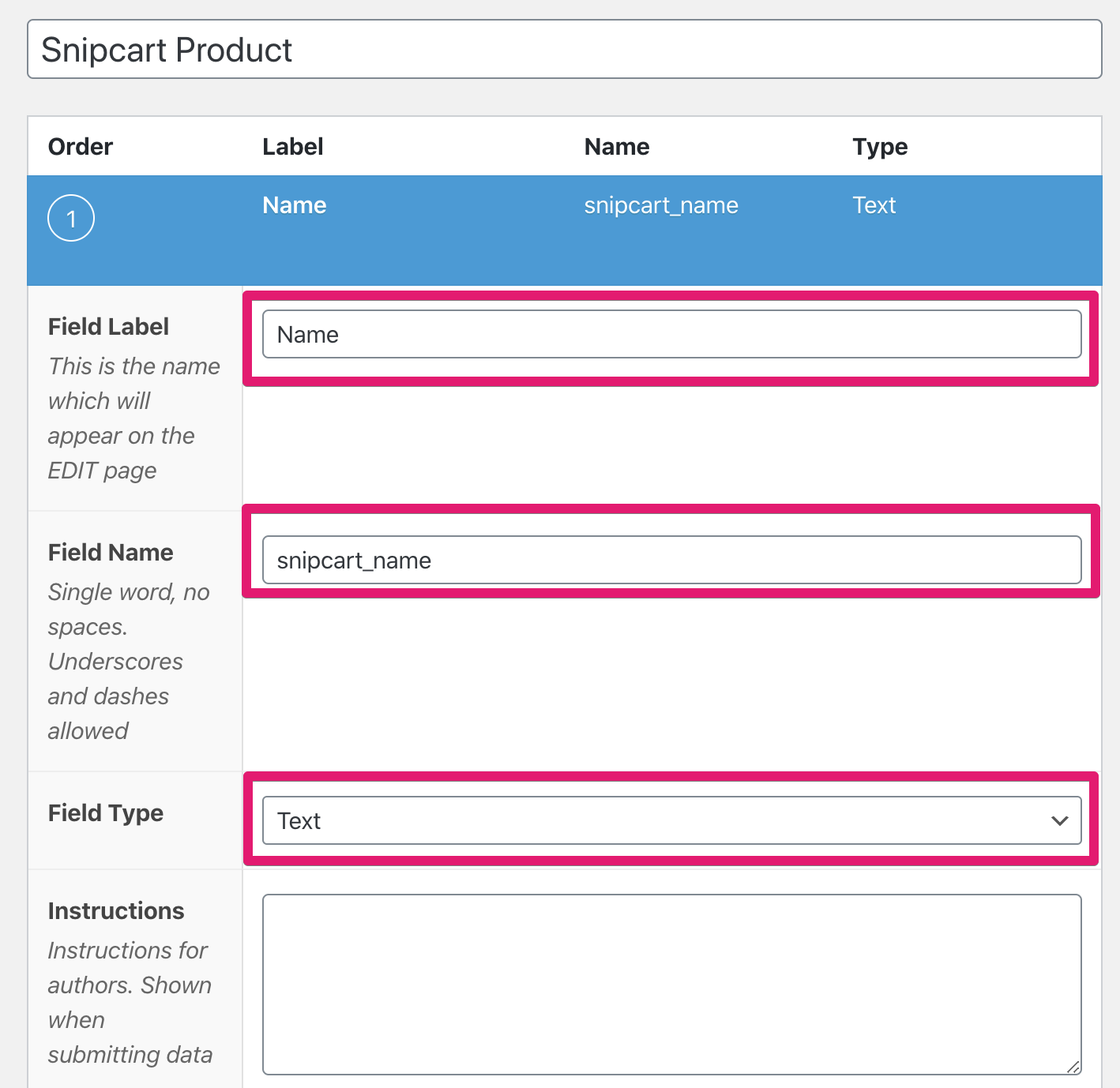
Click the [+ Add Field] button to add the following fields
- (1) Name
- Field Label:
Name - Field Name:
snipcart_name - Field type: Text
- Field Label:
- (2) Price
- Field Label:
Price - Field Name:
snipcart_price - Field Type:
Number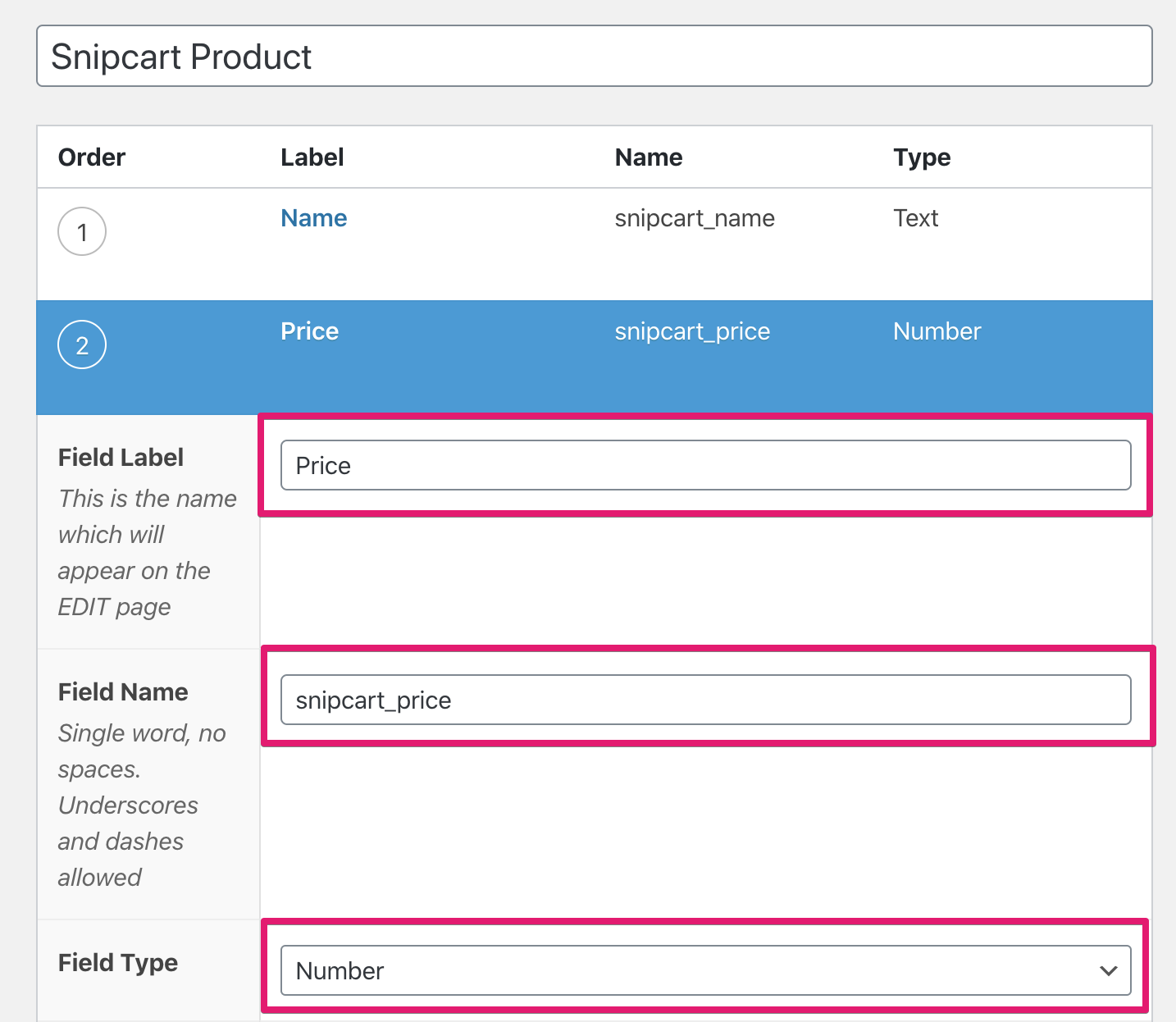
- Field Label:
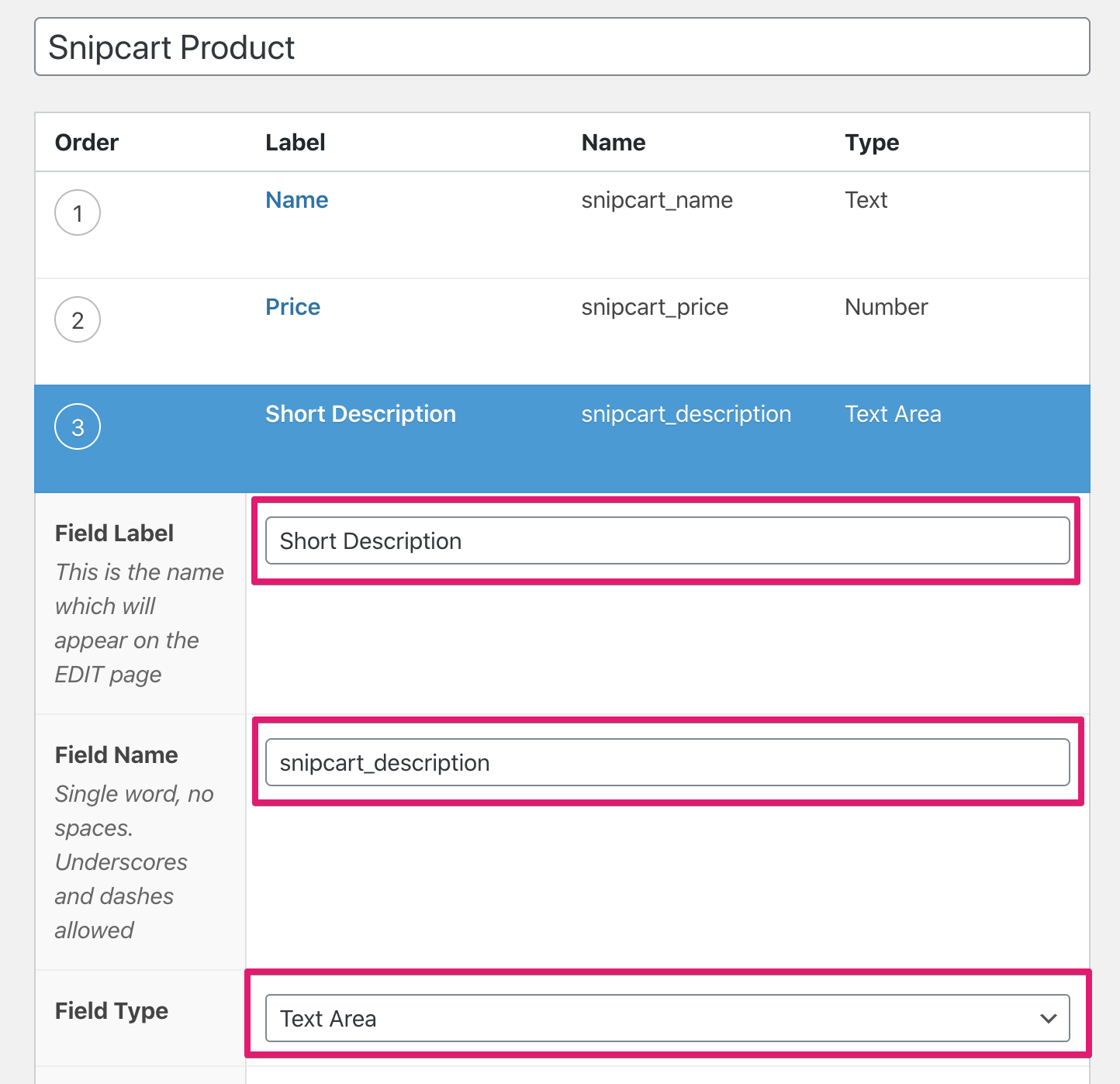
- (3) Short Description
- Field Label:
Short Description - Field Name:
snipcart_description - Field type: Text Area
- Field Label:
- (4) Image
- Field Label:
Image - Field Name:
snipcart_image - Field Type:
Image - Return Format:
Image URL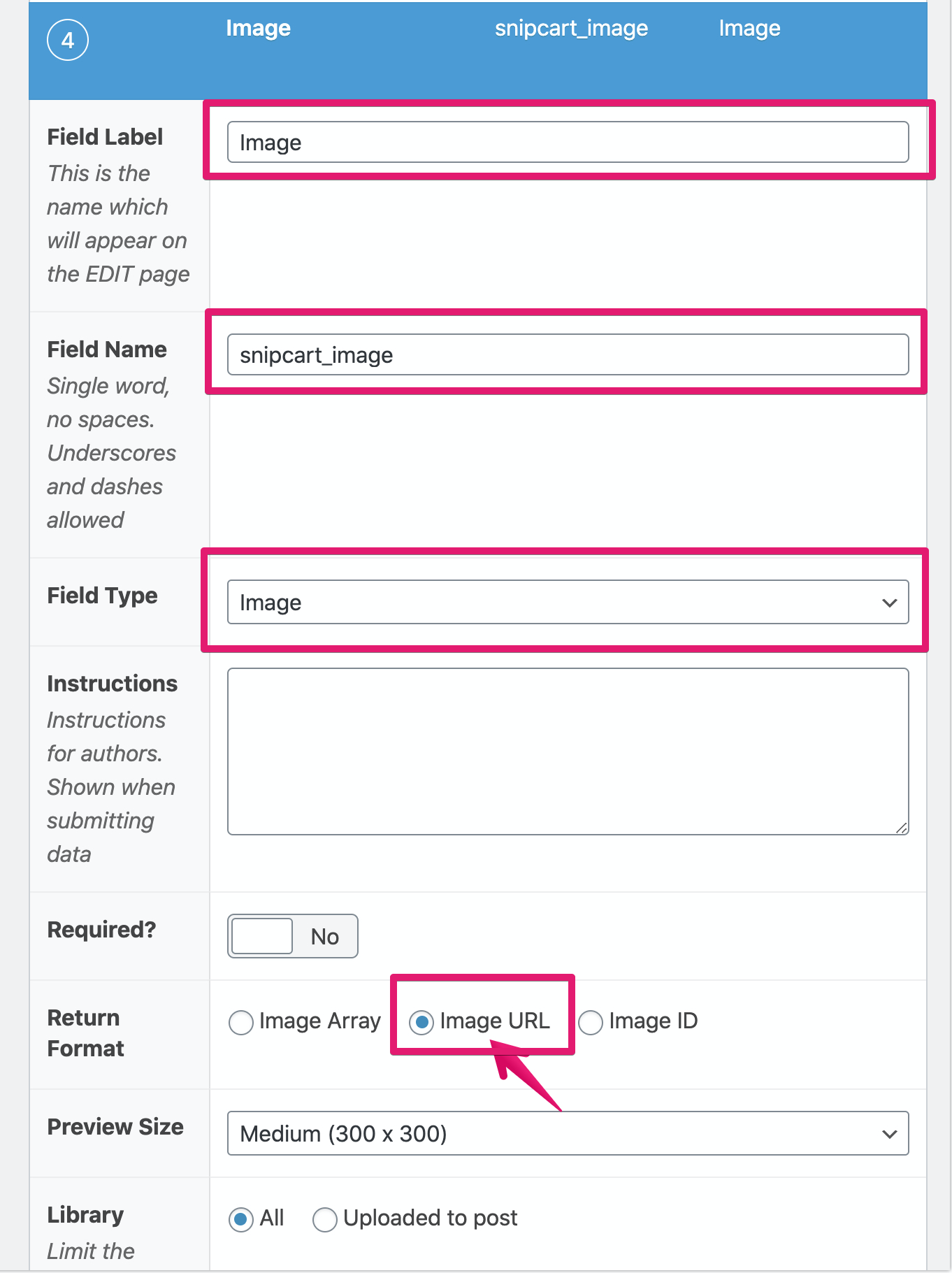
- Field Label:
- (1) Name
Click [Update] to save your changes
- Verify that Snipcart is working:
Generate and deploy.
Phase 3: Editing Theme Files
Recommended: Use the Shifter GitHub Theme/Plugin Installer. For details, see Developing WordPress sites on Shifter with GitHub.
Note: The sample code below is taken from the official Snipcart documentation.
header.php:
- Insert the copied HTML code, including the API key, into header.php.
<script type="text/javascript" src="//ajax.googleapis.com/ajax/libs/jquery/1.11.0/jquery.min.js"></script>
<script type="text/javascript" id="snipcart" src="https://app.snipcart.com/scripts/snipcart.js" data-api-key="{YOUR_API_KEY}"></script>
<link type="text/css" id="snipcart-theme" href="https://app.snipcart.com/themes/base/snipcart.css" rel="stylesheet" />- Note:
If your theme already includes jQuery, you can remove the jQuery code.
single-snipcart_product.php: Copy
single.phpand rename it tosingle-snipcart_product.php, then modify it to set up the Snipcart purchase button.
<div id="product" class="site-content">
  <img src="<?php the_field('snipcart_image') ?>" />
  <button class="snipcart-add-item"
    data-item-id="<?php echo $post->ID ?>"
    data-item-name="<?php the_field('snipcart_name') ?>"
    data-item-url="<?php echo get_permalink(); ?>"
    data-item-price="<?php the_field('snipcart_price') ?>"
    data-item-description="<?php the_field('snipcart_description') ?>"
    data-item-image="<?php the_field('snipcart_image') ?>">
    Buy now for <?php the_field('snipcart_price') ?> $
  </button>
</div>
archive-snipcart_product.php:
Create
archive-snipcart_product.phpin your theme directory to display a list of products.Note: To use archive-snipcart_product.php, you must set [Has Archive] to True when creating the custom post type.
<h1>Products</h1>
<?php if ( have_posts() ) : ?>
  <table>
    <thead>
      <th> Name </th>
      <th> Price </th>
    </thead>
    <tbody>
      <?php while ( have_posts() ) : the_post(); ?>
        <tr>
          <td>
            <a href="<?php echo get_permalink(); ?>">
              <?php the_field('snipcart_name') ?>
            </a>
          </td>
          <td>
            <?php the_field('snipcart_price') ?> $
          </td>
        </tr>
      <?php endwhile; ?>
    </tbody>
  </table>
<?php endif; ?>
Phase 4: Add a New Product
Procedure:
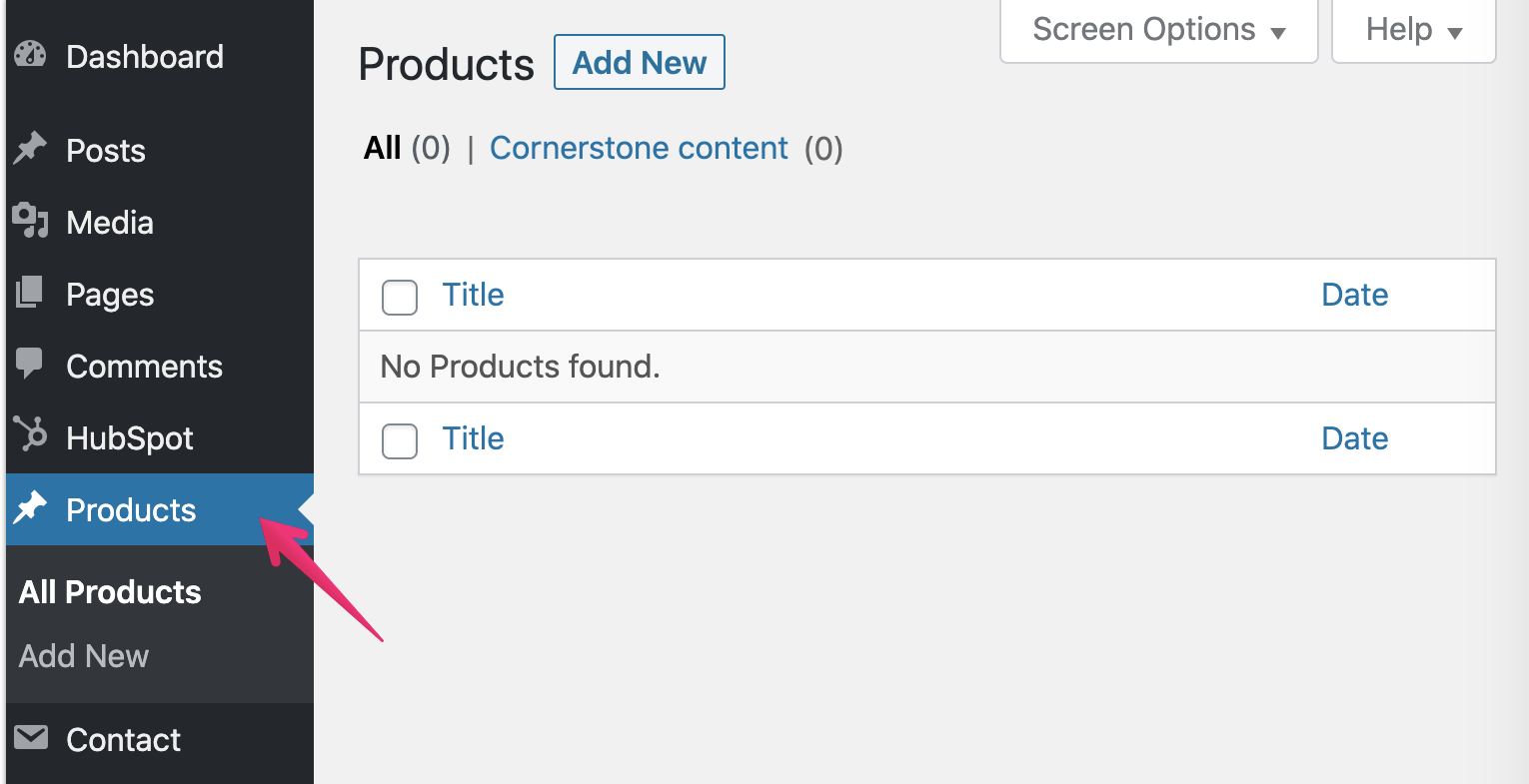
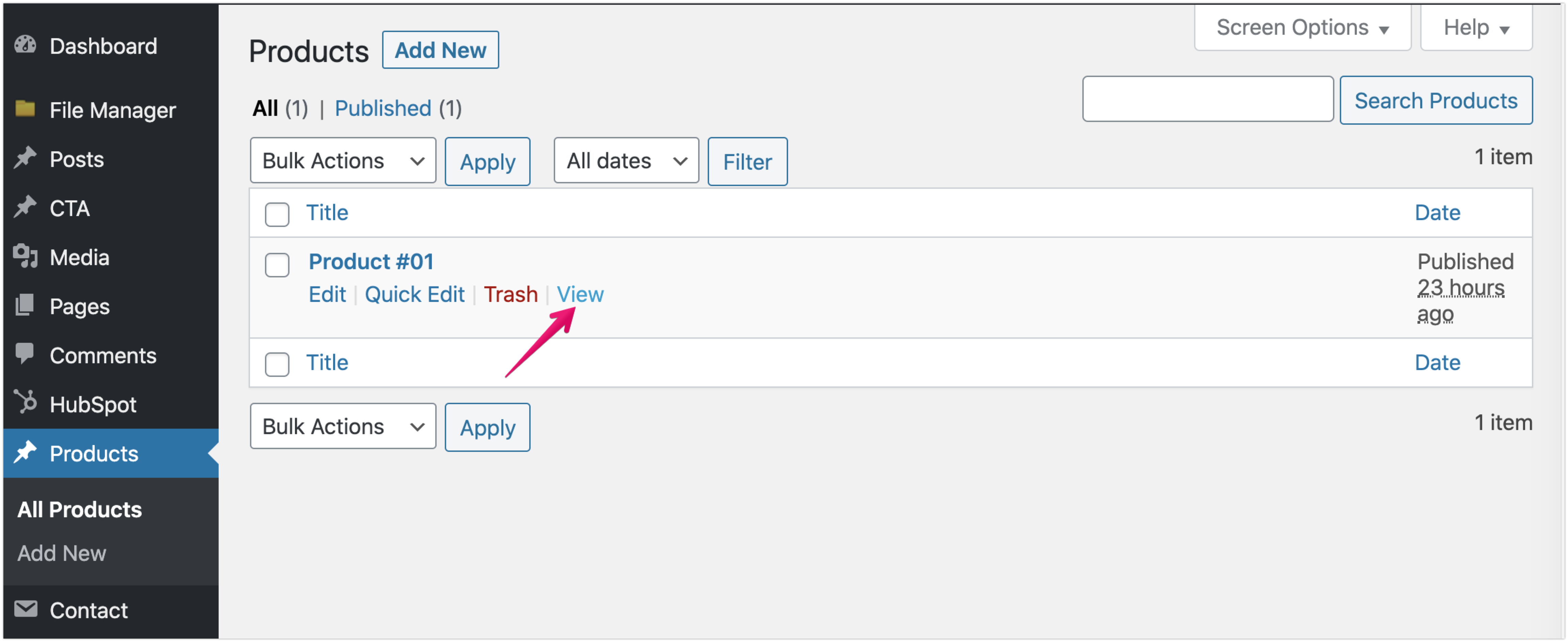
- Return to Shifter and WordPress. Go to the [Products] menu.
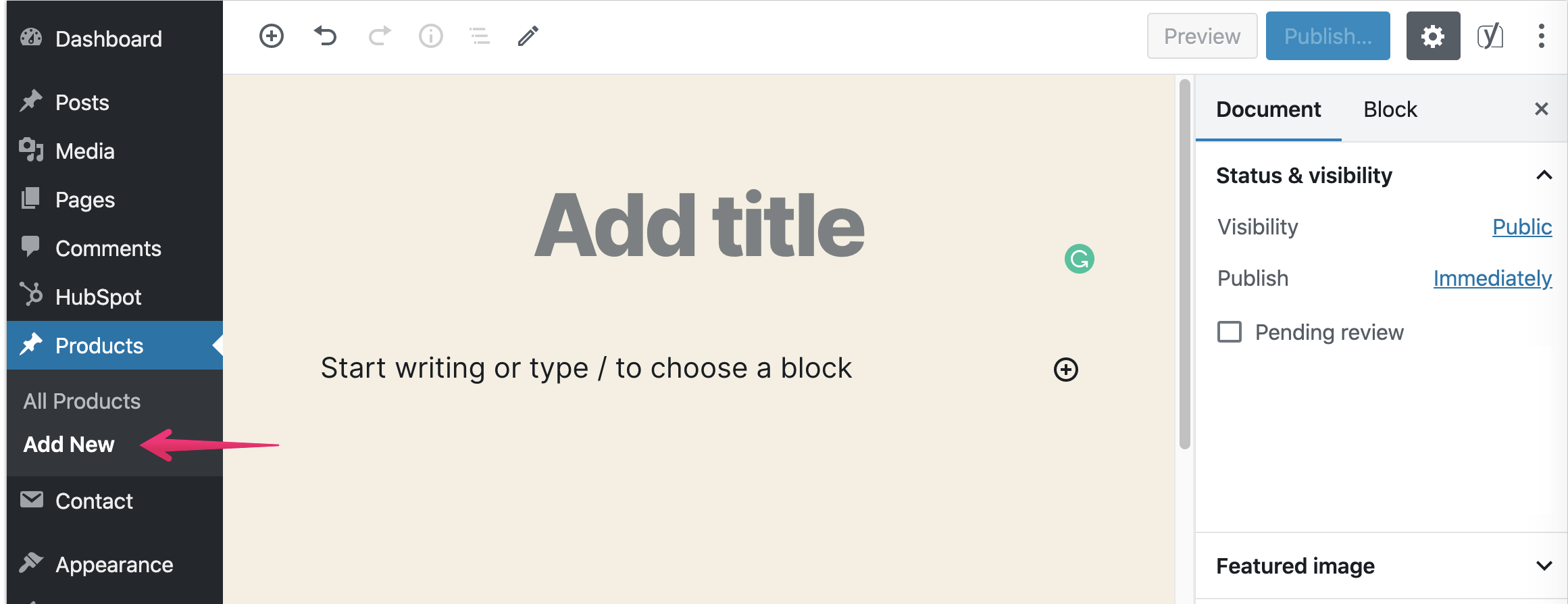
- Click the [Add New] button.
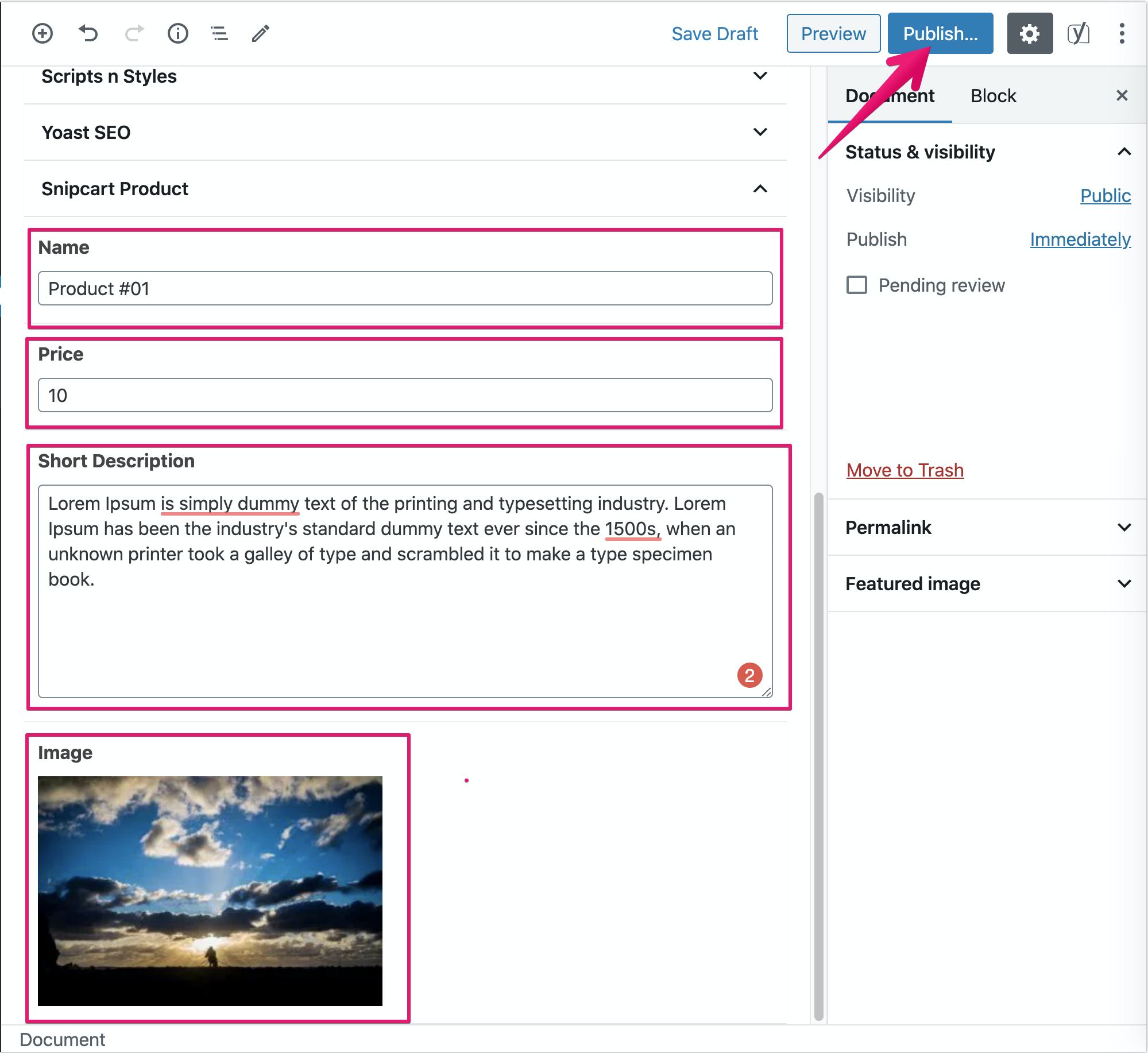
- Add the product name, price, description, and images, then publish.
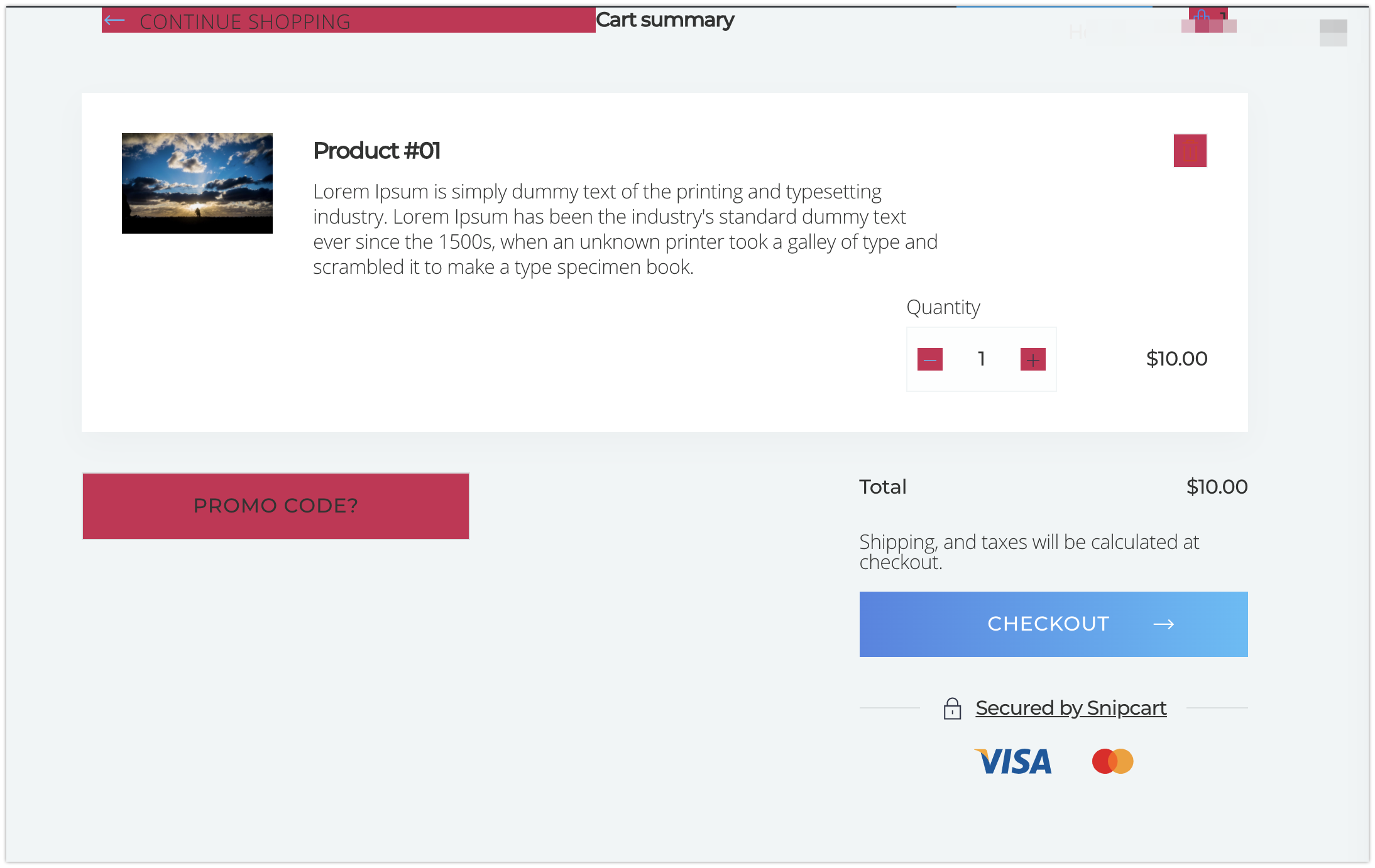
- Verify that the product appears on your live WordPress site.

Phase 5: Generate and Deploy the Artifact
Steps:
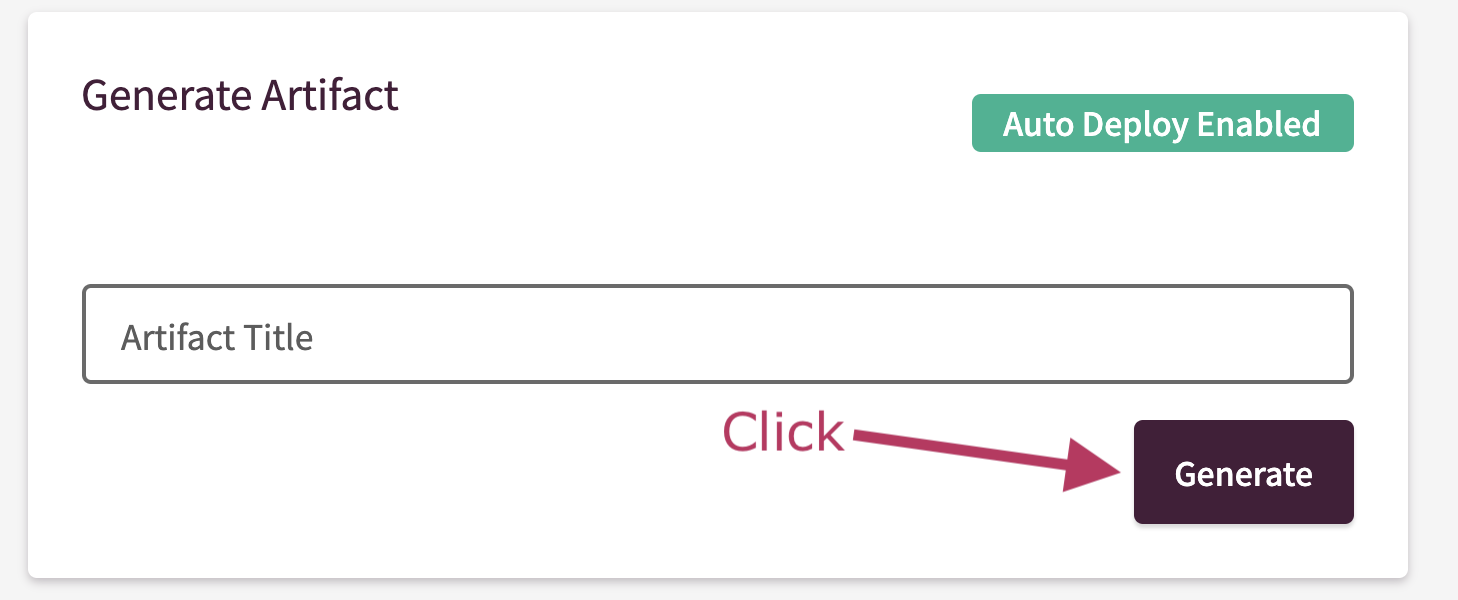
- Return to the Shifter dashboard and generate the artifact
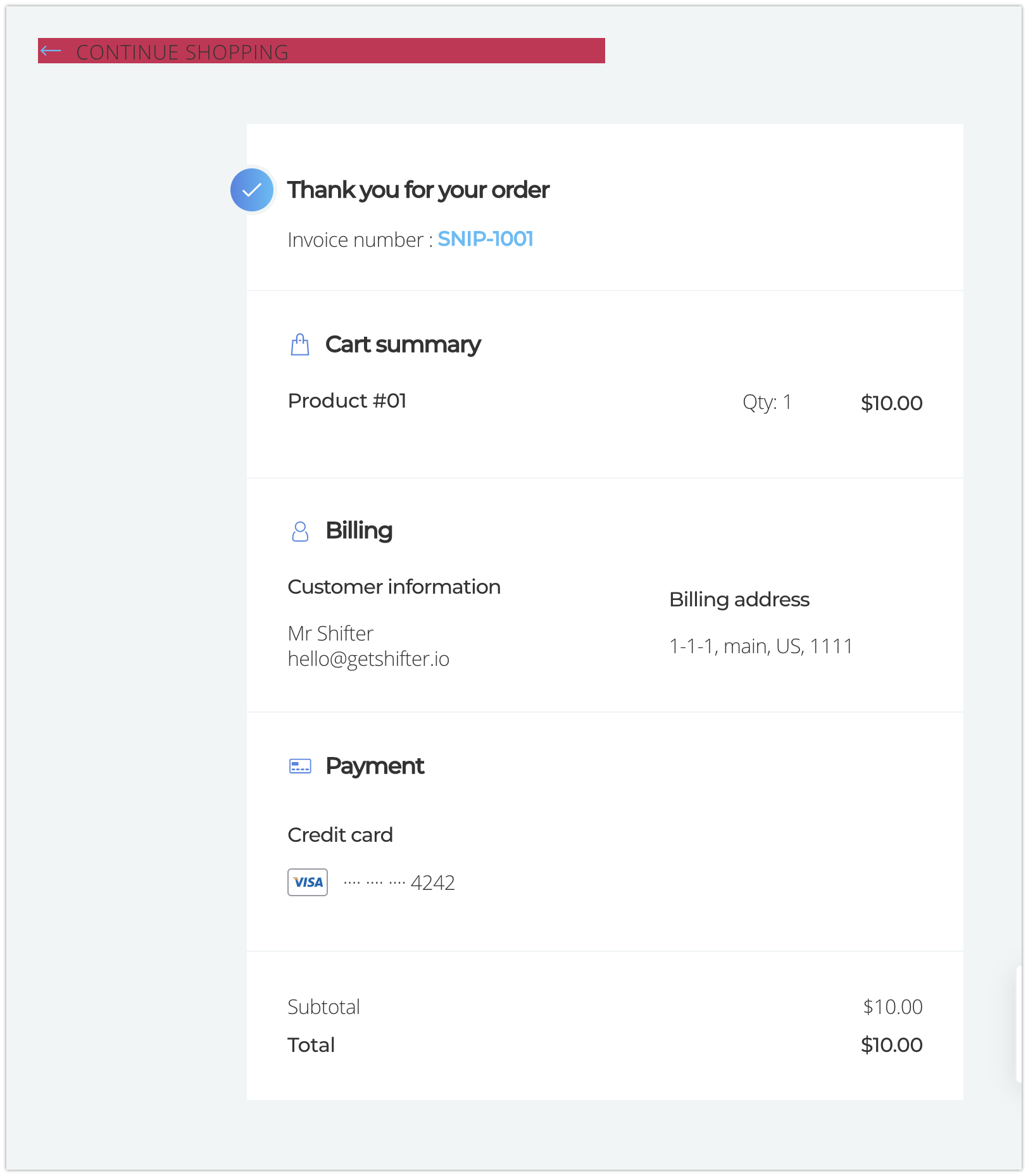
- Next, visit the product page to verify that it works
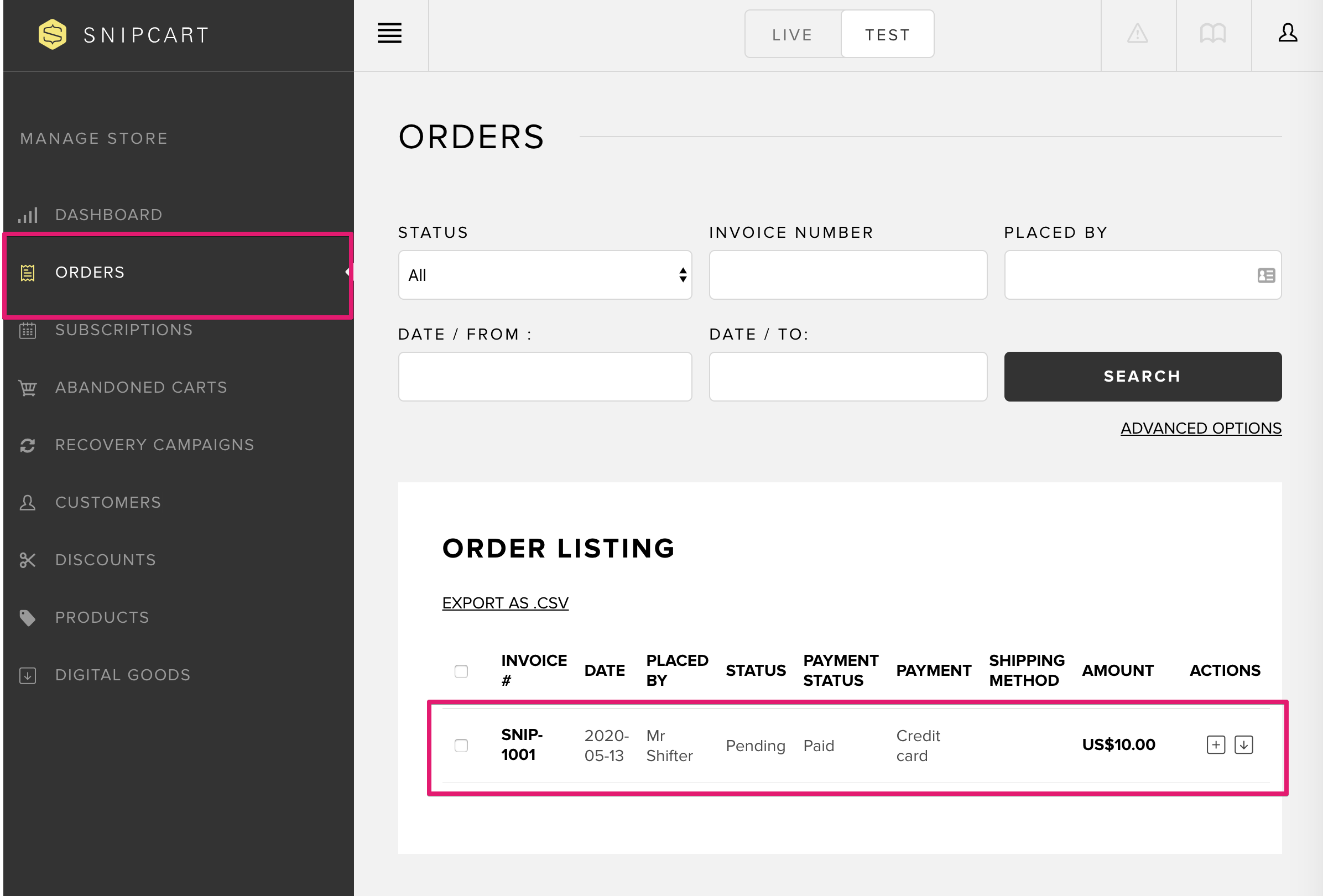
- Be sure to check the test order. Go to [ORDERS] in the Snipcrt dashboard.
That’s it!