
This section explains the steps for integrating with Convert Calculator.
Convert Calculator Setup Instructions
-
Sign Up: https://www.convertcalculator.co/
-
Create shopping forms, calculators, and more
-
Select a template or create a calculator from scratch
-
Click [Start building!]
-
We’ll use the “Bean order form template” as an example
-
You can test the form or order by disabling the Stripe integration
-
Click the save icon and select WordPress from the [Choose platform] drop-down menu
-
Copy the shortcode. Please copy the shortcode that appears. Example:
[convertcalculator id="tF3fcnbGiQP47xKkR"]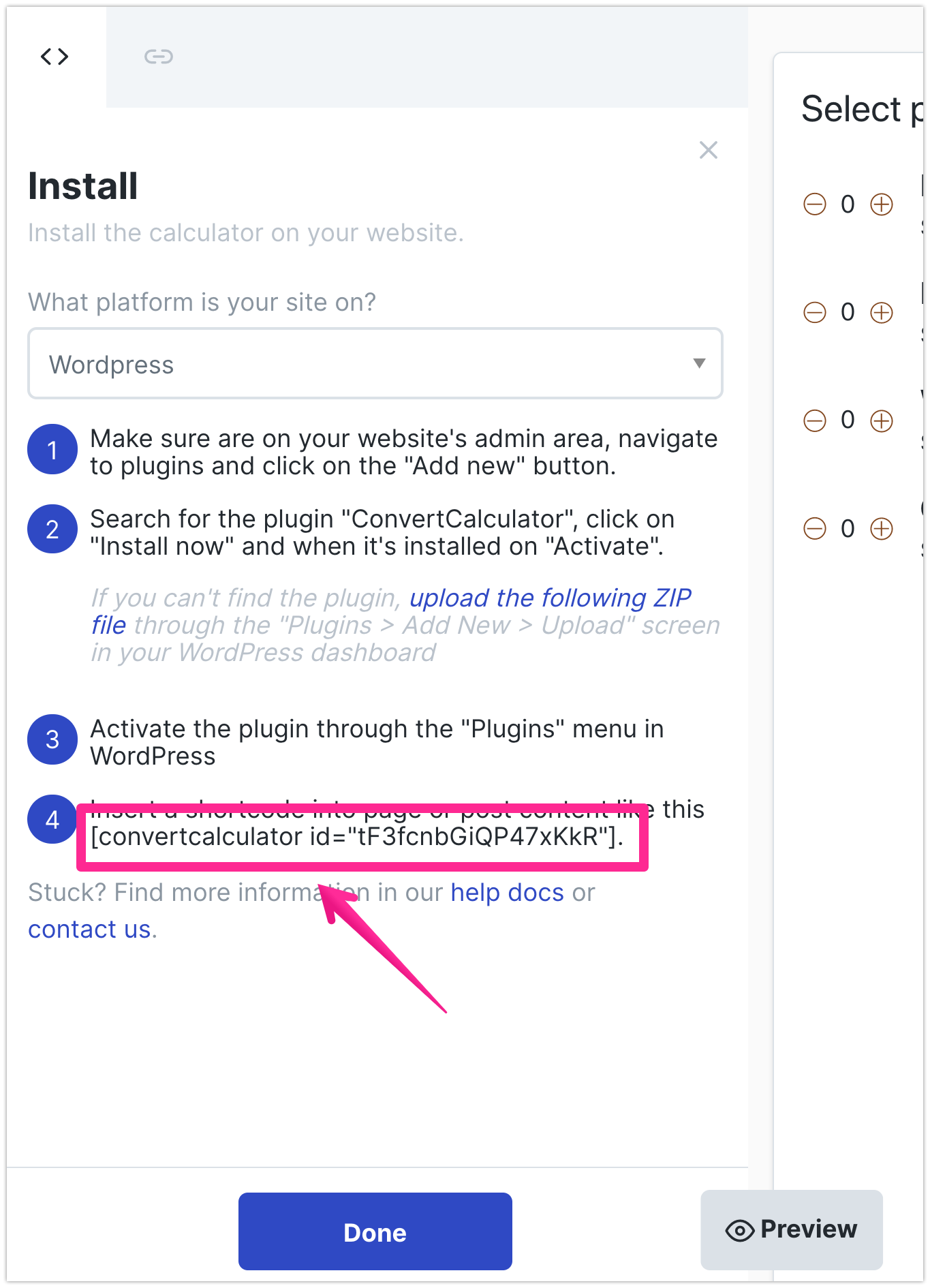
Setup on Your WordPress Site
- Log in to the Shifter dashboard: https://go.getshifter.io/
- Launch WordPress and log in
- Install and activate the plugin
- Create a page, post, or widget for your shopping form or calculator
- Click the [Add block] button
- Select [Shortcode]
- Paste the shortcode and publish
- Stop WordPress and generate the artifact
- Verify that the form is working
Check the submitted data
Click the hamburger icon and select [Submissions]
You can also check interactions. For more details, refer to the ConvertCalculator support documentation