
Just follow a few simple steps to try building a website with Shifter for free.
Free Trial Overview
- No credit card registration is required.
- Websites created during the free trial are available for 7 days (after 7 days, the site will be automatically deactivated and deleted. Your account will remain active even after the site is deleted).
- If you would like to keep using the same site for free, please register your credit card information. Once your credit card is registered, your site automatically switches to the Free Tier and can be used with no time limit. See also: Free Trial and Free Tier ・ Shifter Static pricing plans
- You can use the free trial as many times as you like.
How to Sign Up for the Free Trial
Create a Shifter Account
To use the free trial, you must create a Shifter account.
If you do not have an account, please create one first.
Reference Page: How to Create a New Account
How to Sign Up for the Free Trial
You can sign up for the free trial as part of the process of creating a new site.
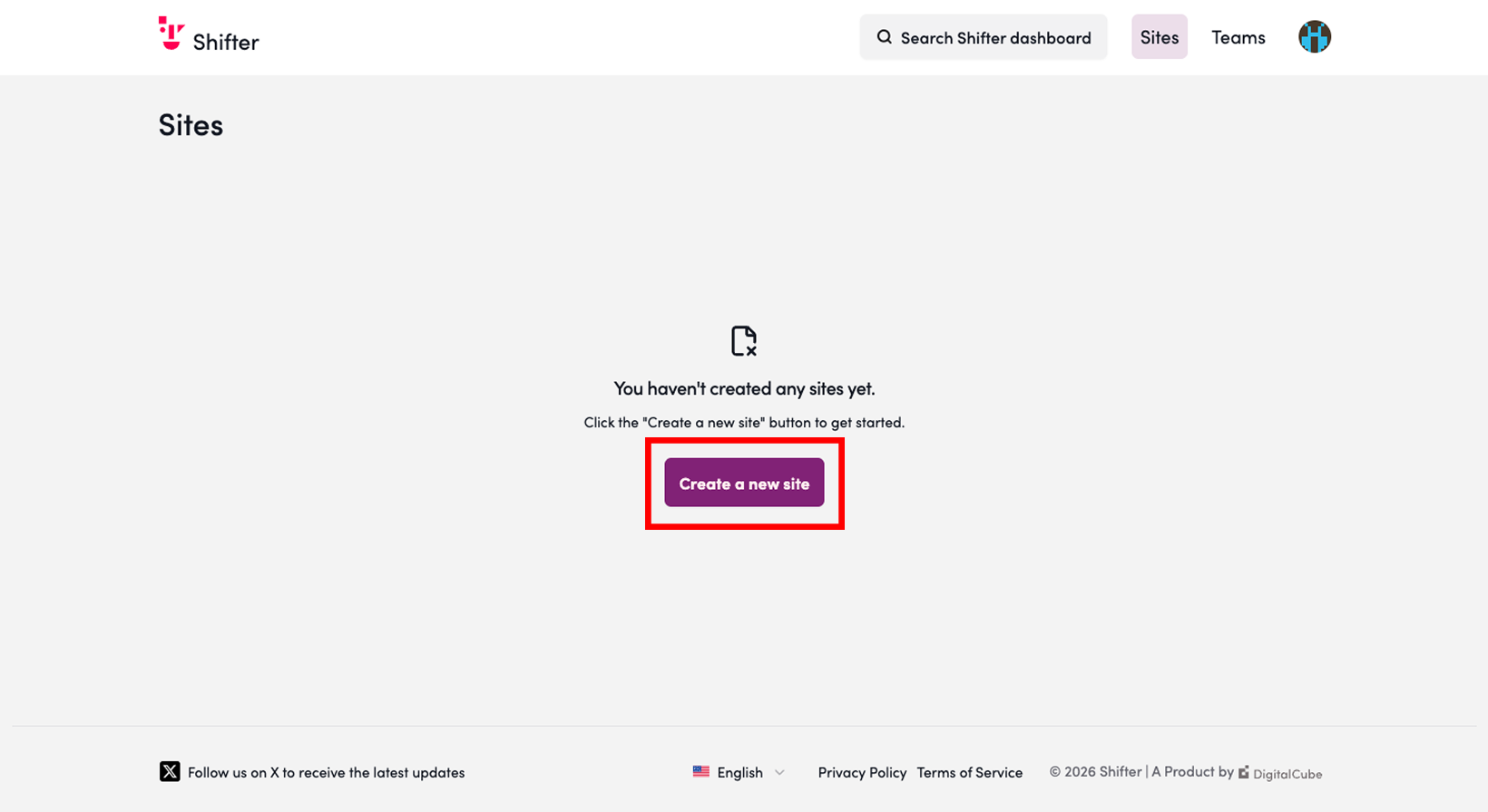
1. Click the “Create New Site” button
Log in to the Shifter dashboard and click the “Create New Site” button under the “Sites” menu.
2. Select Shifter Static from the drop-down menu
*Please note that the free trial and Free Tier are available only for Shifter Static. Please note that Shifter Headless is not available.
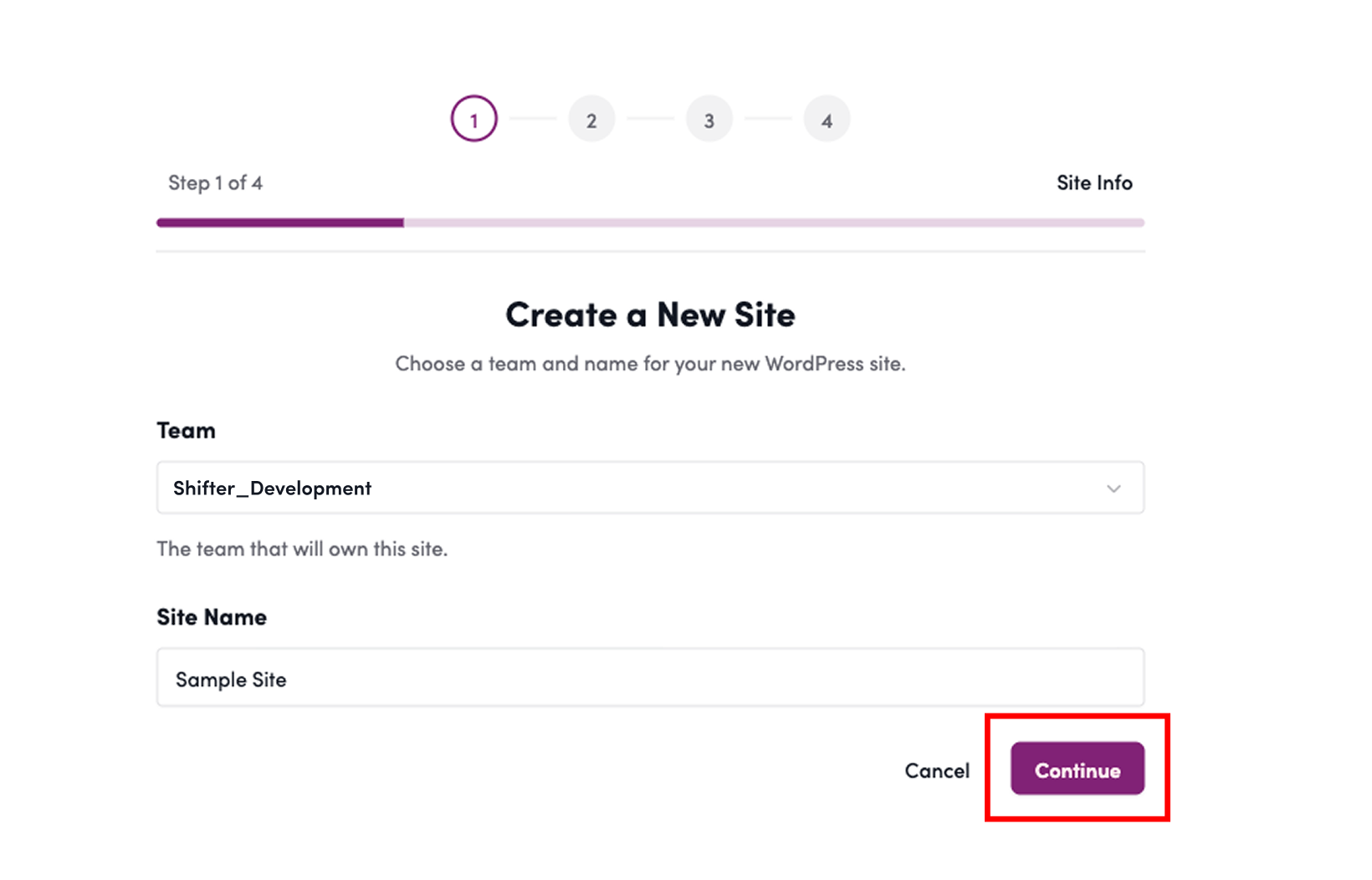
3. Enter Site Information
Enter the information required to create the site, then click “Confirm.” The required fields are as follows:
- Team: You can assign the site to a team. If you have no specific preference, leave it at the default setting.
- Site Name: Enter the site’s title.
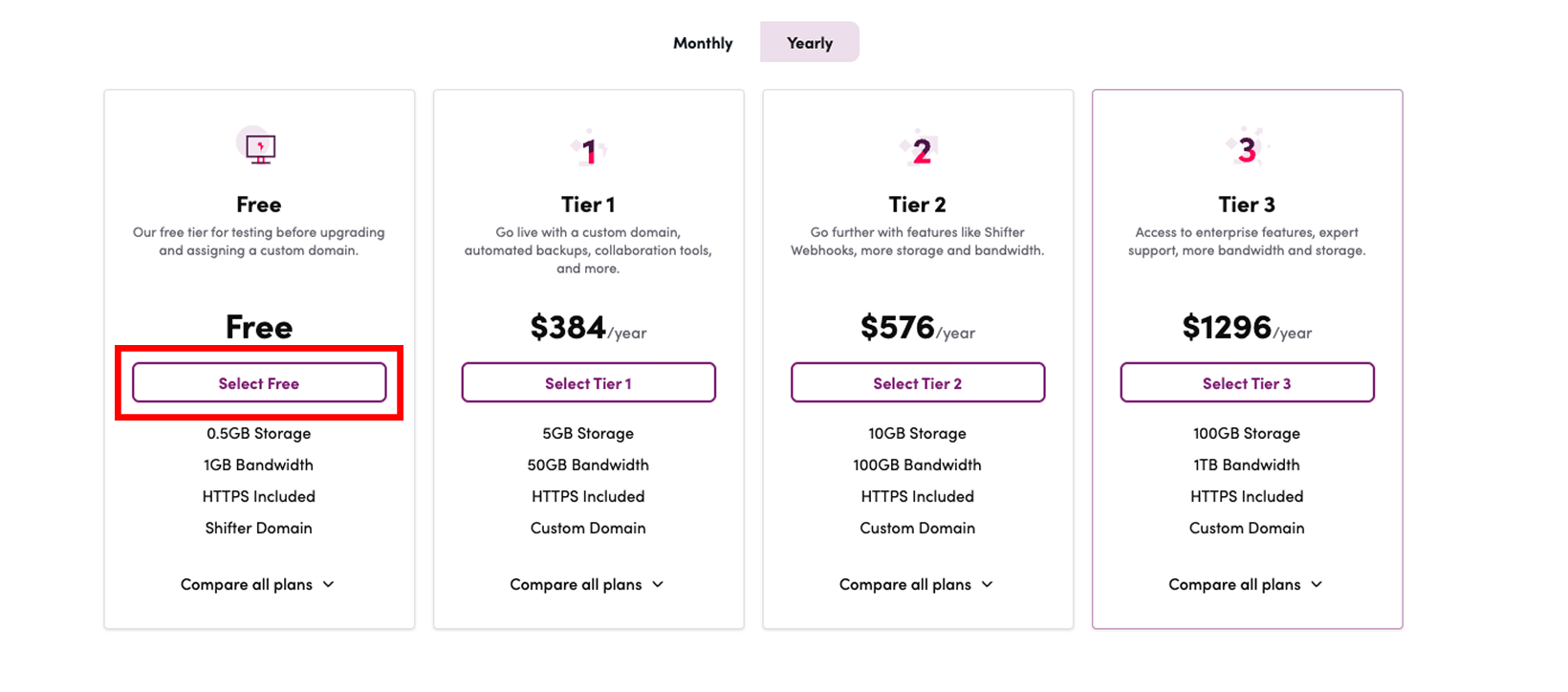
4. Select a plan
For the free trial, select the “Free Tier” plan.
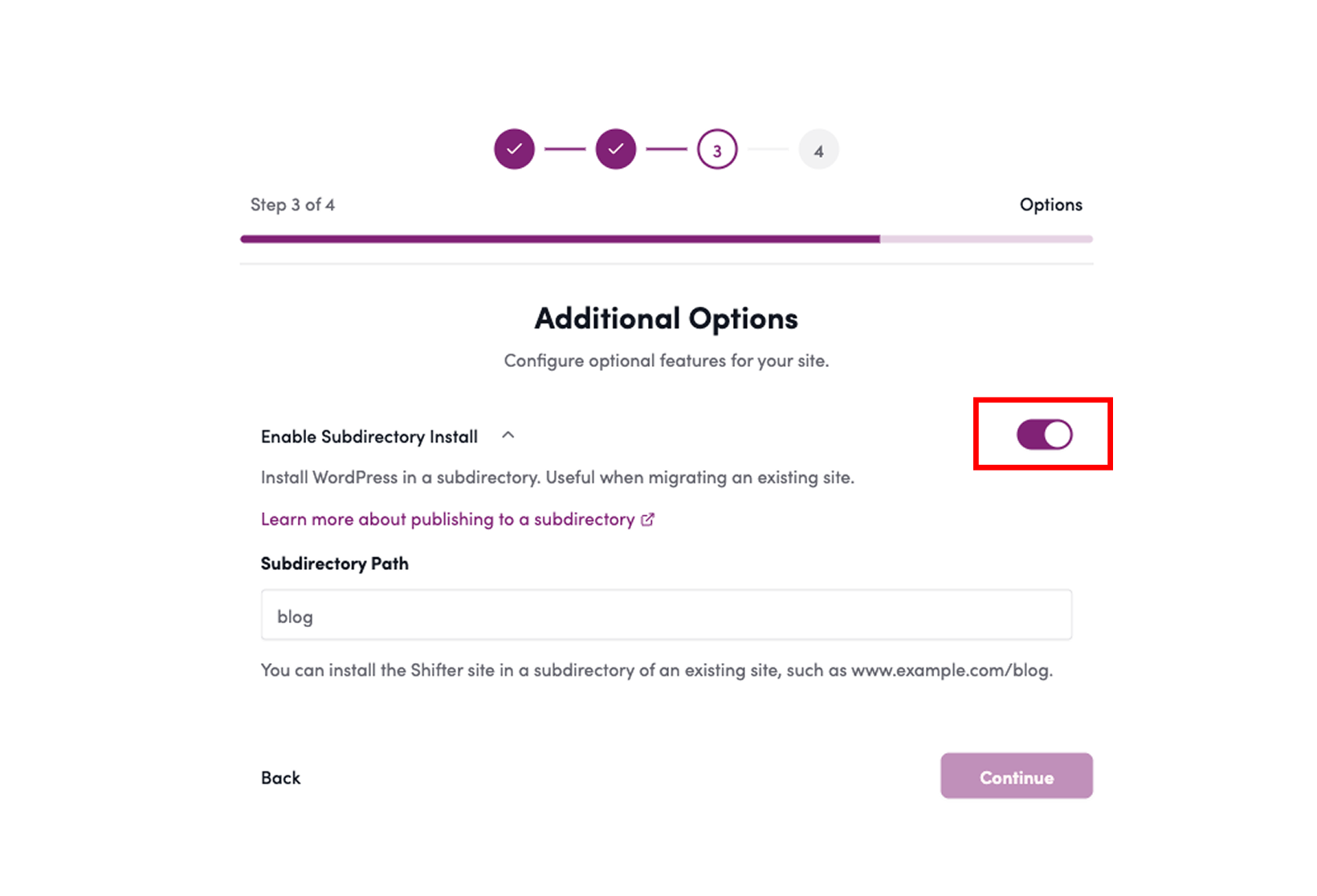
5. Configure additional options
If you want to install WordPress in a subdirectory, enter the details on the additional options screen. If this is not necessary, simply click the “Confirm” button.
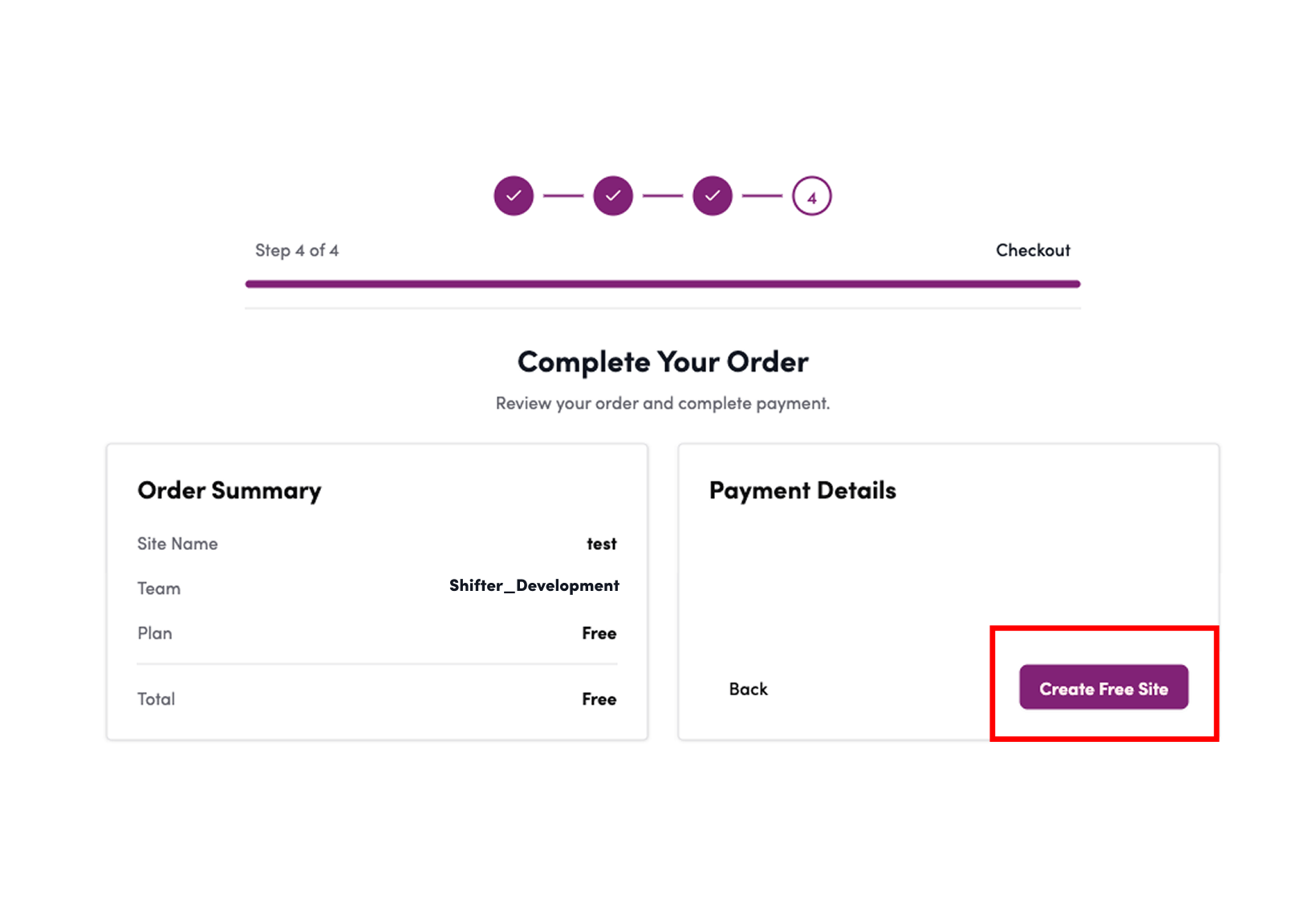
6. Enter Payment Information
For the free trial, do not enter your credit card information; simply click the “Sign Up” button.
*If you enter your credit card information, you will be enrolled in the Free Tier plan, and you can use the site indefinitely.
Reference Page: Free Trial and Free Plan (Free Tier)
7. Installing WordPress
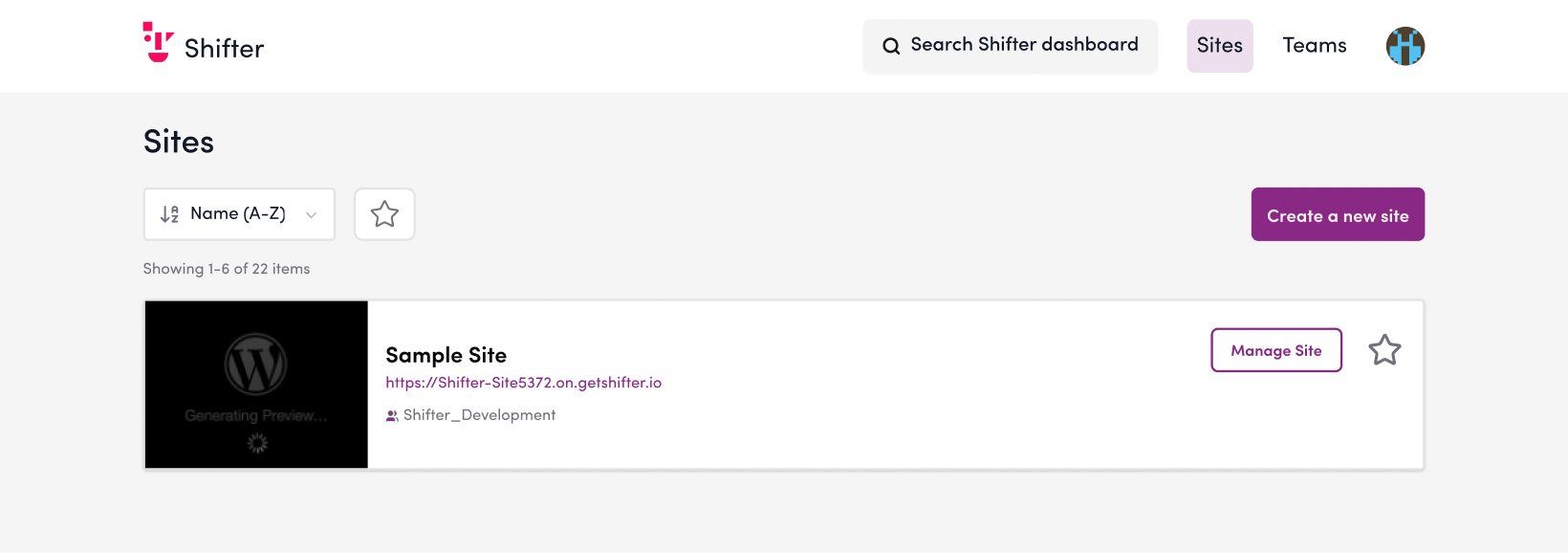
Once you’ve entered your payment information, the WordPress installation will begin automatically.
Once a message appears indicating that your site has been created, the installation is complete.
Click “Go to New Site,” or if you remain on this screen for a certain amount of time, you will be redirected to the Shifter dashboard.
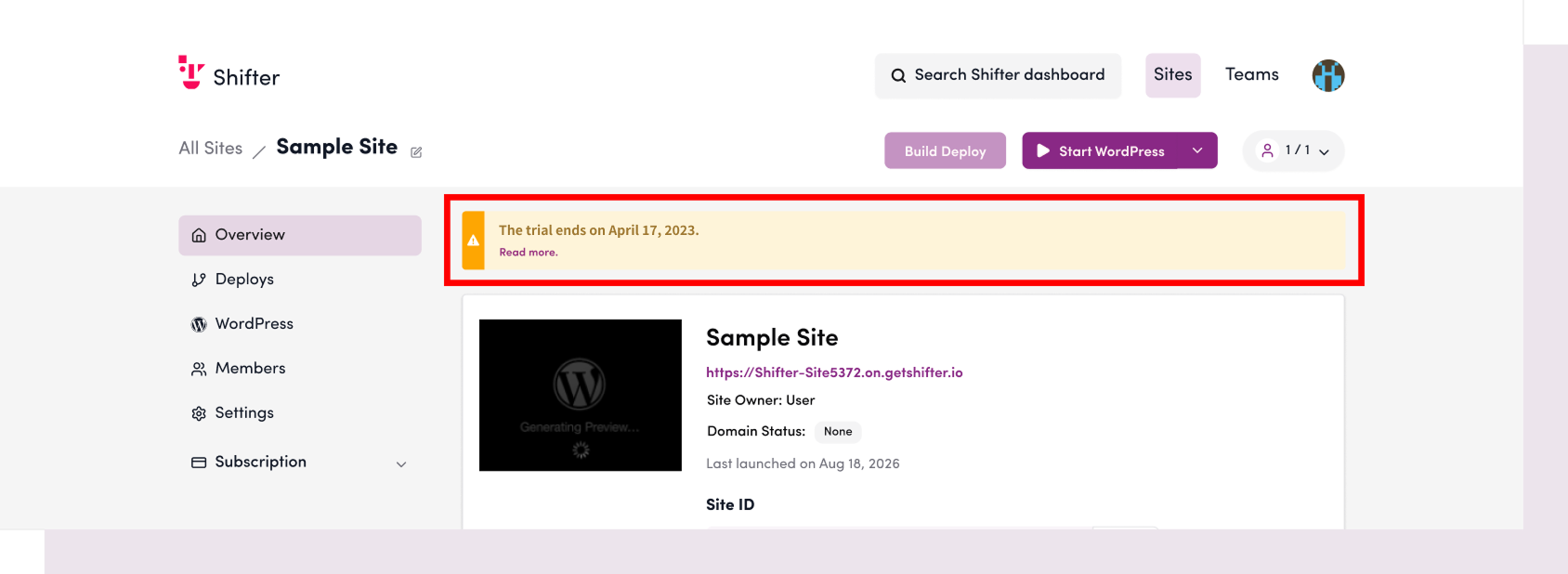
Please check the top of the Shifter dashboard for the trial expiration date.
This completes your free trial registration.
For information on how to create posts and publish your site, see “How to Create and Publish a New Site on Shifter”.