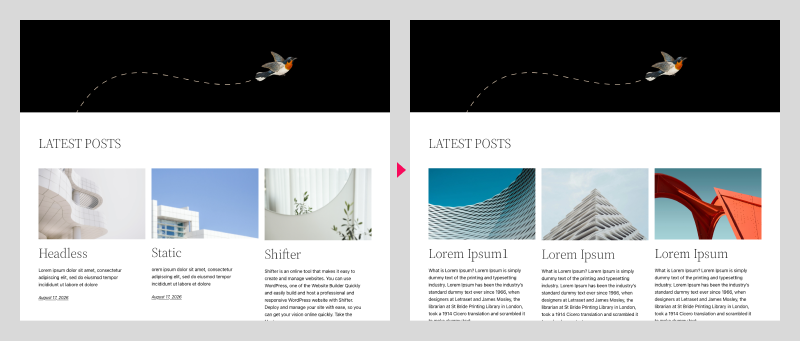
With Shifter, you can update individual posts, static pages, and other single pages without having to regenerate or redeploy. Additionally, since these updates do not appear in the deployment history on the Shifter dashboard, older deployments will not be deleted. This is useful for updating articles you want to publish immediately or for urgent announcements.
You can overwrite the update by publishing a different artifact, thereby removing it from the live environment; however, since the updated data remains in WordPress, you can also simply create a new artifact and publish the update as is.
Procedure
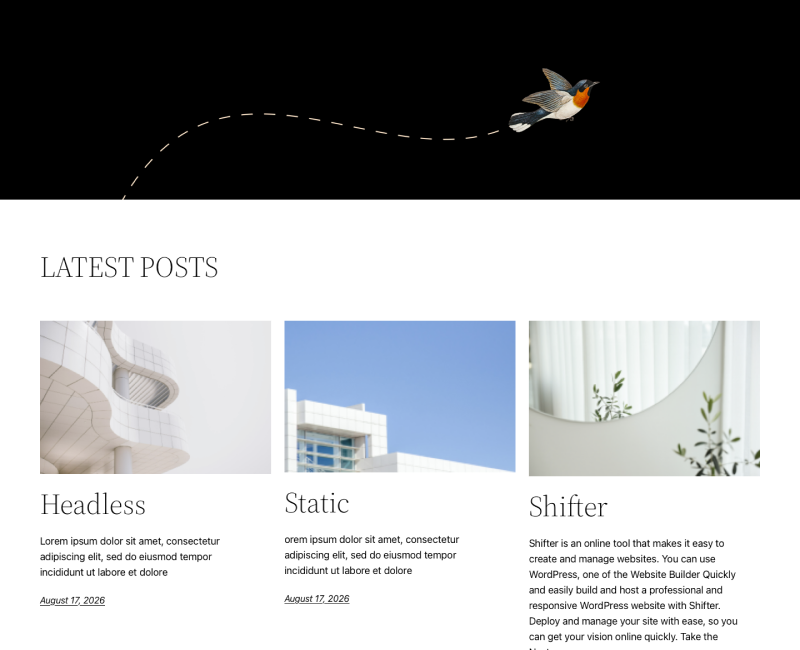
In this article, we’ll replace the homepage
1. The homepage before replacement
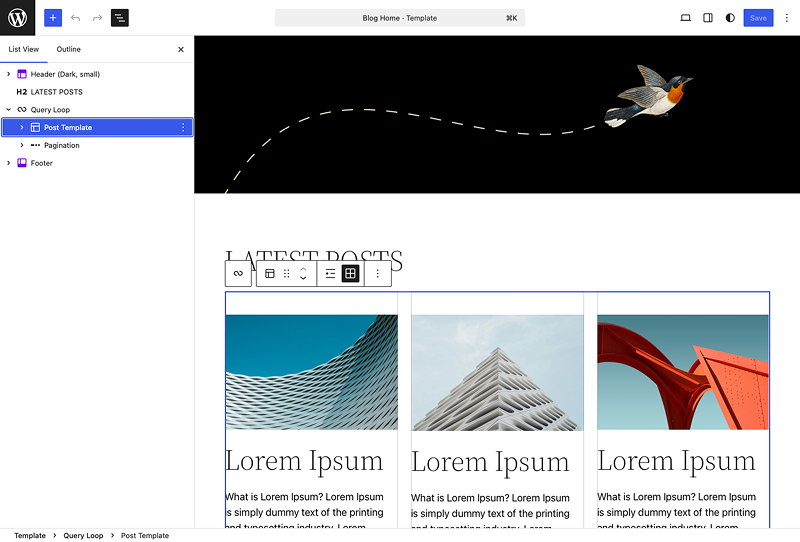
Edit the page you want to update
2. Launch WordPress, log in, and edit the content of the homepage
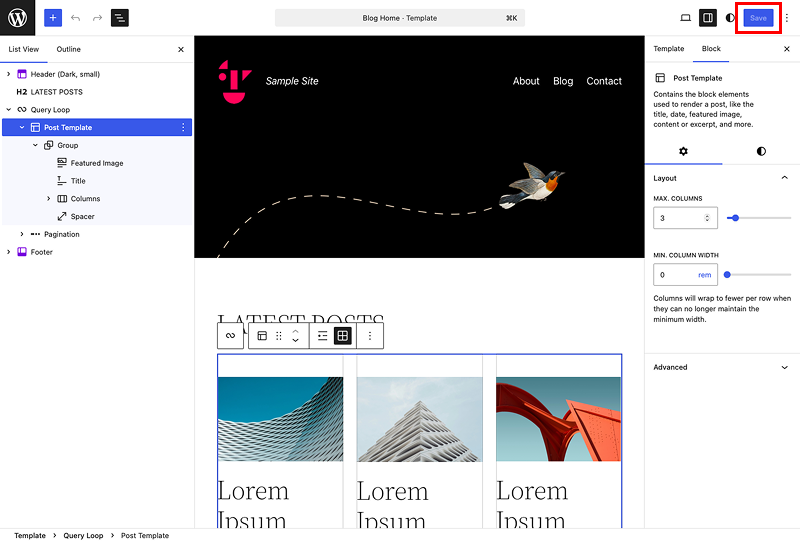
3. Save the update
4. Click the [View Static Page] button
![Screenshot: Click the [View Static Page] button](/wp-content/uploads/2026/10/en_upload-specific-pages_04.png)
5. Click the Shifter icon on the admin menu bar

6. Click [Upload Single Page]
![Screenshot: Click [Upload Single Page]](/wp-content/uploads/2026/10/en_upload-specific-pages_06.png)
7. Click [Upload]
![Screenshot: Click [Upload]](/wp-content/uploads/2026/10/en_upload-specific-pages_07.png)
8. Uploading to the live site
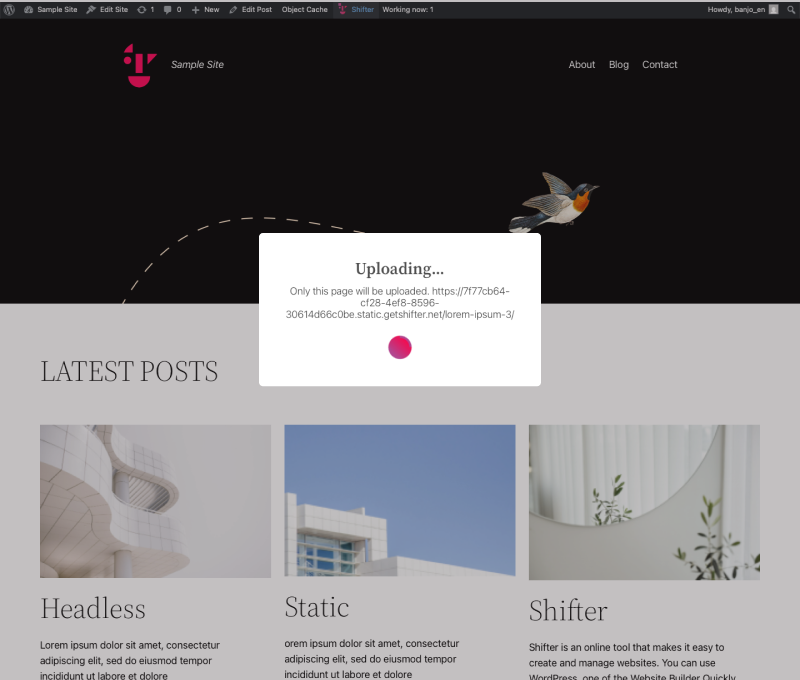
9. Upload complete. Click [OK] to close the window
![Screenshot: Upload complete. Click [OK] to close the window](/wp-content/uploads/2026/10/en_upload-specific-pages_09.png)
Check the uploaded page
10. Click the site’s URL to access the site.
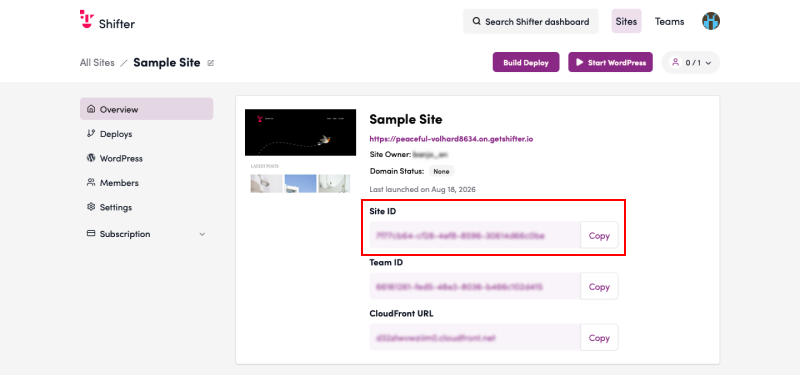
11. Verify that the content on the homepage has been replaced
Comparison of Before and After
12. Before and After