
IPv6 is available by default on all Shifter sites. To enable it, you need the following two items:
- The CloudFront domain name in the Shifter dashboard
- Permissions to update DNS
Verifying Your CloudFront Domain
When you create a site in Shifter, a default Shifter domain name is assigned (e.g., example-site.on.getshifter.io). This is the default way to access your site, but it is not the only way. Your Shifter domain is actually a mask for another domain. This masked domain is called a CloudFront domain or a raw CDN domain.
To find your CloudFront domain name, log in to the Shifter dashboard and go to Site Settings. In the Site Settings panel, you’ll see a domain name labeled “CDN” that ends with cloudfront.net. That is your CloudFront domain name.
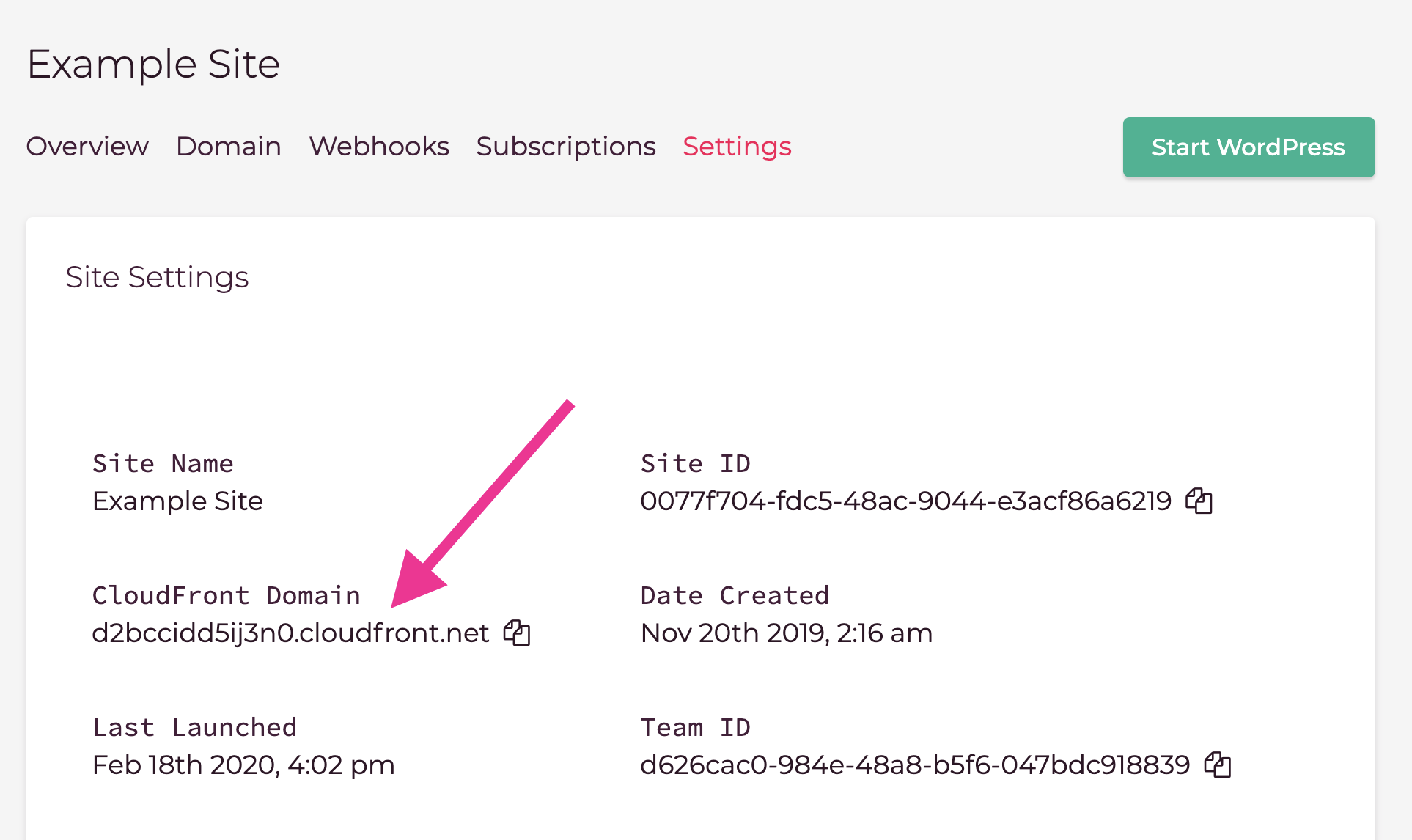
Since we’re a product built on AWS, we integrate Amazon CloudFront as our CDN. Each customer has their own CloudFront distribution, and IPv6 is enabled by default. To enable IPv6 for your custom domain name, you’ll need to locate and make a note of your CloudFront domain name.
Now that you have your CloudFront domain name, let’s walk through the DNS changes.
Updating DNS for IPv6
Let’s assume you already have a site hosted on Shifter using a custom domain name. If not, there is documentation on setting up a custom domain. Once you’ve set up your custom domain, return to this guide to configure IPv6.
For example, let’s say your custom domain name is www.example.com. In this case, the record you need to change is the www subdomain record. With typical domain configuration in Shifter, you can use your Shifter domain name as the value for your custom domain. This means that the domain www.example.com is actually just a mask for example.on.getshifter.io. While this works, it does not allow you to fully take advantage of IPv6. To do so, you must use a CloudFront domain name instead.
Log in to your DNS provider and locate your site’s CNAME record. Once you’ve found the record to update, replace the Shifter domain with the CloudFront domain name. Once you save the DNS changes, propagation will begin.If your site is currently live on a custom domain name, there will be no downtime or service interruption. The change should occur seamlessly. As long as your DNS provider supports CNAME, ALIAS, or APEX domain records, you can apply this to any custom domain name. Most providers support these.
You can use several different tools to test this change. If you have a command-line tool like Terminal, you can check the IPv6 records as follows:
“`bash $ dig AAAA www.example.com