
During the single sign-on setup process, you will need to perform certain actions on the single sign-on provider side.
This page explains the steps for Okta.
Please follow the steps below, as outlined in “4. Tasks at the Single Sign-On Provider” in the Single Sign-On Setup guide.
Creating an Application
Log in to the Okta admin console ( https://www.okta.com/).
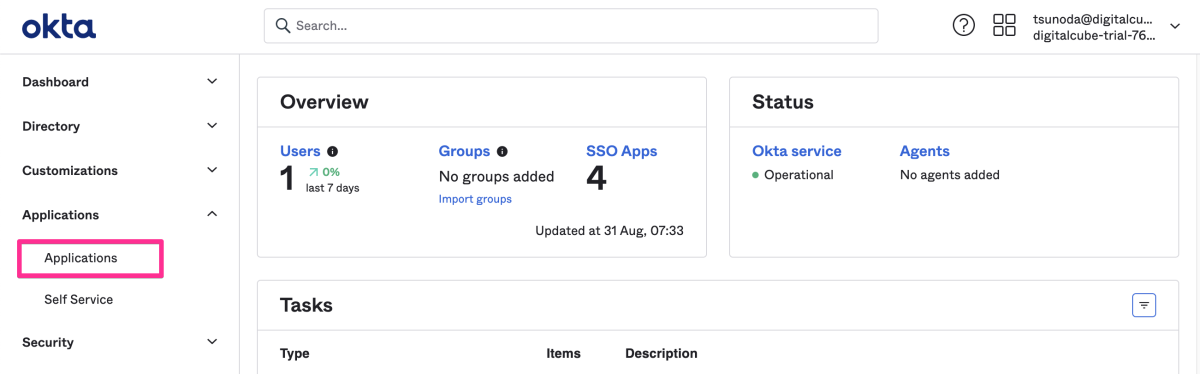
Click “Applications” in the left-hand menu, then select “Applications” from the submenu that appears.
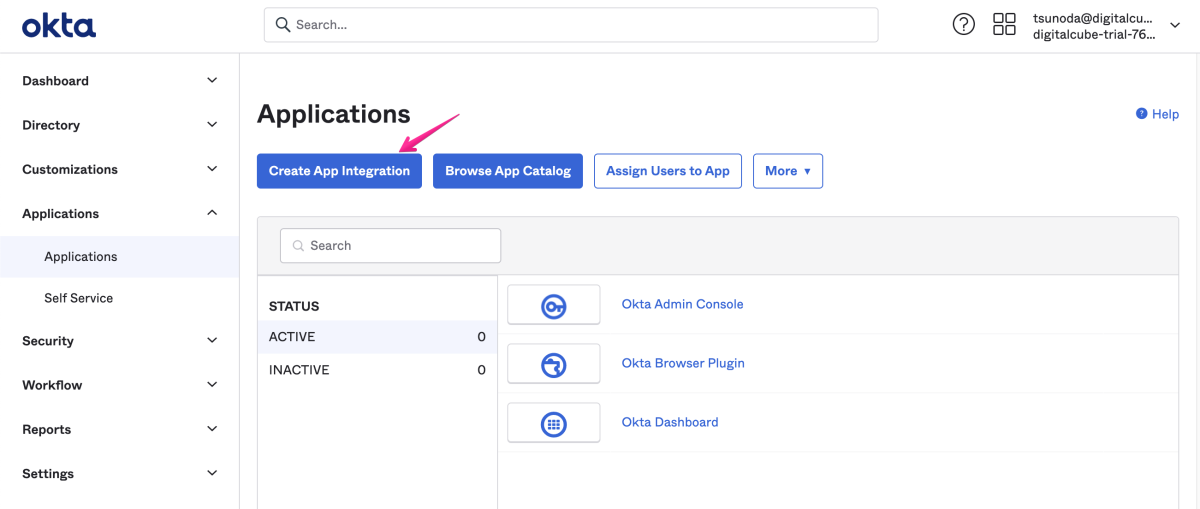
Click “Create App Integration.”
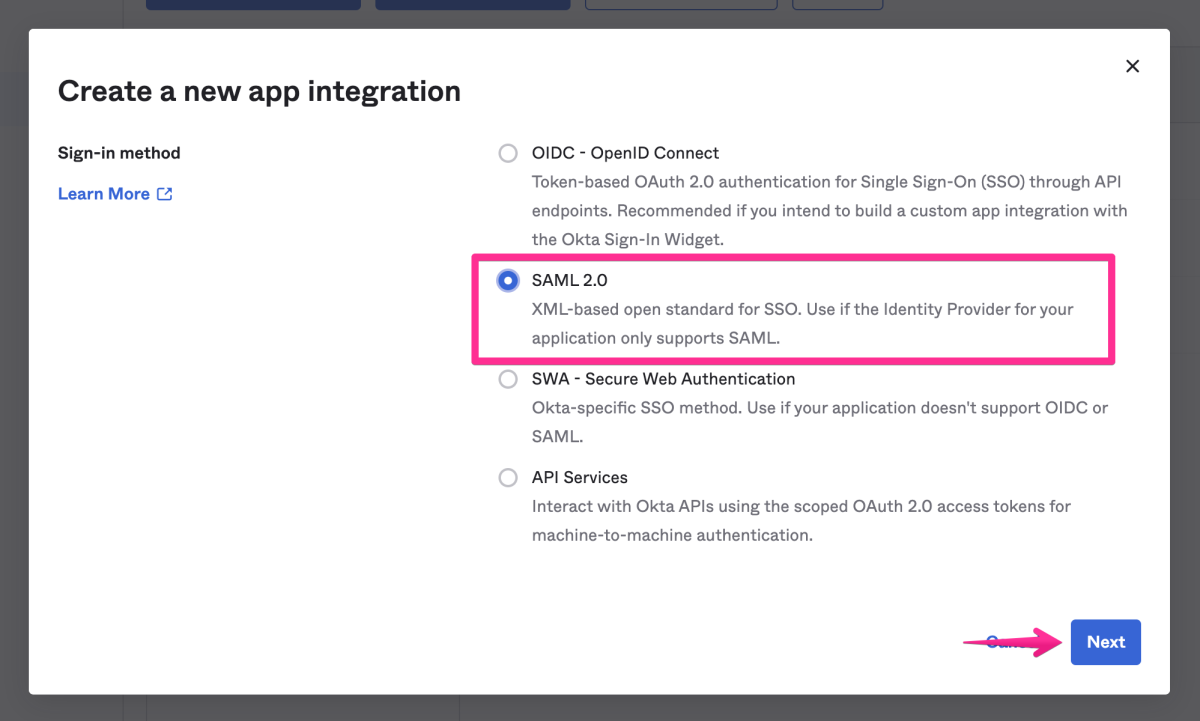
Select “SAML 2.0” and click “Next.”
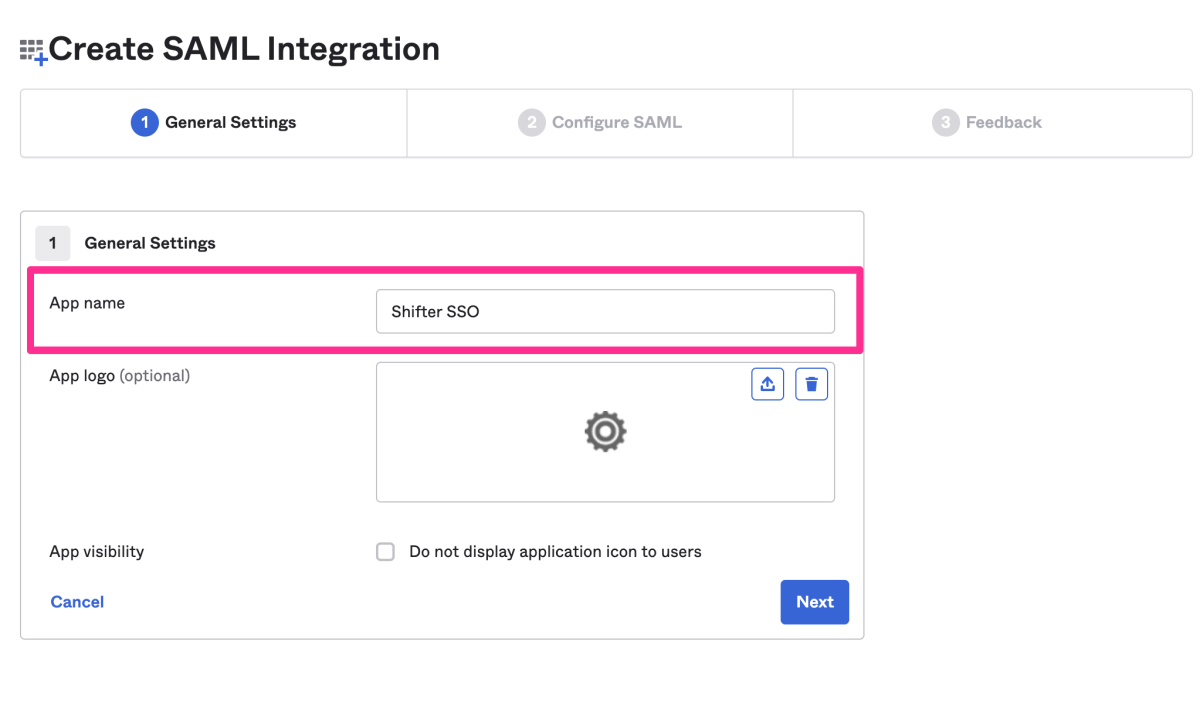
Enter a name of your choice (e.g., Shifter SSO) in the “App Name” field (checking “App Visibility” is optional), then click the “Next” button in the lower-right corner.
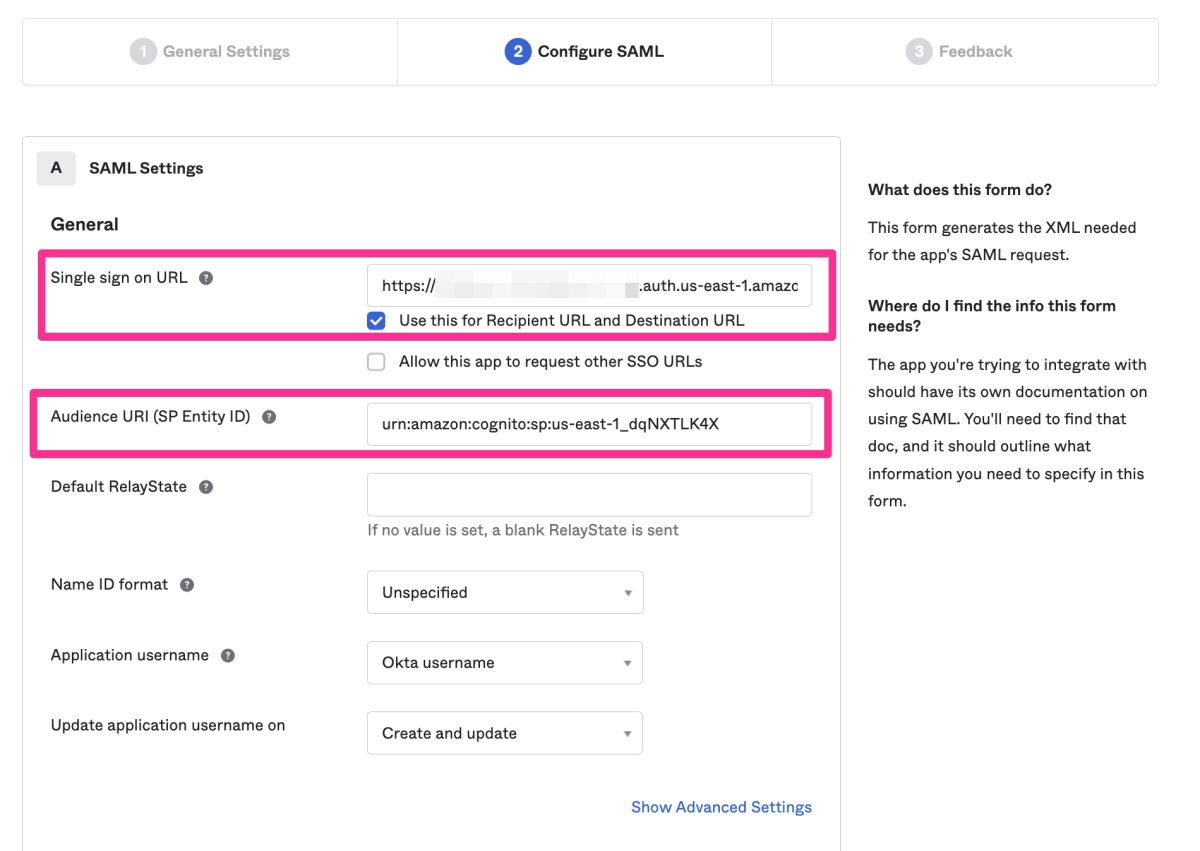
Refer to the information below to fill in the fields under “General” in A. SAML settings.
- Single sign-on URL: The callback URL displayed in the Shifter dashboard
- Audience URI (SP Entity ID): The “Audience” value displayed in the Shifter dashboard
- Default RelayState: Leave blank
- Name ID format: Persistent
- Application username: Okta username
- Update application: username on: Create and update
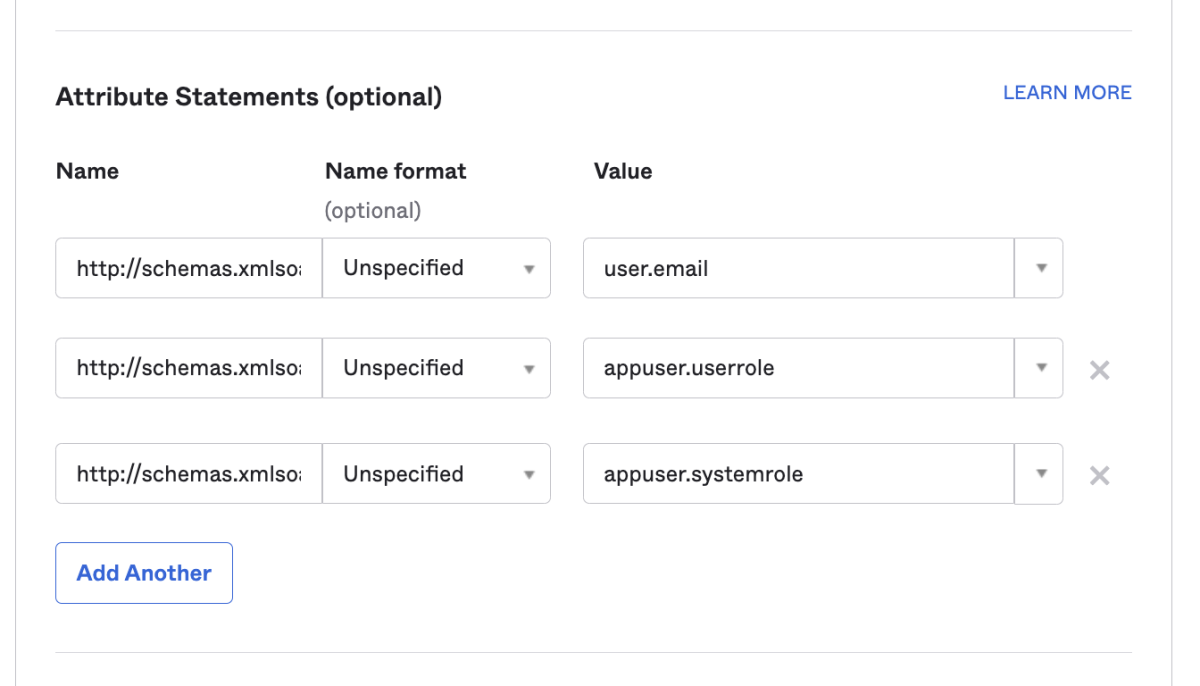
Next, configure the “Attribute Statements (optional)” section as follows:
Name: http://schemas.xmlsoap.org/ws/2005/05/identity/claims/emailaddress
Name Format: Unspecified
Value: user.emailName: http://schemas.xmlsoap.org/ws/2005/05/identity/claims/userrole
Name Format: Unspecified
Value: appuser.userroleName: http://schemas.xmlsoap.org/ws/2005/05/identity/claims/systemrole
Name Format: Unspecified
Value: appuser.systemrole
* The settings in B. Preview the SAML assertion generated from the information above are optional.
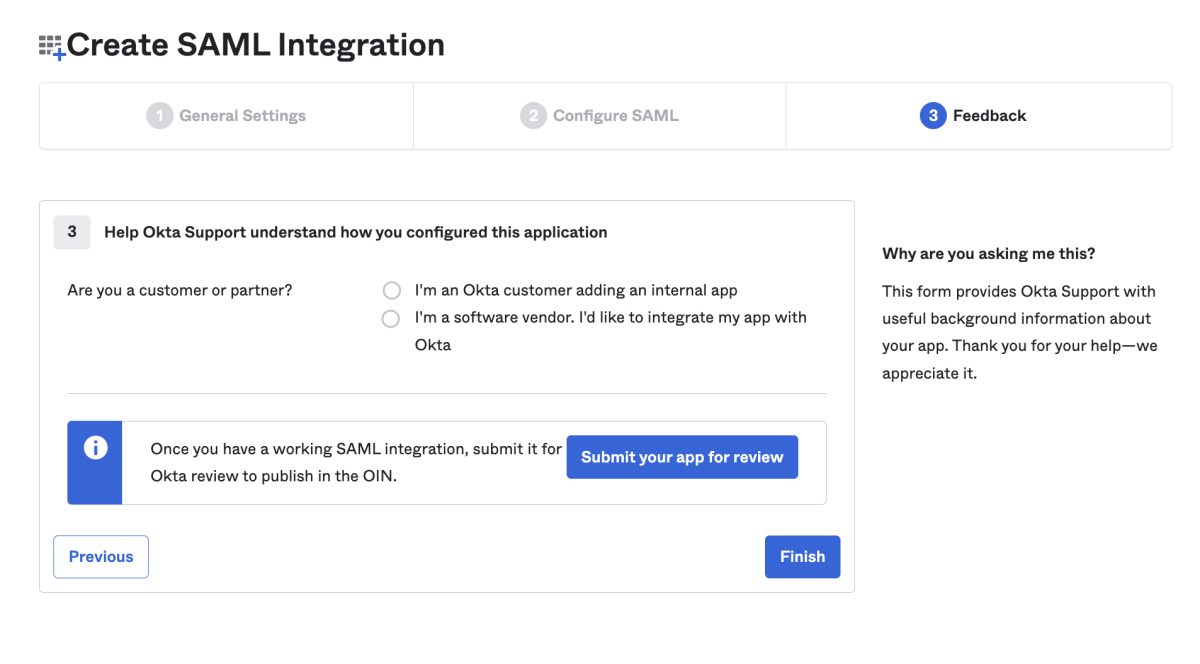
Select the content for “feedback” and click “Finish.”
Adding a Custom Attribute
Click “Directory” in the left-hand menu, then select “Profile Editor” from the menu that appears.
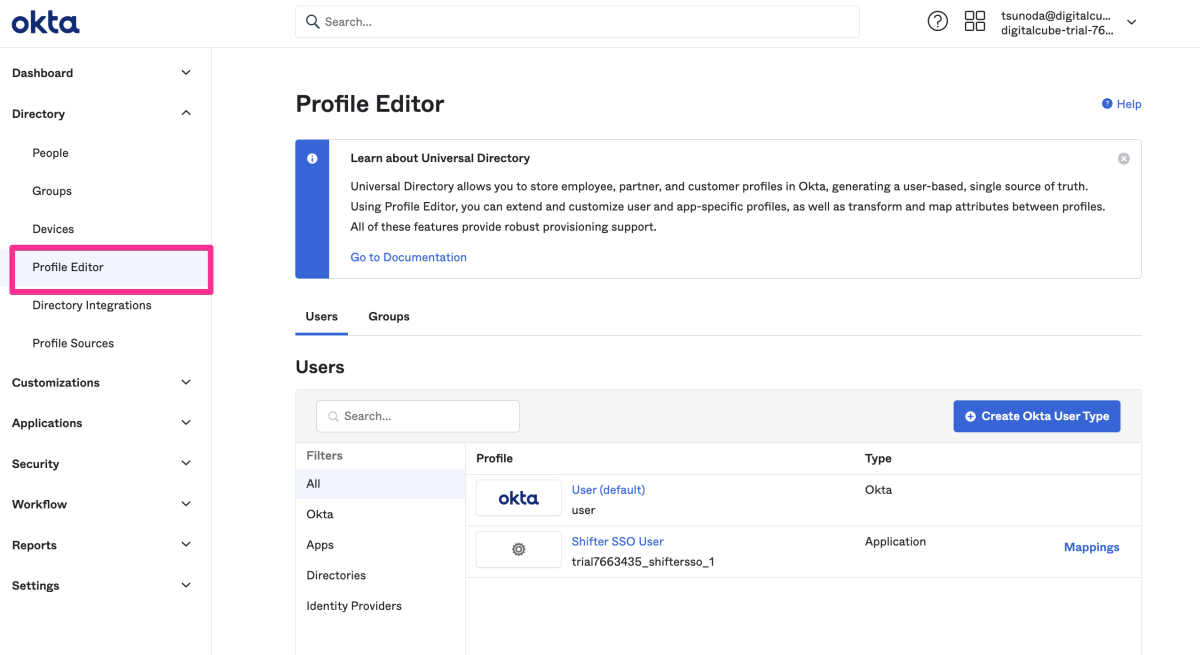
Click the application name.
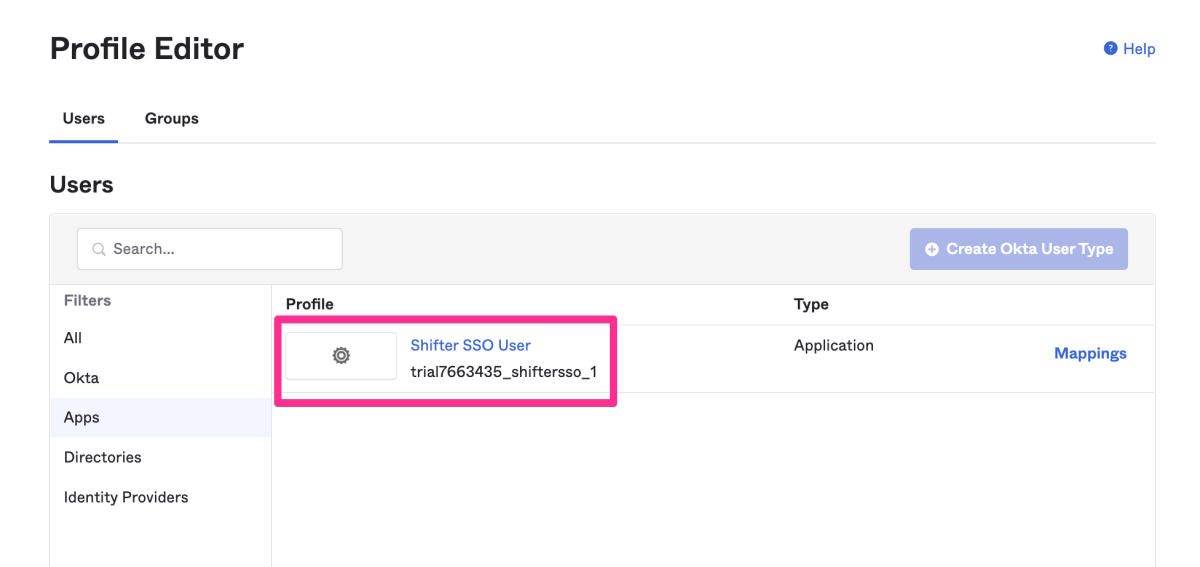
Click “Add Attribute.”
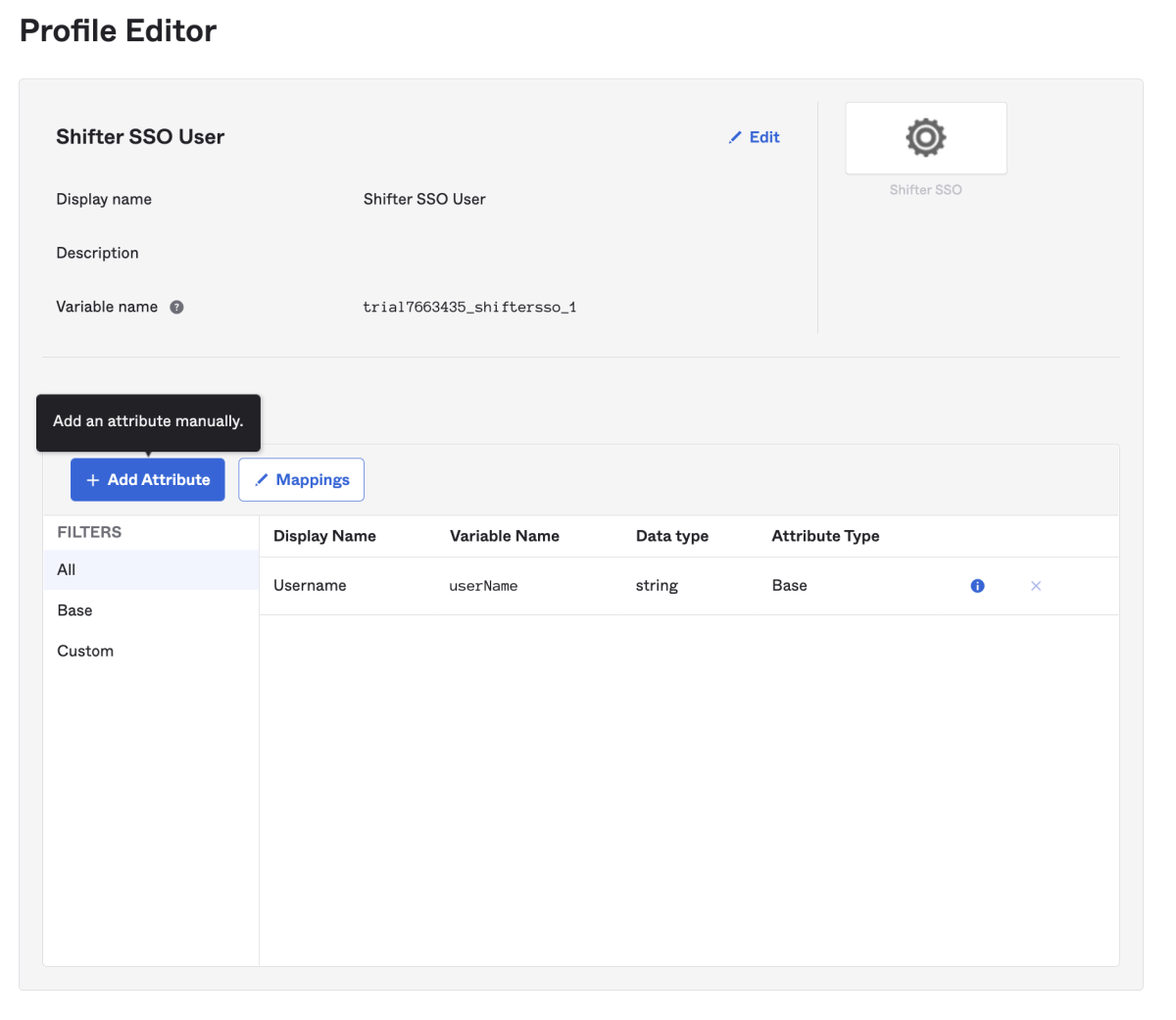
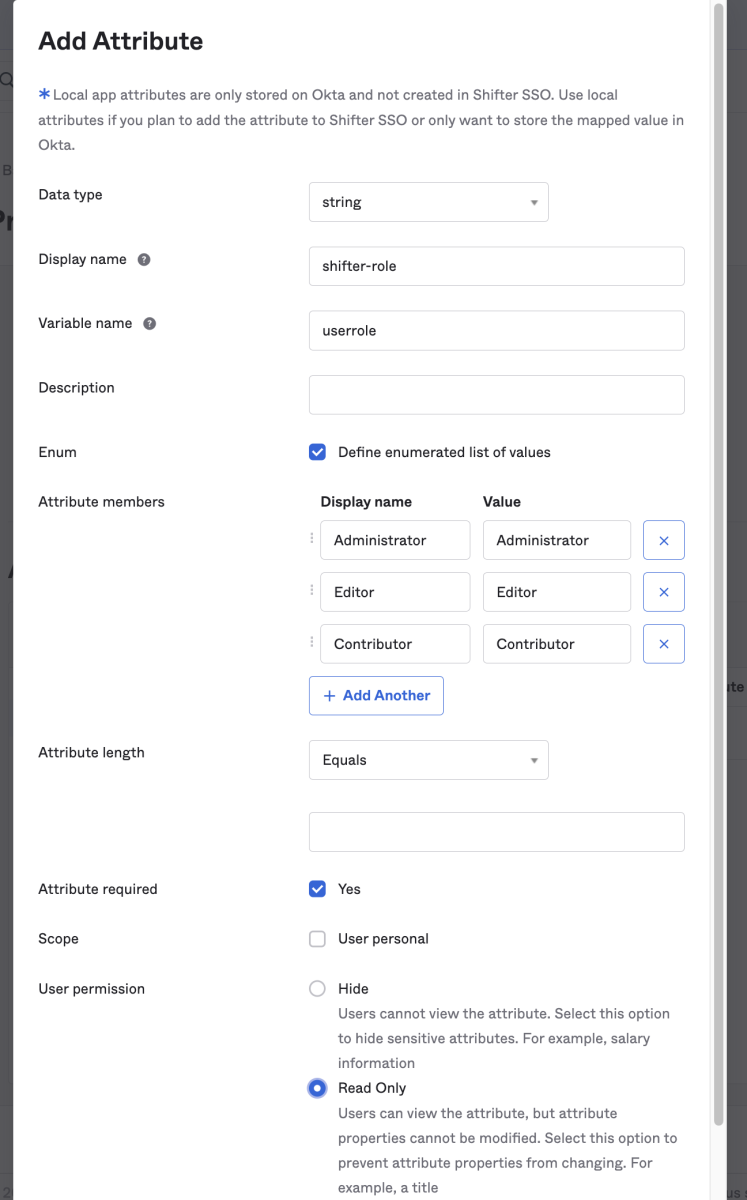
Configure and enter the values for each attribute field as follows:
- Data type: string
- Display name: shifter-role
- Variable name: userrole
- Enum: [✓] Define enumerated list of values
- Attribute members
- Click [Add Another] and add the following:
Display name: Administrator
Value: AdministratorDisplay name: Editor
Value: EditorDisplay name: Contributor
Value: Contributor
- Attribute required: [✓] Yes
- User permission: Select “Read Only”
Click “Save Attribution” to save.
Adding user information for single sign-on login
Once again, select “Applications” from the “Applications” menu, then click the application name.
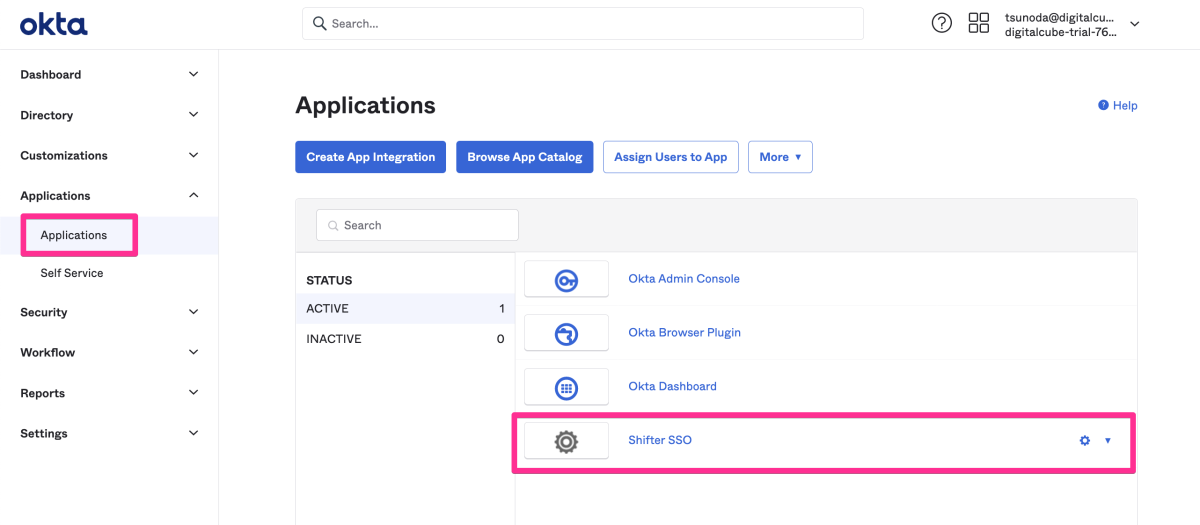
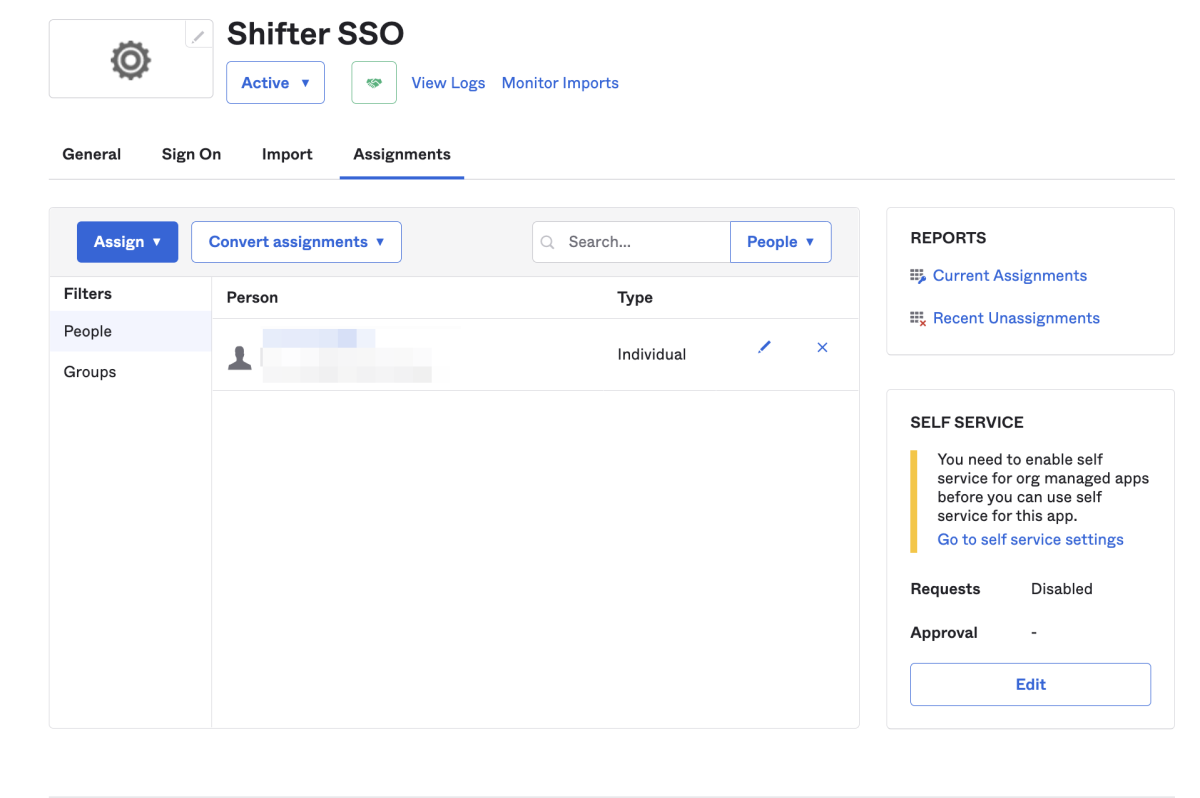
Click the “Assignments” tab.
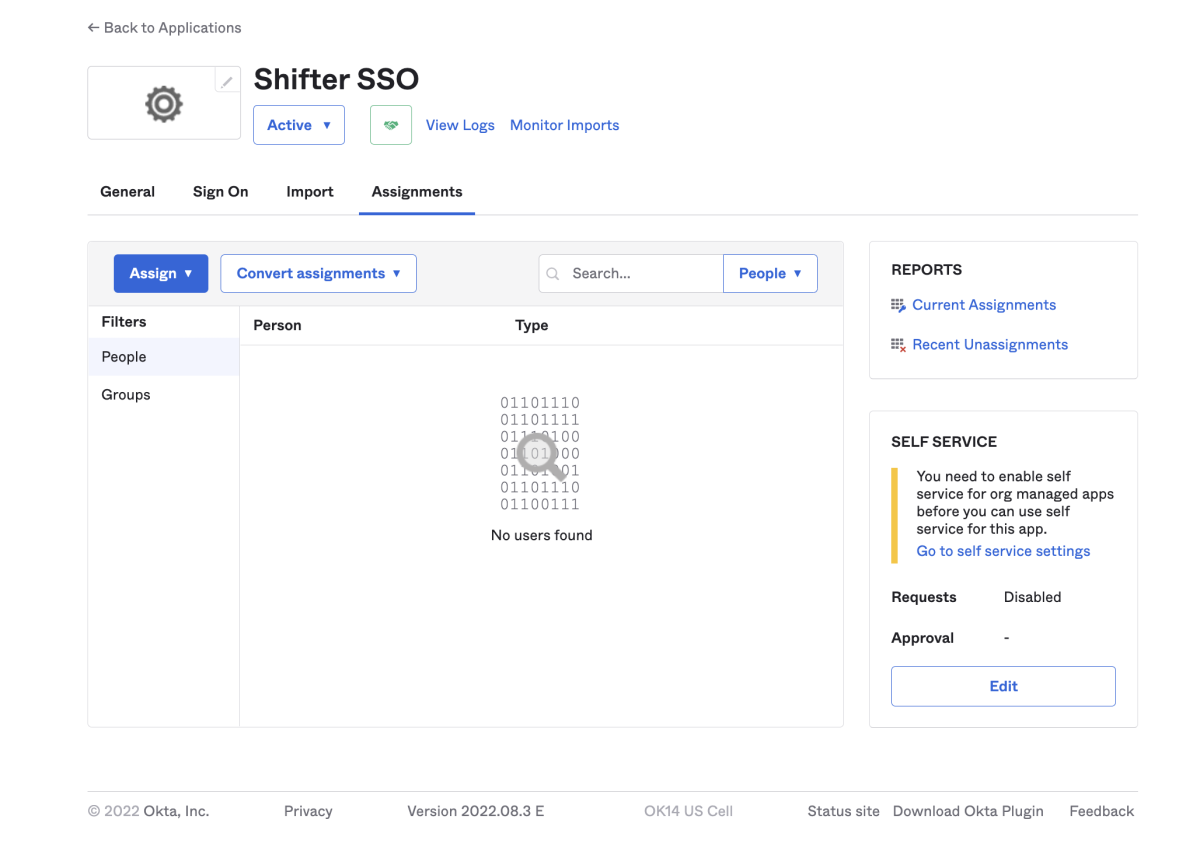
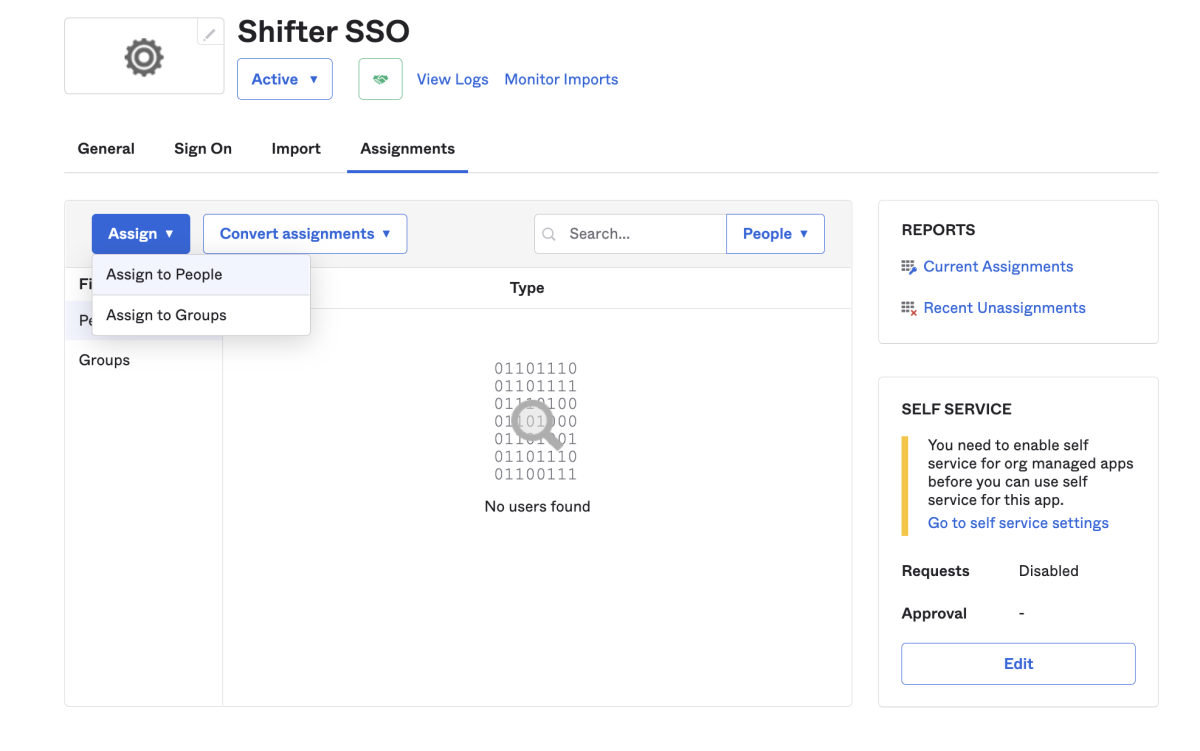
From the “Assign” drop-down menu, select “Assign to People.”
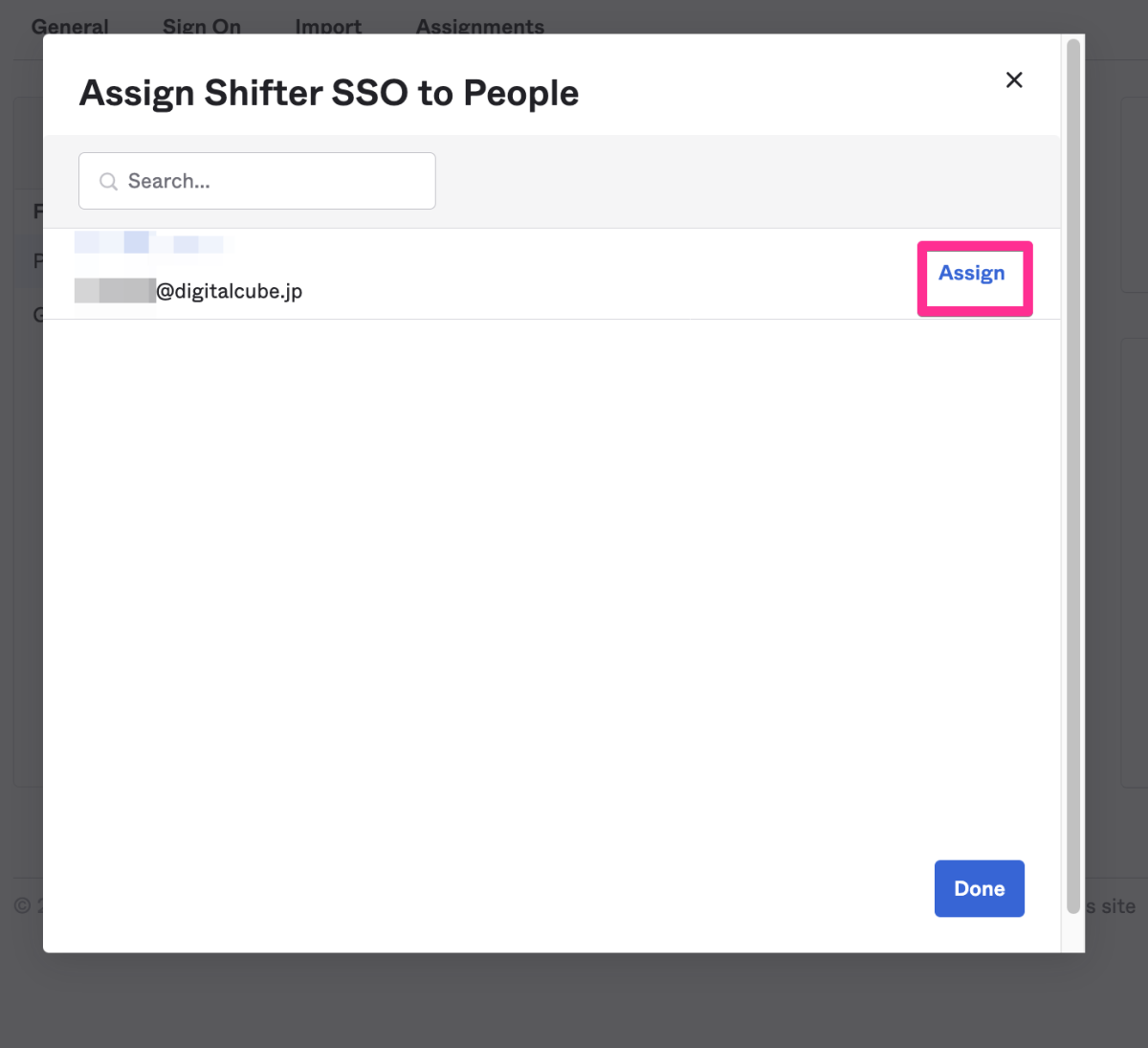
Click “Assign” for the user you want to add.
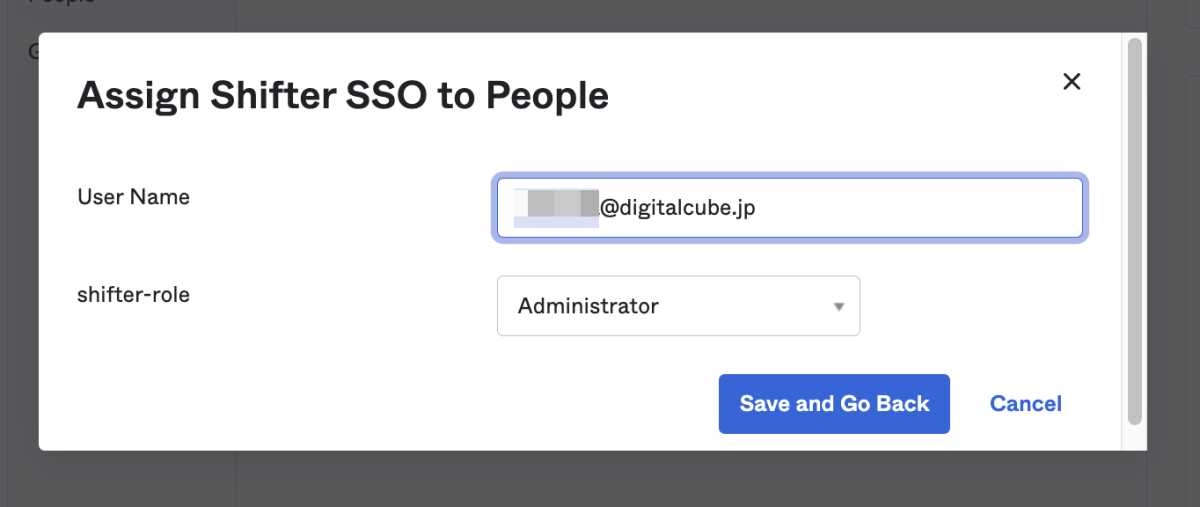
Set the username and shifter-role, then click “Save and Go Back.”
Click “Done” in the lower-right corner.
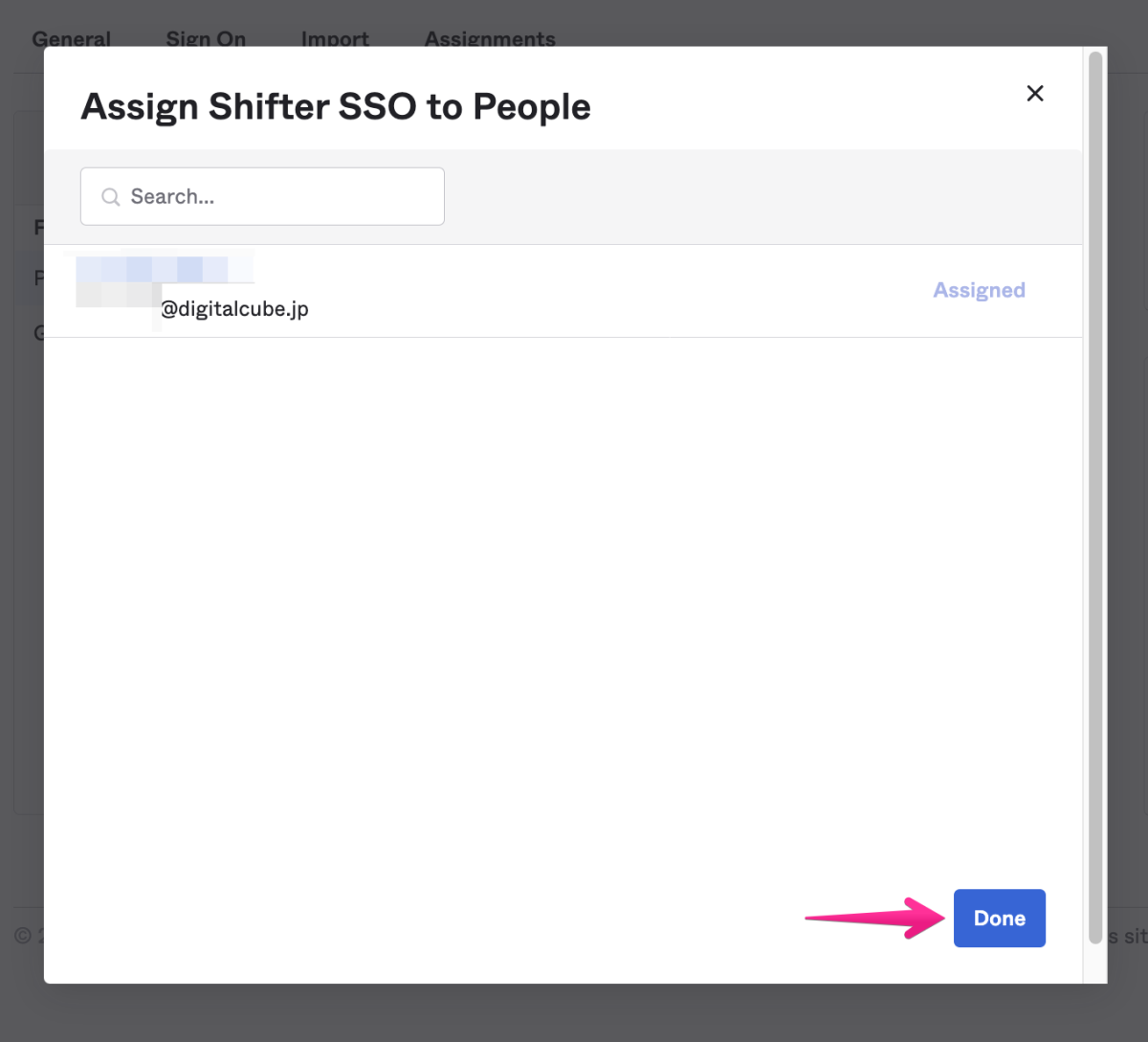
Verify that the user has been added.
Obtaining SAML Setup Instructions
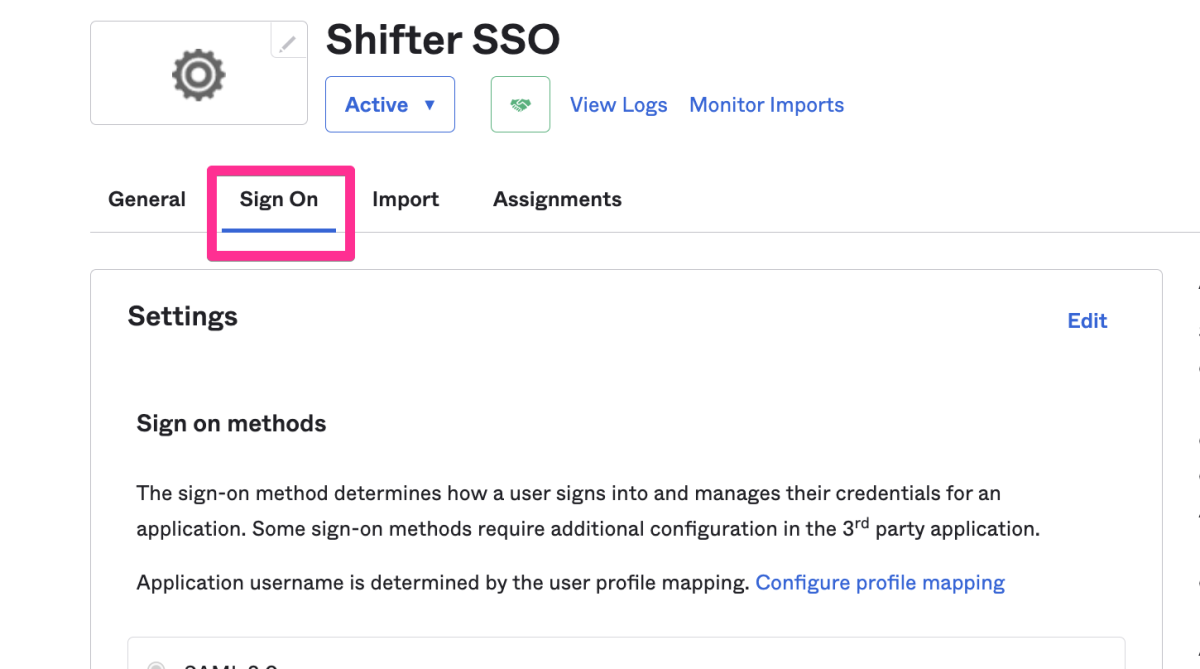
Click the “Sign On” tab.
Click “SAML Setup” on the right side.
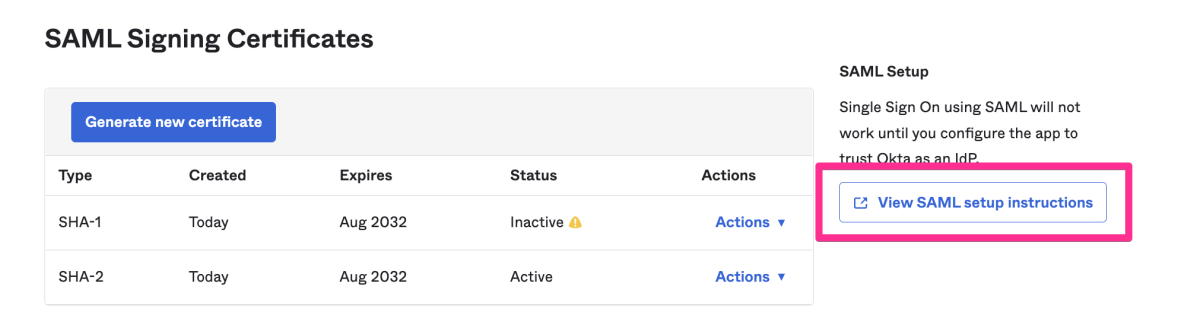
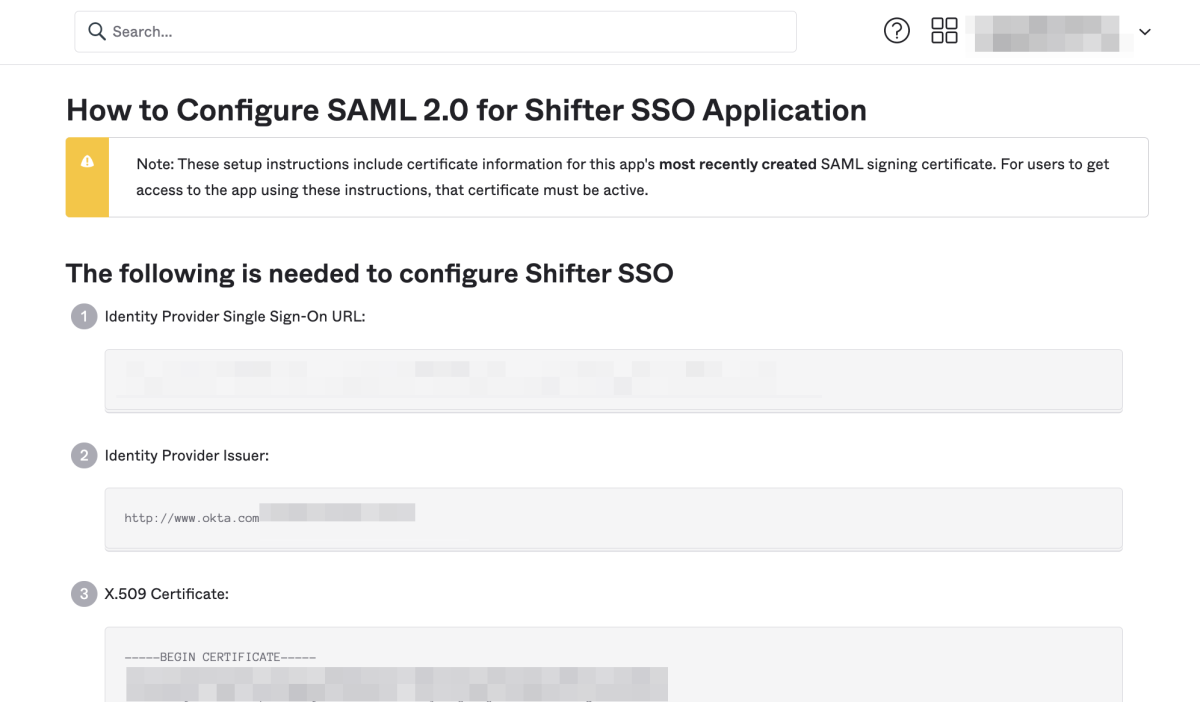
The “How to Configure SAML 2.0 for Shifter SSO Application” page will open.
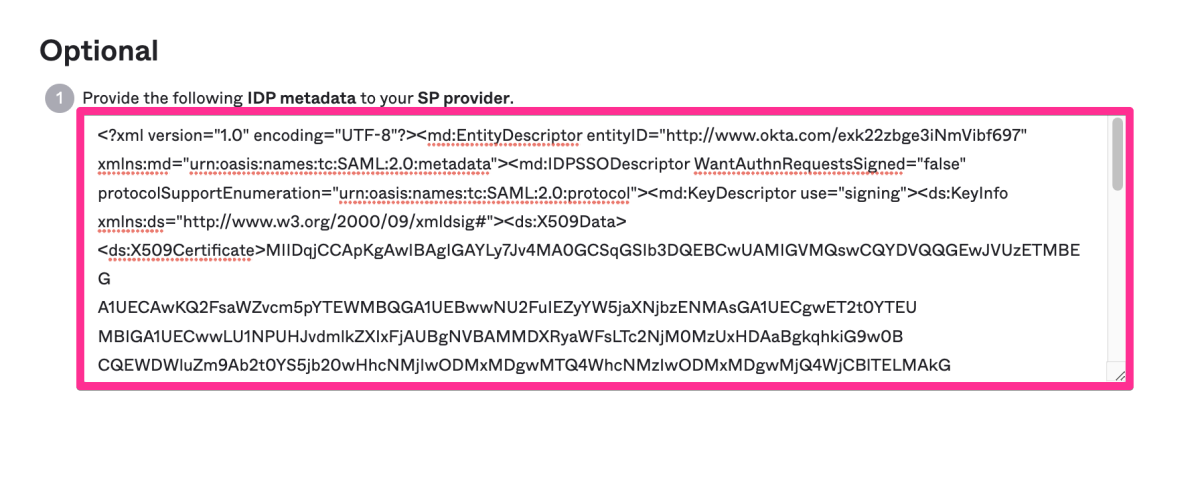
Copy and paste the string displayed in the “Optional” text area at the bottom of the page, then save it as an XML file. You can name the file whatever you like (e.g., okta-sso-shifter.xml).
That completes the steps on the Okta side.
Next, Single Sign-On Setup starting from “5. Steps on the Shifter Dashboard.”