
Shifter supports custom themes, but when developing custom WordPress themes on Shifter, there are a few tips and precautions to keep in mind to make the process easier.
Custom Theme Workflow: The Ideal Setup for a Custom WordPress Theme:
- Develop locally using Shifter-Local
- If necessary, use AIO WP Migration to migrate database changes and uploads
- Track theme changes via Git
- Use the GitHub integration plugin to deploy theme changes tracked in Git
In this guide, we’ll use the sample repository shifter-github-hosting-theme-sample. Feel free to clone or fork it locally.
Procedure
-
[GitHub] Create a theme or plugin repository, or fork the sample repository If you forked the sample repository, make sure `release.yml` is available.
-
[GitHub] Enable GitHub Actions in the repository. Click the [I understand my workflows, go ahead and run them] button “GitHub Actions” will be enabled.
-
Create a new workflow or use the sample workflow (release.yml). Click the [New workflow] button. Click [Set up workflow yourself]. Create and save the workflow file. If you have forked the sample repository, make sure that `release.yml` is available.
-
[GitHub] Clone the repository locally.
$git clone git@github.com:YOUR-ACCOUNT/YOUR-REPOSITORY.git ~/git/YOUR-REPOSITORY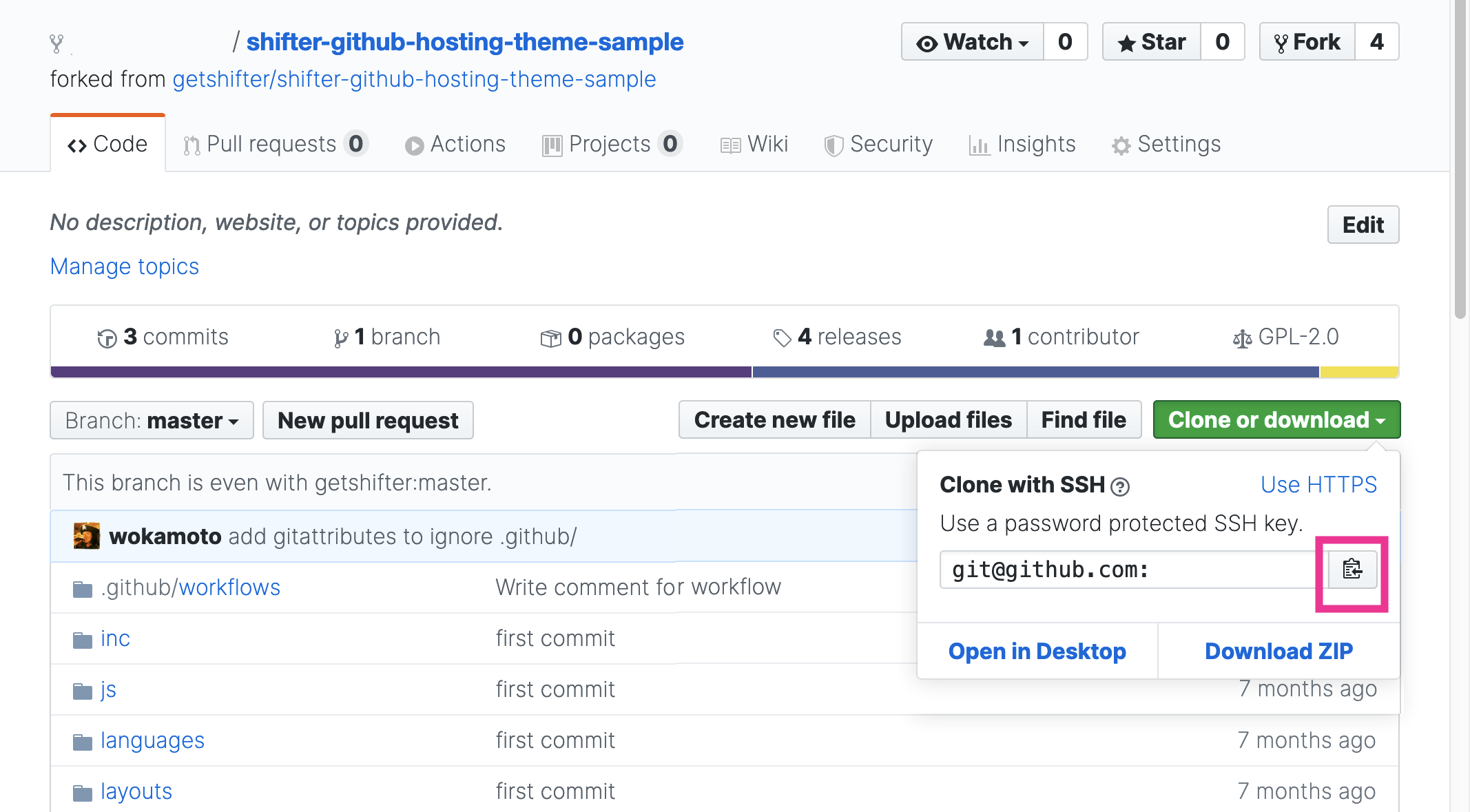
-
[Github] Copy the repository URL
-
[Shifter] Launch WordPress and log in.
-
[Shifter] Install the theme or plugin from Custom Themes to Shifter. [Appearance] –> Go to [Add New from GitHub]
-
Shifter GitHub Install the plugin or theme using the Theme/Plugin Installer. Paste the GitHub repository URL into the [GitHub repo URL] field. If the repository is private, also enter the access token in the [GitHub token] field. Next, click [Install Now]
-
Verify that [Shifter] has been installed
-
[GitHub] Create and deploy a tagged release package. After updating the repository, create and deploy a release package.
CLI
$ git tag 2 (#cb2-2) $ git push origin 2
Web Browser
- Go to [releases] in the [Code] tab
- Click the [Draft a new release] button
- Enter the version number in the [Tag version] field and click [Publish Release]
-
Return to the [Actions] tab and verify that GitHub Actions is running. This may take a few minutes to complete.
-
[Shifter] Log back into Shifter, go to the Updates page, and verify that the update is ready
-
[Shifter] Apply the update and verify that it works
-
[Shifter] Build and deploy the artifact