
About This Article
This article is a dedicated branch of the “Custom Domains” guide in Shifter, specifically focused on Cloudflare. Before following the steps below, you must first register your domain name with Shifter and follow the “Custom Domains” instructions to obtain the domain verification records.
Sample Domains and DNS Records
-
Sample domains:
example.comwww.example.com
-
Sample Shifter domain:
abc123.on.getshifter.io. def456.cloudfront.net. -
Sample validation records:
For example.com- Name:
_abcde.example.com - Type:
CNAME - Value:
_01234.acm-validations.aws.
- Name:
www.example.comIn this case- Name:
_hijkl.www.example.com - Type:
CNAME - Value:
_56789.acm-validations.aws.
- Name:
Configuring DNS Validation Records
-
Click the [DNS] menu for your domain name.
-
Click the [+ Add Record] button to add a new record.
-
Disable the Cloudflare DNS proxy
Click the [orange cloud icon] under the [Proxy Status] menu to turn the feature off.
When the cloud icon turns gray, the proxy is turned off. This ensures that DNS records are directed to Shifter directly, without using Cloudflare’s DNS proxy.
-
Add the validation record
-
Validation record forexample.com- Type:
CNAME - Name:
_abcd - Target:
_01234.acm-validations.aws. - TTL:
Automatic - Proxy Status:
DNS Only - Click the [Save] button to save your changes
- Type:
-
www.example.comVerification record- Type:
CNAME - Name:
_hijkl.www - Target:
_56789.acm-validations.aws. - TTL:
Auto - Proxy Status:
DNS Only - Click the [Save] button to save your changes
- Type:
-
Configuring DNS Records After Domain Verification
-
Add a CNAME Record
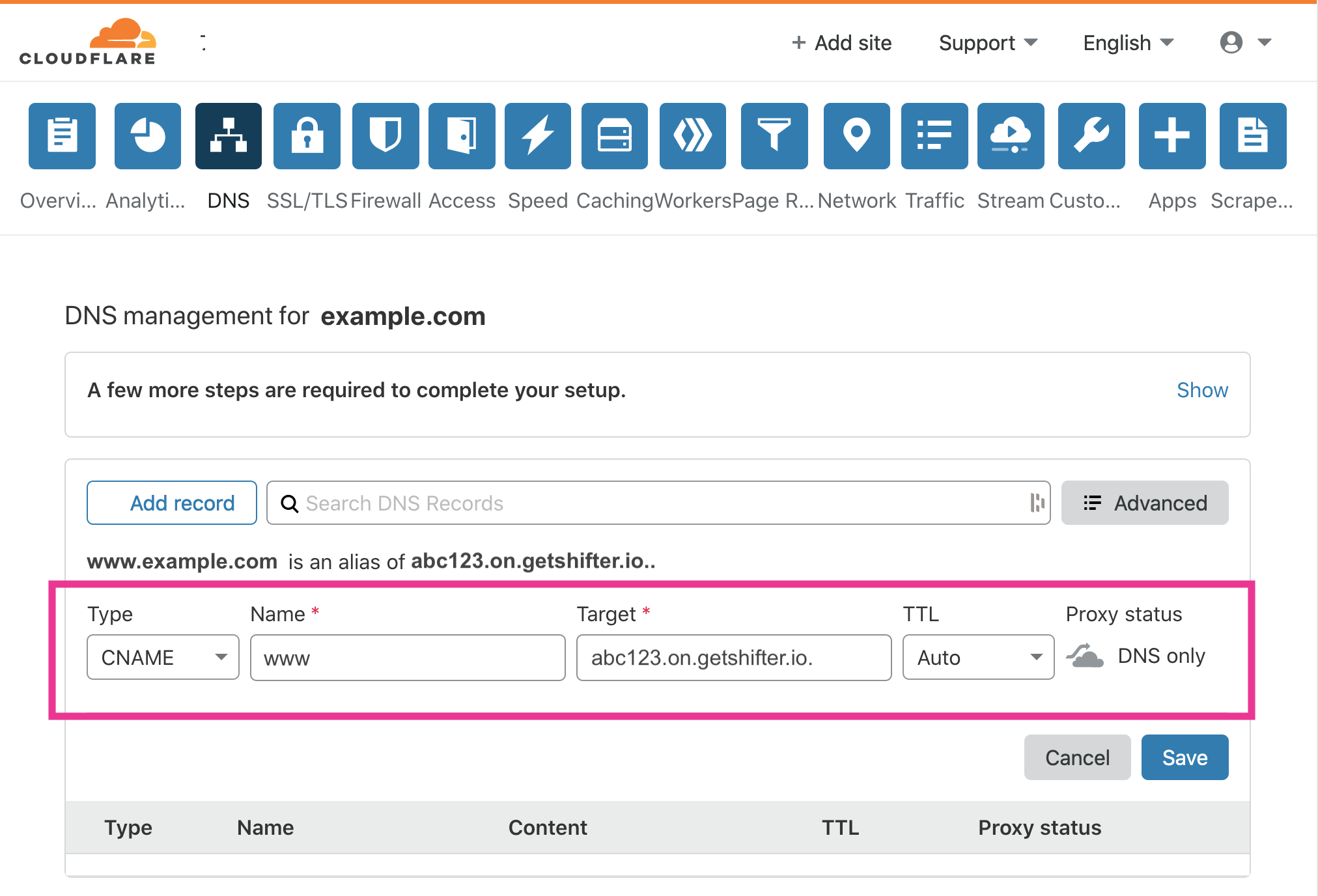
Once domain verification is complete, configure the CNAME record for your domain name.
-
DNS Records for www.example.com- Type:
CNAME - Name:
www - Target:
abc123.on.getshifter.io or def456.cloudfront.net - TTL:
Automatic - Proxy Status:
DNS Only - Click the [Save] button to save your changes
- Type:
-
-
[Optional]
Configure the ALIAS/ANAME record forexample.com- Type:
CNAME - Name:
@ - Target:
def456.cloudfront.net - TTL:
Automatic - Proxy Status:
DNS Only - Click the [Save] button to save your changes
- Type:
-
Verify the record set
That’s it!
Disabling the Cloudflare Proxy
If you are adding records through Cloudflare’s DNS proxy, click the orange cloud (“DNS and HTTP proxy (CDN)”) to change it to a gray cloud (“DNS only”). Because Shifter provides its CDN service through Amazon Web Services, it is important to disable this feature. Shifter is built on Amazon Web Services.
Step 1. Click the [orange cloud icon] under the [Proxy Status] menu to turn the feature off.
Step 2. The cloud icon will turn gray, and the proxy will be turned off.