
This document explains how to set up IFTTT applets to post to Twitter and Facebook Pages.
Creating Applets
Creating a Twitter posting applet
-
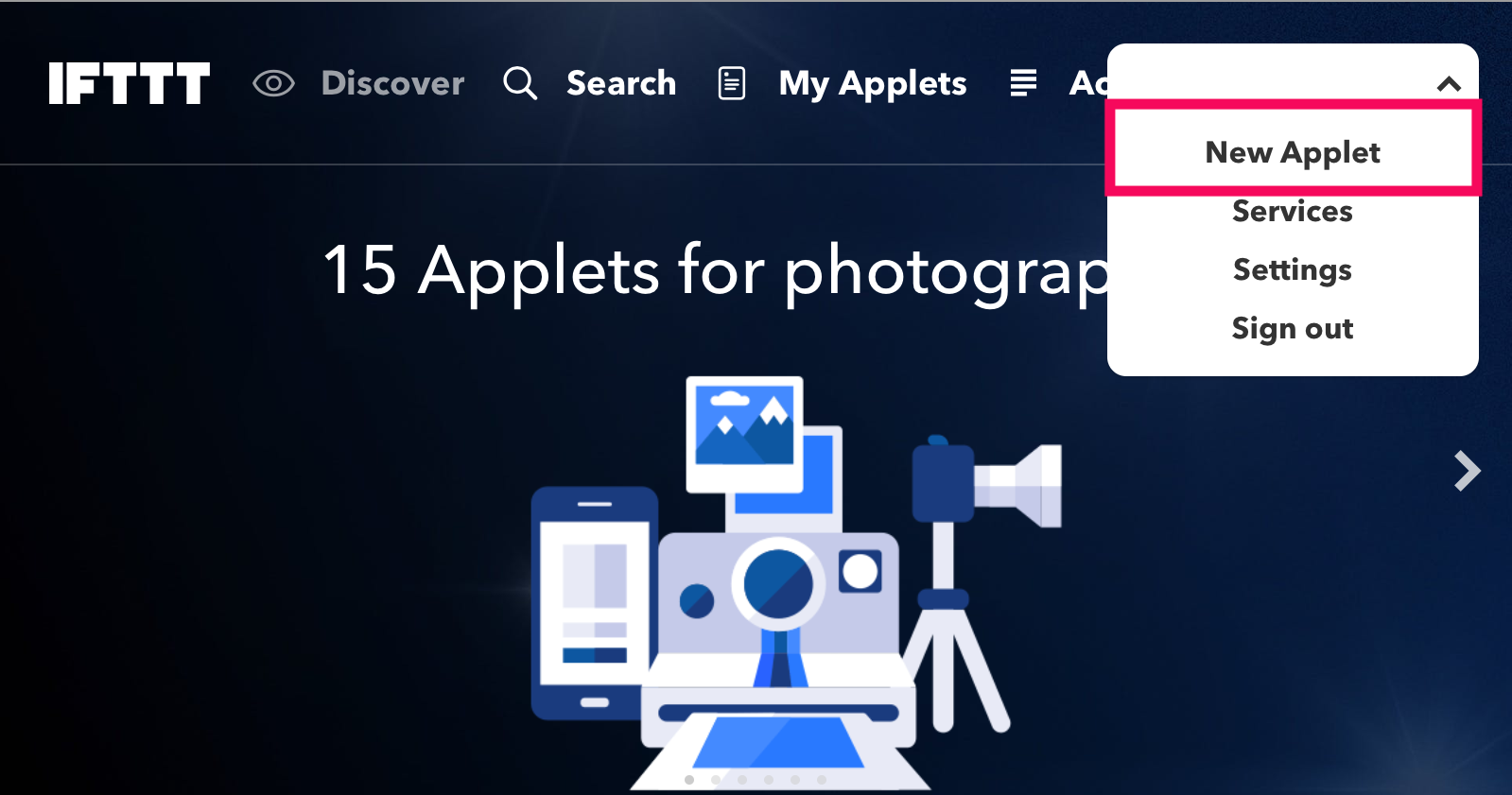
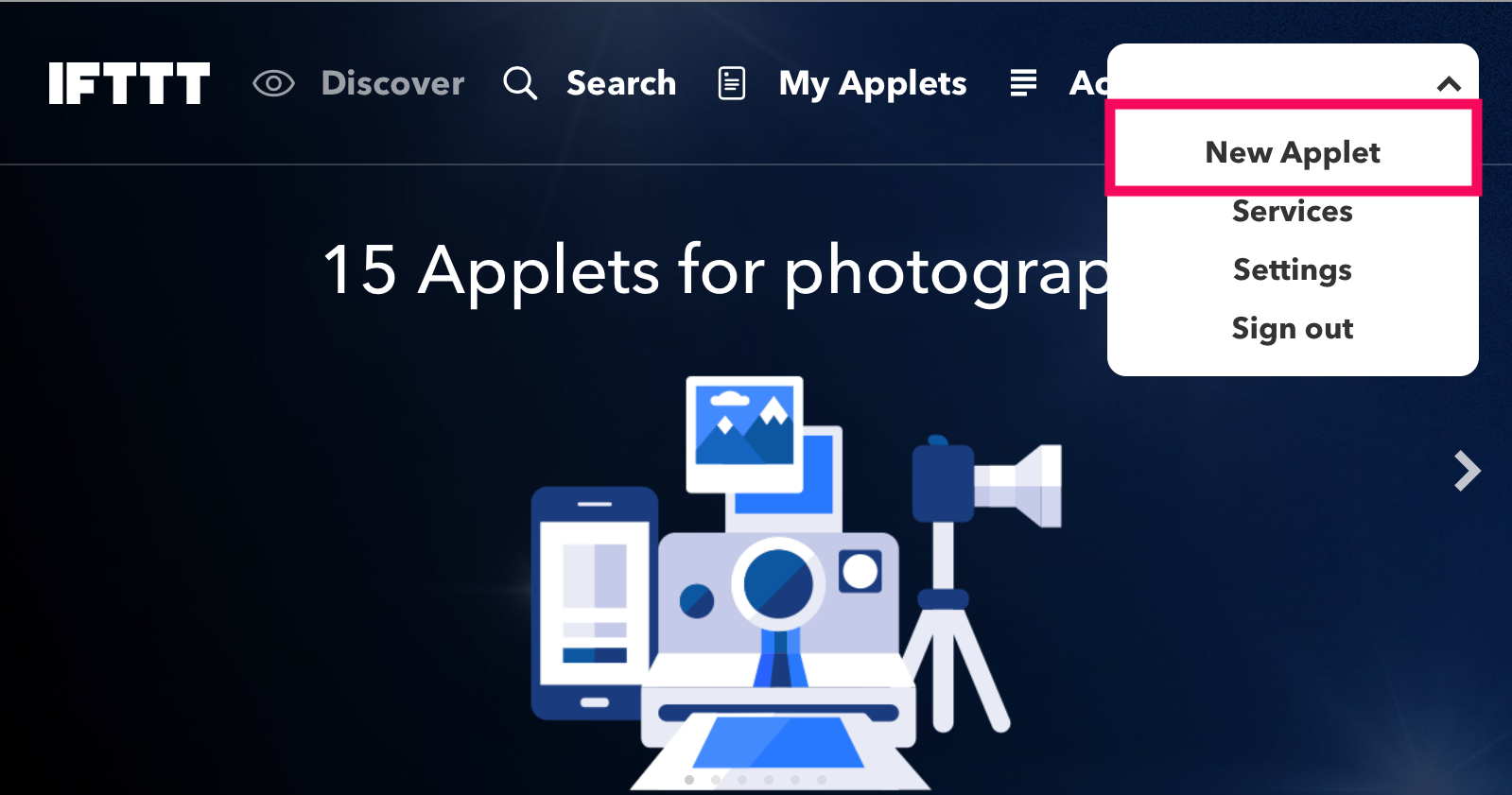
Log in to ifttt.com and click [New Applet].
-
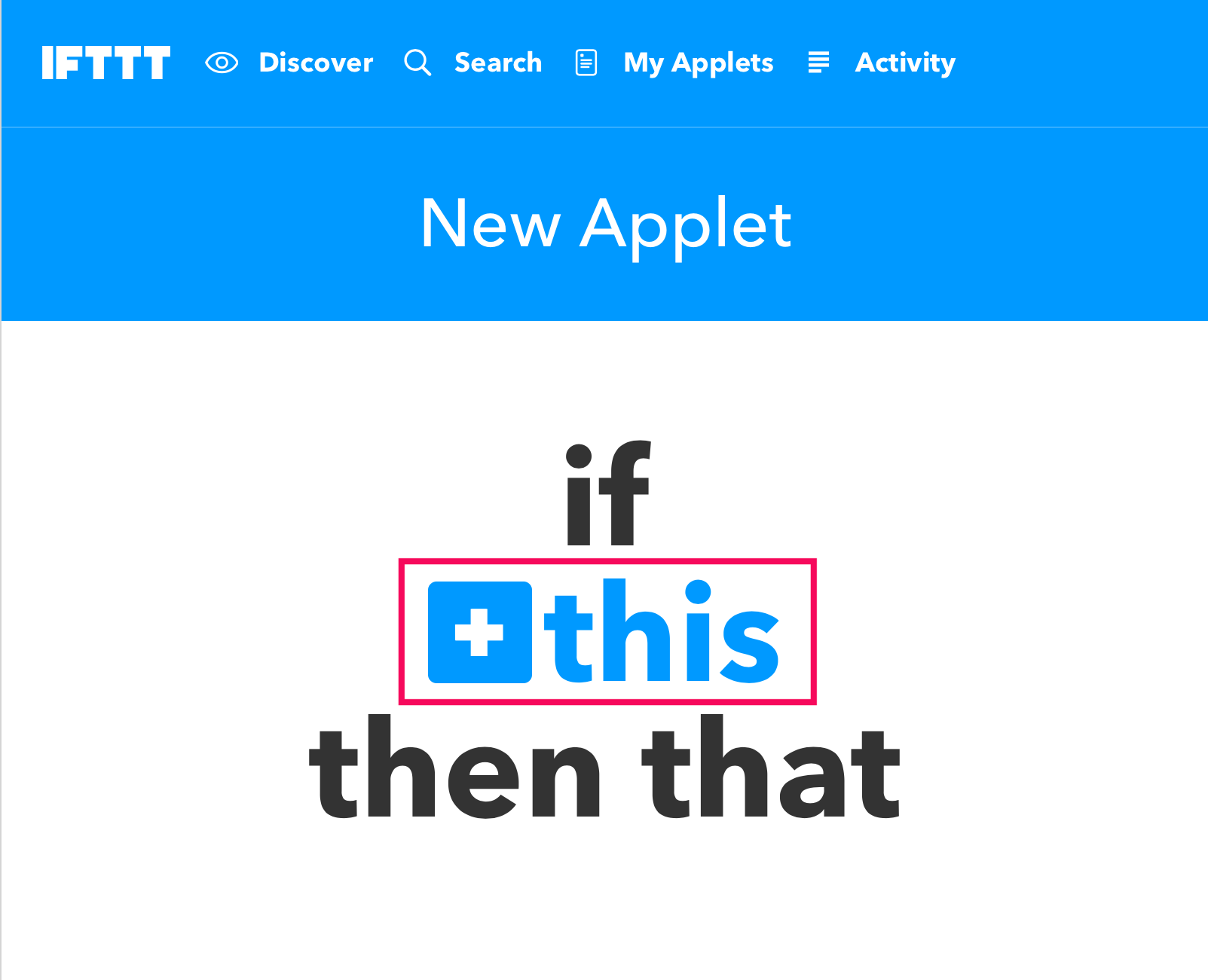
Click [This].
-
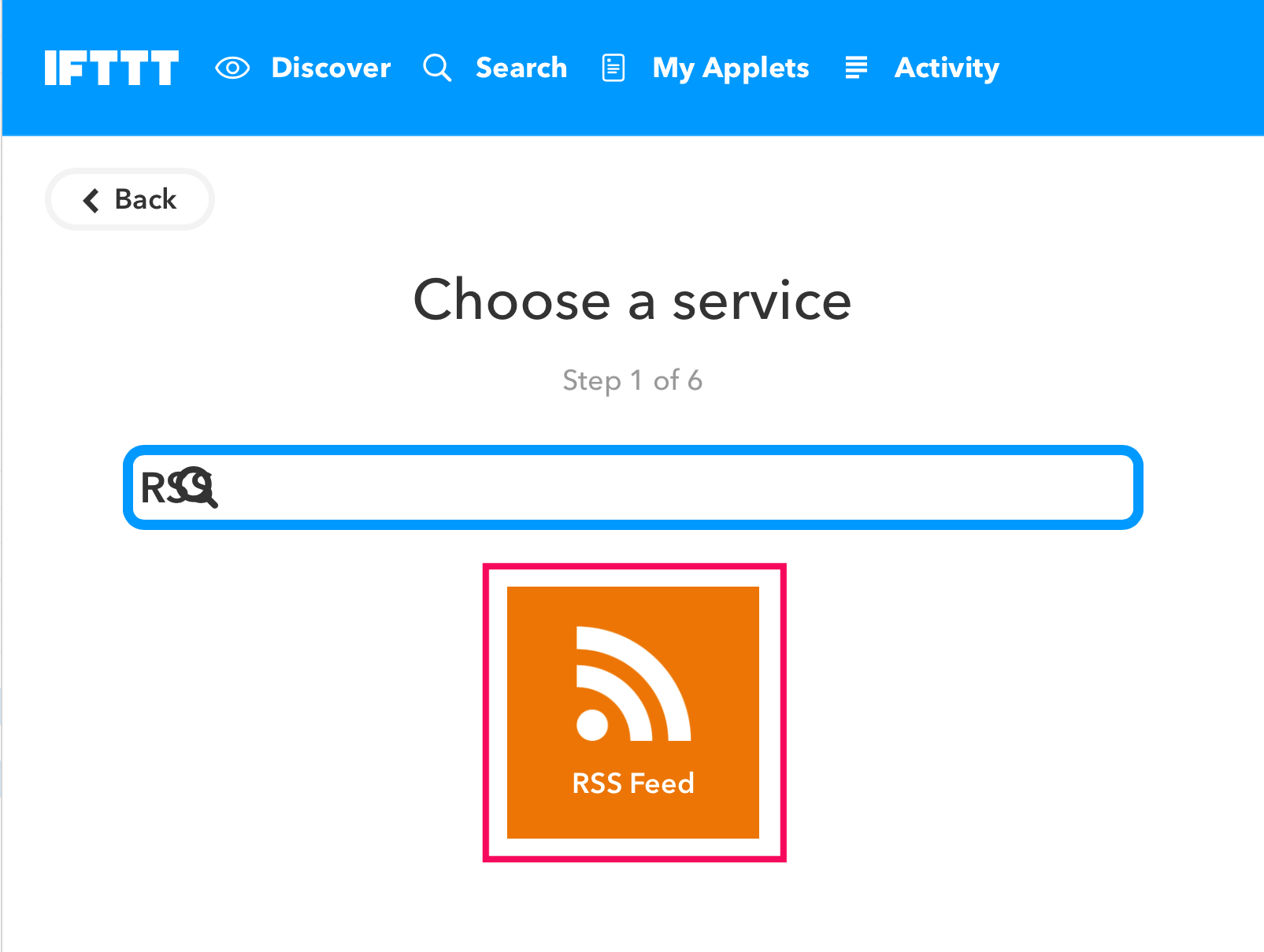
Enter “RSS” in the field and click [RSS Feed].
-
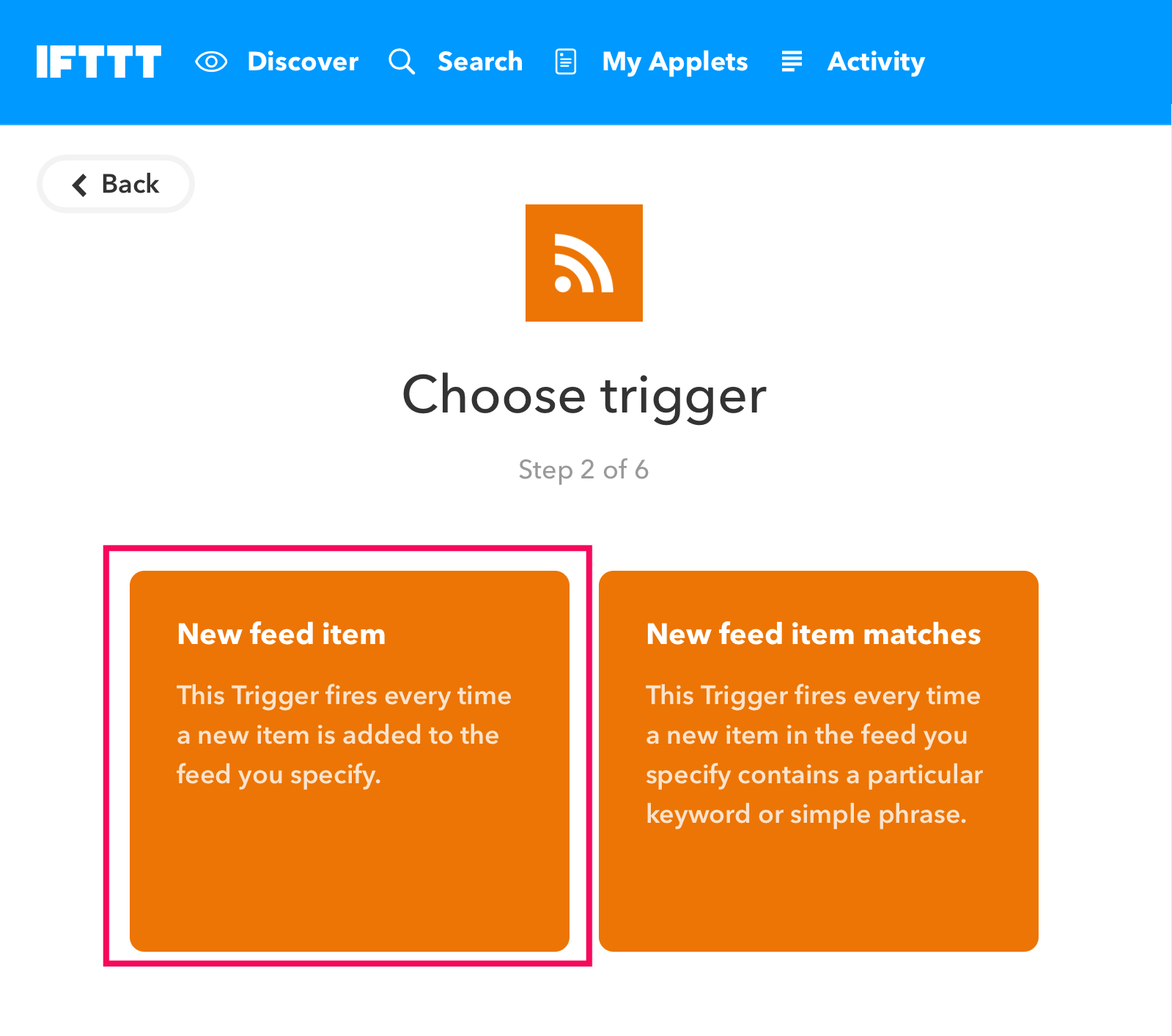
Select [New feed item].
-
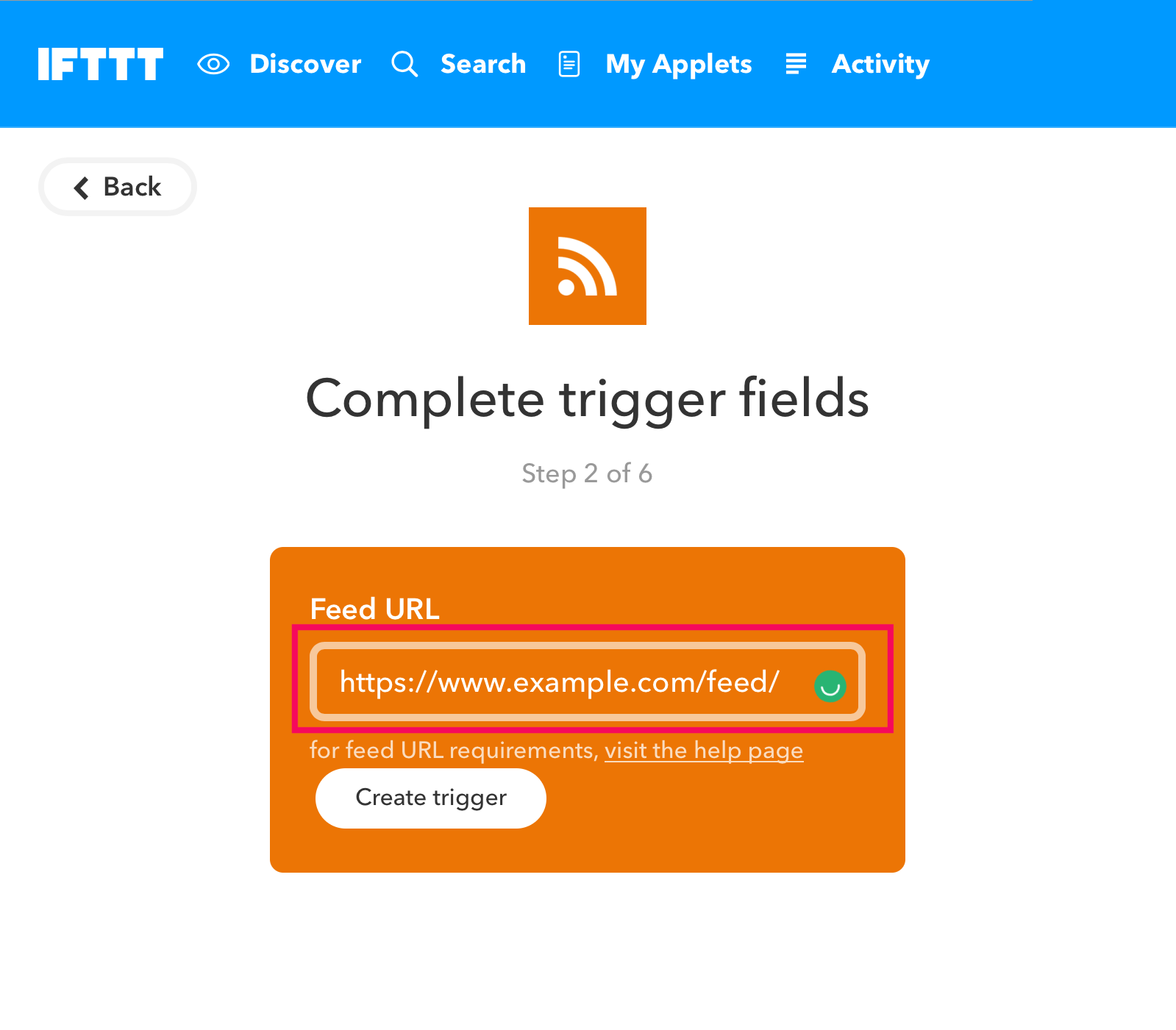
Enter your Shifter site’s feed URL in Feed URL. Note: The feed URL must end with a slash (/). Example:
https://www.example.com/feed/Then click [Create trigger].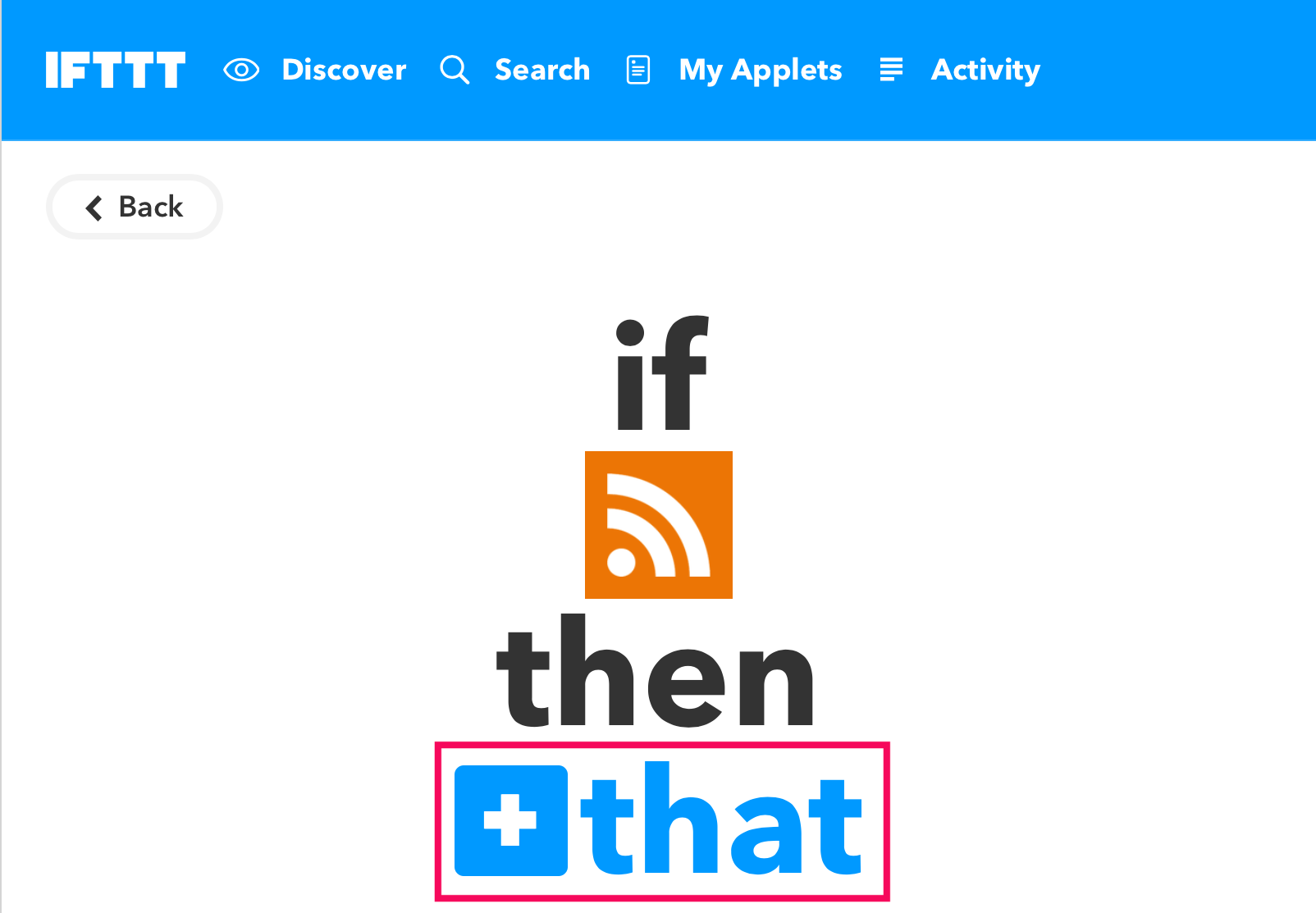
-
Click [that].
-
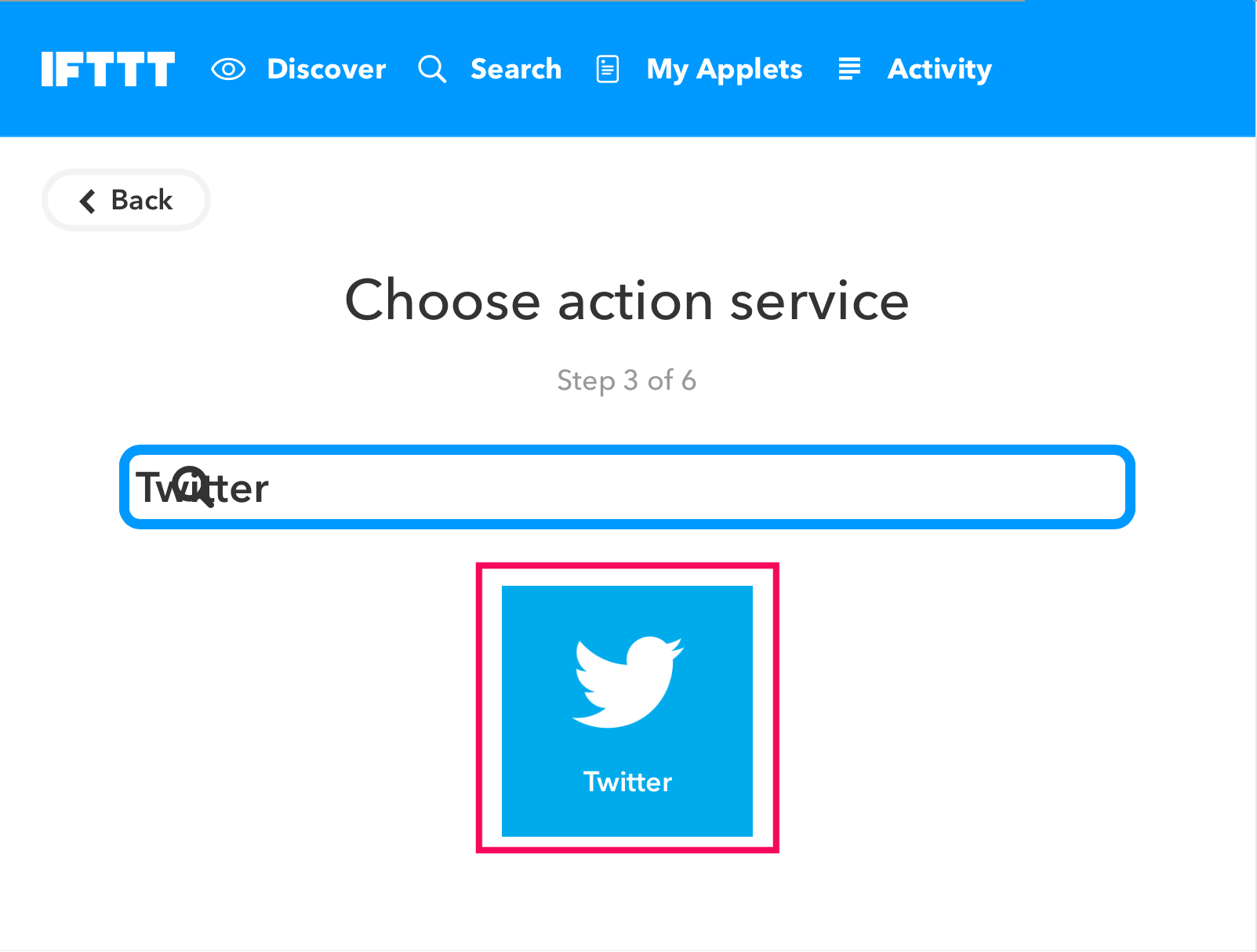
Enter “Twitter” in the search field and select Twitter.
-
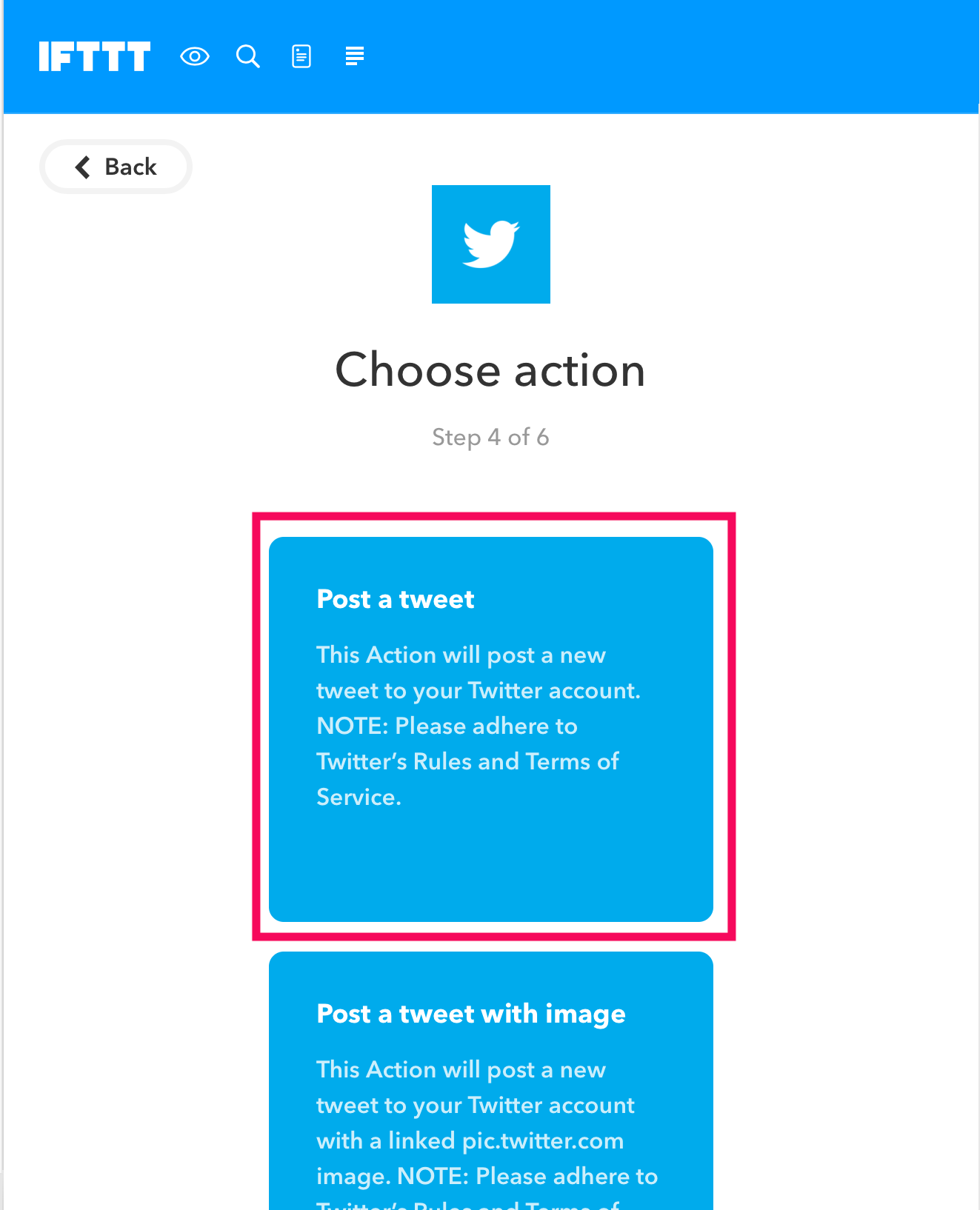
Select [Post a tweet].
-
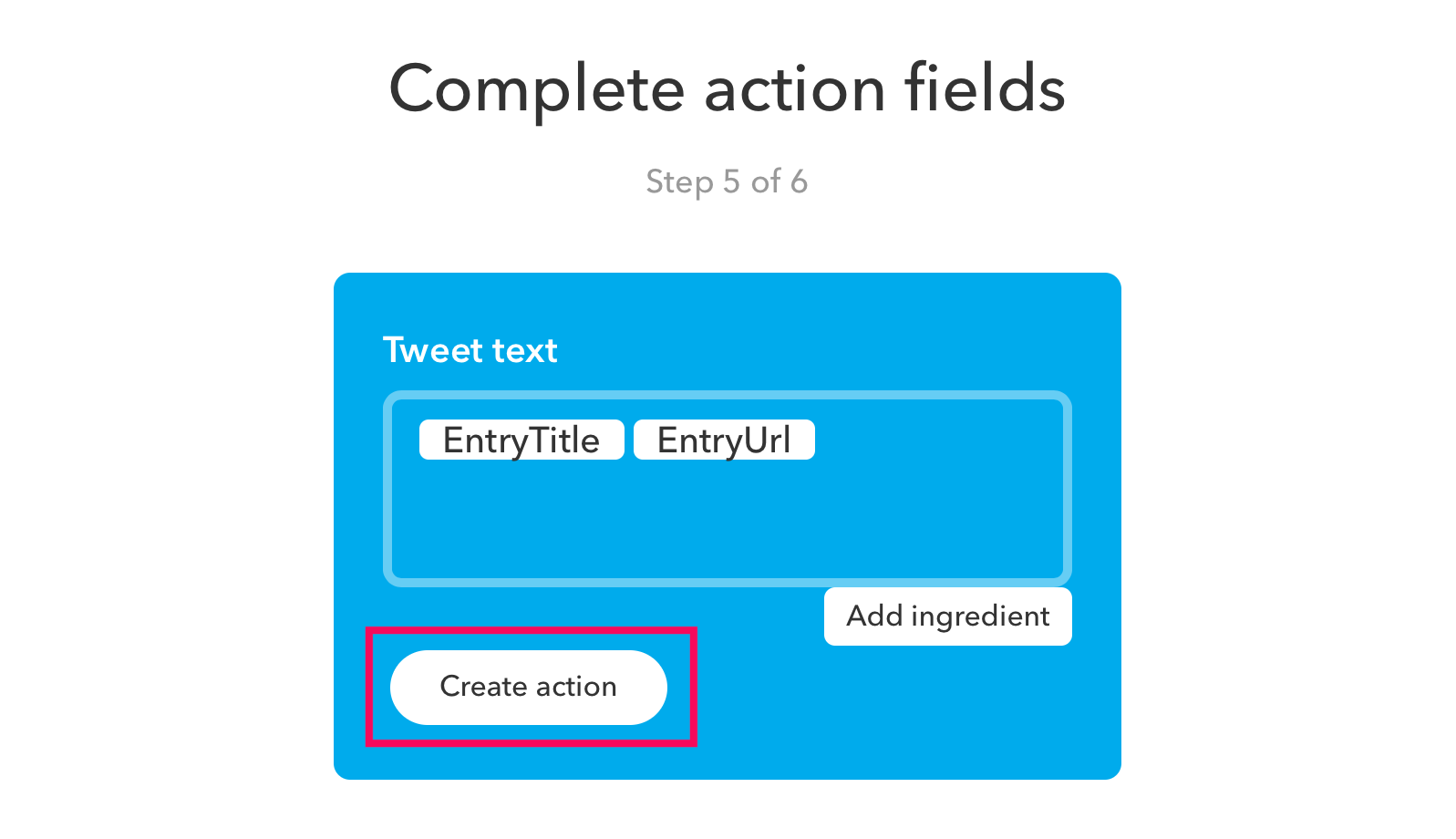
Make sure the tweet text includes [EntryTitle] and [EntryUrl], or any additional values. Next, click [Create action].
-
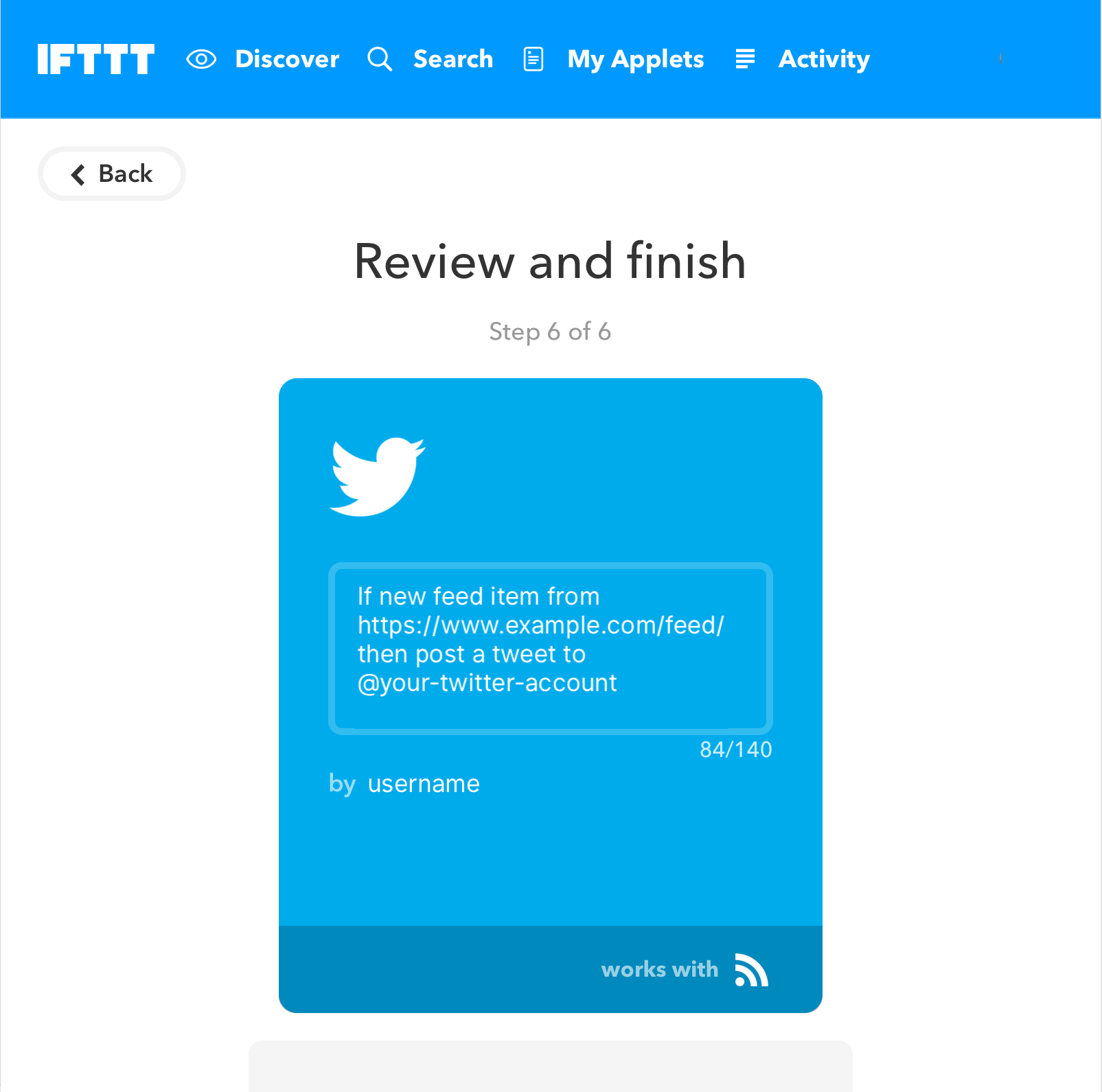
The applet has been created! Click the [Finish] button. That’s it!
Connecting IFTTT to Twitter
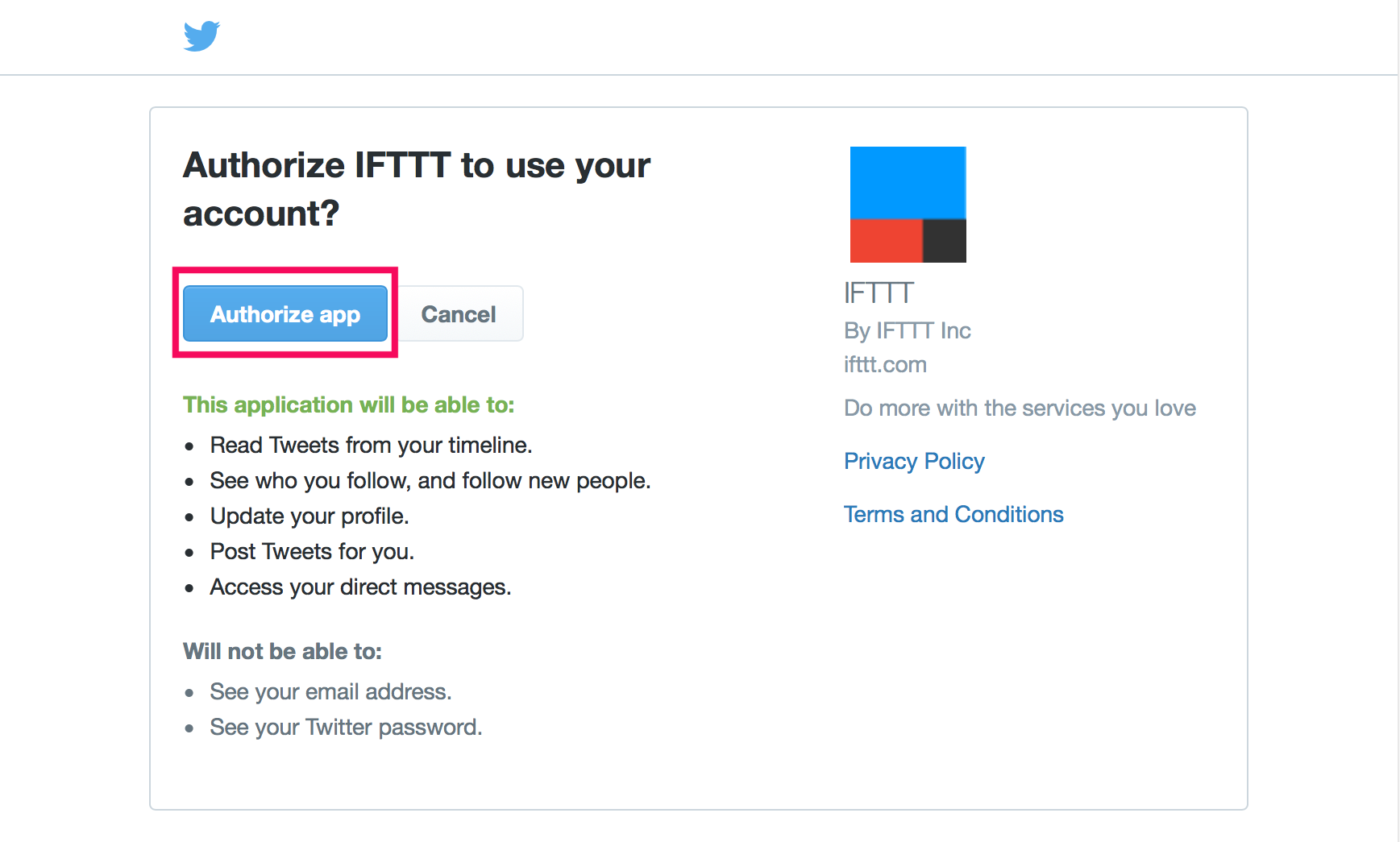
While creating the applet, you may need to authorize IFTTT to connect to your Twitter account. Don’t forget to authorize IFTTT for Twitter.

## Creating a Facebook Post Applet for a Facebook Page
-
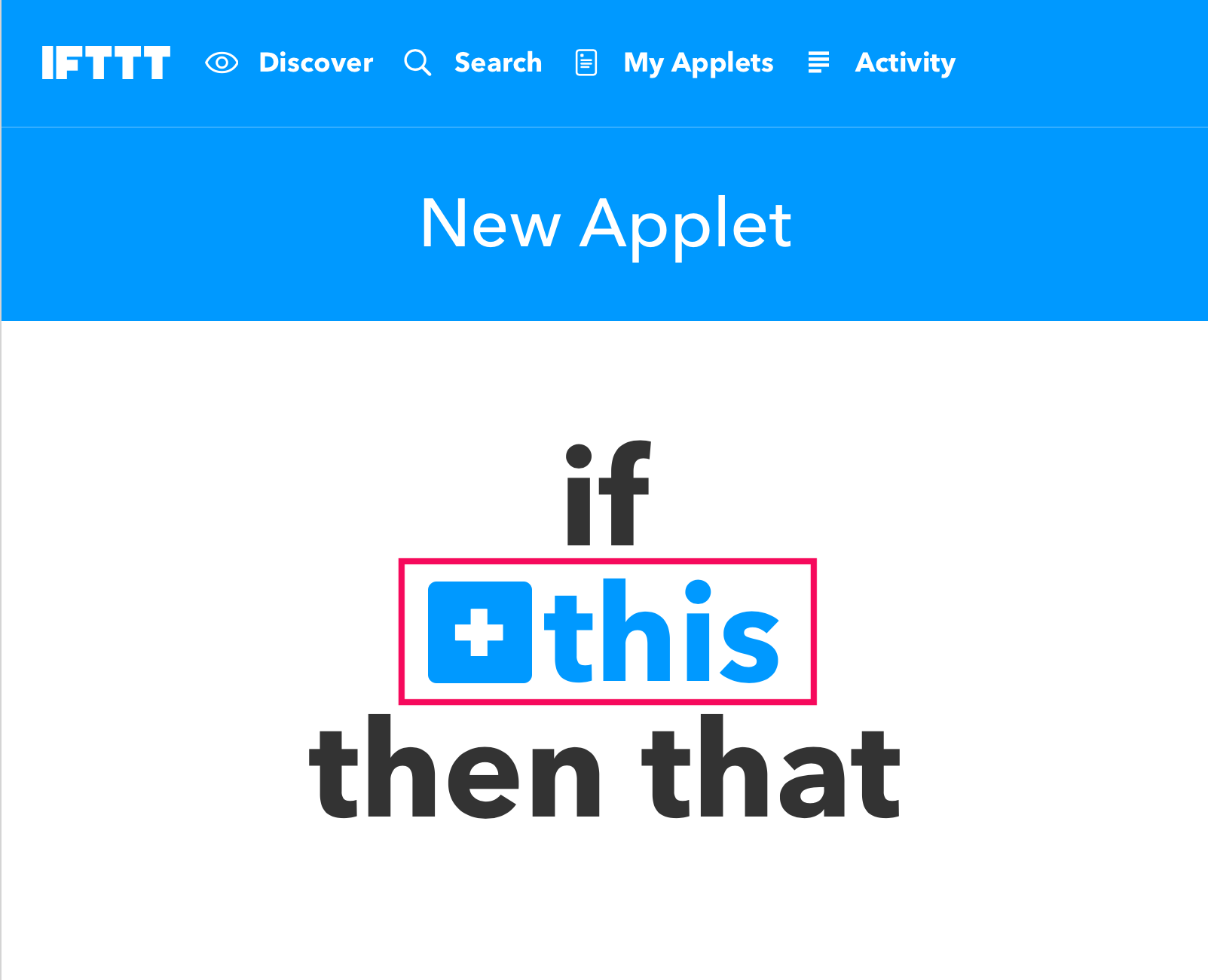
Click [This].
-
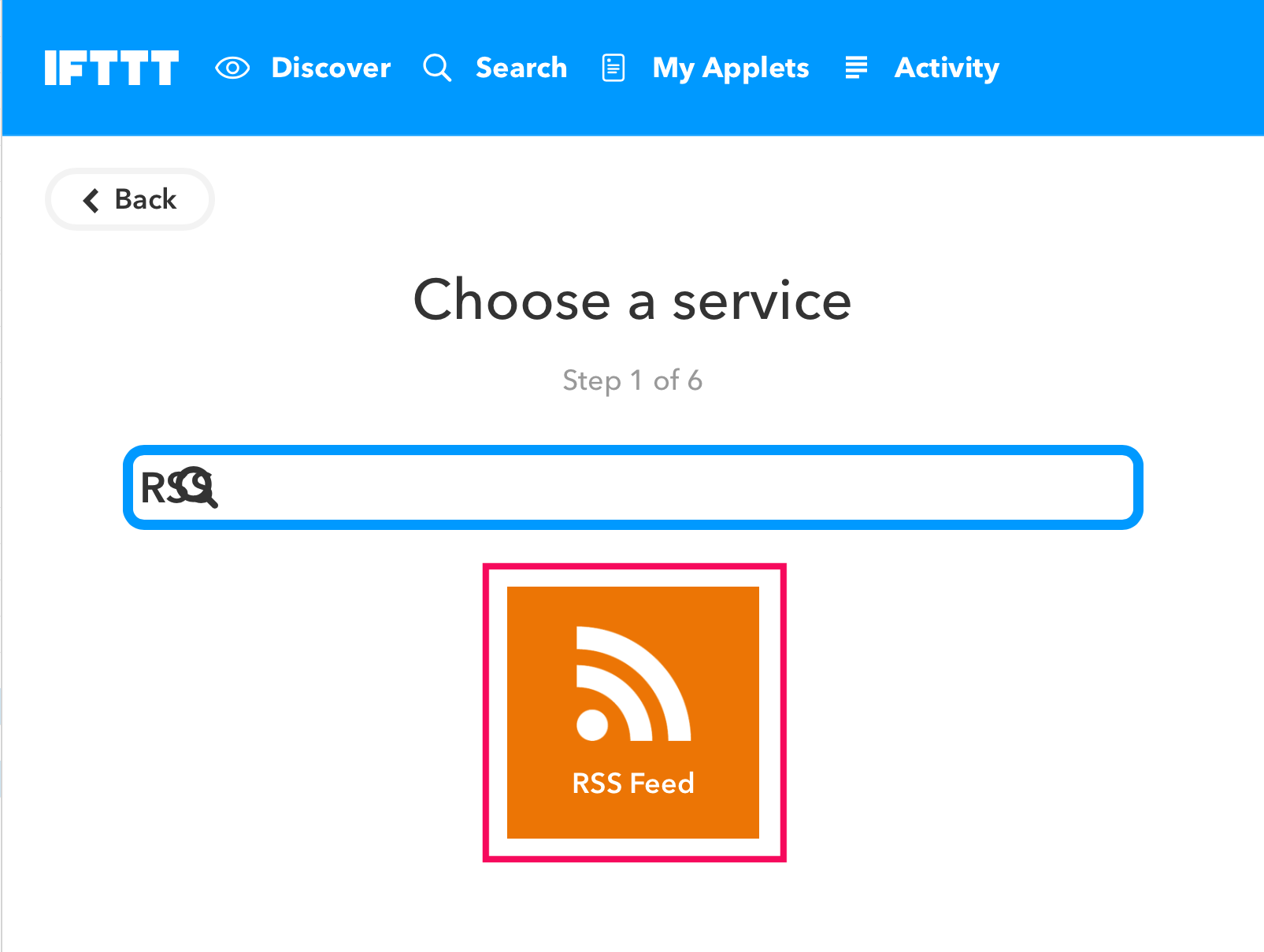
Enter “RSS” in the field and click [RSS Feed].
-
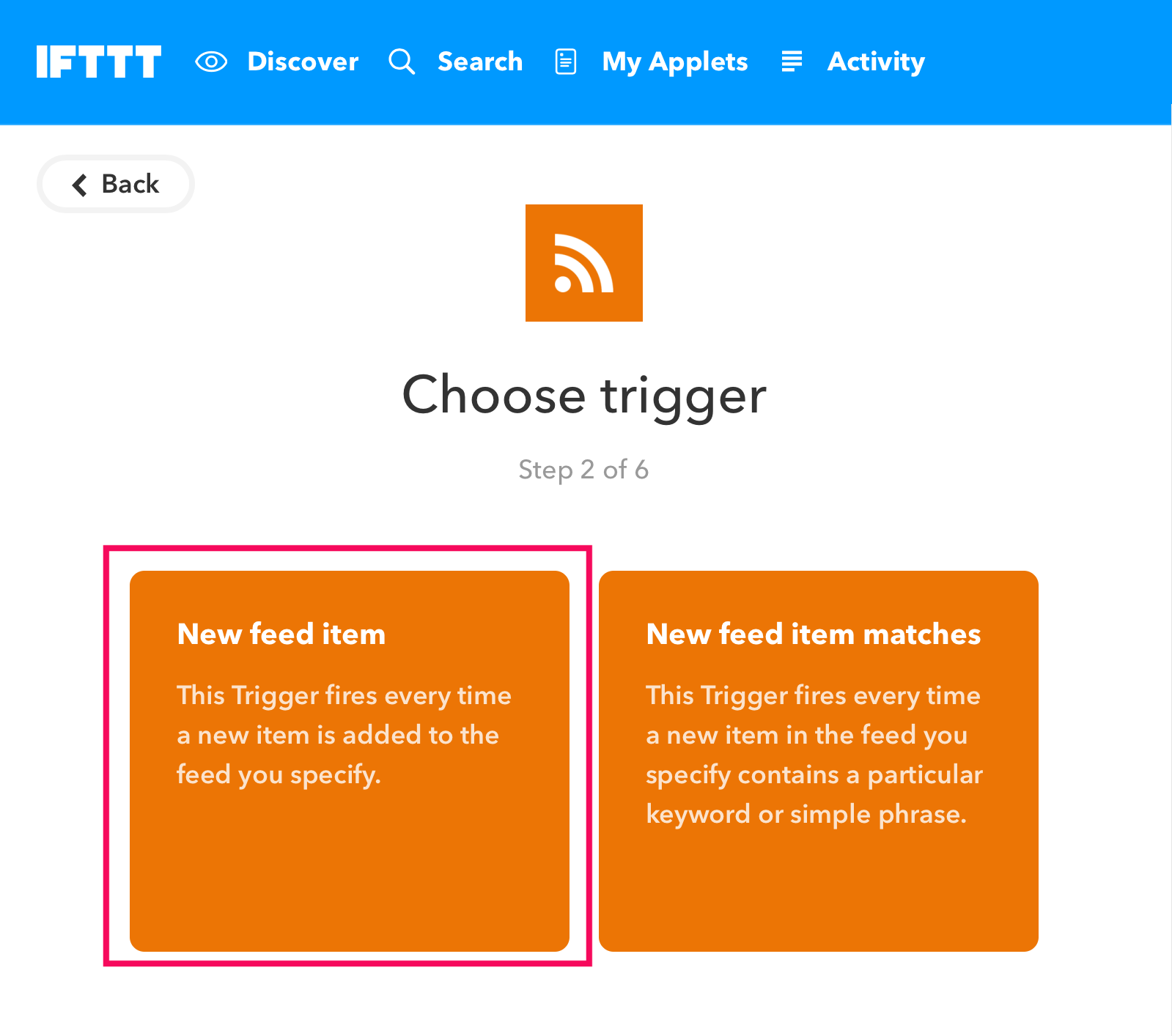
Select [New feed item].
-
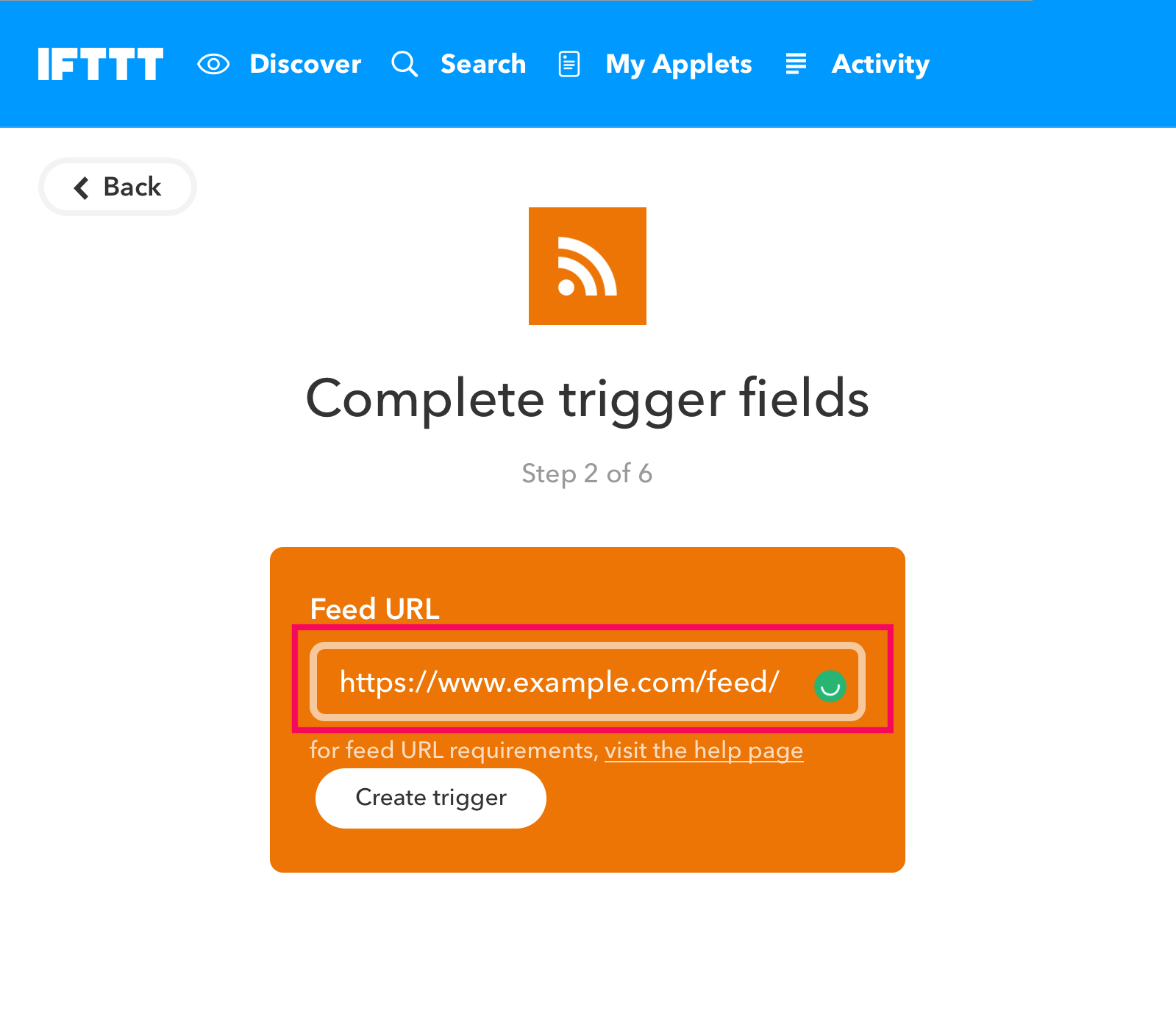
Enter your Shifter site’s feed URL in Feed URL. Note: The feed URL must end with a slash (/). Example:
https://www.example.com/feed/Then click [Create trigger].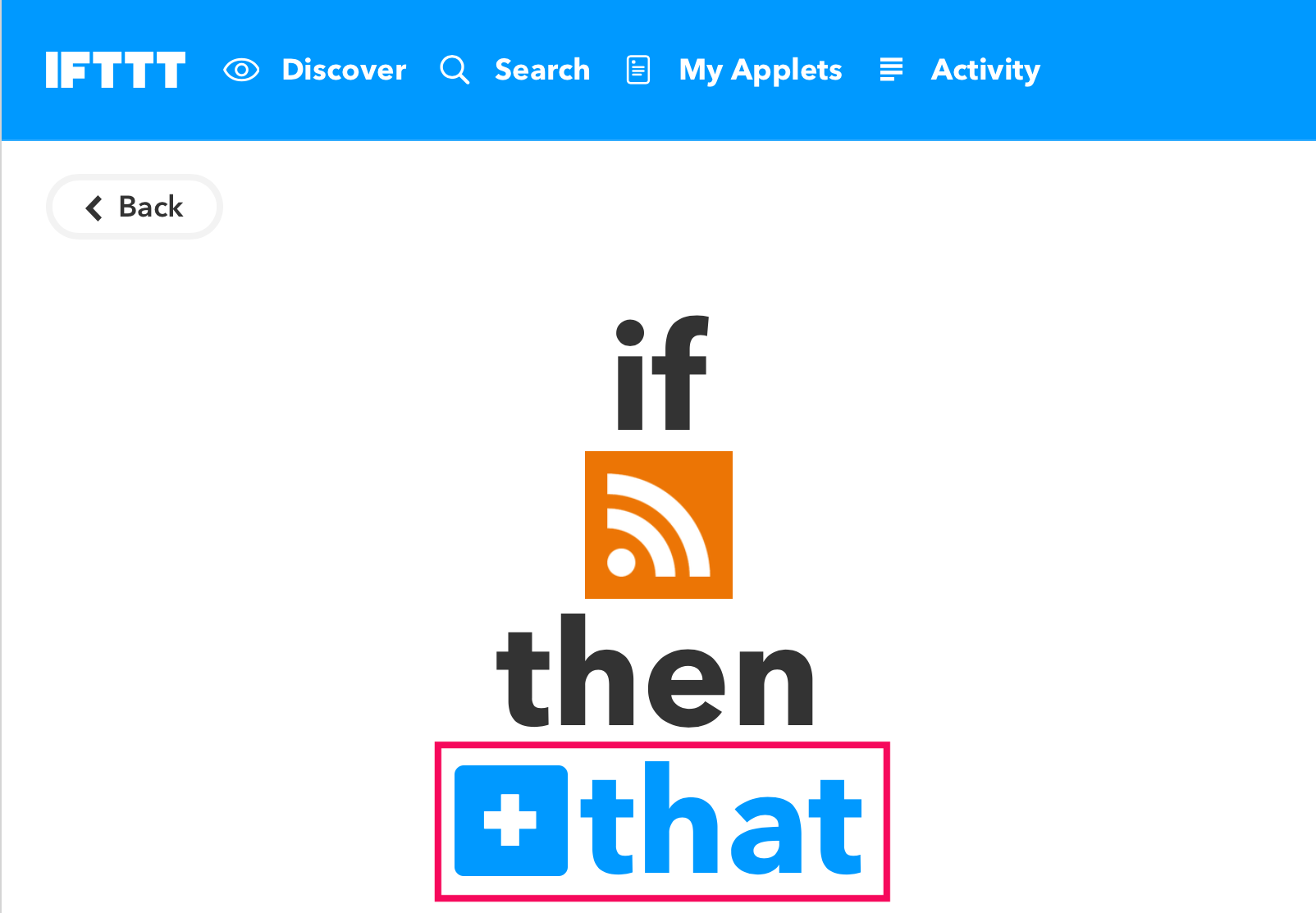
-
Click [that].
-
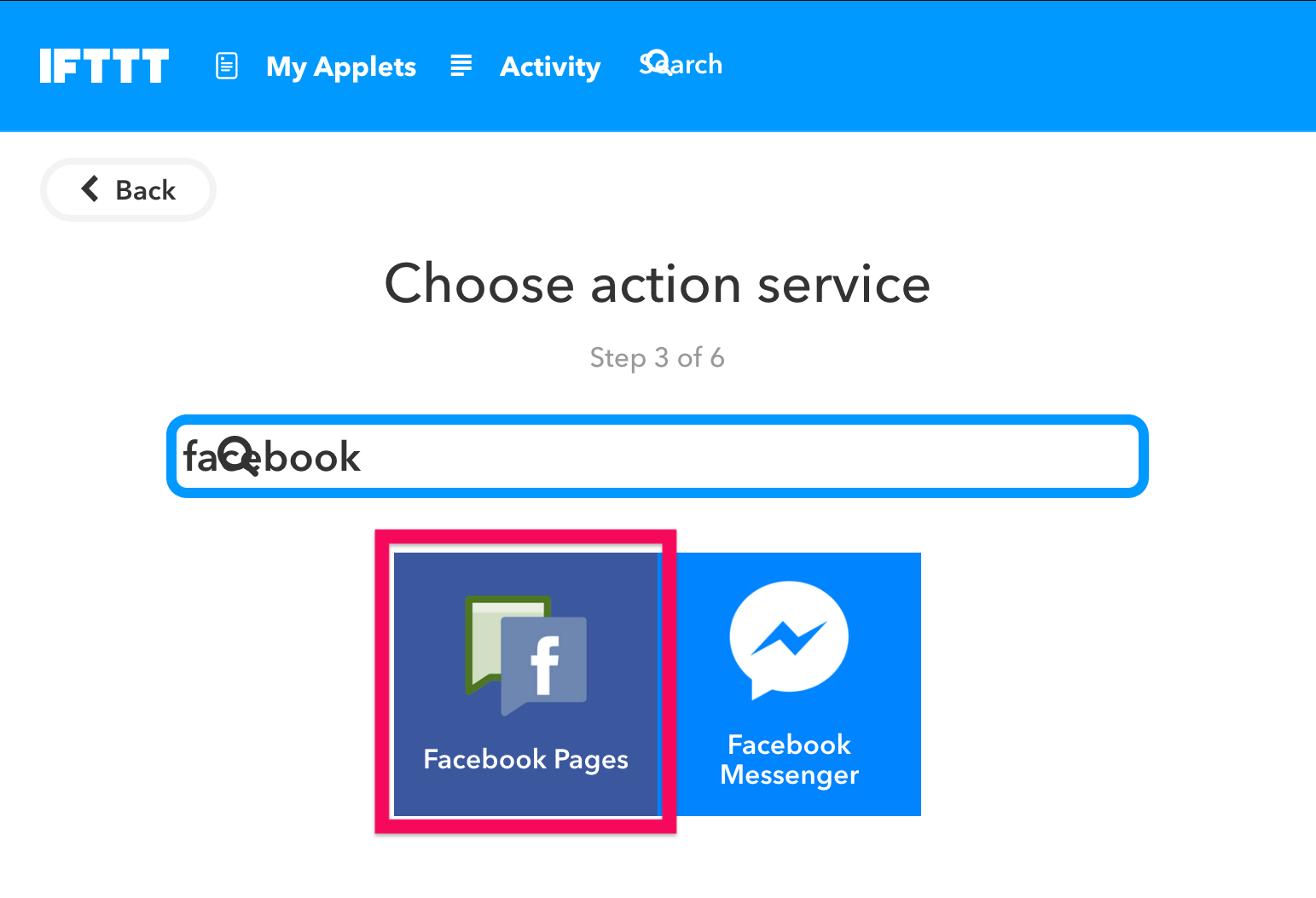
Select [Facebook Pages].
-
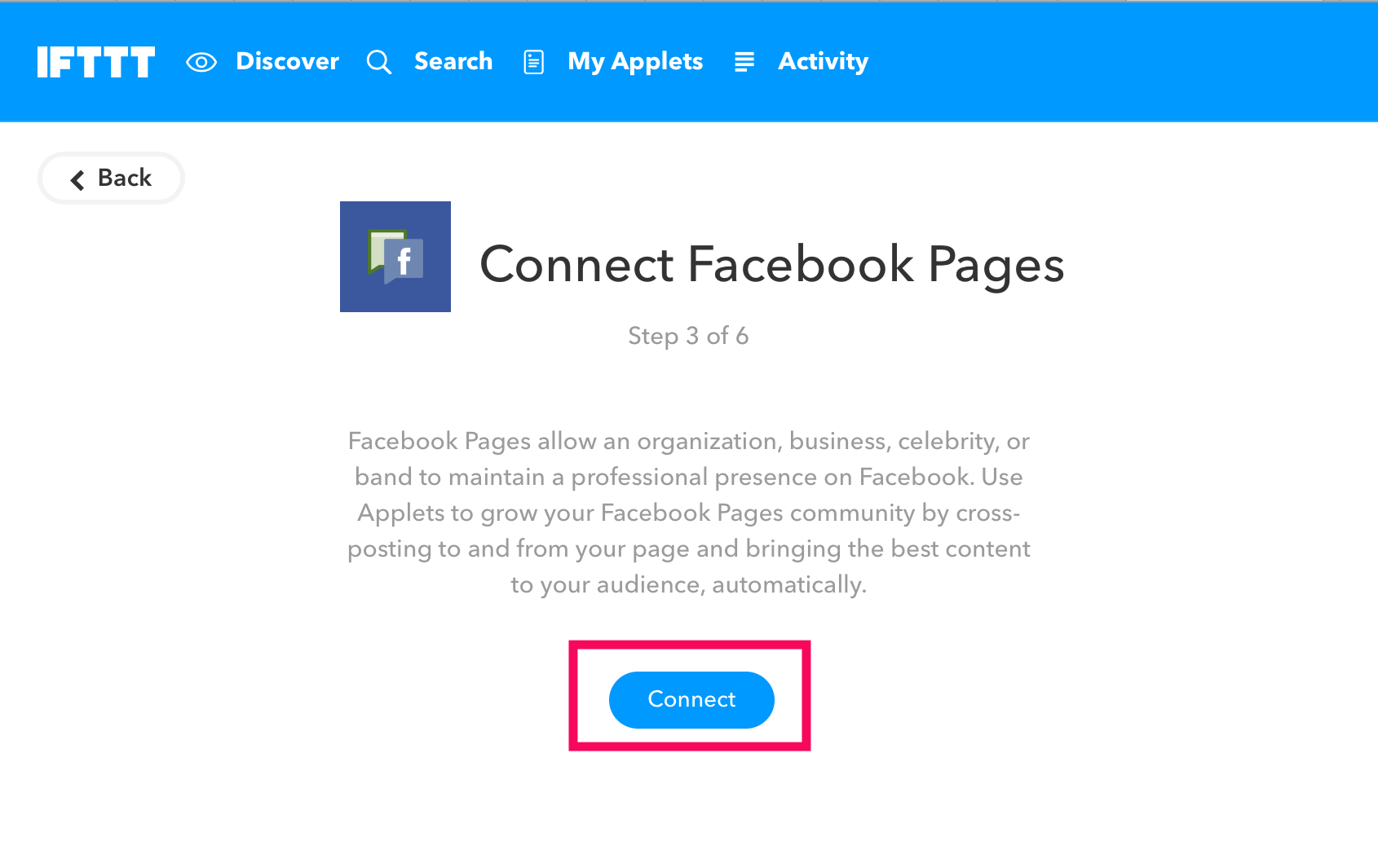
Let’s connect IFTTT to your Facebook Page. Click [Connect].
-
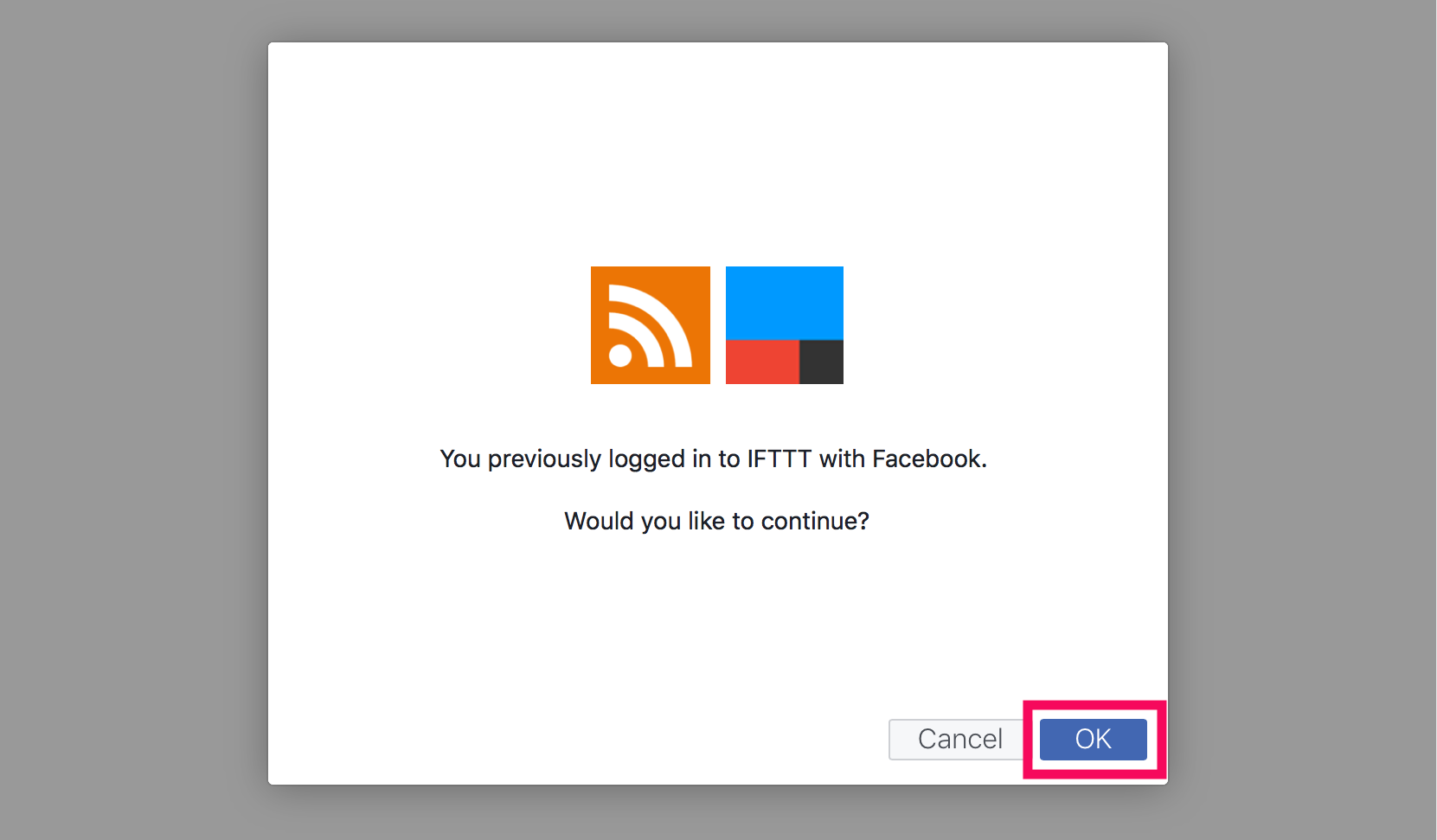
Click [OK] to authorize.
-
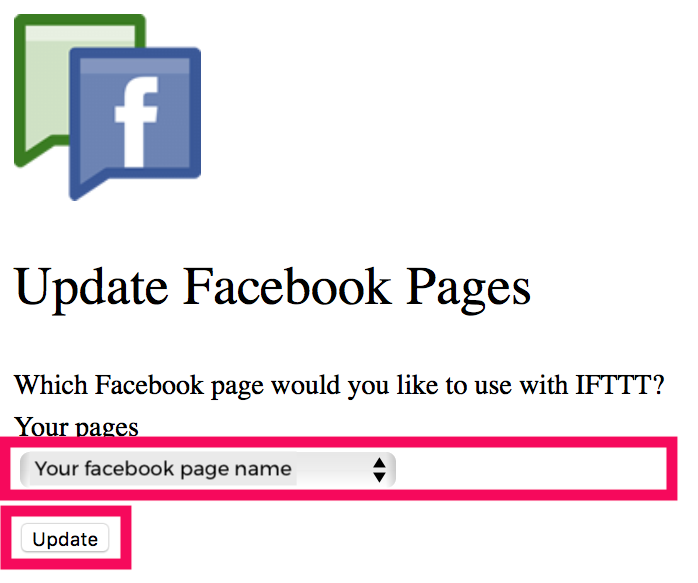
Select your Facebook Page name and click [update]. Make sure you’ve selected the correct page name.
-
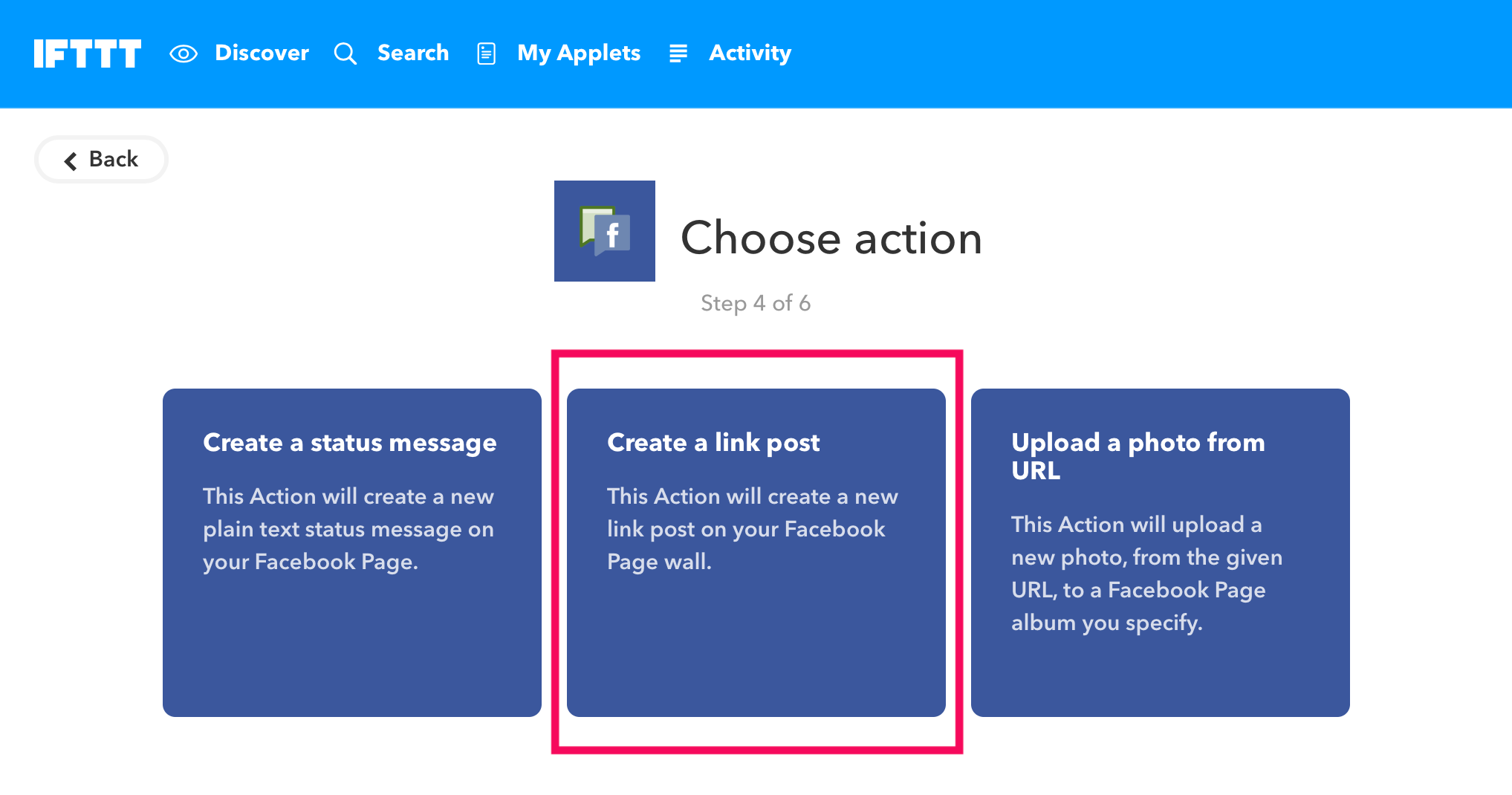
Click [Create a link post].
-
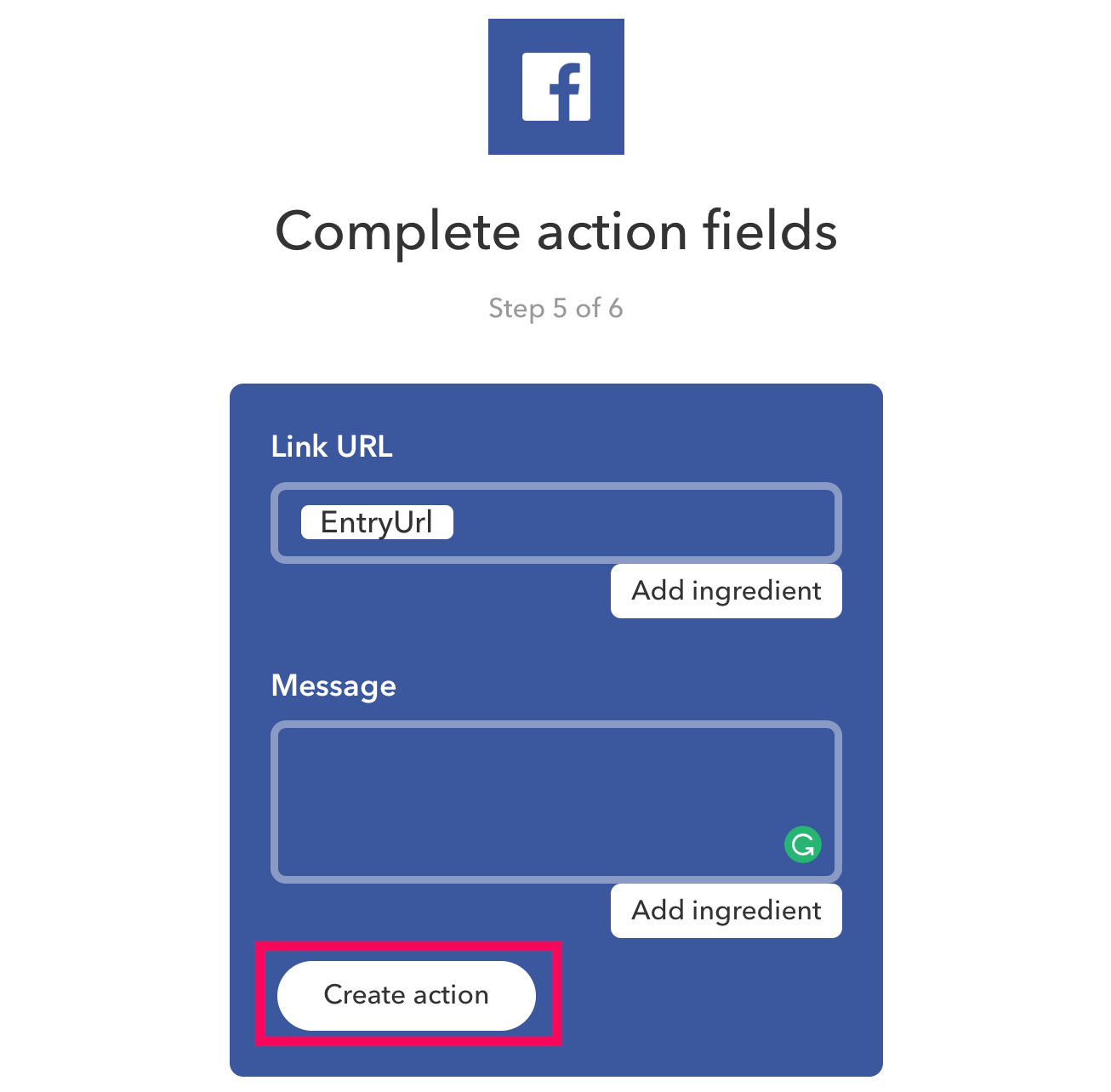
Make sure Link URL includes EntryUrl. You can also add a message. Then click [Create action].
-
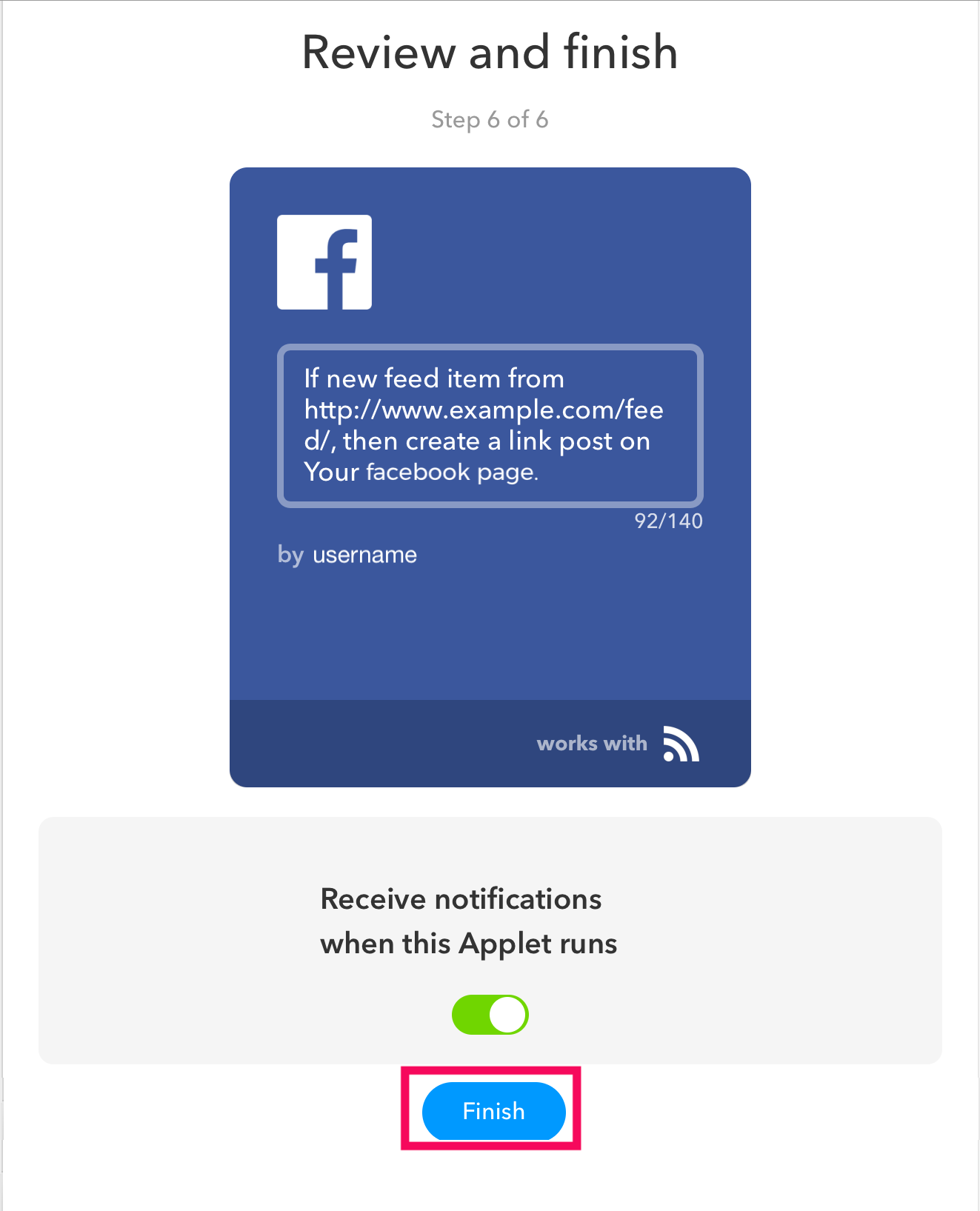
The applet has been created! Click the [Finish] button. That’s it!