
Follow these steps to add or edit roles for existing members.
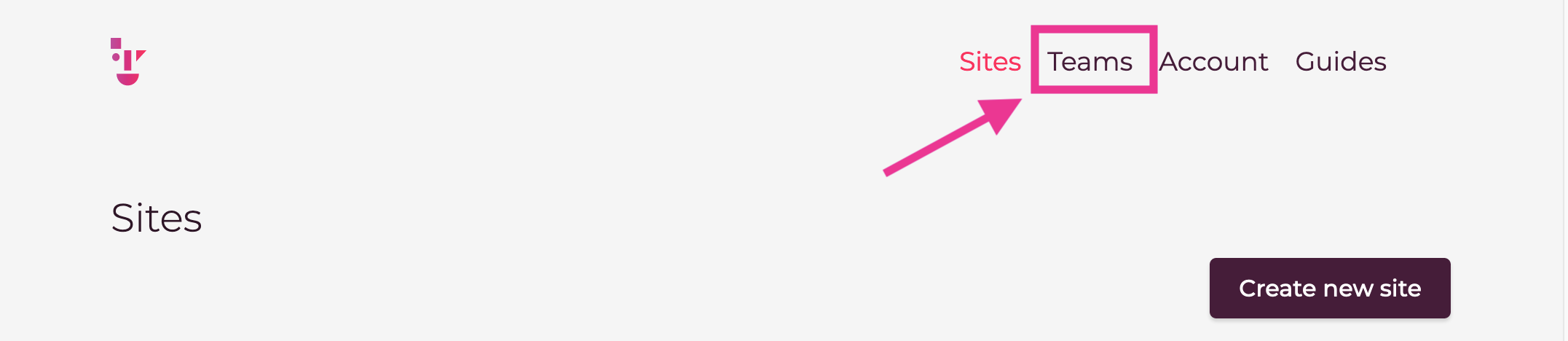
- Go to the Team page.
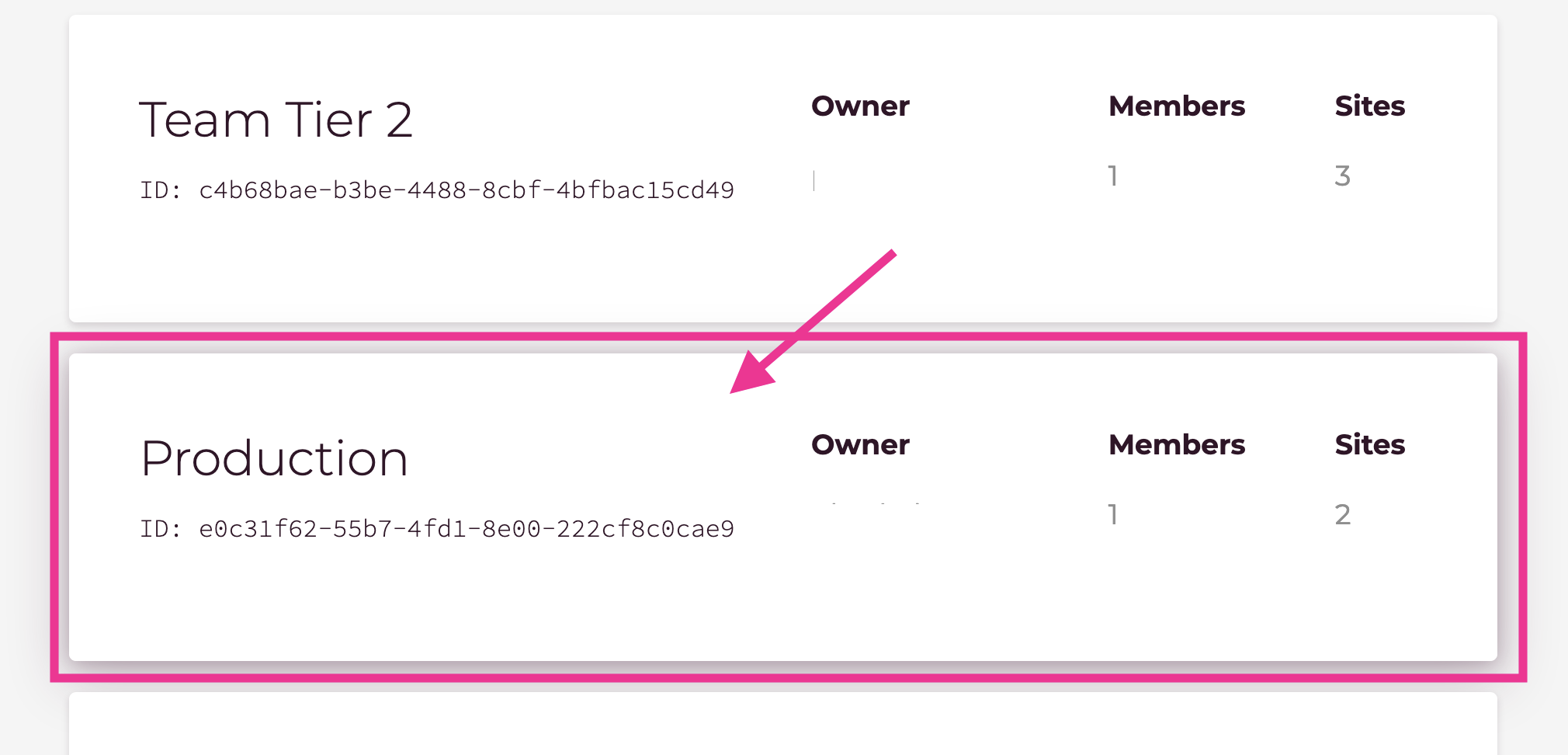
- Click the name of the team you want to edit.
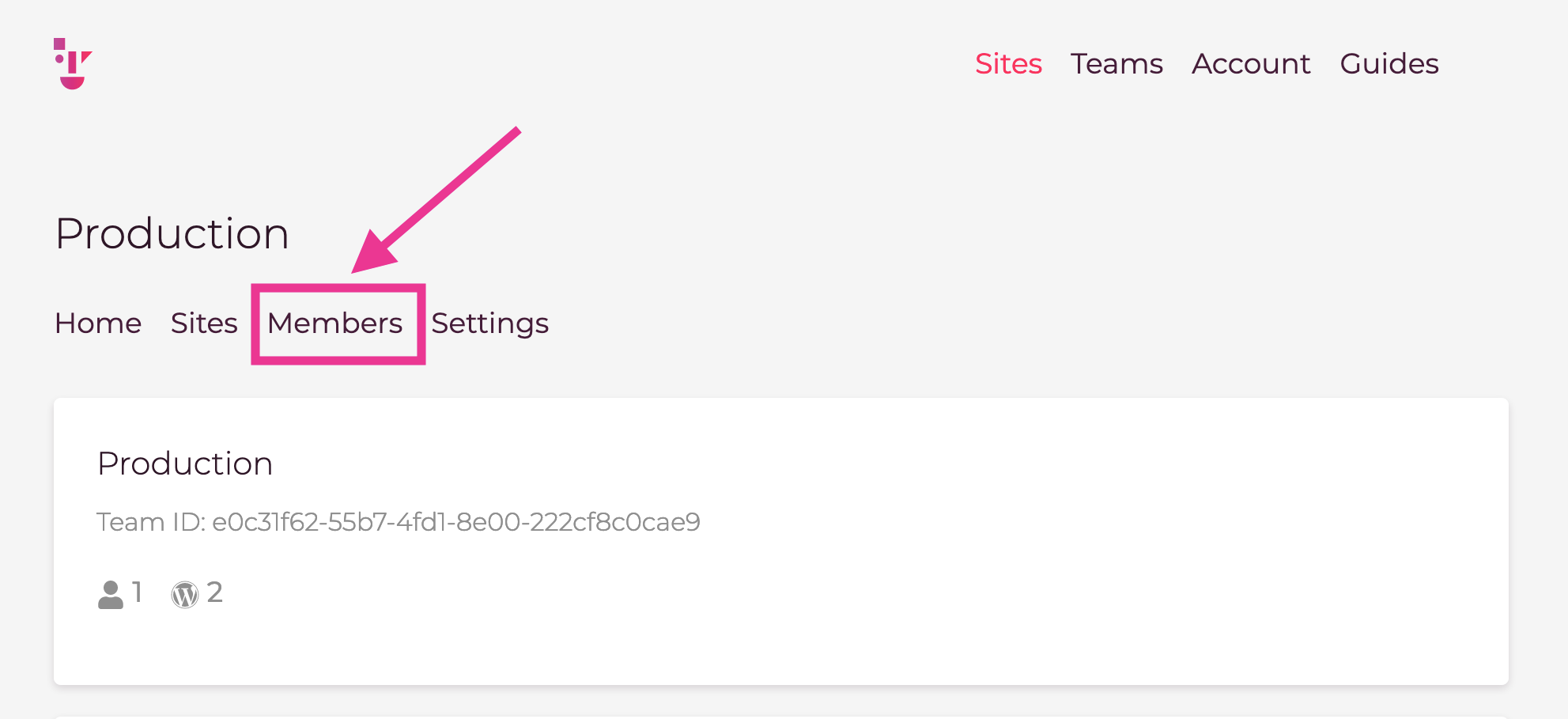
- Click the [Members] menu
- Verify that the user’s status is [Approved]
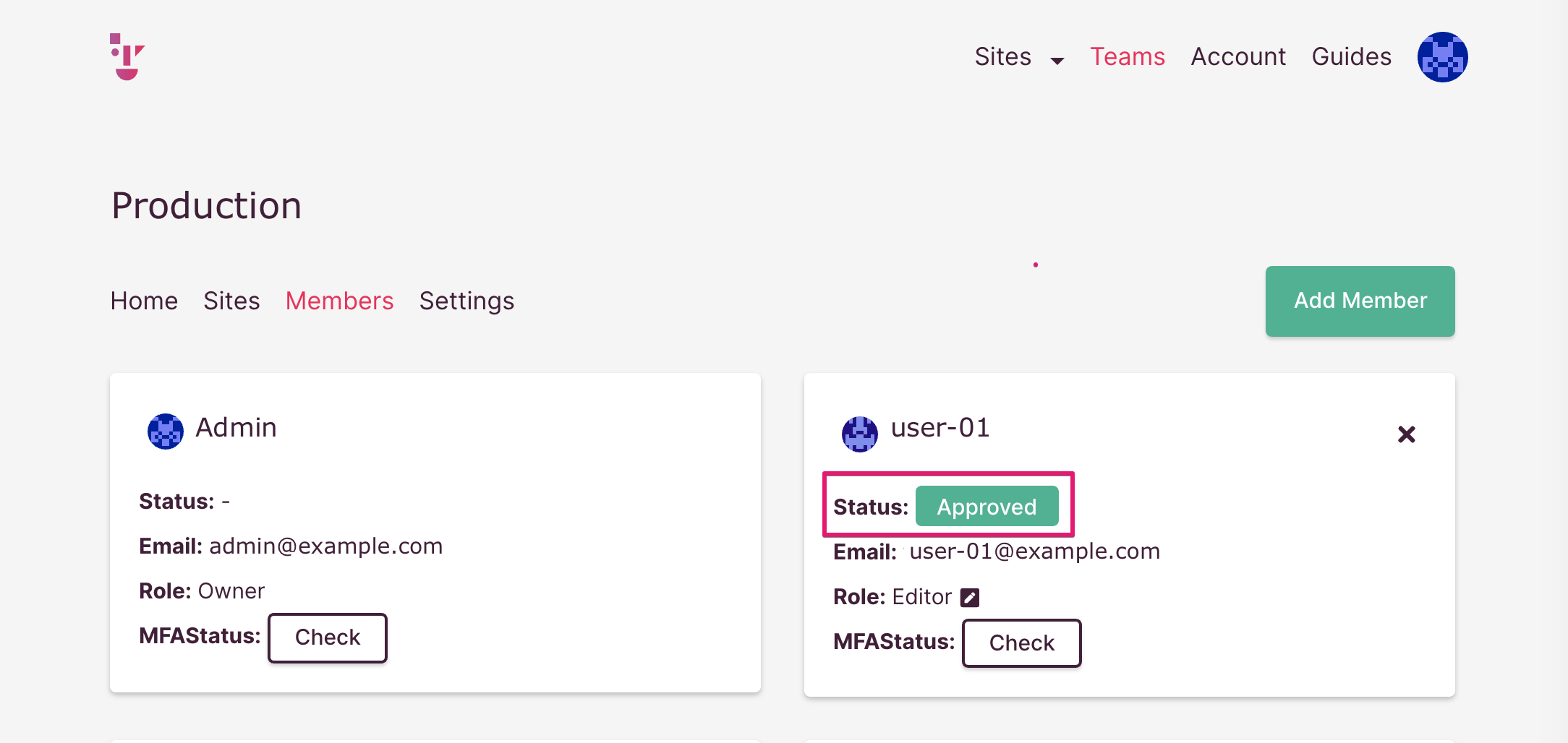
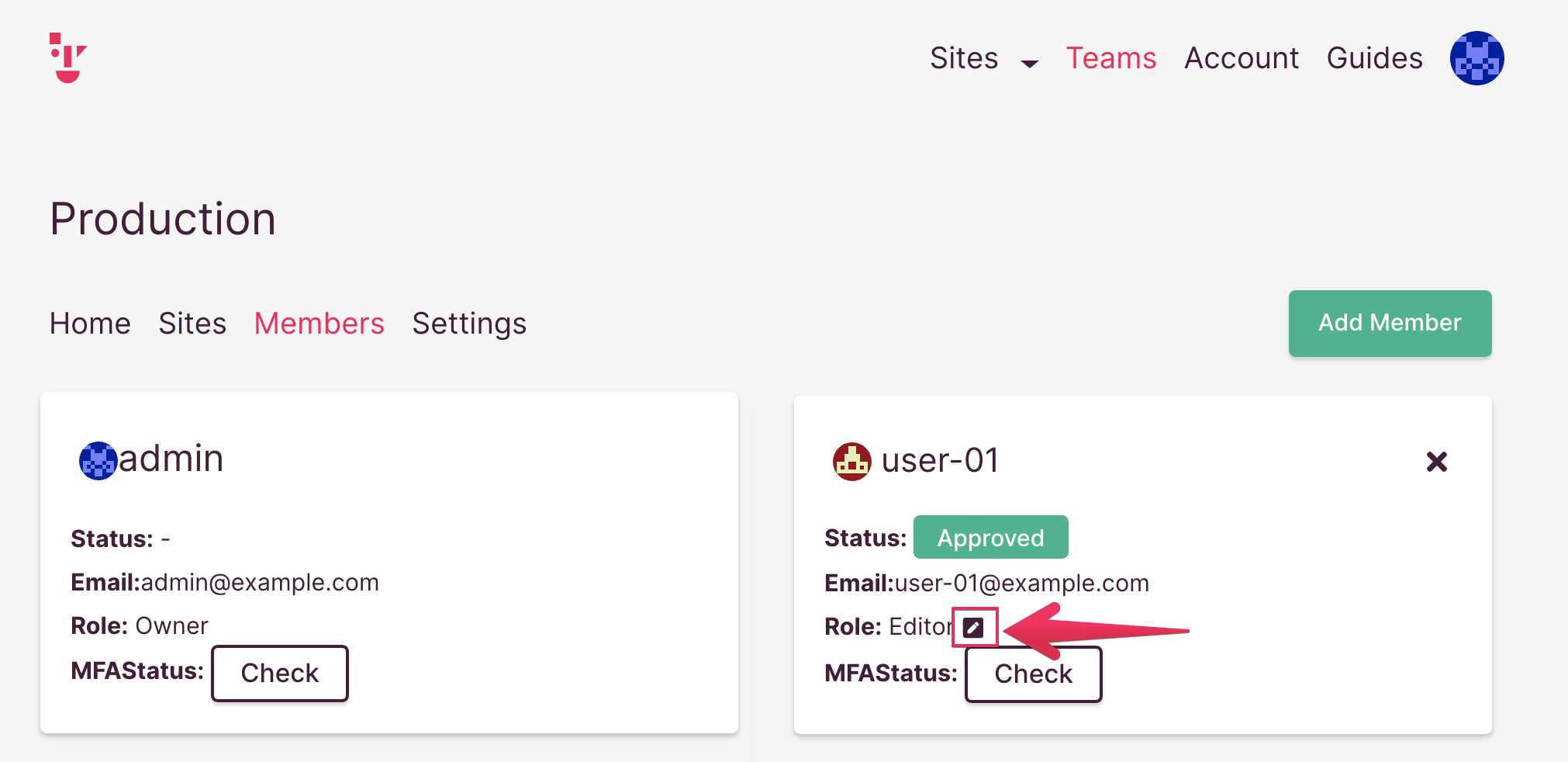
- Click the pencil icon to select a role. In this example, user-01’s role is Editor
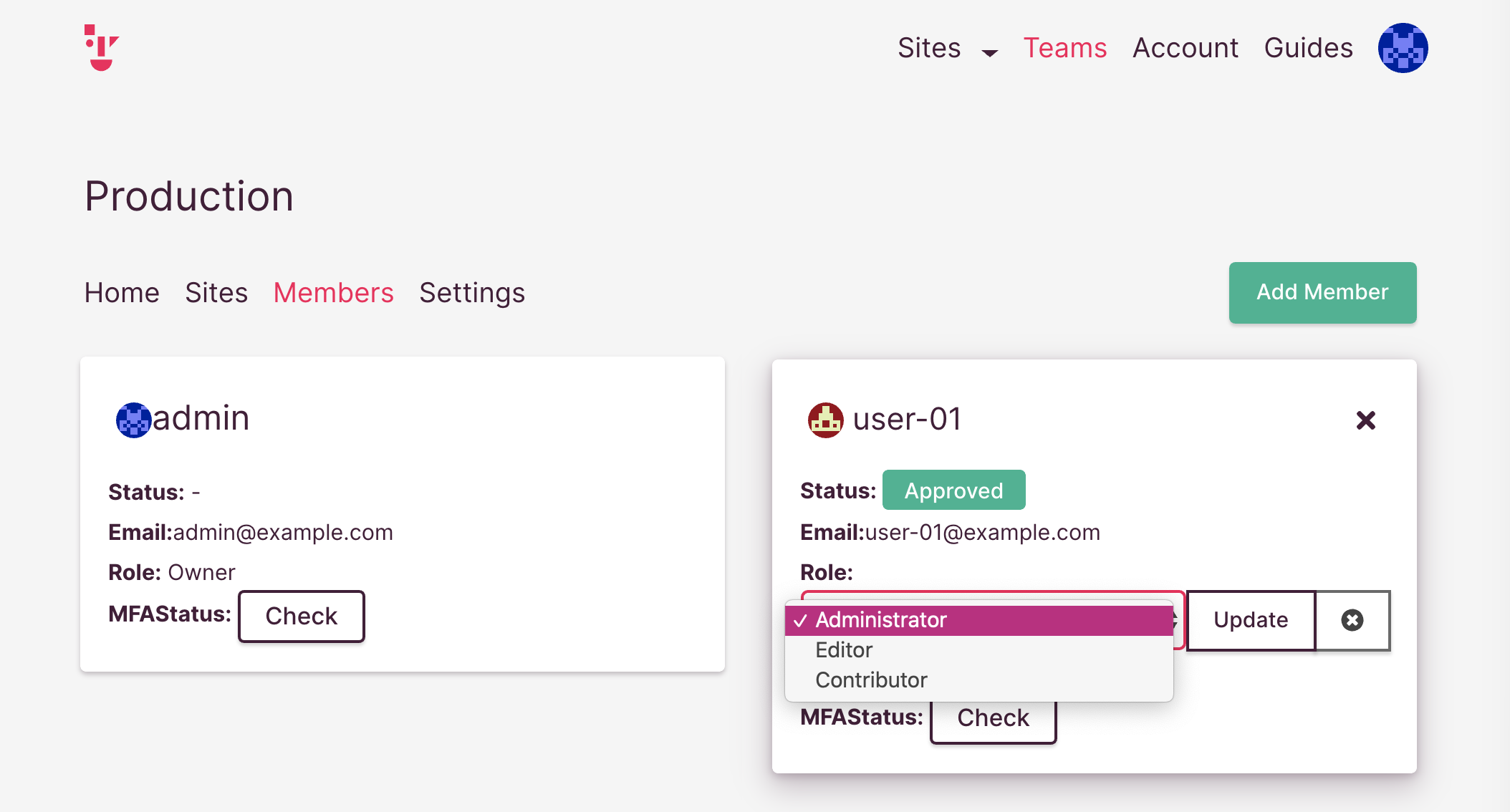
- Select [Administrator]
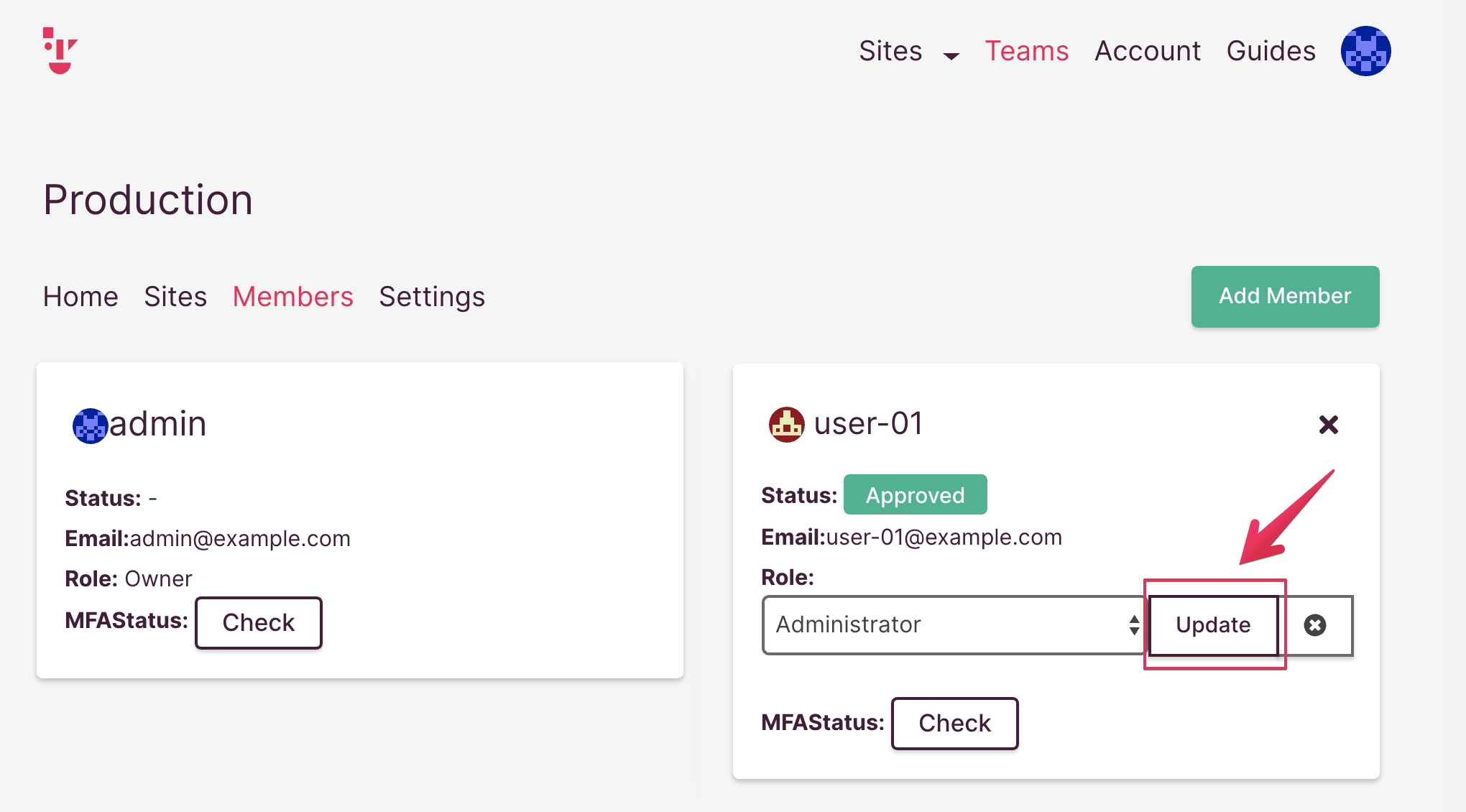
- Click the [Update] button
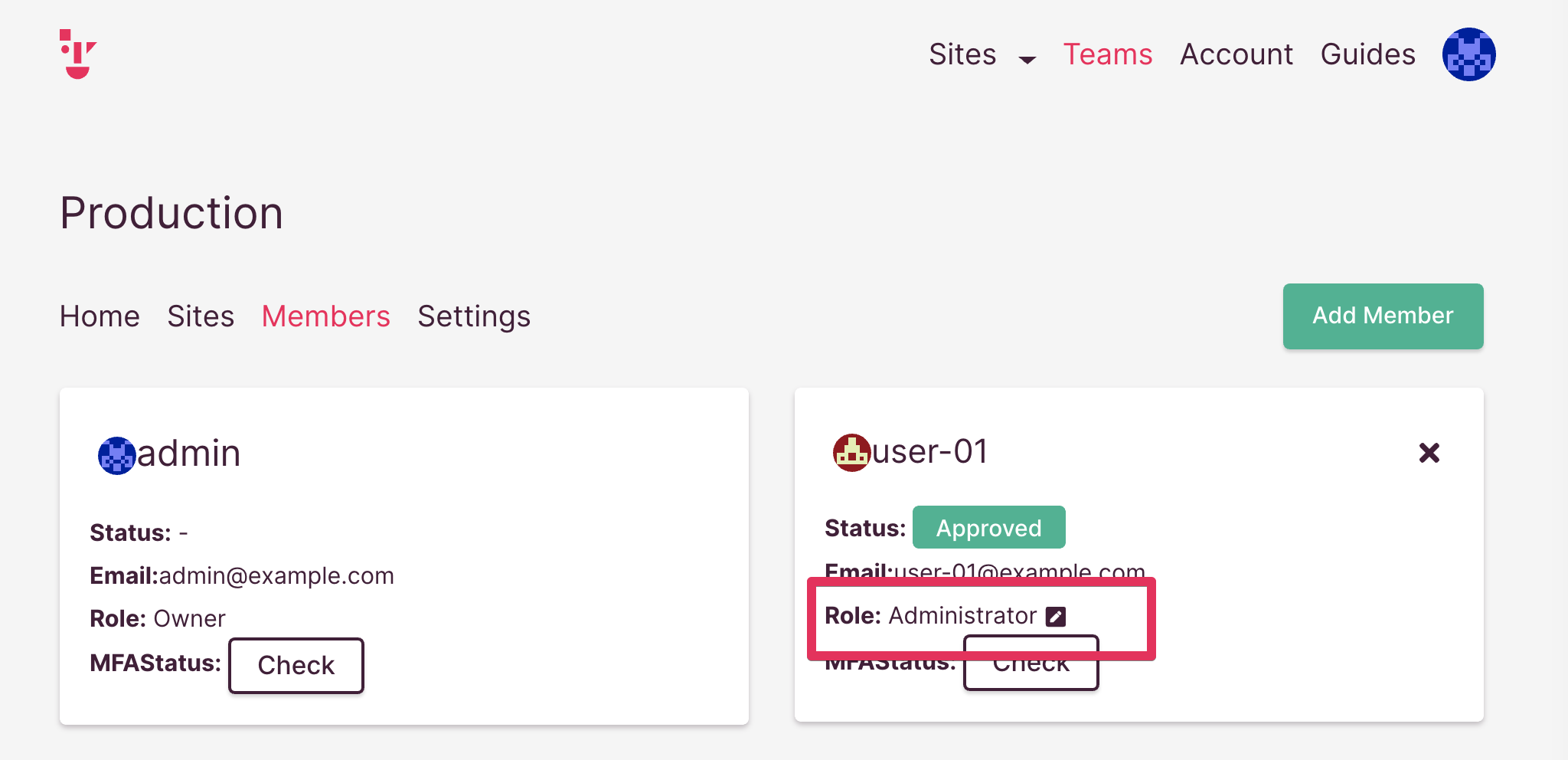
- Verify that the role has been changed. In this example, user-01’s role is Administrator
That’s it.