This guide explains how to add or edit receipt and invoice information.
We encourage you to use this feature to manage and organize your receipts.
Eligible Users
This feature is available to users with a Tier 1 or higher subscription.
Steps to Add or Edit Billing Information
1. Log in to the Shifter dashboard.
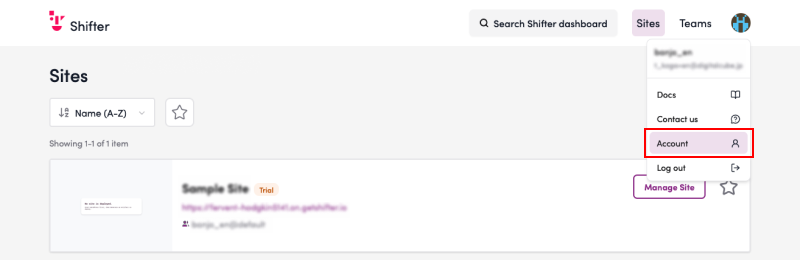
2. Click the account icon in the upper-right corner of the page and select “Account.”
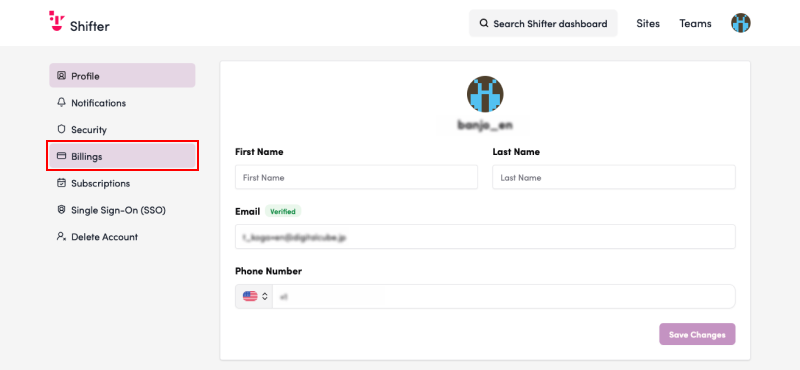
3. Click the “Billing” menu in the left sidebar.
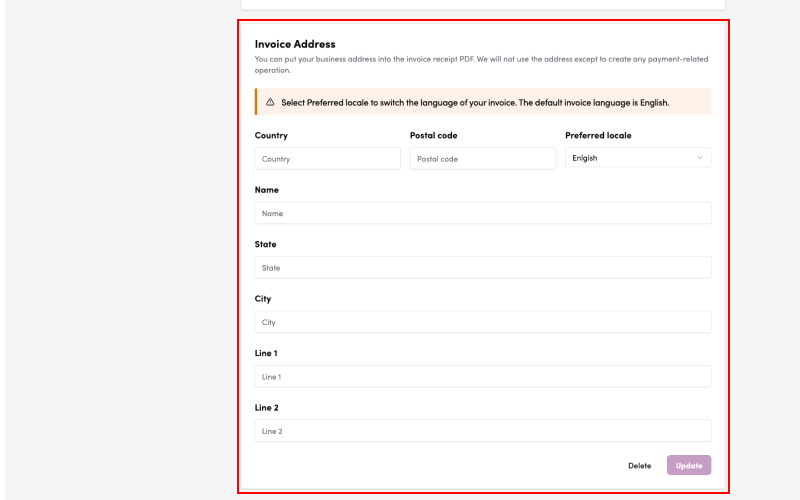
4. Scroll down to the “Billing Address” section.
Language Settings
Under “Preferred Language,” select your preferred language.
*You can choose between “English” and “Japanese.”
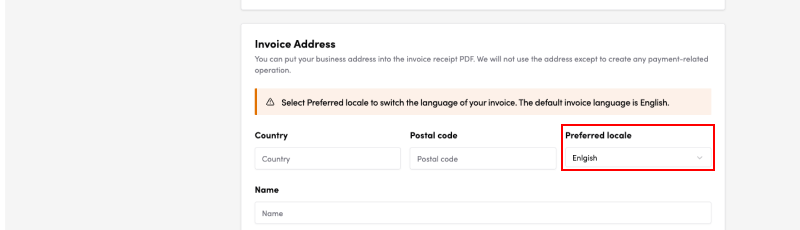
5. Enter the required information and click the “Update” button at the bottom right of the screen.
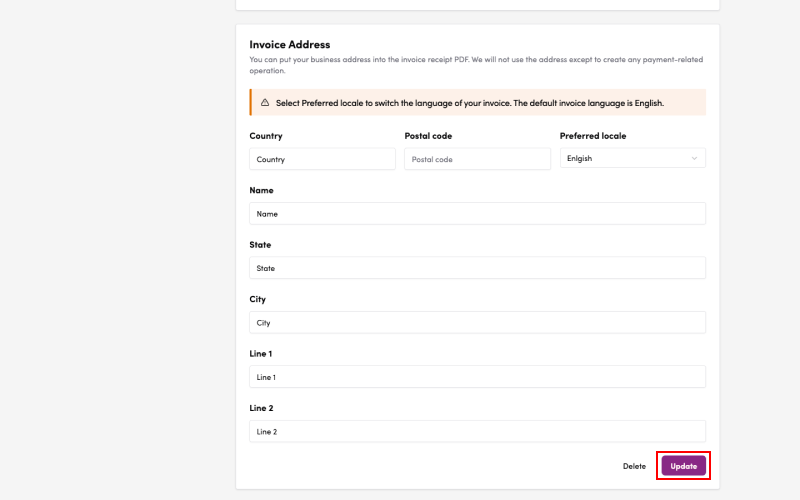
6. The saved information will be applied to your invoices and receipts.
Downloading Receipts
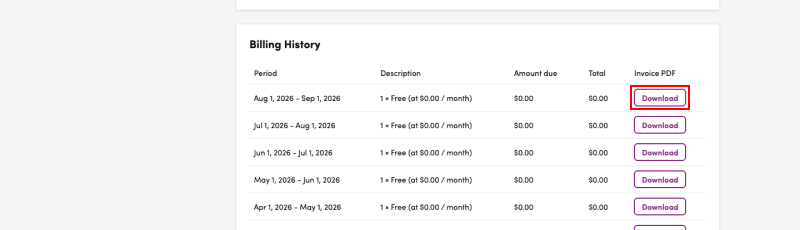
On the same page, you’ll find a section titled “Billing History.”
Select the receipt you wish to download from this section and click the PDF download button.