
Exporting Data from Your Website
Install the All-in-One WP Migration and Backup plugin on your live WordPress site.
This plugin is available for free in the WordPress plugin directory. Install it directly from your WordPress site, or download it and upload it from the WordPress dashboard.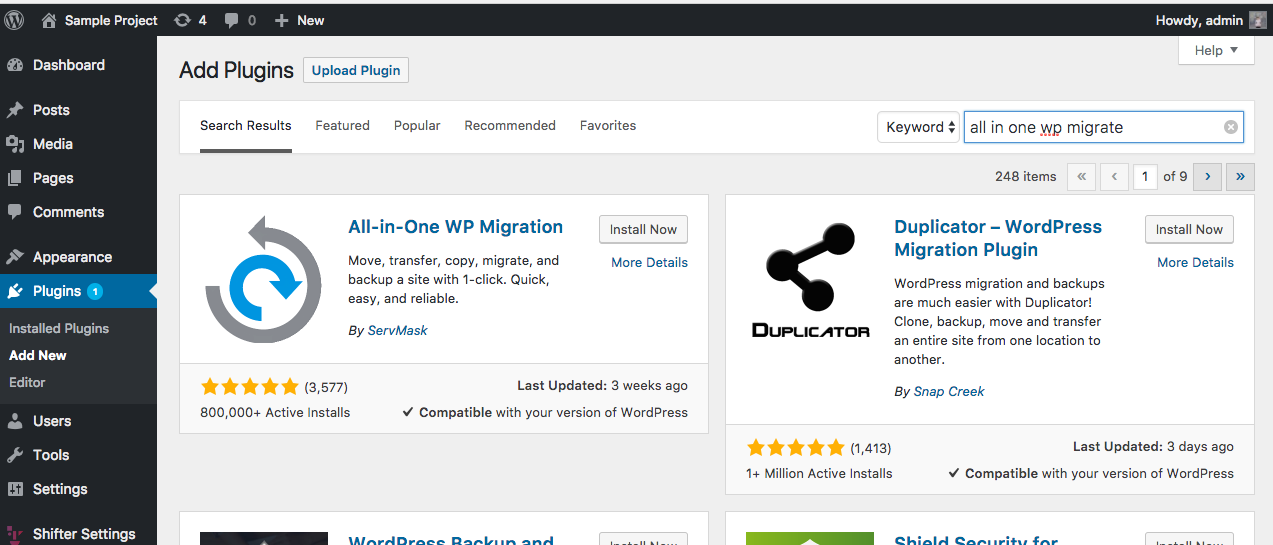
Deactivate or Uninstall Plugins That May Cause Migration Failures
If a plugin or theme has not been updated for many years, it may have compatibility issues with PHP 7 or later. Some plugins and themes have not been tested with PHP 7 or are not compatible with it. The PHP version currently running is 7.3.6. (Incompatible plugins can crash the import process or WordPress on Shifter.) Plugins are listed in the incompatibility list. (Listed plugins must be deactivated, as they may crash WordPress on Shifter.) We recommend deactivating the following plugins.- Export/Create a File Backup of Your Current WordPress Site
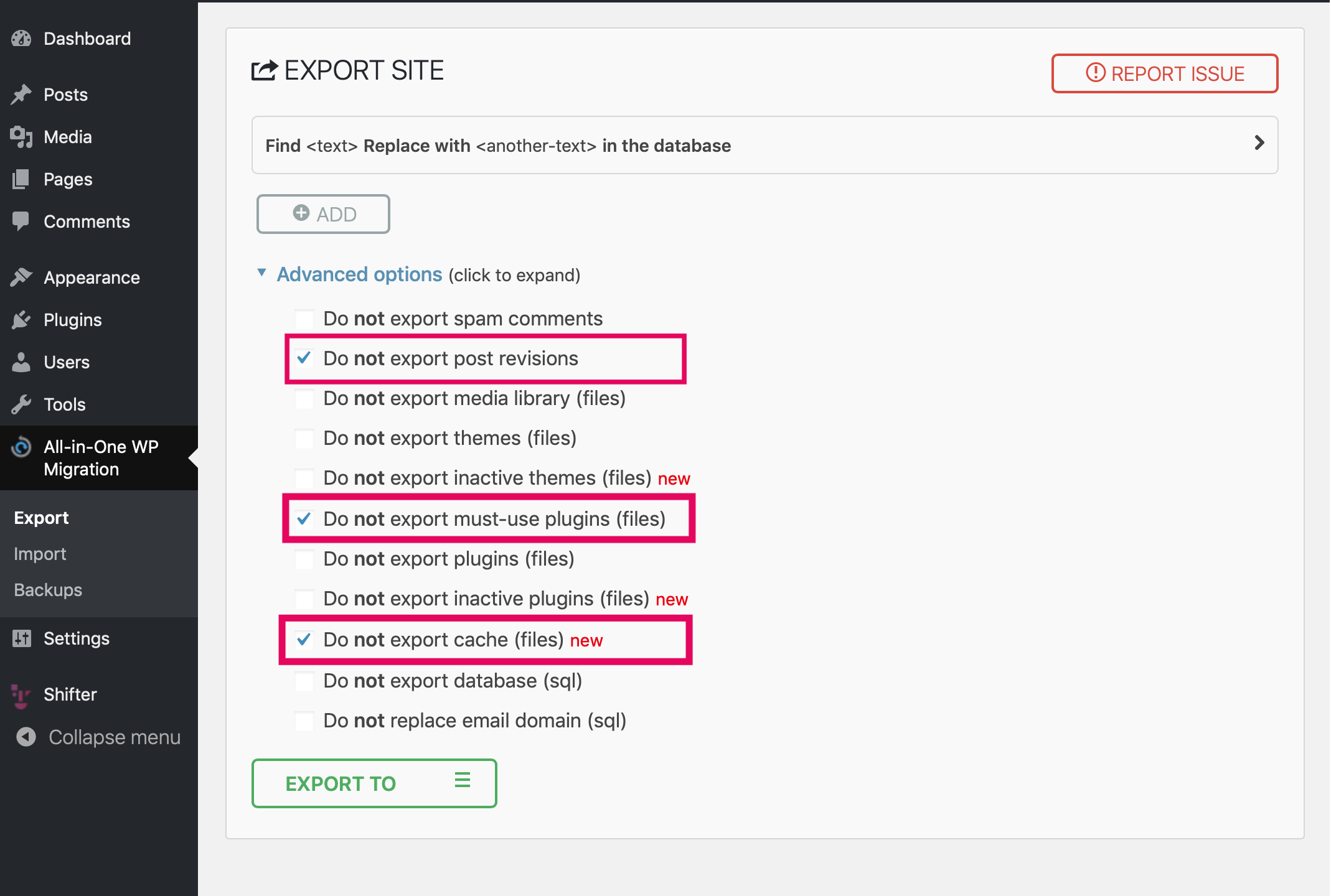
Create a complete backup of the existing site you want to migrate. This plugin offers options such as Dropbox and Amazon S3 as premium features. When creating an export or backup file, we recommend checking the following options to exclude “post revisions,” “essential plugins,” and “cache files”:- [Do not export post revisions]
- [Do not export essential plugins (files)]
- [Do not export cache (files)]
Create a new site in Shifter
Create a new WordPress site in Shifter
For instructions, see the separate support document: Starting and accessing WordPress. Every Shifter site starts as a new WordPress installation. Create a new site and overwrite the default content with your existing backup.Log in and install All-in-One WP Migration and Backup
Log in to your new WordPress site, go to the WordPress plugin directory, and install or upload the All-in-One WP Migration and Backup plugin. After activating the plugin, go to the All-in-One WP Migration and Backup import page.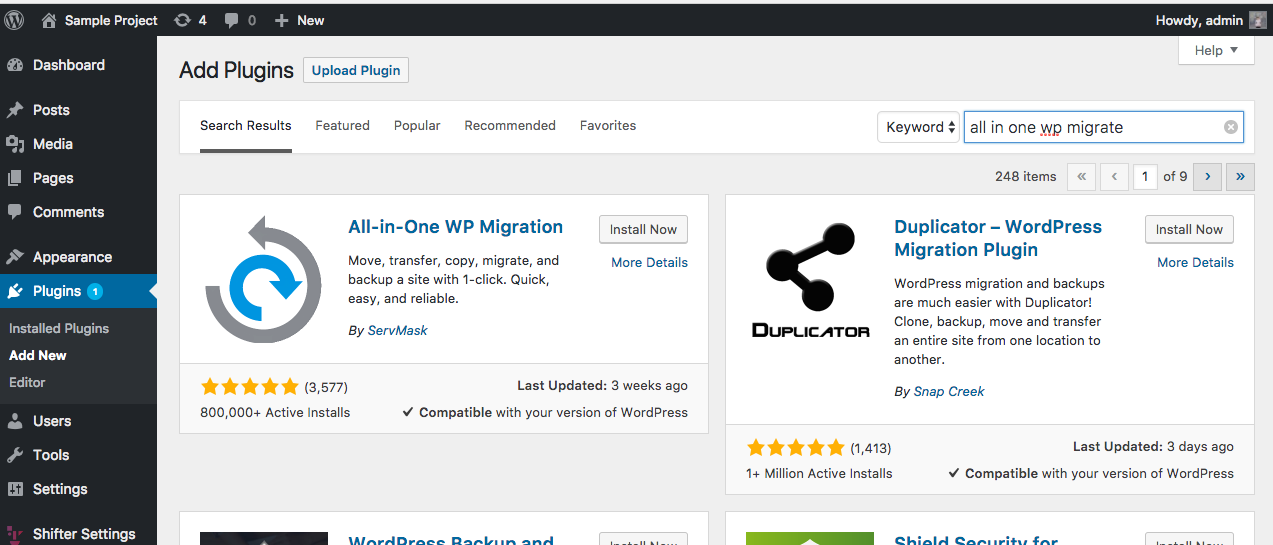
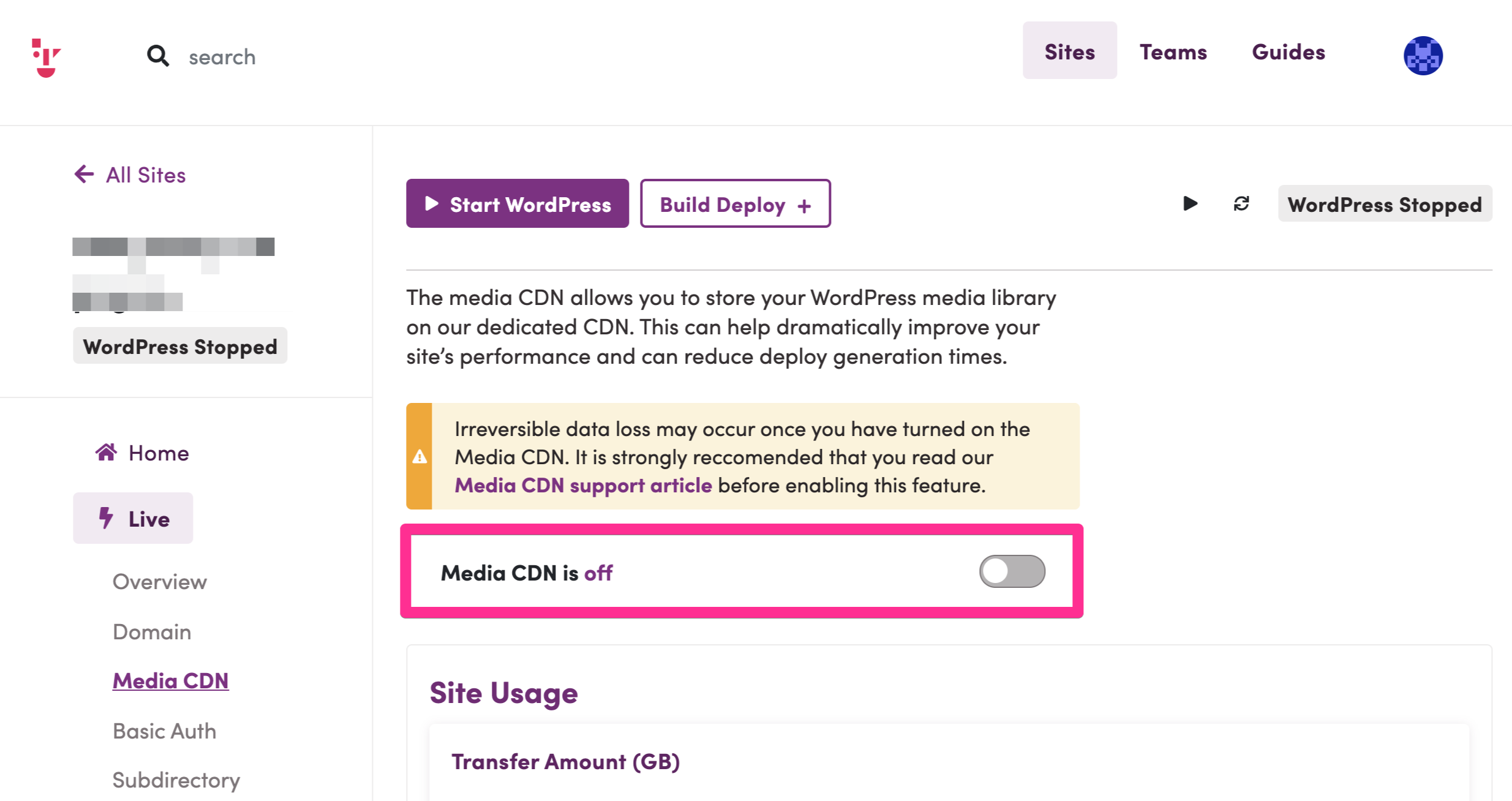
Verify that Media CDN is disabled
- Import the Backup
From the All-in-One WP Migration and Backup Import page, you can select or drag and drop a backup to start the process. Once the migration is complete, you’ll be asked if you want to overwrite the data and files. Since this is a new WordPress installation, this should be fine.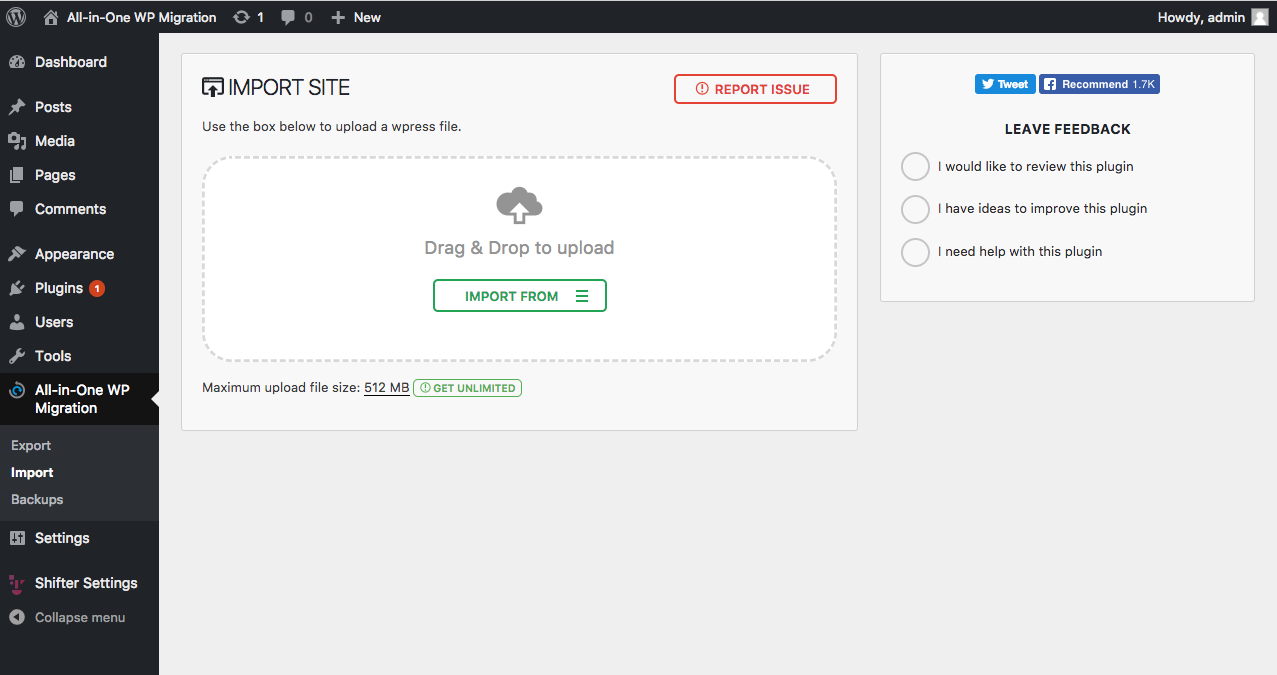
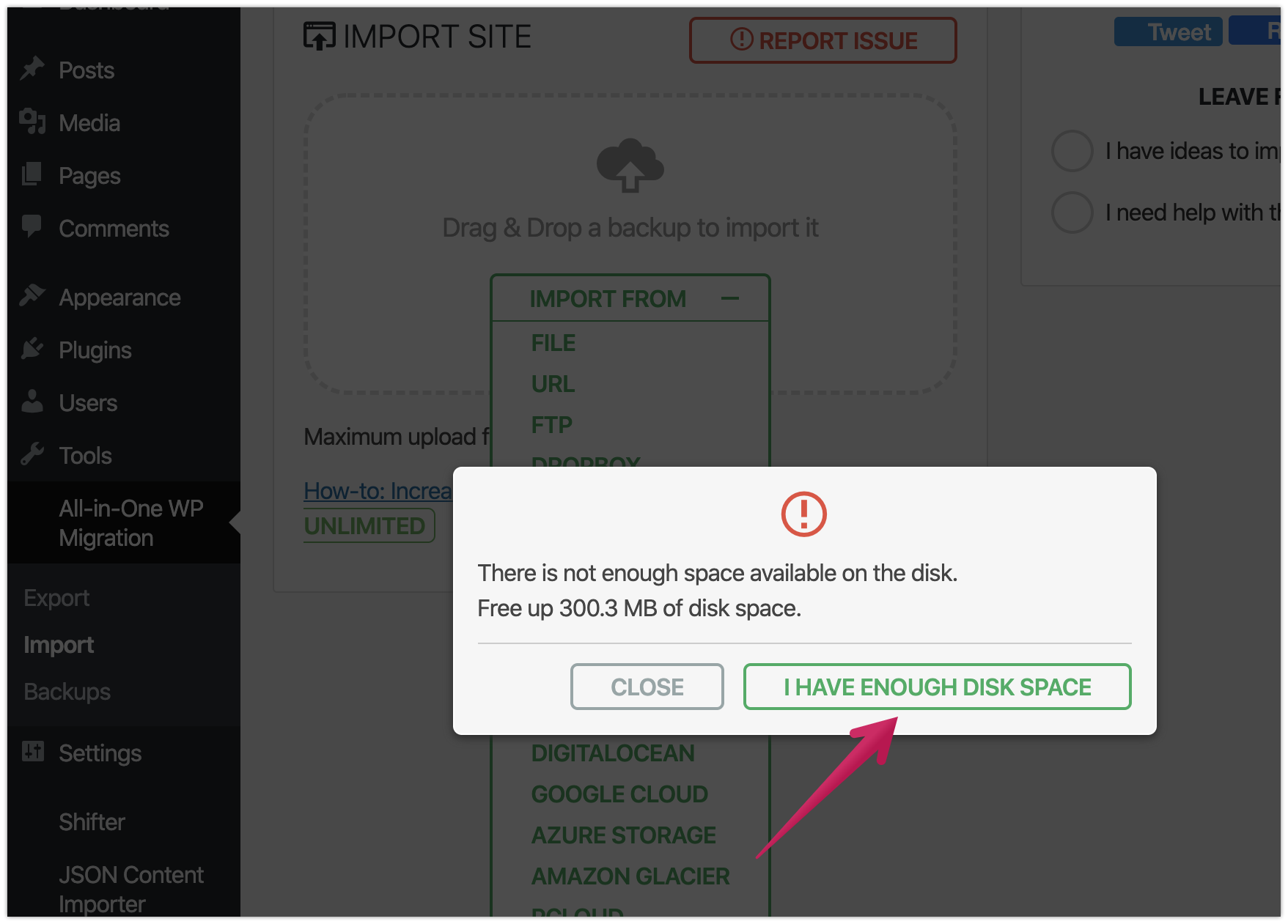
If you see a message saying “Not enough disk space,” you can click [I HAVE ENOUGH DISK SPACE] to ignore it and continue with the data migration.
Get a new login URL or restart WordPress
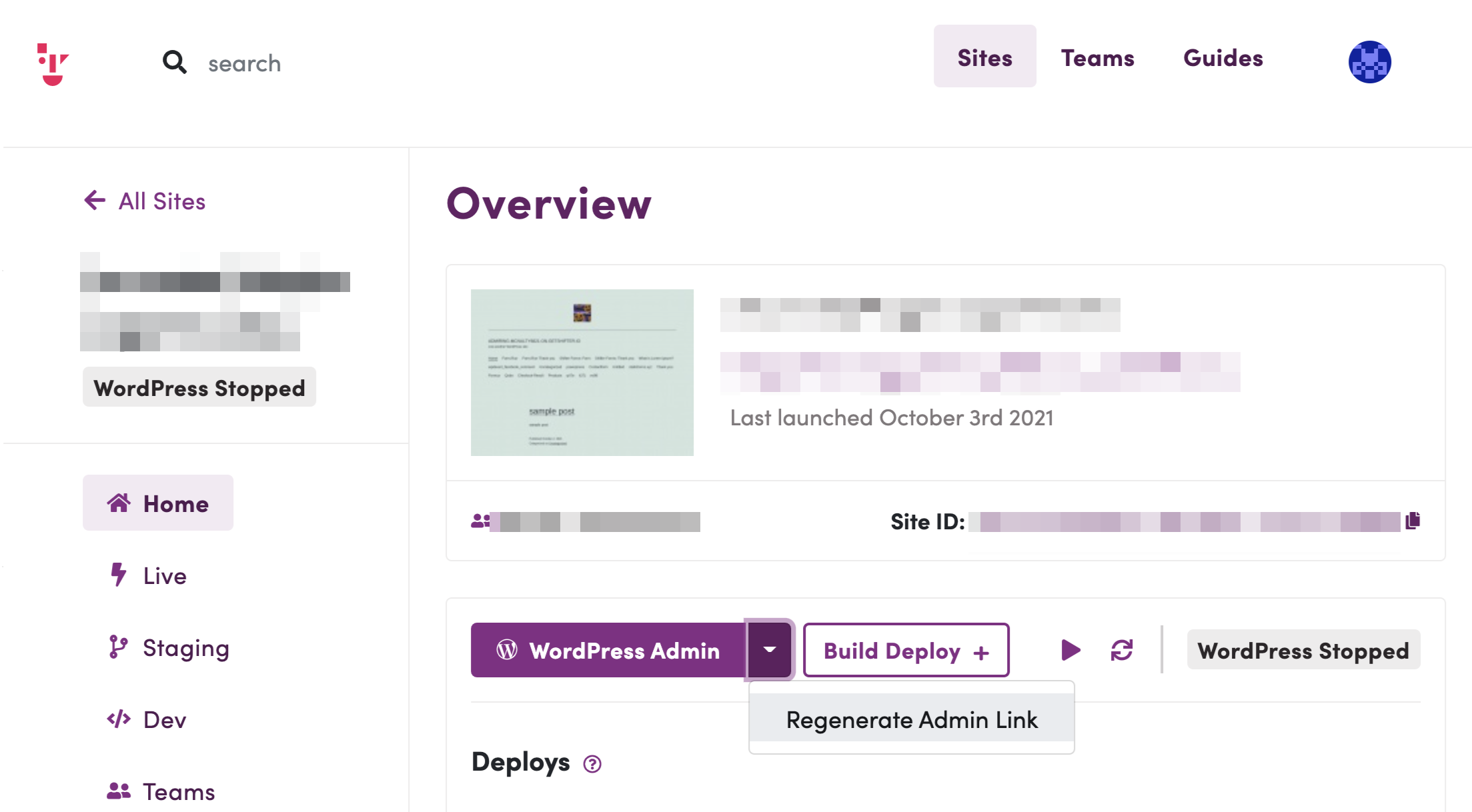
Click [Regenerate Admin Link] below the [WordPress Admin] button to generate a new URL for the WordPress dashboard, or stop and restart WordPress to apply the changes.
Log in to the WordPress dashboard and update the permalink structure. Build a deployment (e.g., an artifact)
For instructions, see the separate support document: Creating and publishing a new deploy (also called an artifact).- Done! You now have a static version of your site.
[Optional] Media CDN
If you use it, enable Media CDN after the data import is complete and you have checked the display. For details, see the Media CDN support documentation.
Tip: Logging In
Please note that importing a backup will replace all existing content, including the username and password for the new site.If you have trouble accessing your account, try using the old username and password from the migrated site. If that still doesn’t work, you can also reset your password.
Stuck?
If you’re having trouble and aren’t sure what to do, please contact us. We’ll help you with troubleshooting and recommendations. We’re here to help!