
Shifter includes a feature that filters and displays only WordPress-related PHP errors. Please use this for troubleshooting, such as when you encounter issues after updating or modifying plugins or themes.
This feature is available on Tier 1, 2, and 3 plans.
Viewing Error Logs
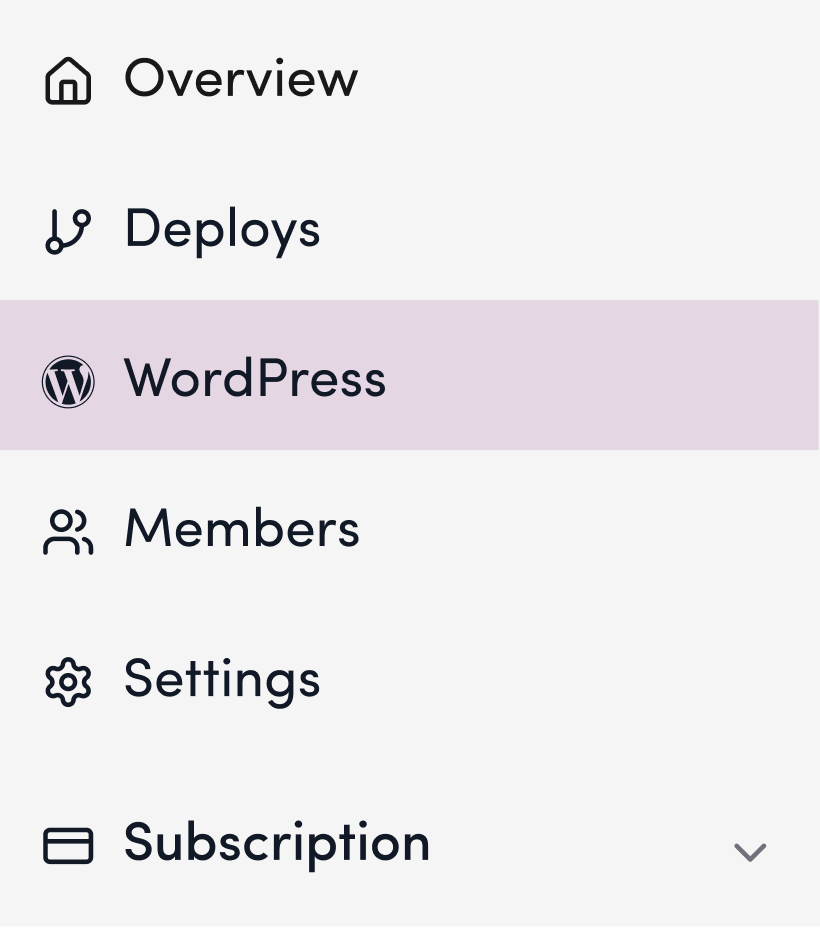
1. Click “WordPress.”
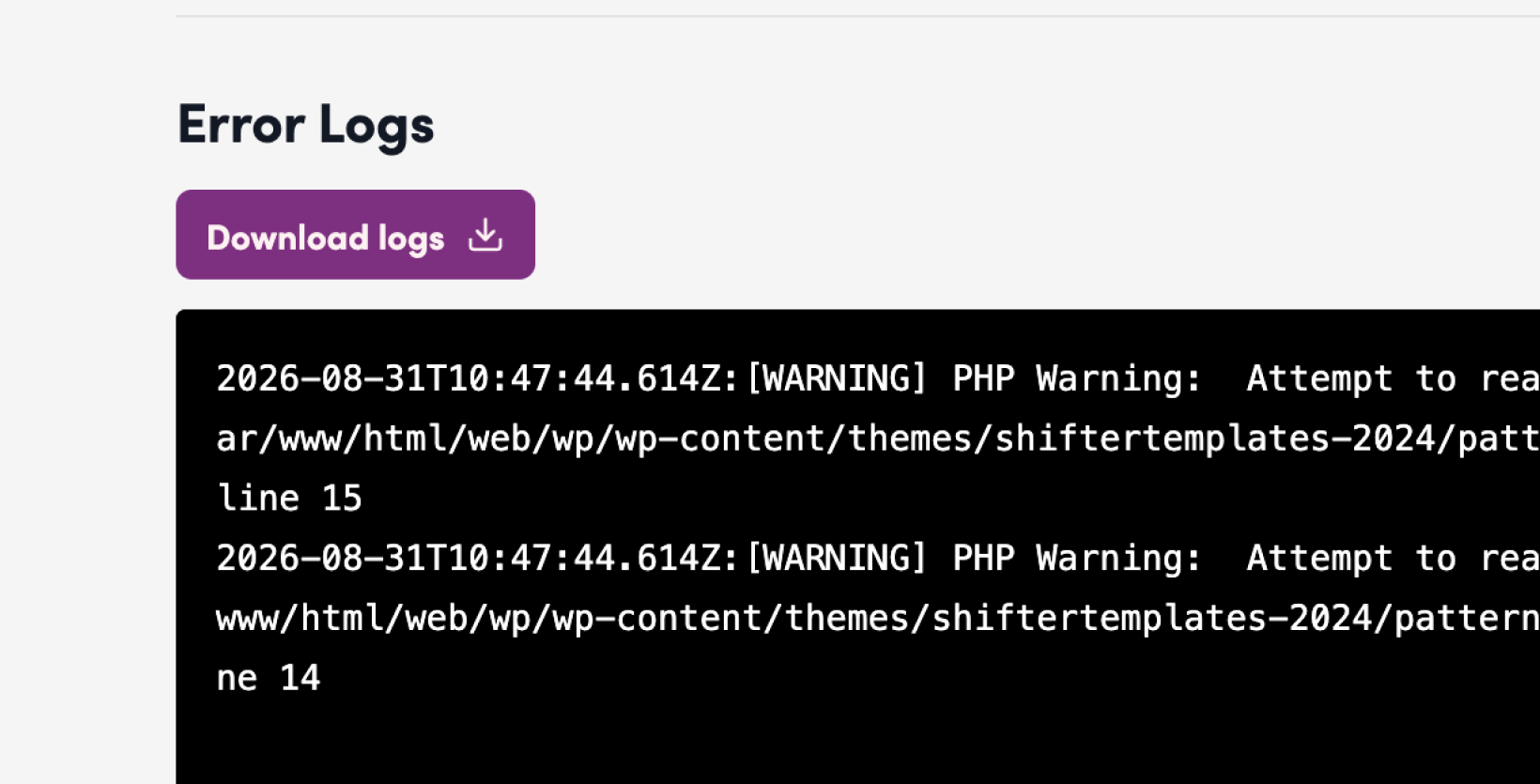
2. View the error logs in the “Error Logs” section.
Downloading Error Logs
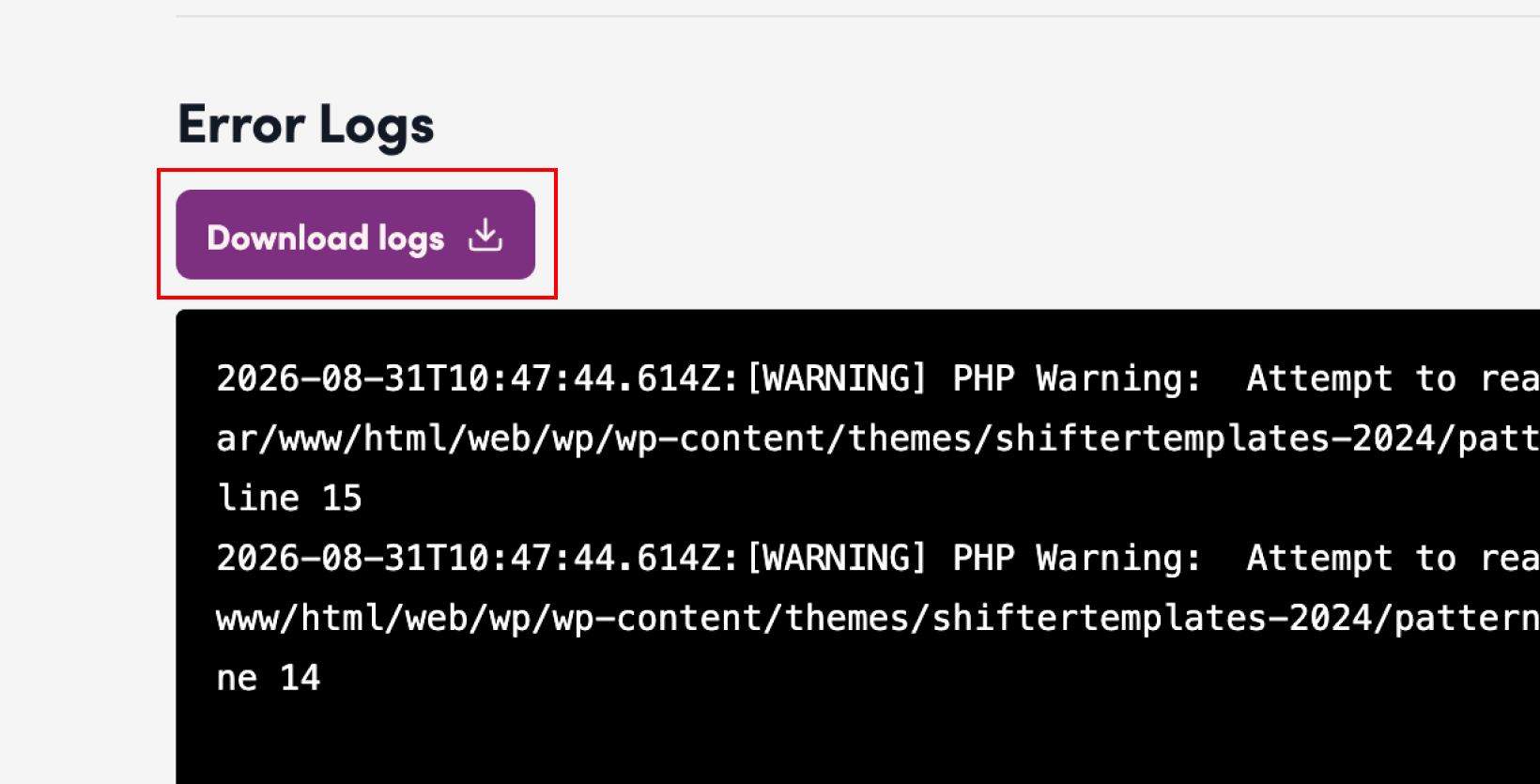
3. Click “Download Logs.”
Note:
Shifter retains error logs for the past 3 days, up to a maximum of 50 lines.