
Before you begin, make sure your DNS provider supports ALIAS records. A list of supported providers is available in the documentation. If you registered an apex domain (root/naked domain—that is, a domain without a prefix such as www or blog) with Shifter, you can also enter or select the raw CDN hostname shown on the Shifter dashboard (e.g., def456.cloudfront.net).
This article presents two example configurations for ALIAS records: MuuMuu Domain and AWS Route 53. The CloudFront domain is shown on your site’s “Live > Overview” page. Before accessing your DNS provider, copy the CloudFront domain value (def456.cloudfront.net in this example) and paste it into Notepad, Evernote, or your favorite sticky notes app.
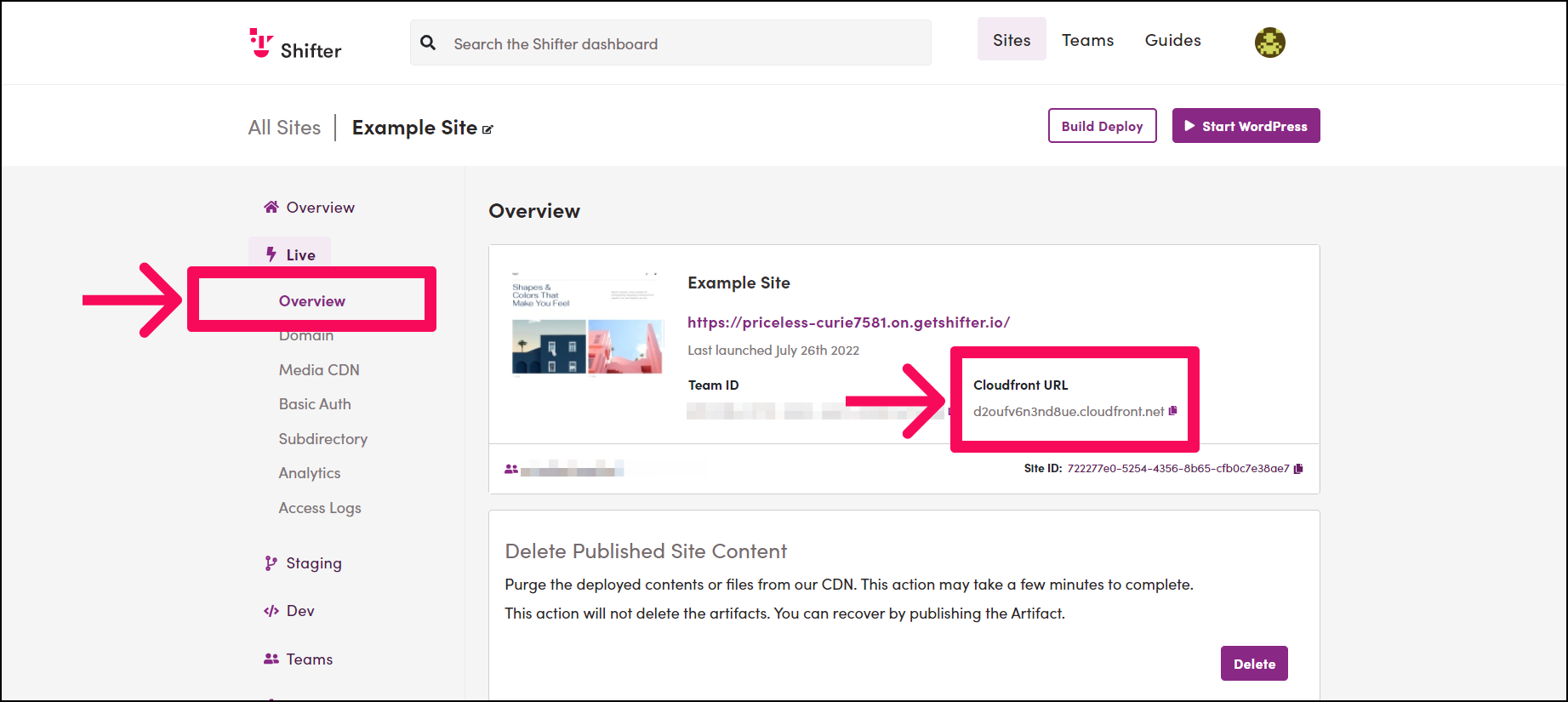
Adding an ALIAS Record
-
Log in to the control panel URL (
https://console.aws.amazon.com/route53/home). -
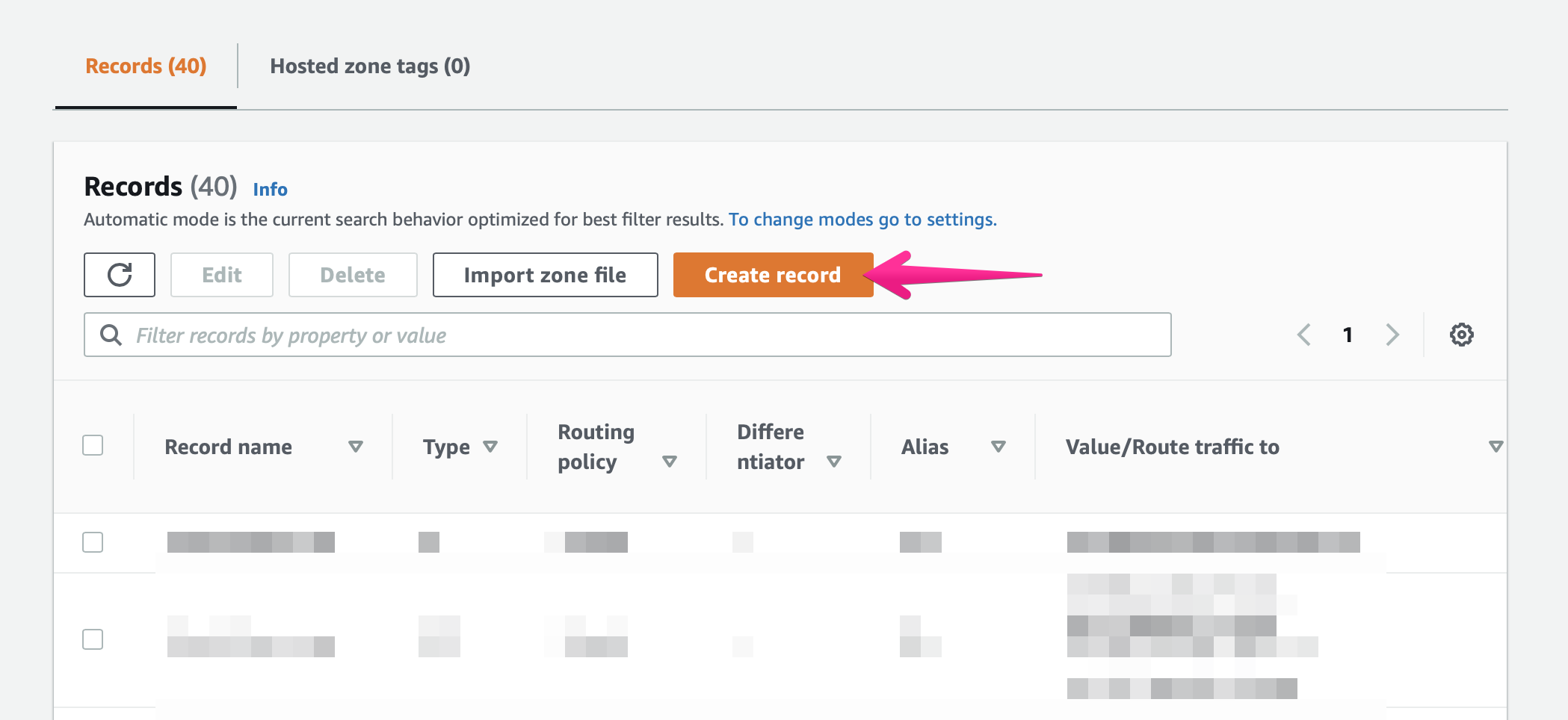
Click the [Create Record Set] button to add a DNS record.
-
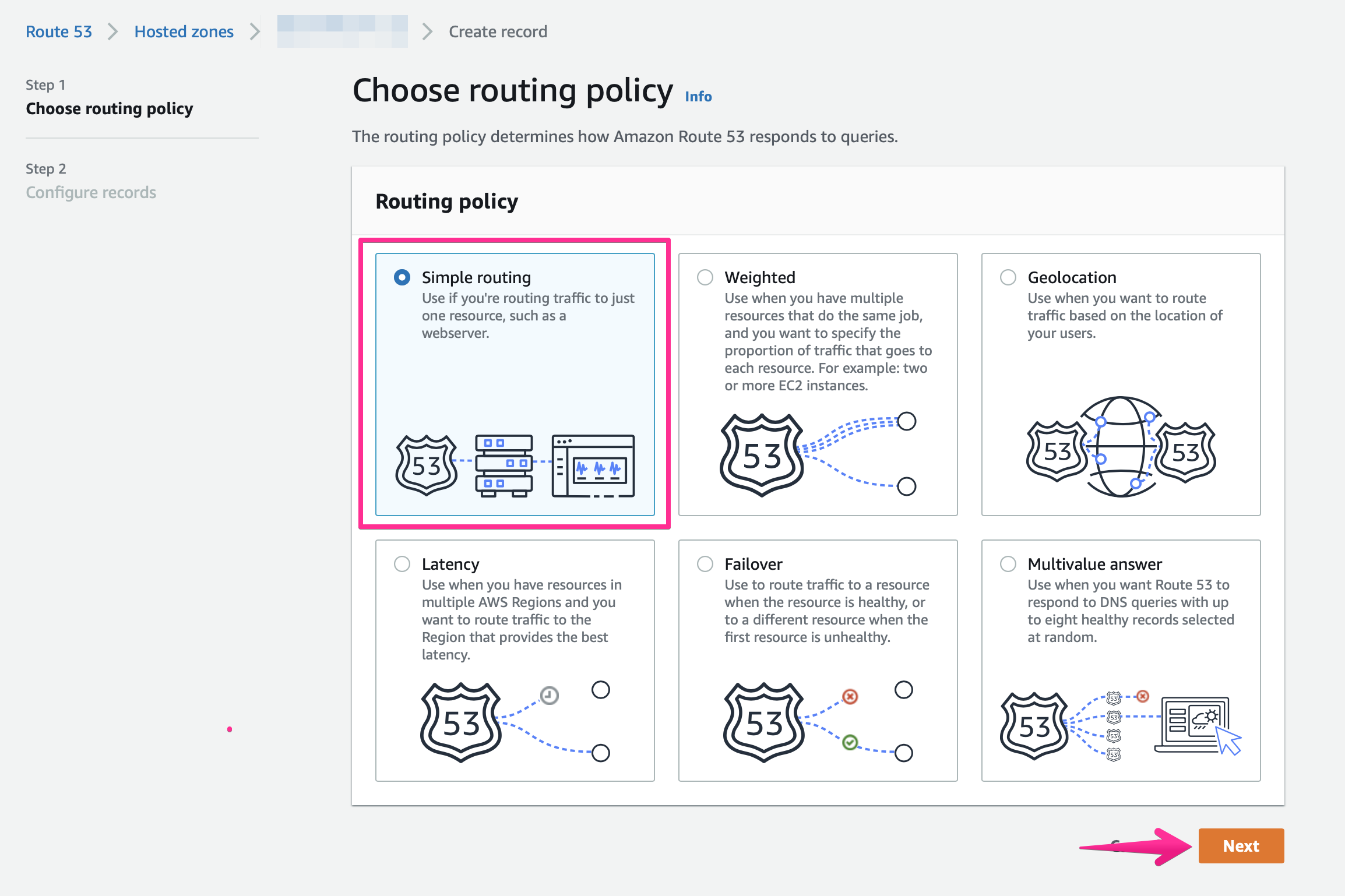
Select a routing policy. Select [Simple routing] and click the [Next] button
-
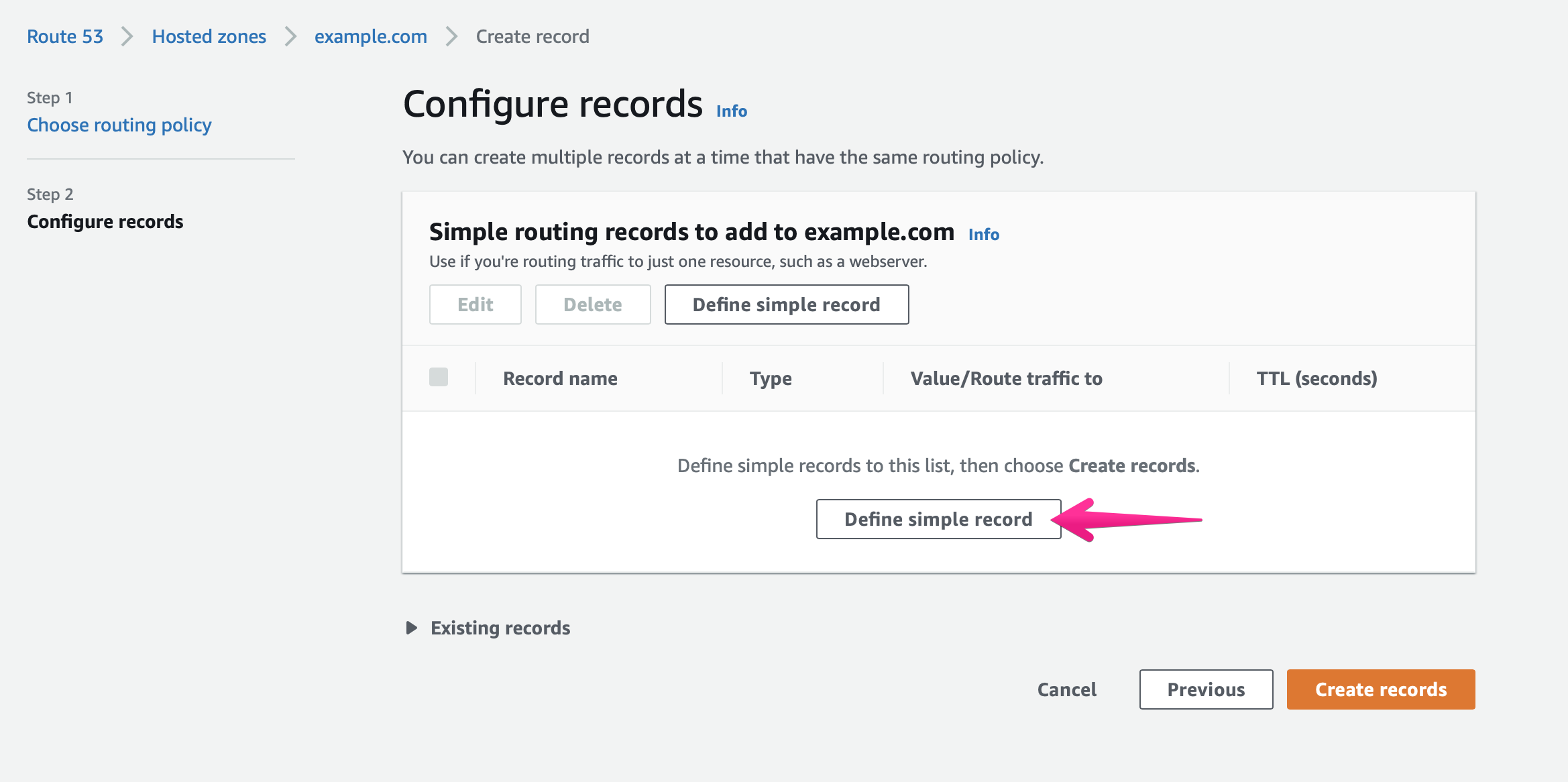
Configure the record. Click [Define simple record]
-
Add an ALIAS record. Let’s configure the ALIAS record for the domain name.
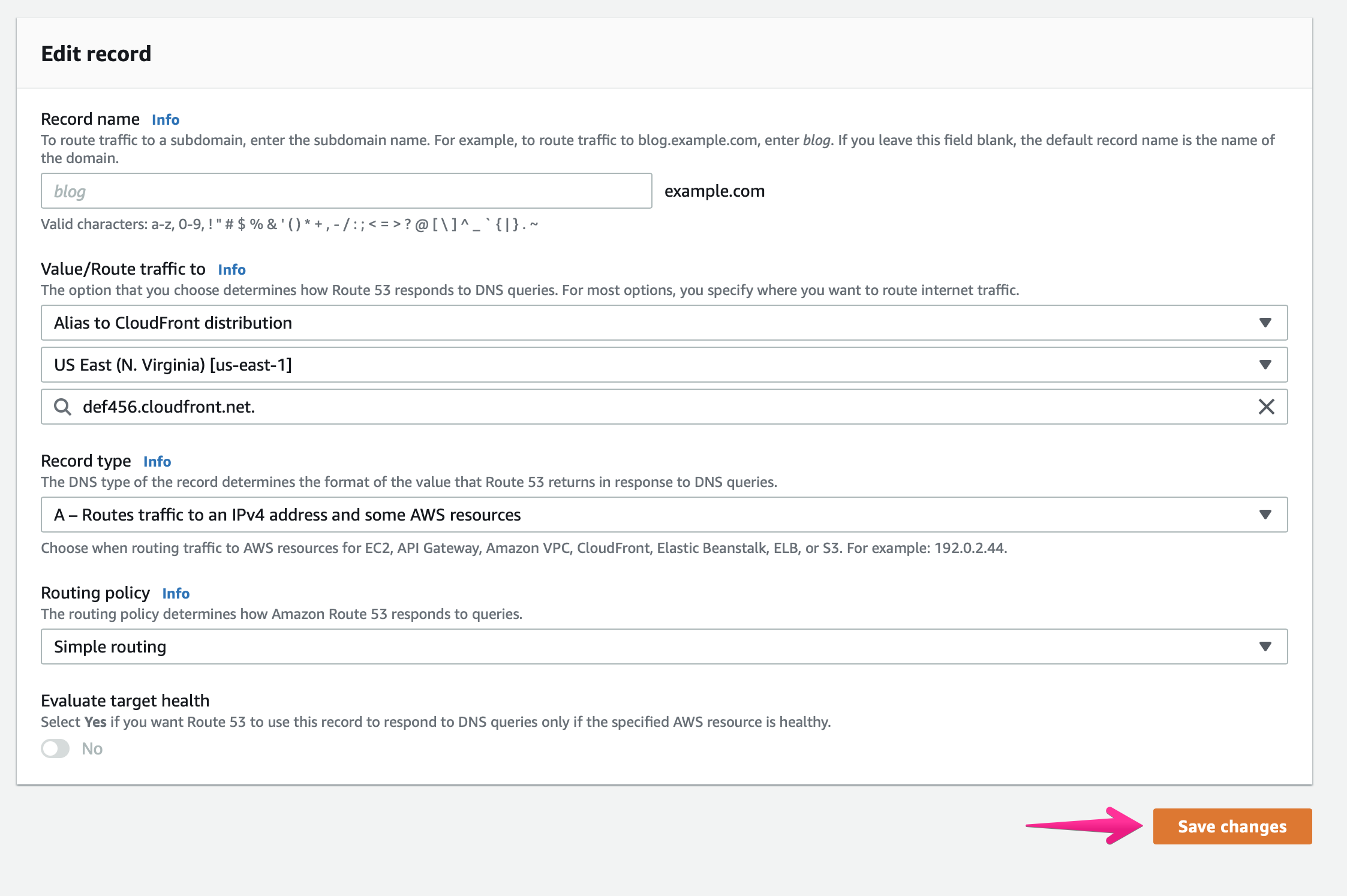
Example:
example.com- Record Name: Must be left blank.
- Value/Route traffic to:
- Drop-down menu 1: [Alias to CloudFront distribution]
- Drop-down menu 2: [US East (N. Virginia) [us-east-1]]
- Text area:
def456.cloudfront.net.
- Record type: A – Routes traffic to IPv4 addresses and certain AWS resources.
- TTL: 300 (default)
Then, click the [Save changes] button.