
If you encounter issues while migrating a site to Shifter using All-in-One WP Migration and Backup, we strongly recommend splitting the export file (the default “.wpress” file) into smaller files, including posts, post revisions, media, plugins, themes, and cache. Here’s how to split a large export file into smaller files to help identify the problem.
Troubleshooting Steps
Log in to the WordPress Dashboard: Log in to the WordPress dashboard of the site you want to export.
Install and Activate the Plugin: Install and activate the All-in-One WP Migration plugin.
Go to the Export Menu: Navigate to the All-in-One WPMigration export menu.
Configure Advanced Options: Click [Advanced options] and check one or more of the following items to identify the issue:
- Do not export themes (files)
- Do not export required plugins (files)
- Do not export plugins (files)
- Do not export disabled plugins (files)
- Do not export cache (files)
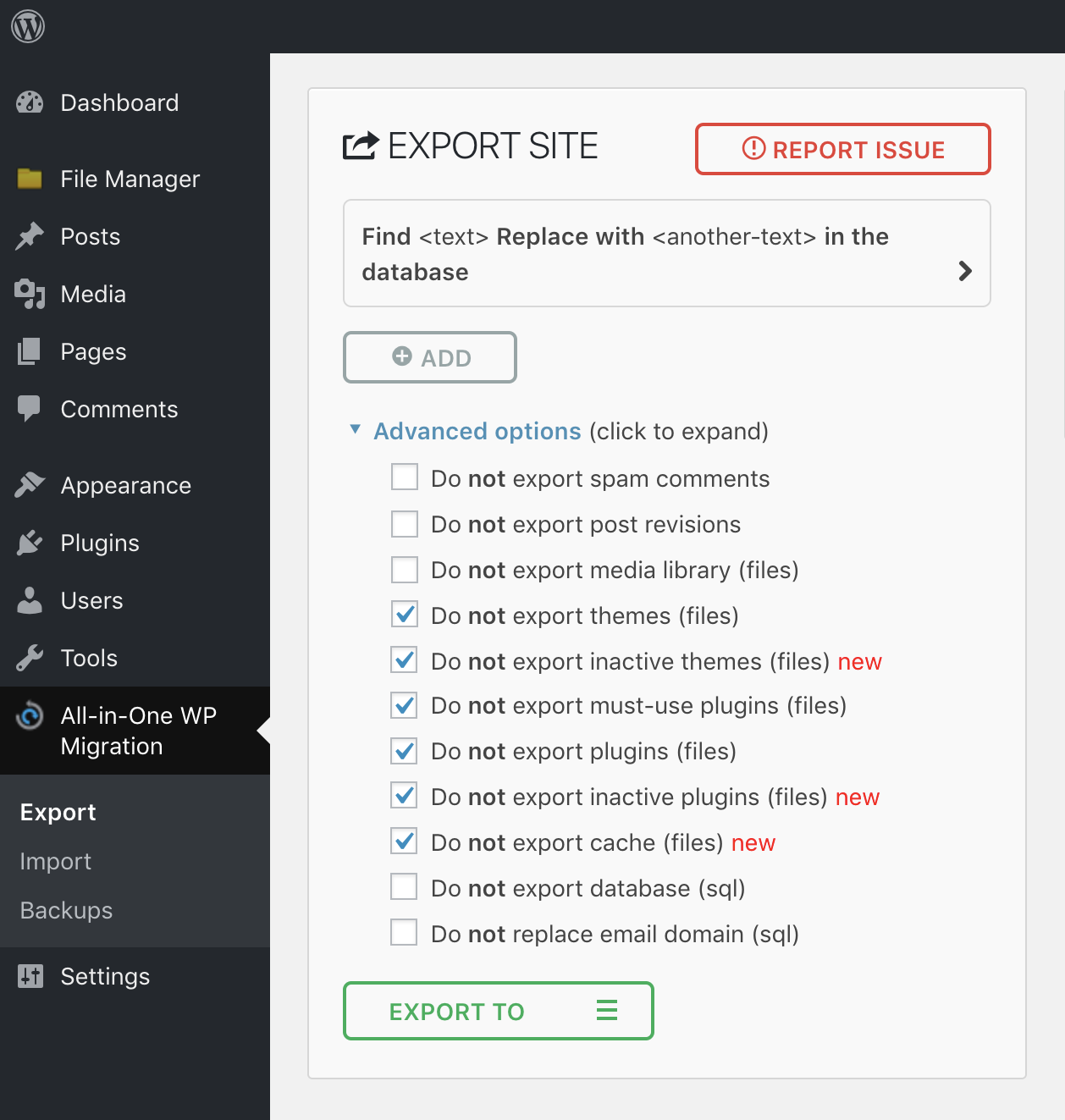 In this configuration, only the database and themes are exported. This is the minimum set of files needed to confirm that the site works on Shifter.
Run the Export: [EXPORT TO]
Click the button to export the files.Import into Shifter and Verify Functionality:
After exporting the data, import it into Shifter and verify that the data functions properly.Identifying Database or Theme Issues:
If errors persist after importing the database and theme, the database file or theme may be corrupted. Return to Step
4 and export only the database. Next, create a new site on Shifter, import the database, and verify that posts and other settings are intact.Contact the Theme Developer:
Contact the theme developer to resolve any theme-related issues.Export and Import the Remaining Files:
Once everything is resolved, export and import the remaining files. To import plugins, manually install the latest version from the Plugins page in the WordPress
dashboard.
External Links
ServMask, the developer of All-in-One WP Migration and Backup, also provides helpful troubleshooting documentation.