
This article is a dedicated section on “Custom Domains in Shifter” for GoDaddy’s DNS servers. Before following these steps, you must register your domain name with Shifter and obtain the domain verification records by following the instructions in “Custom Domains in Shifter.”
Sample Domain and DNS Records
Note: The sample records below differ from actual records, so please replace them with your own records or values.
-
Sample domain:
example.comwww.example.com
-
Shifter sample domain:
abc123.on.getshifter.io.def456.cloudfront.net.
-
Sample verification records:
For `example.com`:- Name:
_abcde.example.com - Type:
CNAME - Value:
_01234.acm-validations.aws.
- Name:
For `www.example.com`:- Name:
_hijkl.www.example.com - Type:
CNAME - Value:
_56789.acm-validations.aws.
- Name:
Registering and Verifying a Domain Name
For more information, see “Custom Domains in Shifter.”
Configuring DNS Records in GoDaddy
-
Log in to the control panel.
-
Click [DNS] for the domain name you want to edit. This document uses the sample domain
example.com. -
Click the [Add] button in the Records section to add a DNS record.
Make sure your DNS is configured to use GoDaddy’s DNS servers.
-
Add the validation record.
Add the validation record set forexample.com. Type:- Select
CNAMEHost: - Enter
_abcdePoint To: - Points to: enter _01234.acm-validations.aws.
- TTL: select 1/2 hour
- Next, click the [Save] button to save your changes.
- Select
- Add the validation record set for www.example.com.
- Click the [Add] button again and select/enter the following.
- Type:
SelectCNAME - Host:
Enter_hijkl.www. - Point To:
Enter_56789.acm-validations.aws. - TTL:
Select1/2 hour - Next, click the [Save] button to save your changes.
-
Verify the added records.
-
Add an ALIAS and a CNAME.
Once domain verification is complete, configure the ALIAS and CNAME records for your domain name. Click the [Add] button in the Records section to add DNS records.
For www.example.com(with the www subdomain)- Click the [Add] button and select/enter the following.
- Type: select CNAME
- Host: enter www.
- Target:
Enter abc123.on.getshifter.io. - TTL:
Select 1/2 hour
-
Save the changes.
Click the [Save] button.
Domain Forwarding
GoDaddy DNS does not support ALIAS records for naked domains or zone apex domains. You may need to set up domain forwarding to a domain with the “www” prefix or to another domain.
- Scroll down to the [Forwarding] section and click the [Add] button.
- Enter the assigned domain name (e.g., www.example.com or blog.example.com) in the [Forward to] field. If needed, check [Update my nameservers and DNS settings to support this change].
- Click [Preview] to verify that it works.
- If it works, click [Save].
- Review all record settings.
- Visit the domain name to verify that the domain forwarding is working.
That’s it!
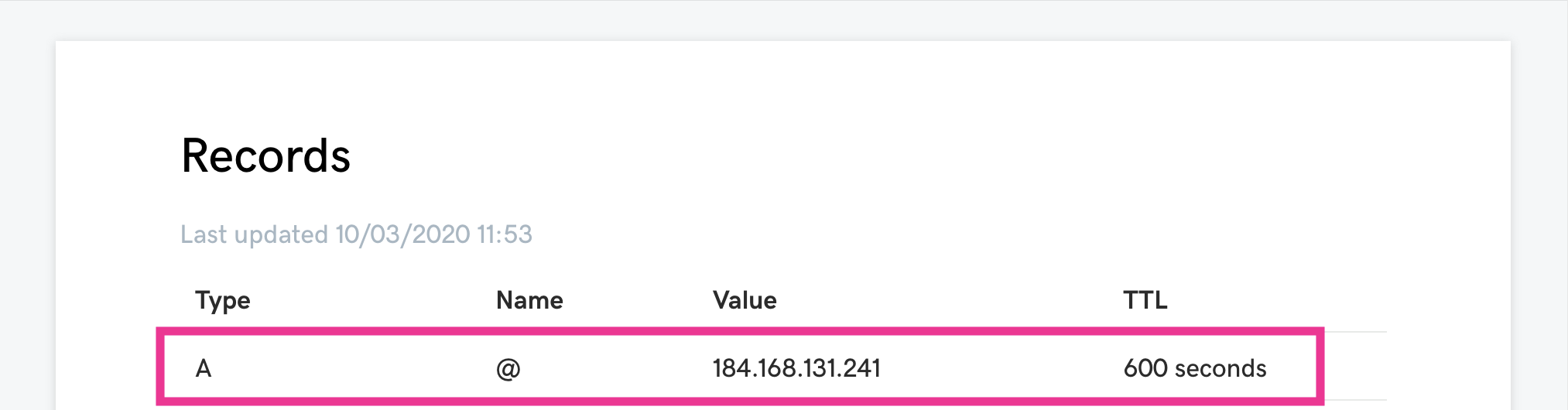
Note: If [Update nameservers and DNS settings to support this change] is checked, [Forwarded] or 184.168.131.241 will appear in the value field.

That’s it!