
About This Article
This article is a dedicated branch of the “Custom Domains in Shifter” guide for AWS Route 53. Before following these steps, you must register your domain name with Shifter and obtain the domain verification records by following the “Custom Domains in Shifter” guide.
Sample Domain Names and DNS Records
Sample domain names:
example.comwww.example.com
Sample Shifter domains:
abc123.on.getshifter.io.def456.cloudfront.net.
You can find these on the [Overview] page of your Shifter site in the Shifter dashboard. Alternatively, here is a sample validation record for the CloudFront domain:
For `example.com`:- Name:
_abcde.example.com - Type:
CNAME - Value:
_01234.acm-validations.aws.
- Name:
For `www.example.com`:- Name:
_hijkl.www.example.com - Type:
CNAME - Value:
_56789.acm-validations.aws.
- Name:
I. Configuring Validation DNS Records in AWS Route 53
-
Log in to the control panel.
-
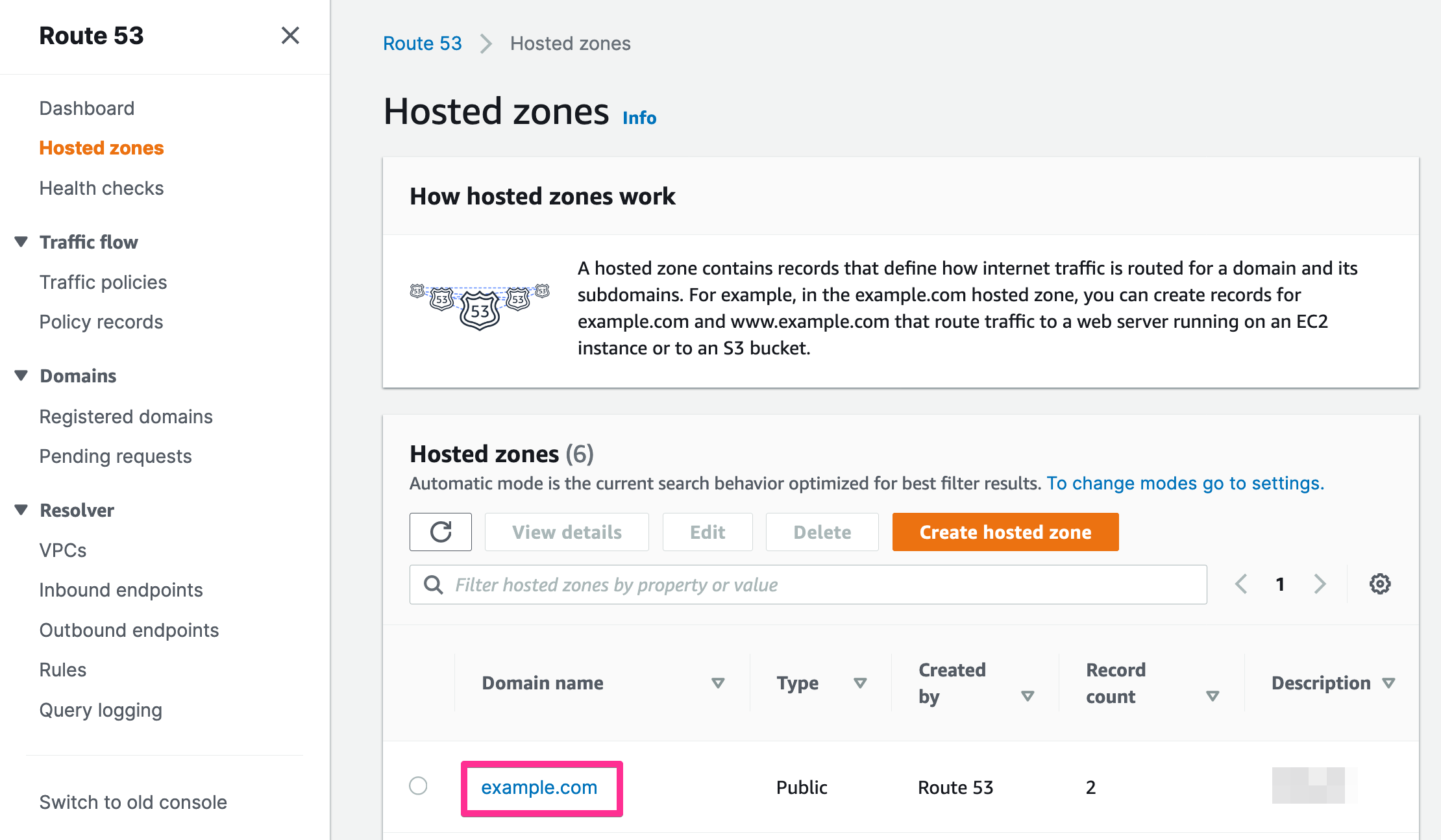
Click the domain name you want to edit. In this document, we’ll use the sample domain
example.com.
-
Verify that the NS values point to AWS DNS servers.
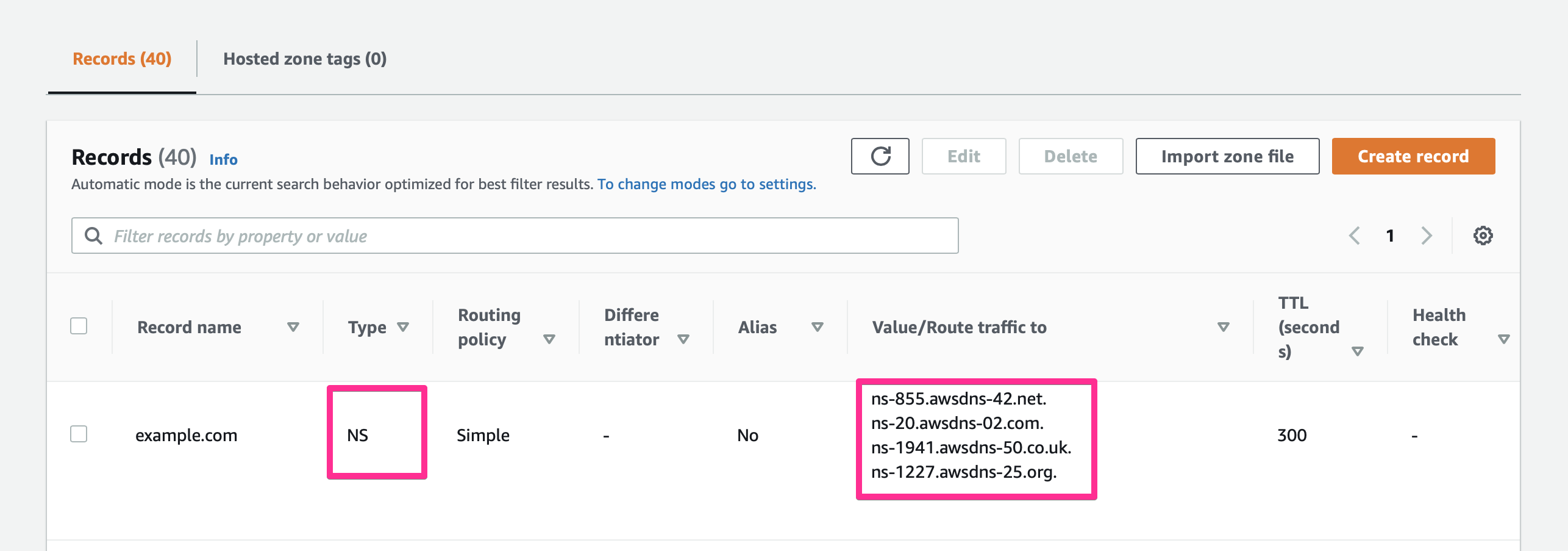
In the example below, the DNS servers are configured as follows:
ns-1237.awsdns-26.org. ns-99.awsdns-12.com. ns-548.awsdns-04.net. ns-1839.awsdns-37.co.uk.
-
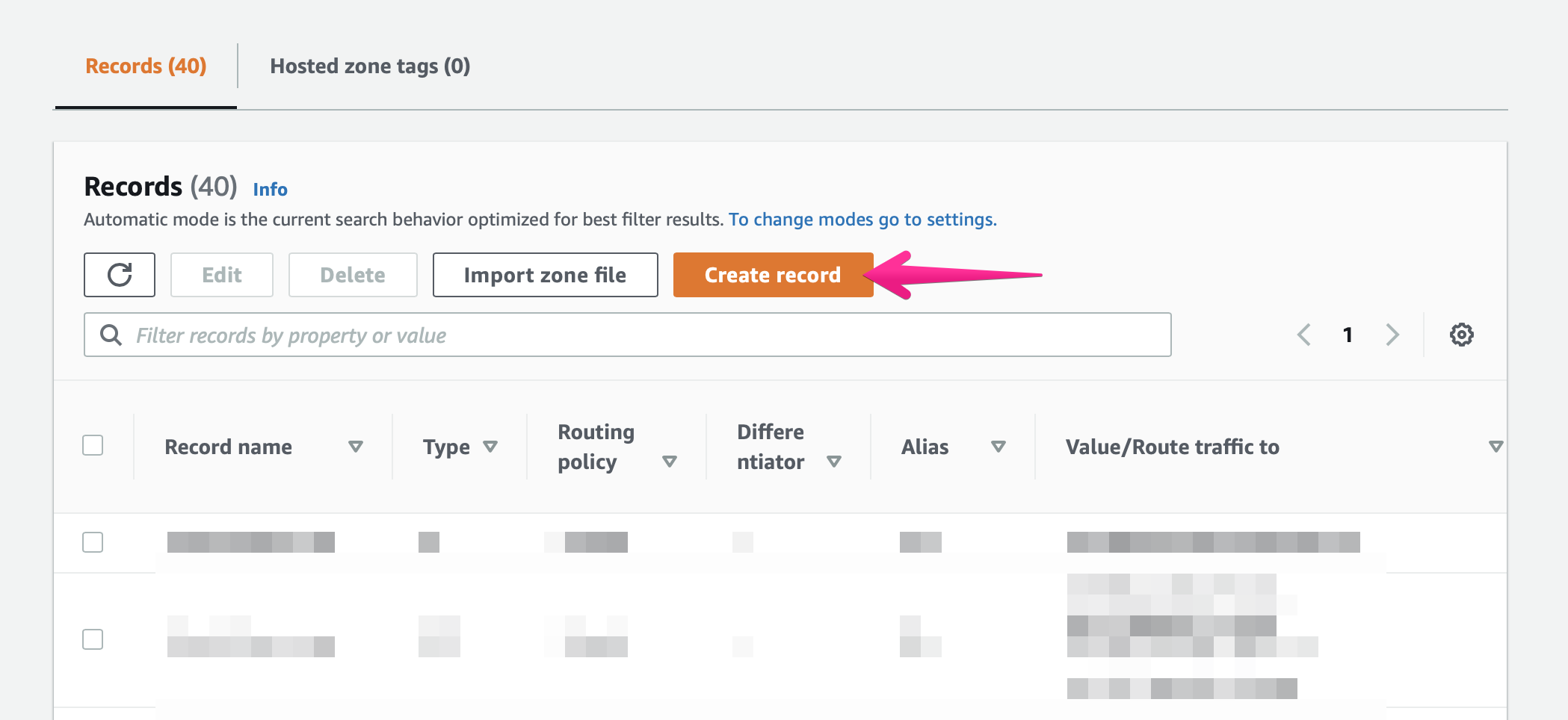
Click the [Create Record Set] button to add a DNS validation record.
-
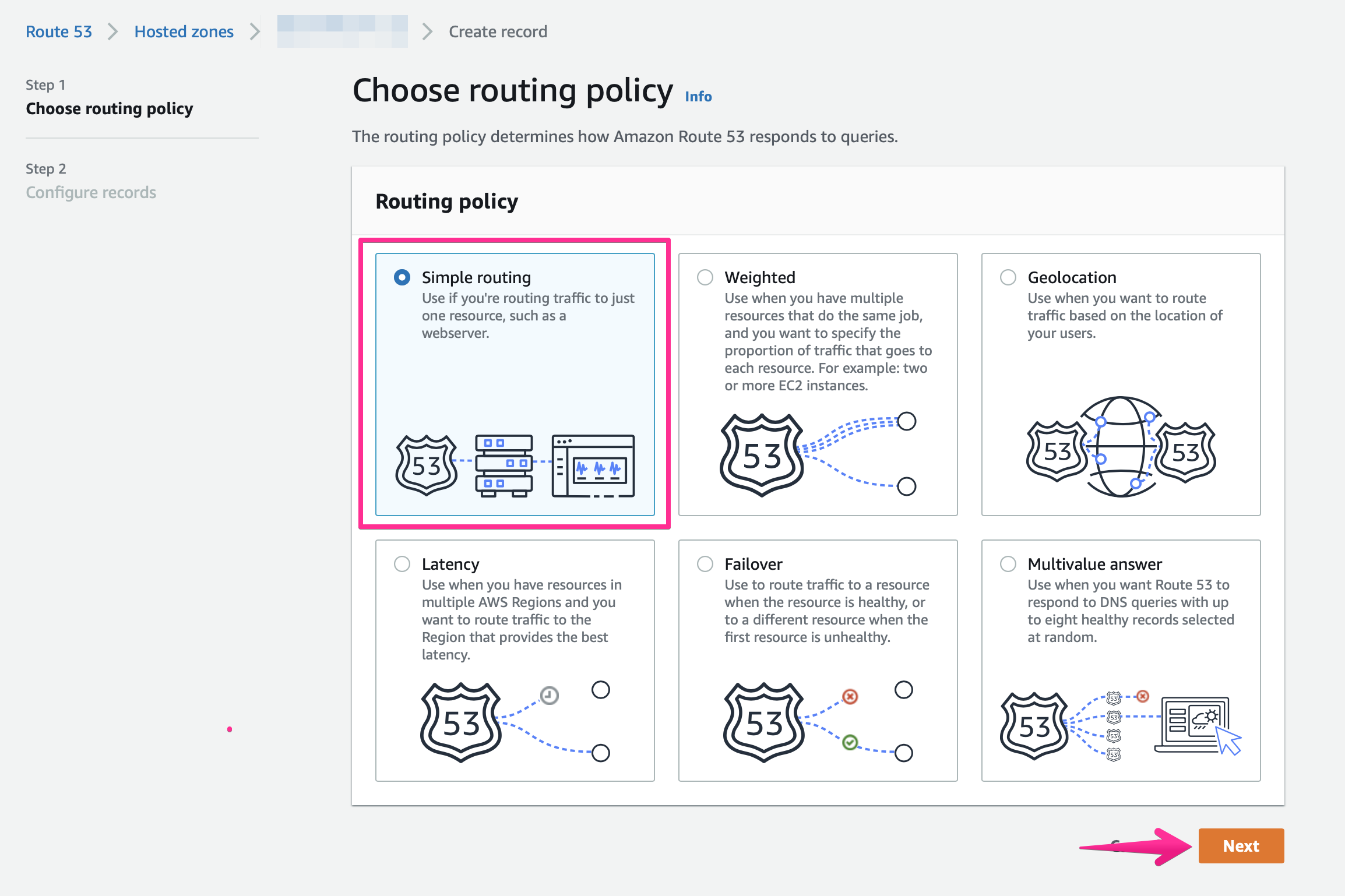
Select a routing policy.
Select [Simple Routing] and click the [Next] button.
-
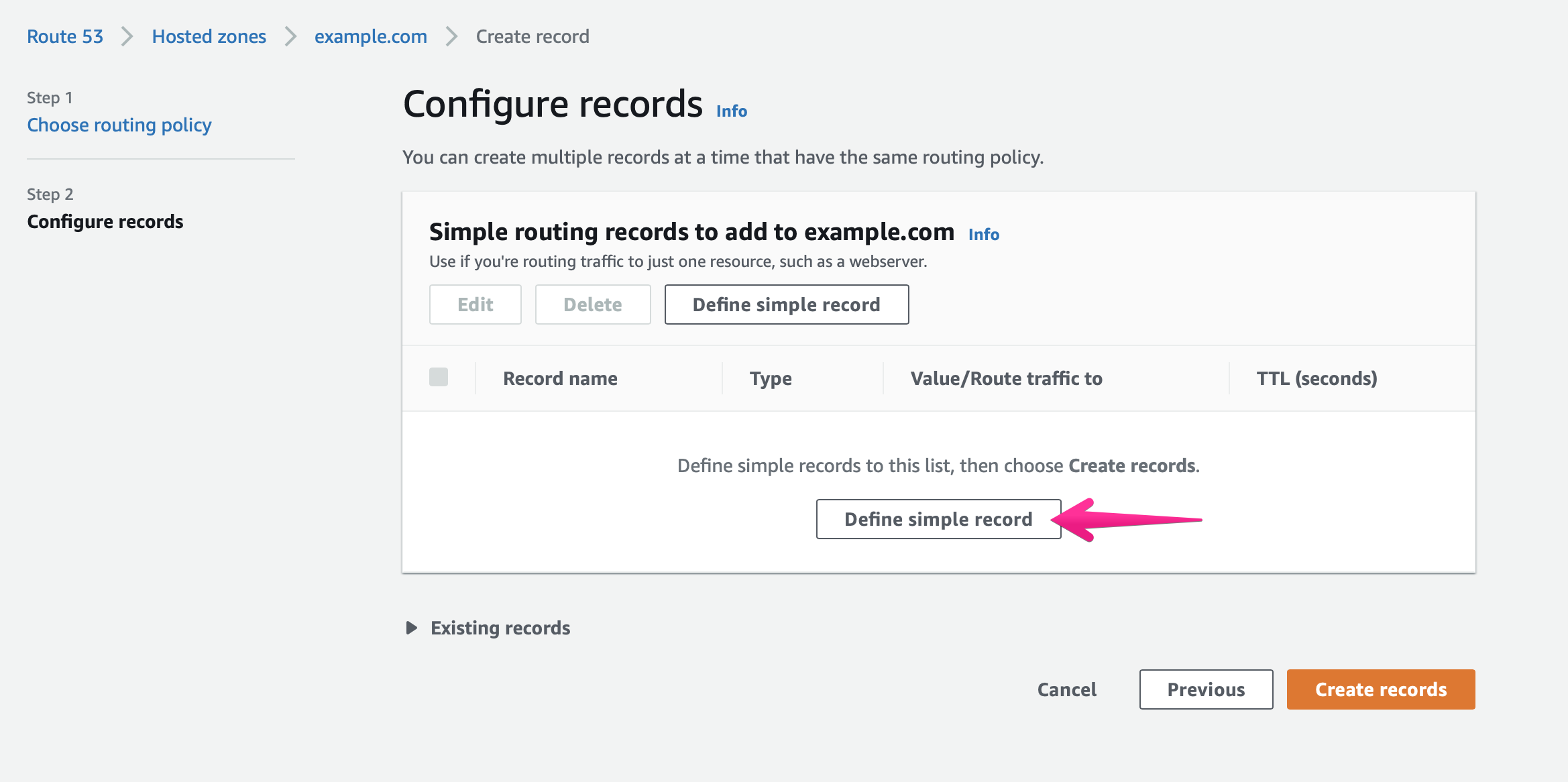
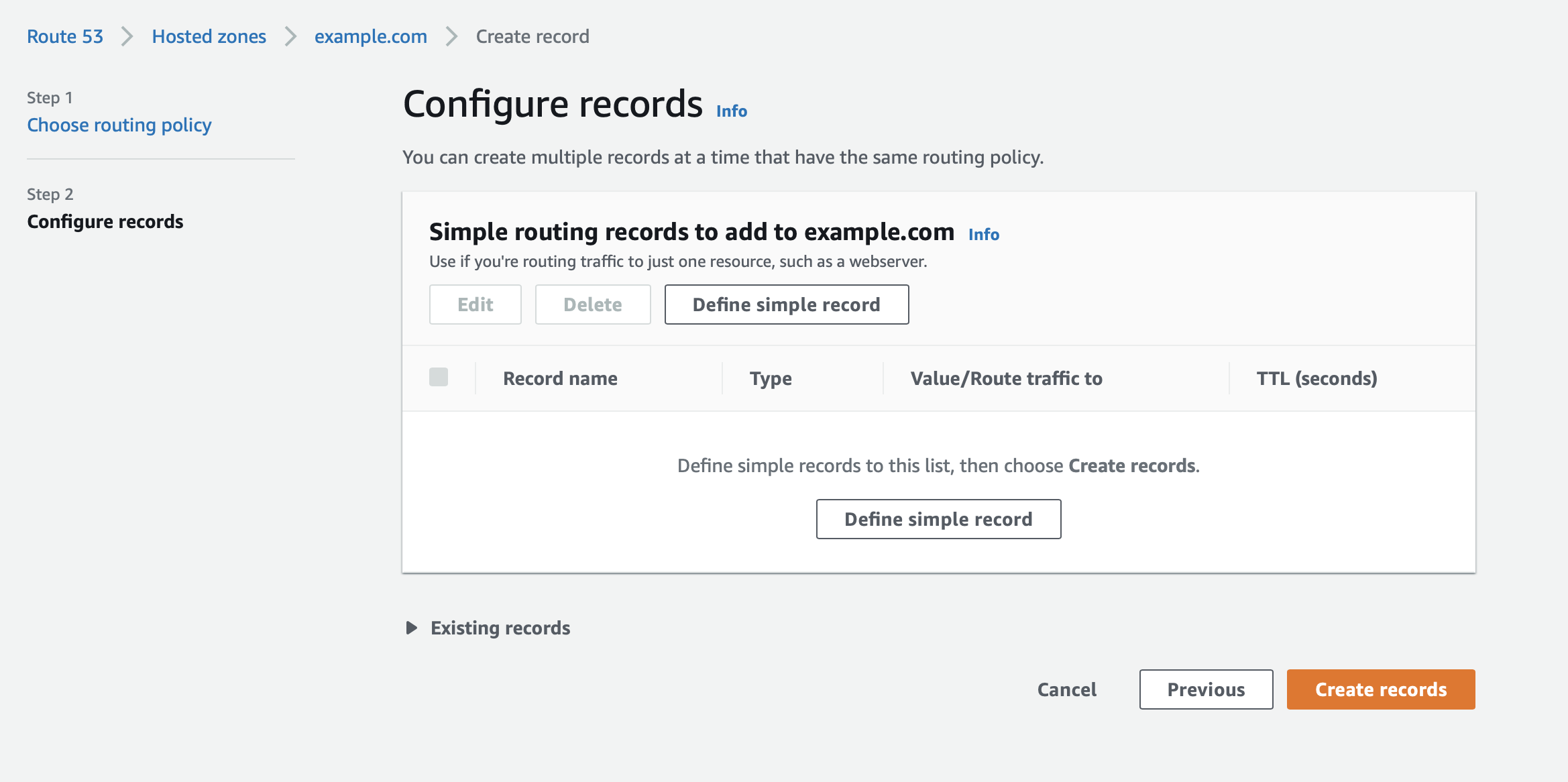
Configure the record.
Click [Define simple record].
-
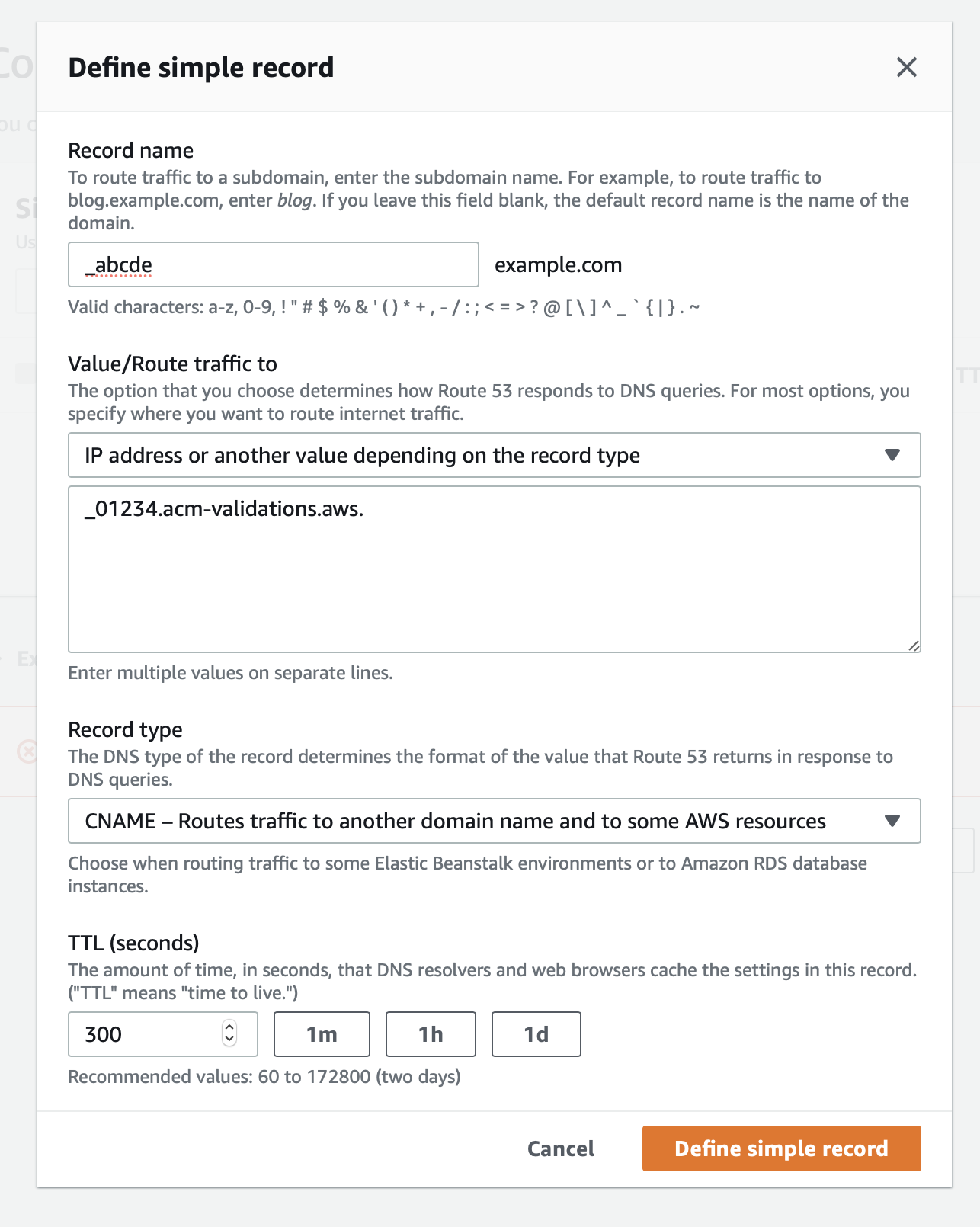
Add a validation record forexample.com.Values to configure:
- Record Name:
_abcde - Value/Route traffic to:
- Drop-down: [IP address or another value depending on the record type]
- Text Area:
_01234.acm-validations.aws.
- Record Type:
CNAME - TTL:
300(Default)
- Record Name:
-
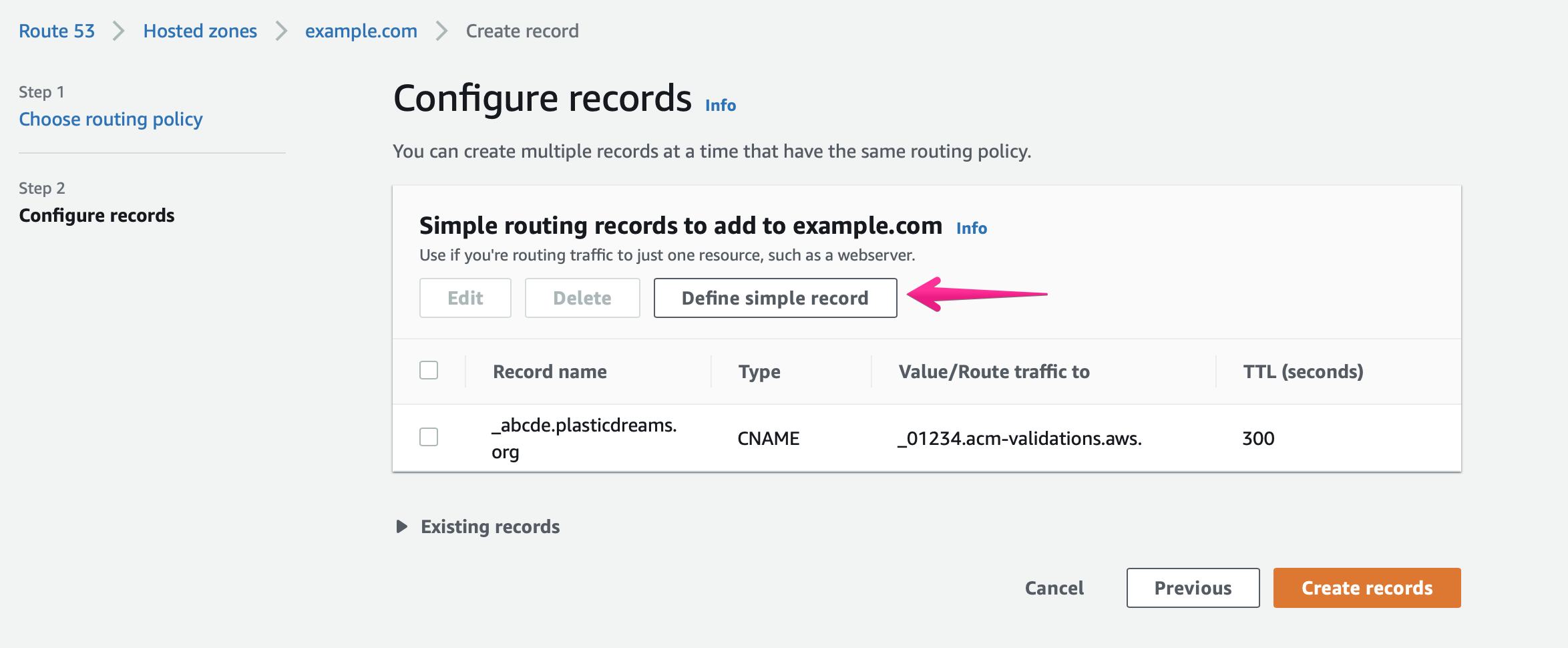
Click the [Define Simple Record] button again.
-
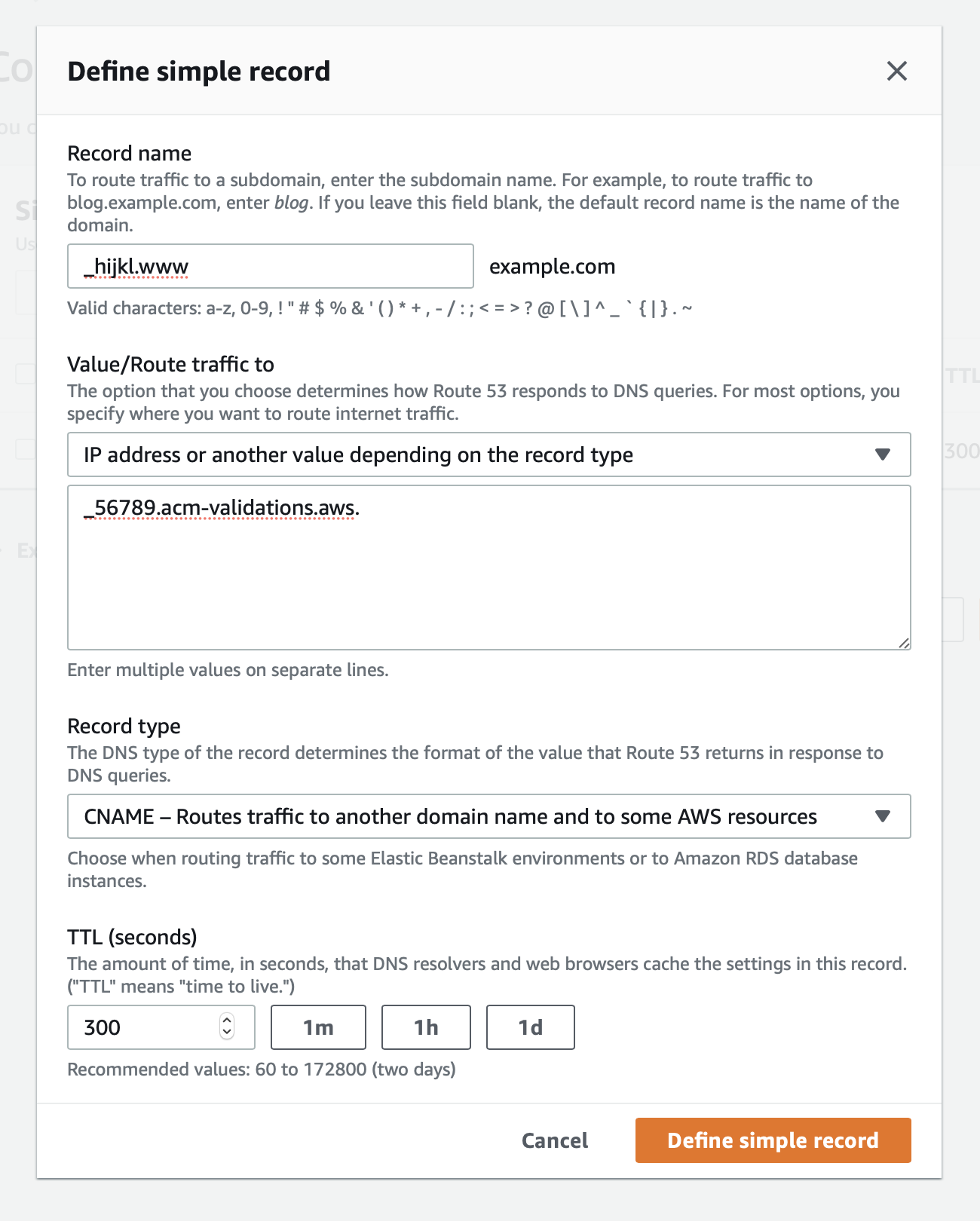
Configure another validation record for www.example.comand click the [Define Simple Record] button.Values to set:
- Record Name:
_hijkl.www - Value/Route traffic to:
- Drop-down: [IP address or another value, depending on the record type]
- Text Area:
_56789.acm-validations.aws.
- Record Type: CNAME – Routes traffic to another domain name and certain AWS resources
- TTL:
300(Default)
- Record Name:
-
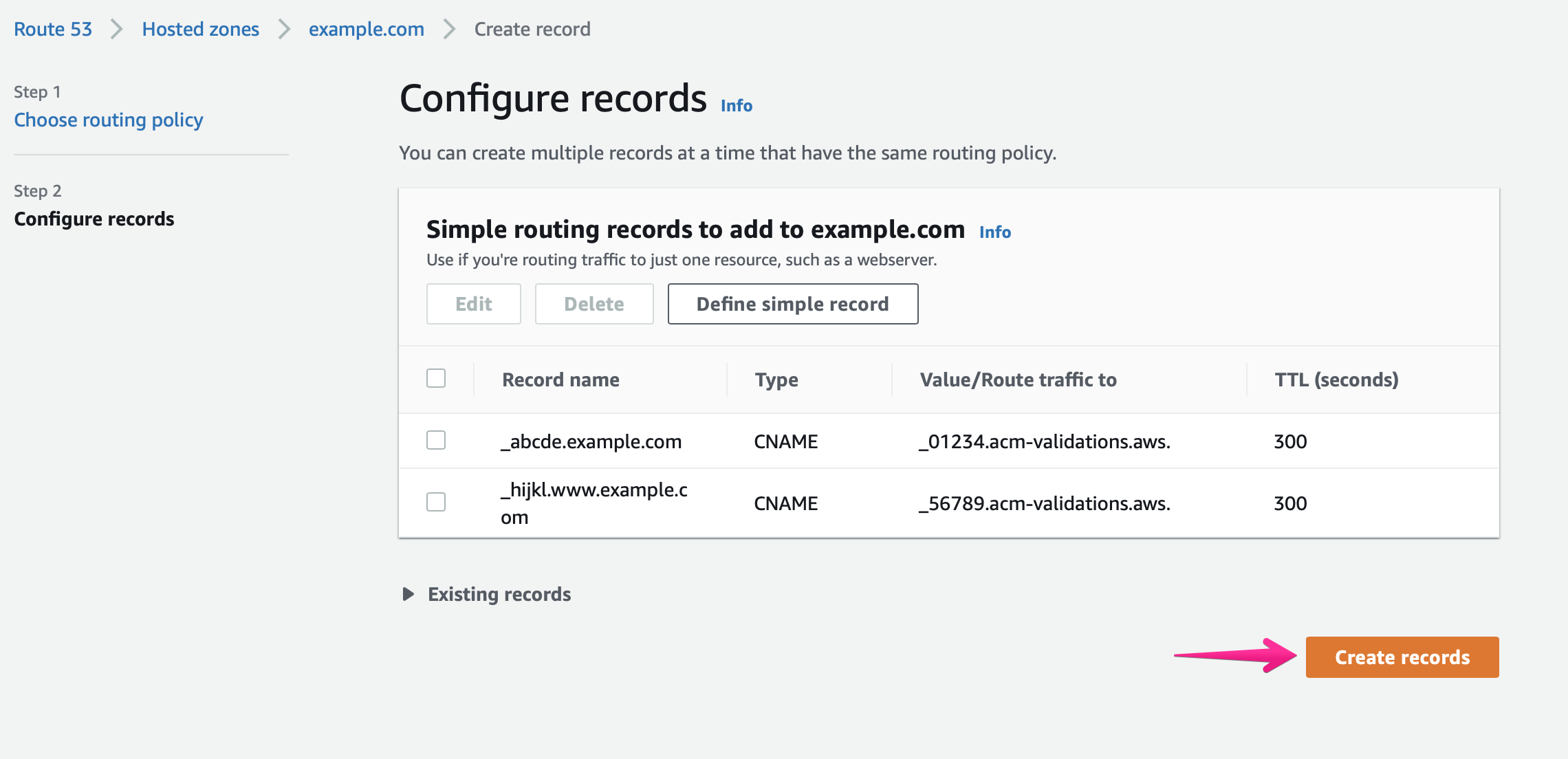
Click the [Save Record Set] button.
-
All validation records have been configured.

Please wait a moment until the domain name’s status on the Shifter dashboard changes to “Validated.”
II. Configuring DNS Records in AWS Route 53
Once domain validation is complete, configure the domain name’s ALIAS and CNAME records.
-
Click the [Create Record Set] button to add DNS verification records.
-
Select a routing policy.
Select [Simple Routing] and click the [Next] button.
-
Configure the records.
Click [Define simple record].
-
Add an ALIAS record.
Configure the ALIAS record for your domain name.
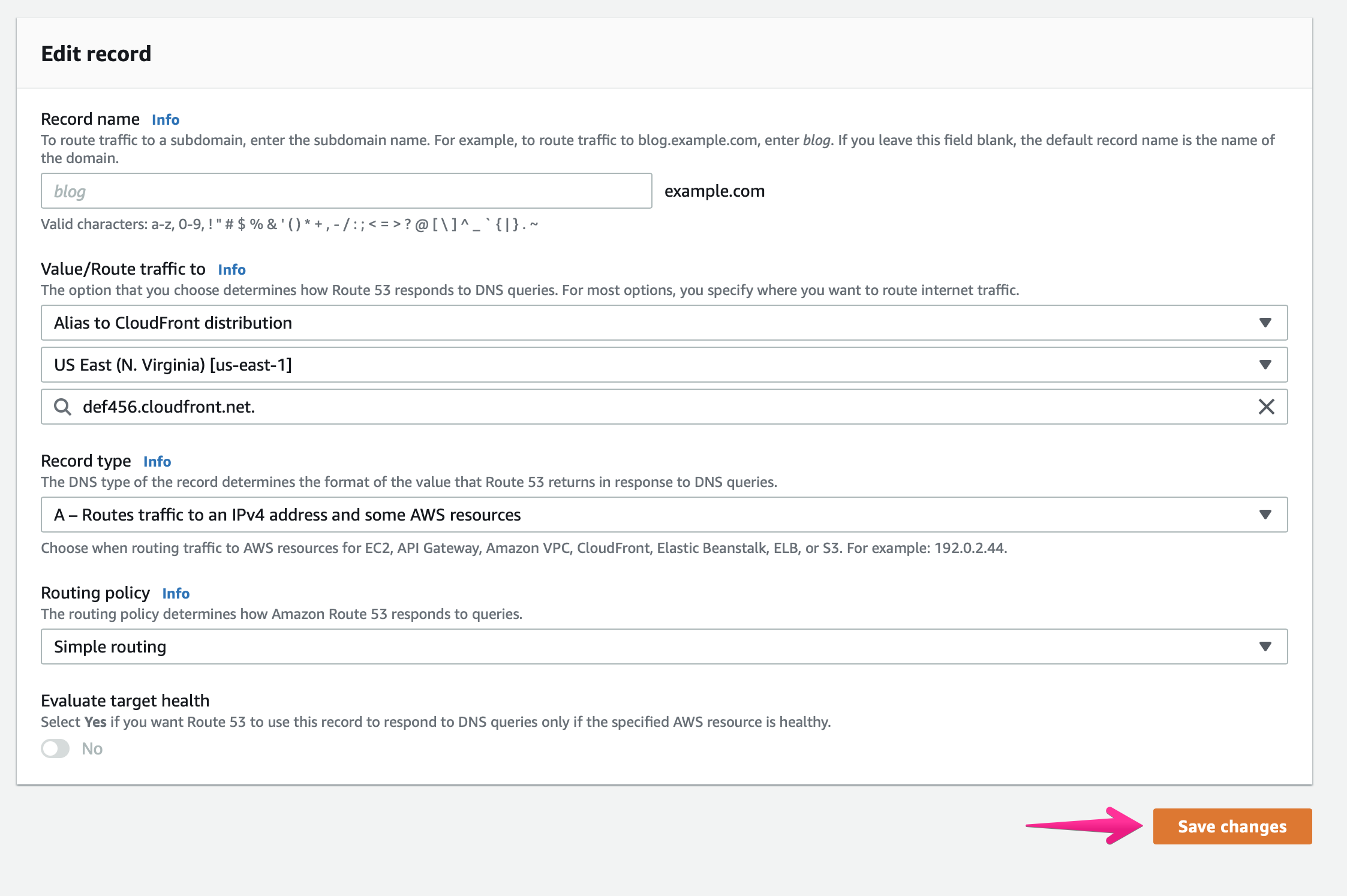
For example.com:- Record Name: Must be left blank
- Value/Route traffic to:
- Drop-down Menu 1: [Alias to CloudFront Distribution]
- Drop-down menu 2: [US East (Northern Virginia) [us-east-1]]
- Text area:
def456.cloudfront.net.
- Record type: A – Routes traffic to IPv4 addresses and certain AWS resources
- TTL:
300(Default)
Next, click the [Save Changes] button.
-
Click the [Create Record Set] button to add a CNAME record.
-
Select a routing policy.
Select [Simple Routing] and click the [Next] button.
-
Configure the record.
Click [Define simple record].
-
Add a CNAME record.
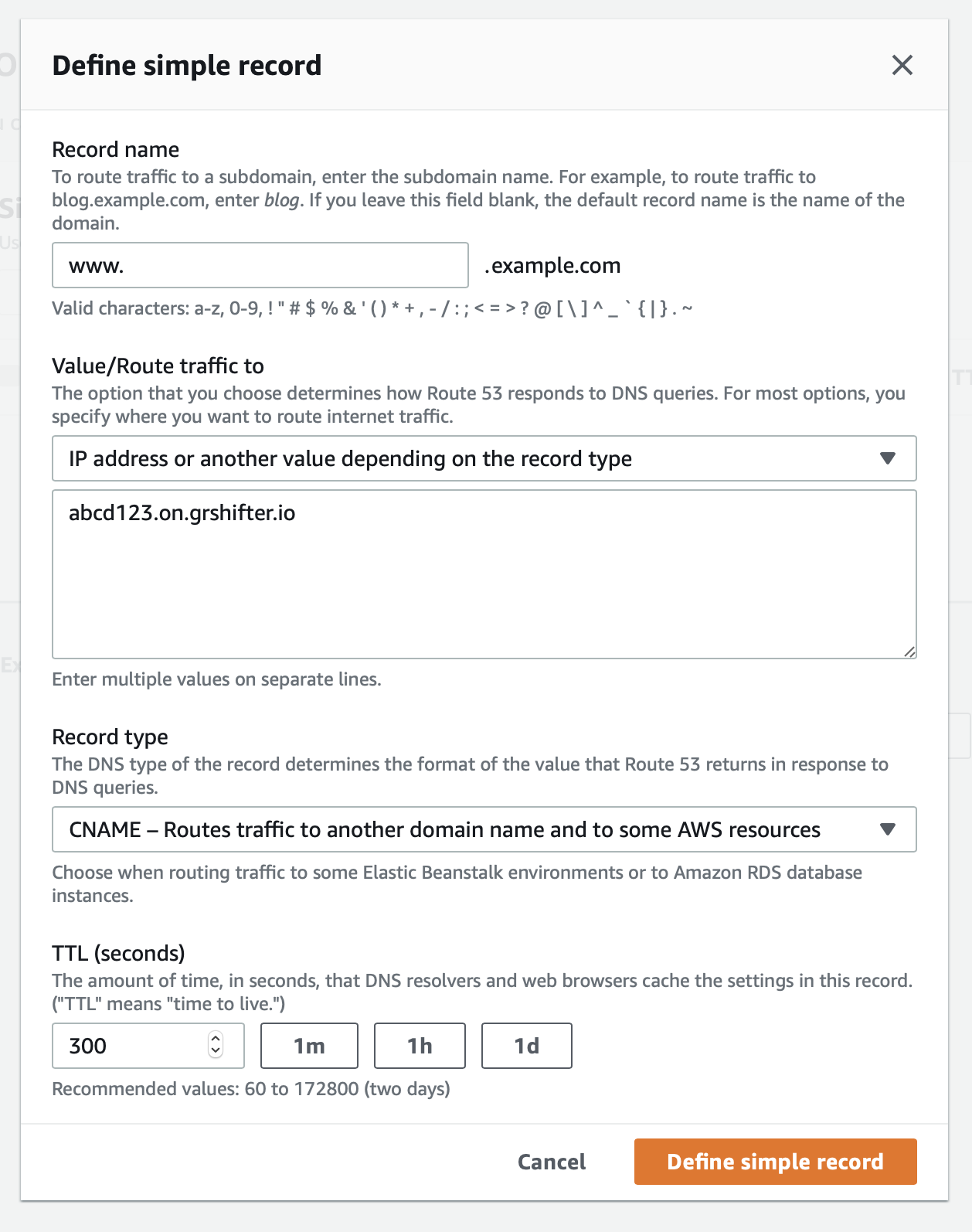
For www.example.com:- Record Name:
www - Value/Route traffic to:
- Drop-down: [IP address or another value depending on the record type]
- Text area:
abcd123.on.grshifter.io
- Record type: CNAME – Routes traffic to another domain name and certain AWS resources
- TTL:
300(Default)
Click the [Define Simple Record] button.
- Record Name:
-
All records have been configured.
-
Review the settings.
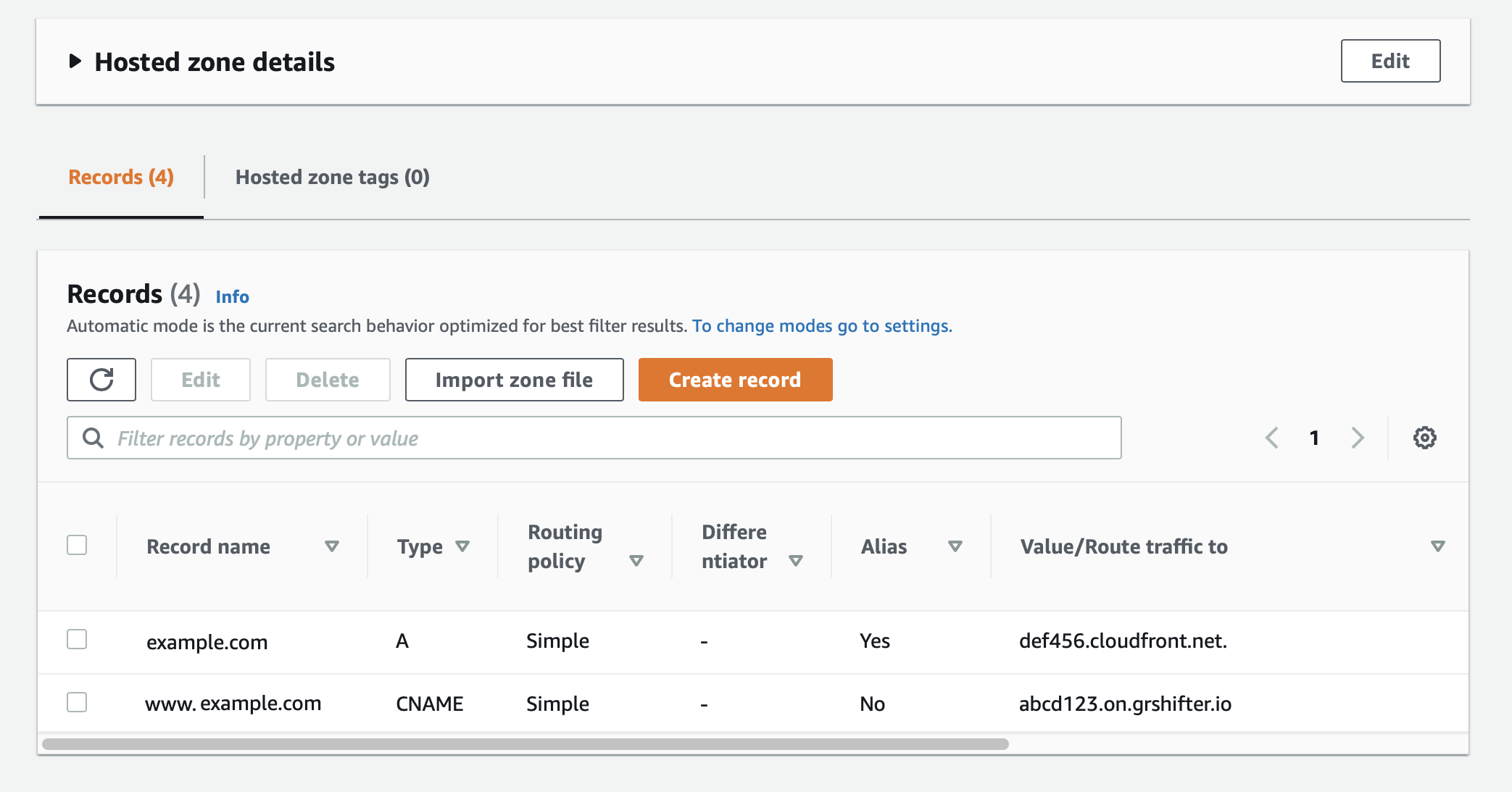
That’s it! The domain will now point to the Shifter URL.